
Use organization records to manage companies, clients, vendors, and business accounts inside ATZ CRM. A clean organization record helps your team connect contacts, jobs, placements, invoices, and client portal activity to the right company.
Quick Answer
Open Organizations, select Add Organization, enter the company details, and click Create. Before saving, confirm the organization name and key details are correct so your team avoids duplicate company records.
When to Create an Organization Manually
Create an organization manually when you are adding a new client, importing a single company outside a CSV workflow, preparing a client portal setup, or creating a company before linking contacts and jobs.
For larger lists, use the import workflow instead: Import organizations and contacts.
Step 1: Open Organizations
Log in to ATZ CRM and go to the Organizations section from your dashboard or main navigation.
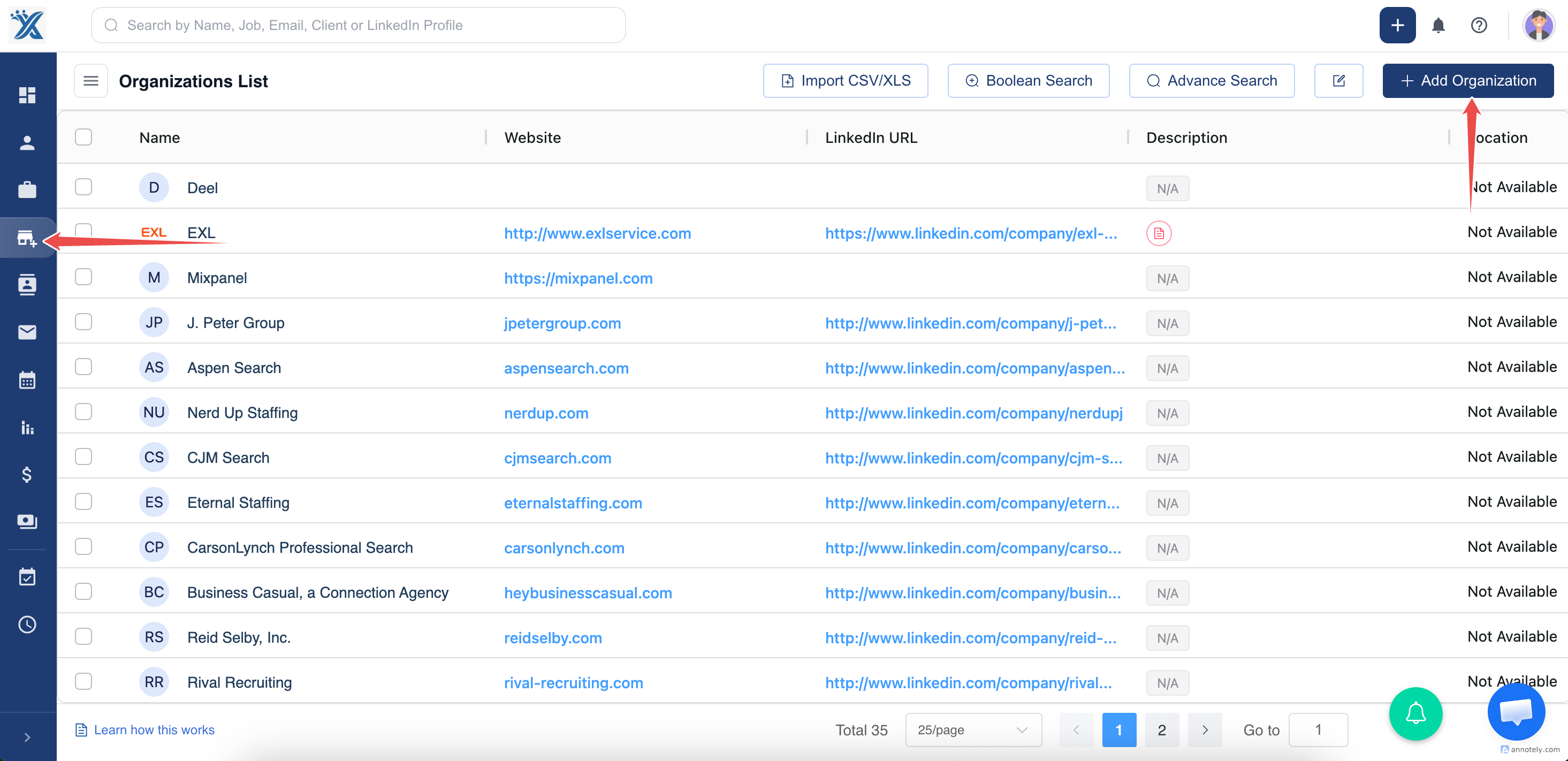
Step 2: Click Add Organization
Click Add Organization to open the organization creation form.
Step 3: Enter Organization Details
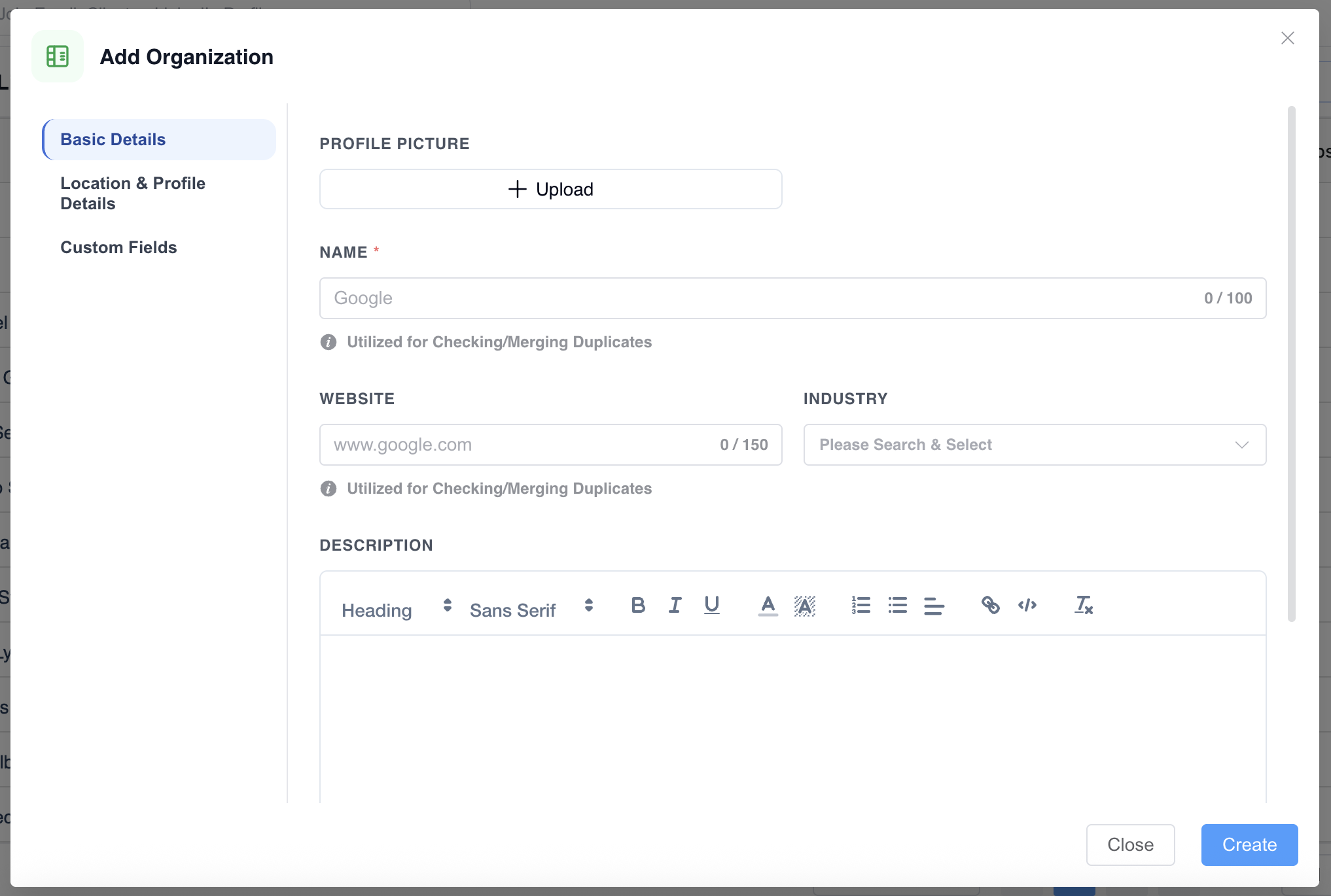
Add the organization name and any available company details. Use the official company name where possible so users can find the record in search and avoid creating near-duplicate names.
Step 4: Review and Create
Review the details, then click Create to save the organization profile.
After the organization is created, you can link contacts to it, associate jobs with the client, configure client portal access, or use it in billing workflows.
Best Practices for Clean Organization Records
Use Consistent Company Names
Choose one naming convention for company records. For example, decide whether your team uses legal names, trading names, or shortened brand names.
Add Useful Identifiers
Where available, include the website, location, industry, and account owner. These fields make it easier to filter records and distinguish similarly named companies.
Check for Duplicates
Search for the company before adding a new organization. If duplicates already exist, review the duplicate merge workflow: Merge duplicate records.
Troubleshooting
I Cannot See the Add Organization Button
Check your role permissions. If your account does not have access to create organization records, ask an admin to review your permissions.
The Organization Already Exists
Do not create another record unless your team intentionally tracks separate branches or legal entities. Update the existing organization or merge duplicate records if needed.
I Added the Organization but Cannot Link a Contact
Confirm the contact exists and that you are selecting the correct organization field. See: Assign a contact to an organization.
FAQs
Should I add contacts or organizations first?
Either order works, but adding the organization first keeps contact assignment cleaner because the company is already available when you create or edit the contact.
Can I import organizations instead of adding them manually?
Yes. Use CSV or XLS import when you need to add many organizations at once.
Can organizations be used for invoices?
Yes. Organization records can be part of placement and billing workflows when jobs, candidates, and client details are connected correctly.