
The AI Call Transcript Generator turns recorded calls into searchable transcripts that recruiters can review, export, and summarize.
Quick Answer
Enable recording and transcript when starting a browser call, or generate a transcript from an existing recording. Then review, search, copy, export, or summarize the transcript with AutoSense.
Before You Start
Confirm:
- Calling is configured.
- Call recording is enabled.
- Recording consent is captured where required.
- The call has a recording.
- Calling credits are available for transcription.
Always follow local call recording and consent requirements.
Generate During a Call
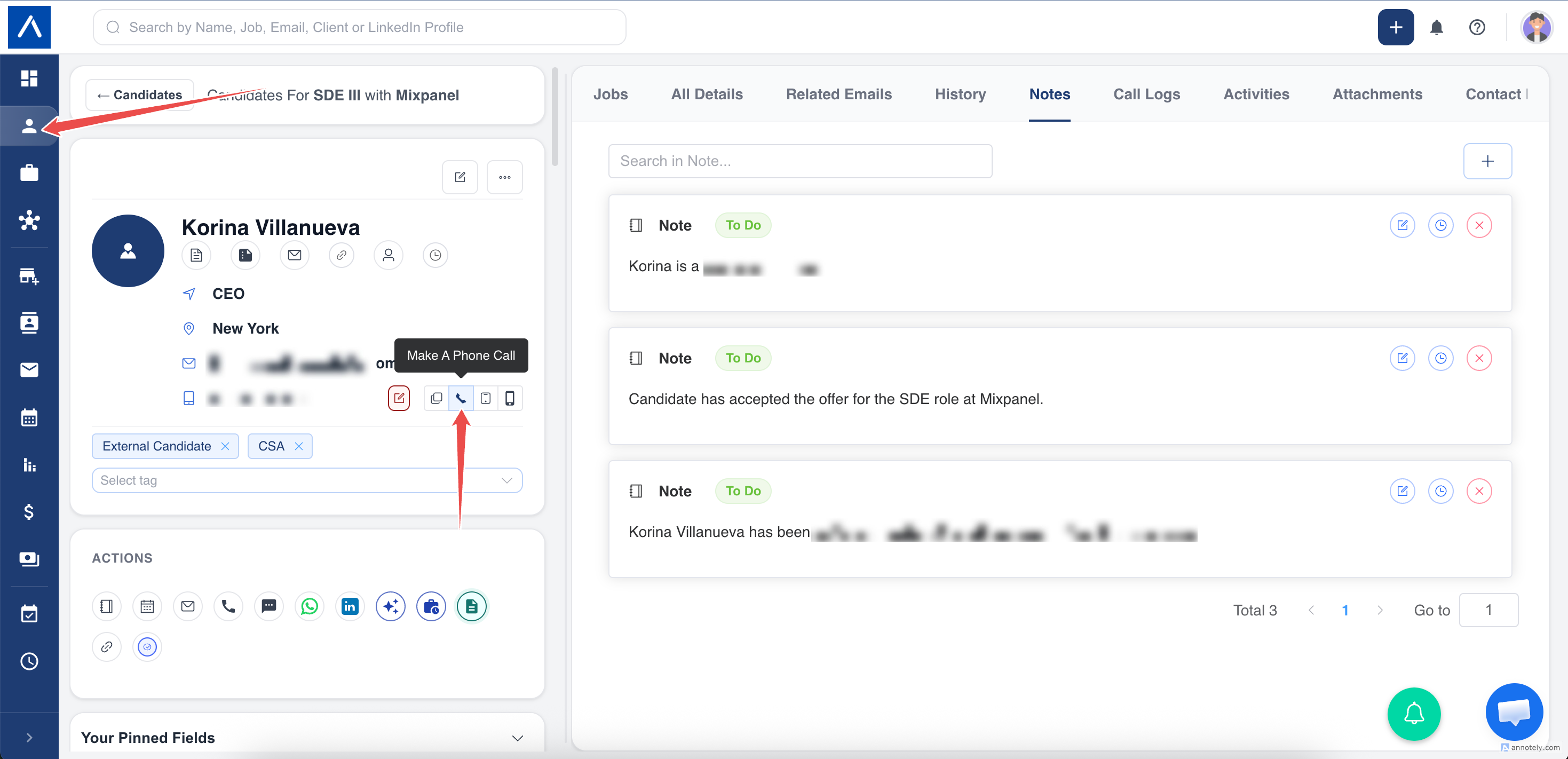
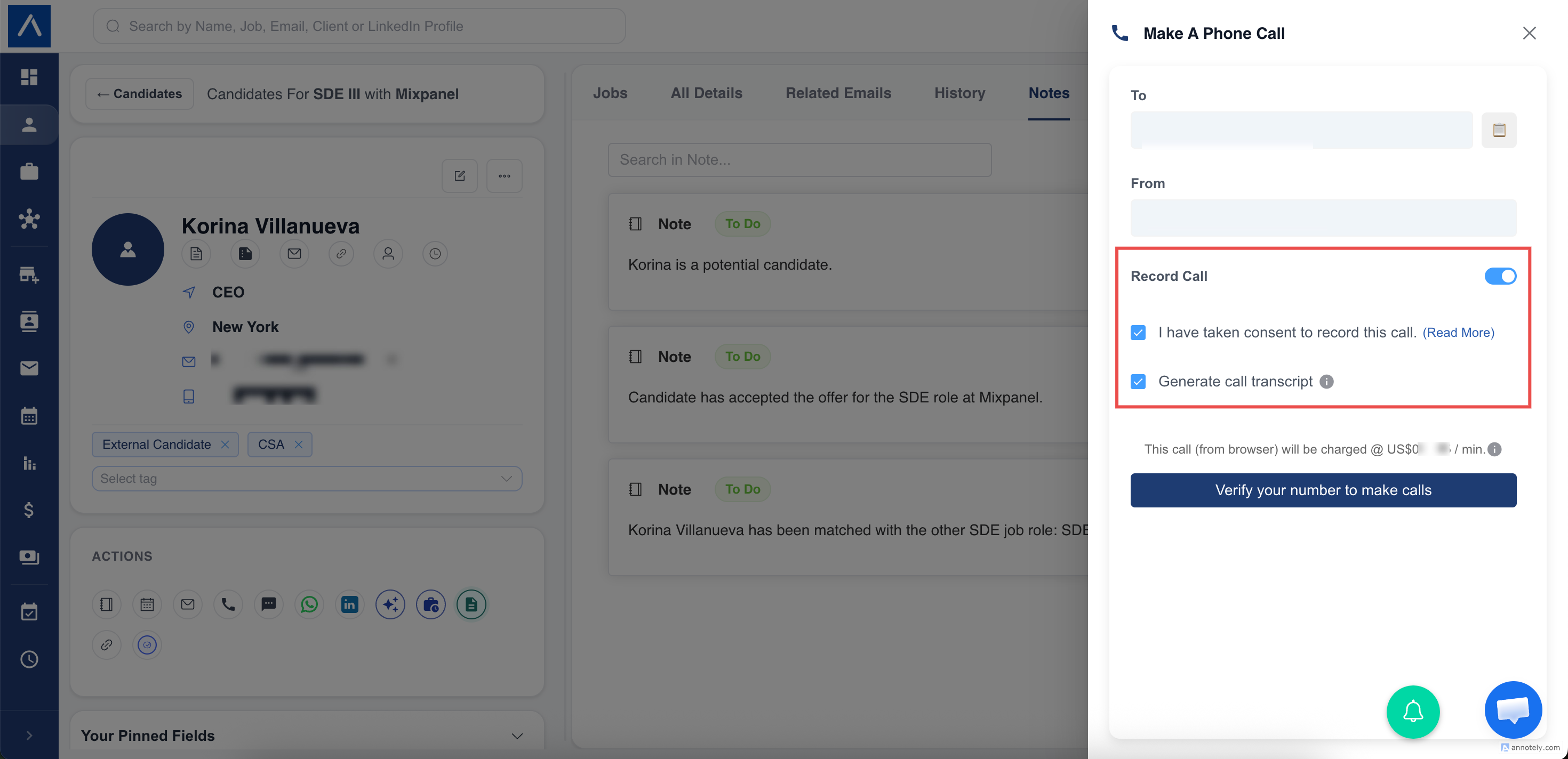
- Open the calling panel.
- Enable call recording.
- Turn on Transcript.
- Start the call.
After processing, ATZ CRM stores the transcript with the call log.
Generate from an Existing Recording
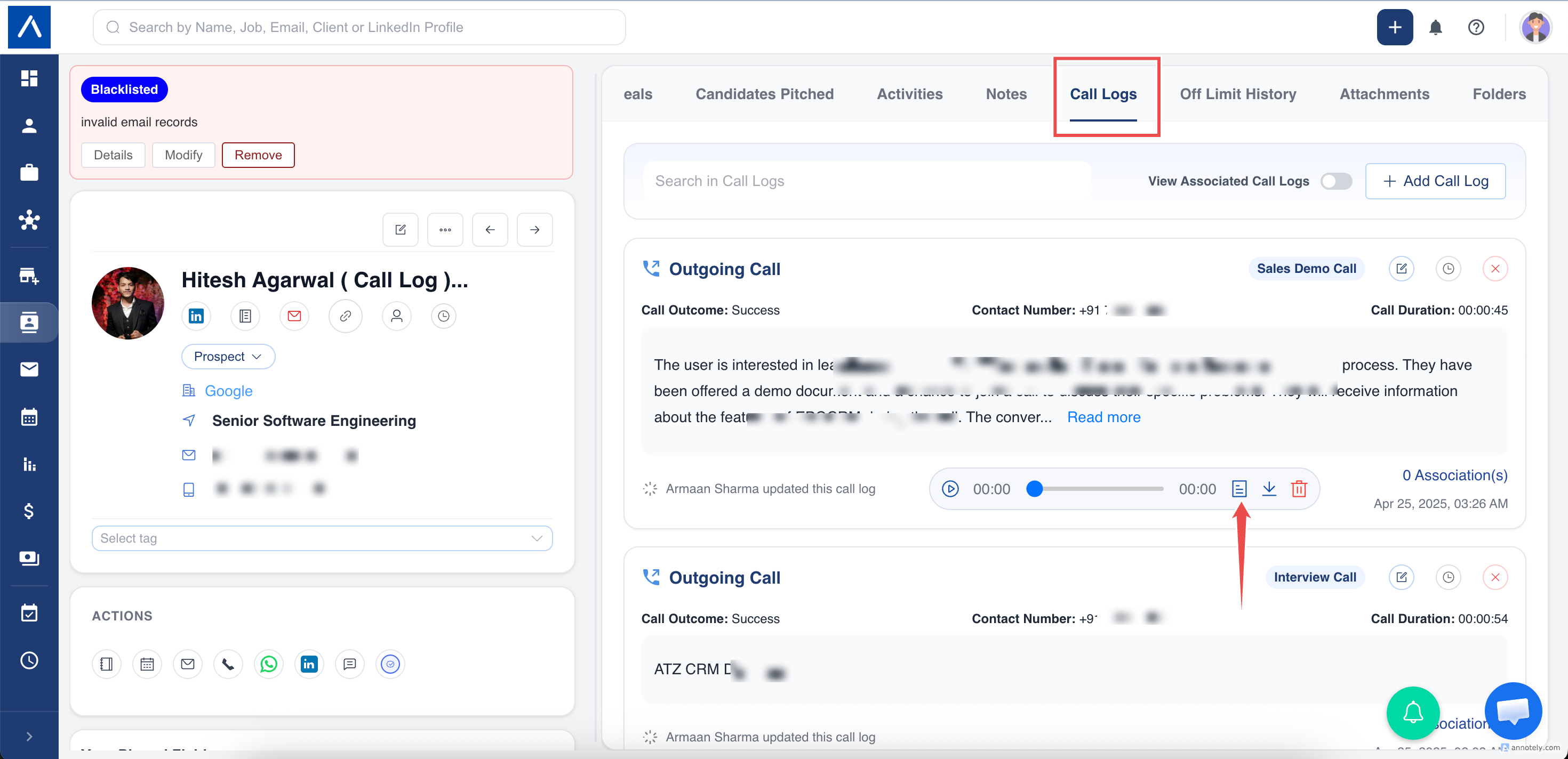
Open the call logs, select a recording or transcript option, click Generate Transcript, and wait for processing.
Review a Transcript
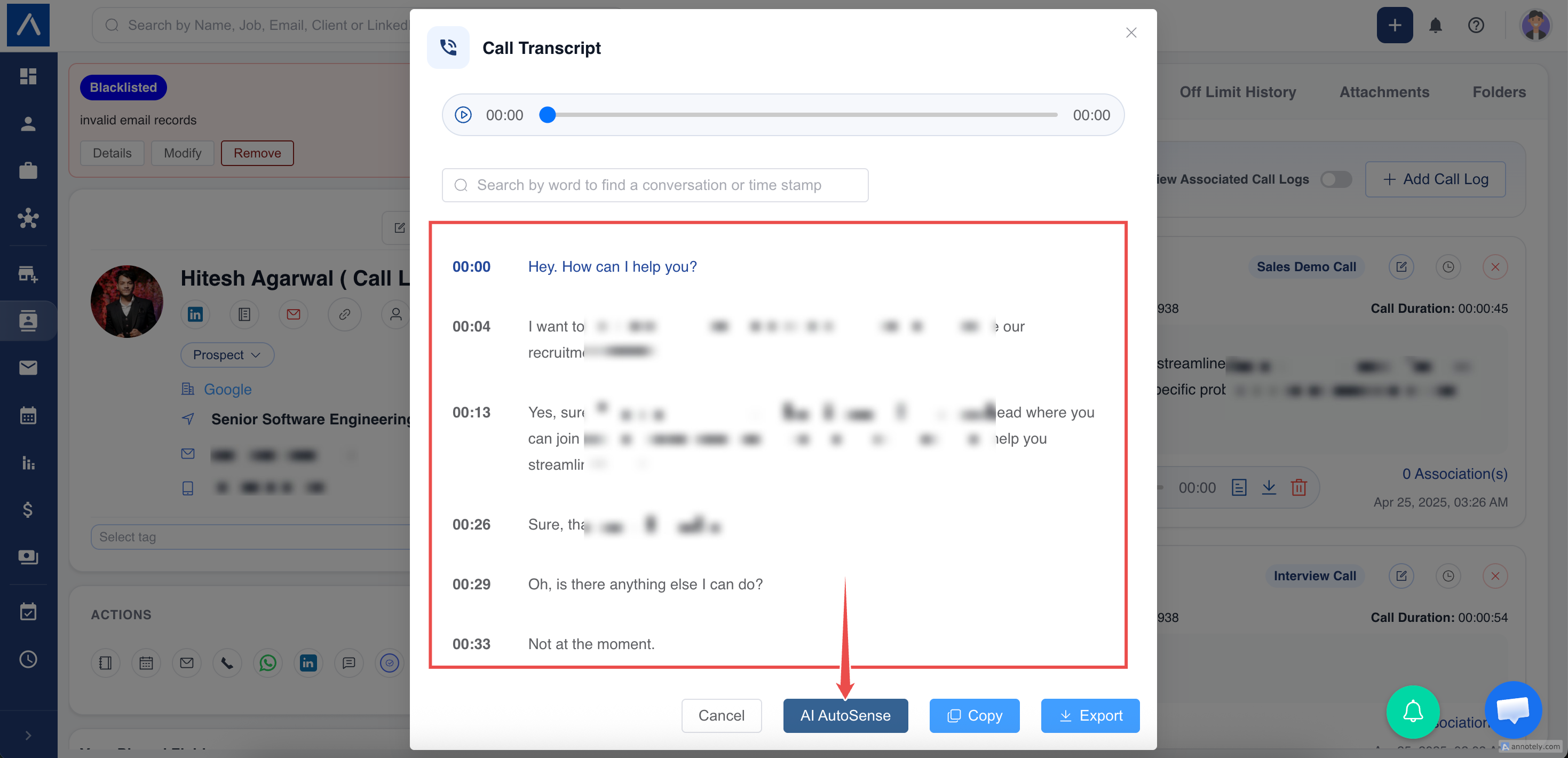
The transcript view includes:
- Audio playback.
- Timestamped transcript segments.
- Search.
- Playback highlighting.
- Copy and export options.
- AutoSense.
Use AutoSense
Open the transcript, click AutoSense, choose Extract Key Points, Improve, or Summarize, then click Insert as Call Log Note.
Troubleshooting
Transcript Cannot Be Generated
Check recording availability and calling credits.
Transcript Option Turns Off
Transcription requires recording. If recording is off, transcript generation is off.
Accuracy Is Imperfect
Audio quality, accents, background noise, and overlapping speakers can affect transcript accuracy.
FAQs
Can I search transcripts?
Yes. Search by words, requirements, names, objections, or next steps.
Can I use transcripts for notes?
Yes. Use AutoSense to summarize and insert as call log notes.
Should I review transcripts?
Yes. Review important details manually before using them externally.