
Inviting teammates helps your recruiting, staffing, and account teams collaborate from the same ATZ CRM workspace.
Quick Answer
Open Settings > Users, click Invite new user, enter the teammate’s name and email address, assign the right role, and click Send Invitation.
Before You Invite a Teammate
Decide which role the teammate should have before sending the invite. Roles control the actions a user can perform and the information they can access.
If you need to design a custom access level first, review: Roles and permissions.
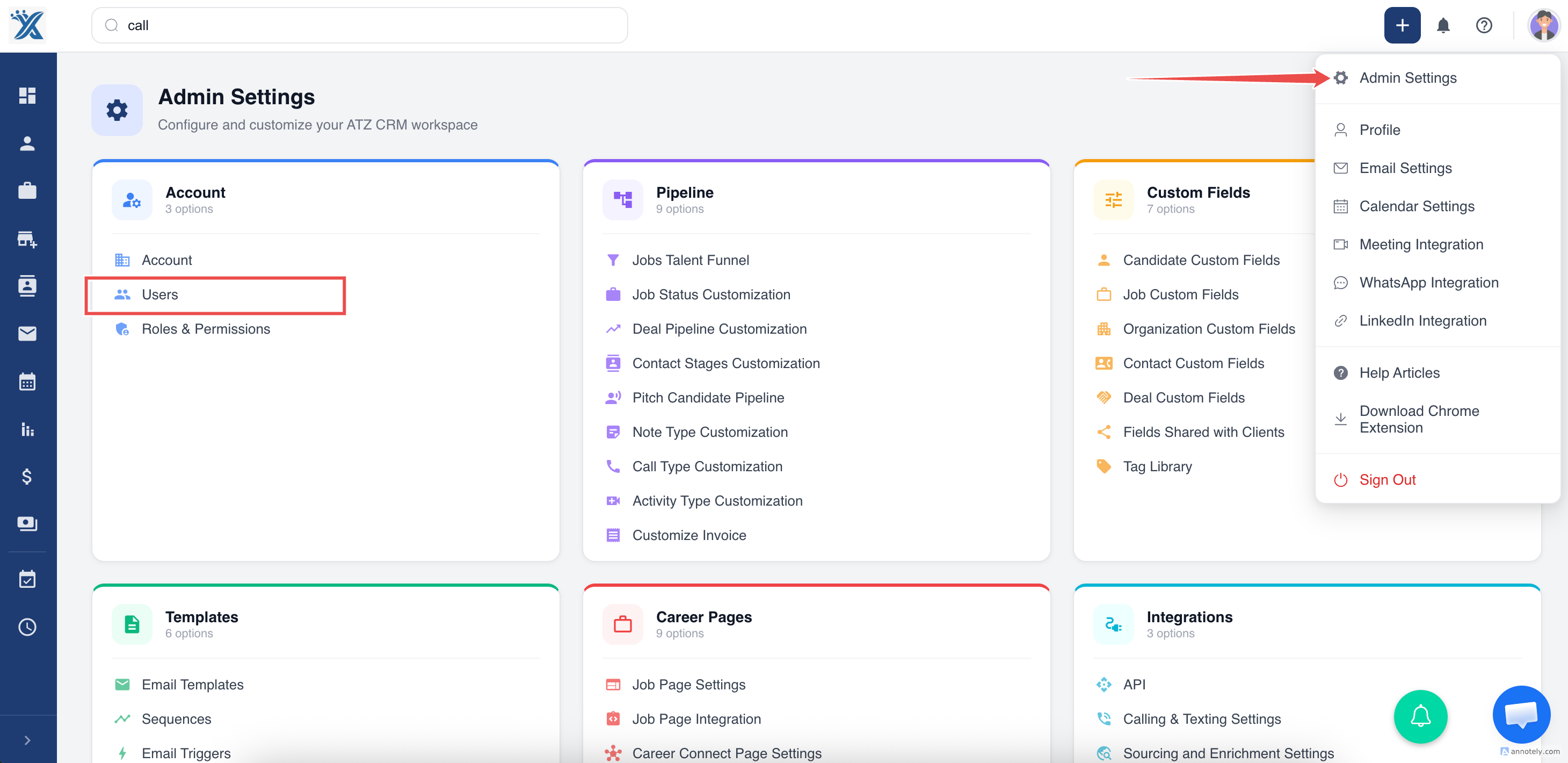
Step 1: Open Settings
Log in to ATZ CRM and go to Settings.
Step 2: Open Users
Select Users from the settings menu.
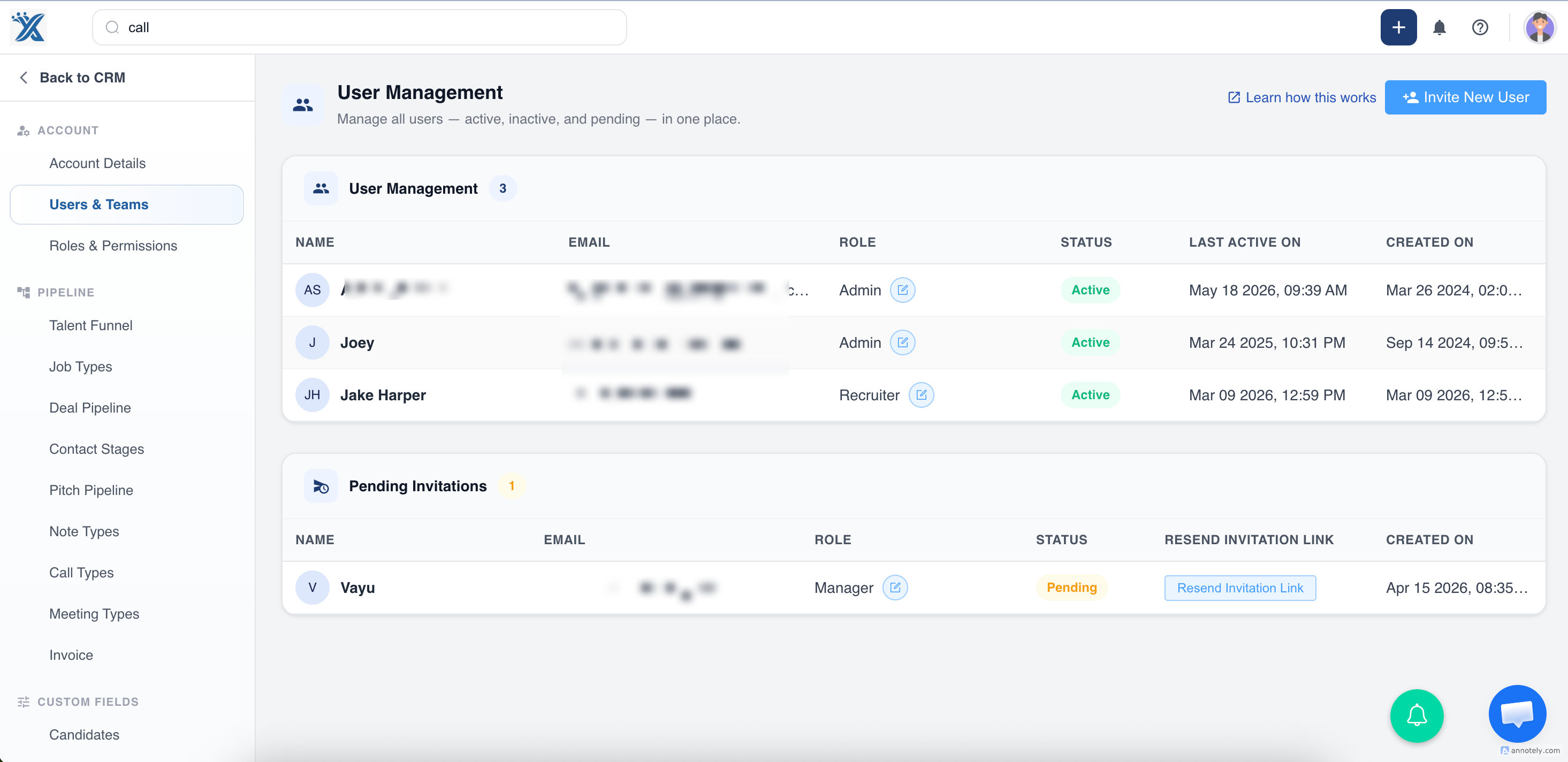
Step 3: Click Invite New User
Click Invite new user.
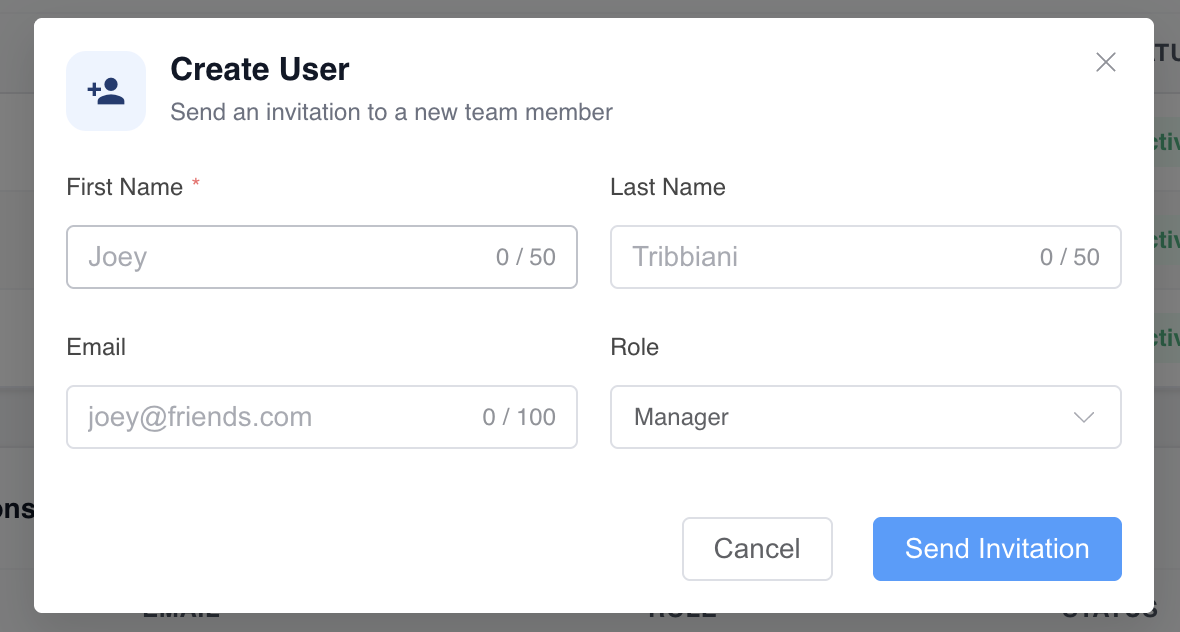
Step 4: Enter User Details
Enter the teammate’s first name, last name, and email address.
Assign a role based on the user’s responsibilities, such as:
- Admin
- Manager
- Recruiter
- Consultant
- Custom role
Step 5: Send the Invitation
Click Send Invitation. The teammate receives an email invitation with a link to join your ATZ CRM account.
Role Options in ATZ CRM
The role defines what the user can see and do. ATZ CRM includes default roles such as Admin, Consultant, Manager, and Recruiter. You can also create custom roles for more precise access control.
Use Cases
Add Recruiters to a Hiring Team
Invite recruiters and assign permissions based on the records and jobs they should manage.
Add Managers for Oversight
Give managers access to review team activity, reporting, and ownership where appropriate.
Add Admins for System Setup
Assign admin access only to users who should manage account settings, roles, and configuration.
Troubleshooting
The Teammate Did Not Receive the Invitation
Ask the teammate to check spam or junk folders and confirm the email address was entered correctly.
I Cannot See Invite New User
Check whether your role has permission to manage users. User invitation is usually controlled by admin or account-level permissions.
The Teammate Has the Wrong Access
Update the user’s role from the Users section or adjust role permissions if a custom role is being used.
FAQs
Can I change a user’s role later?
Yes. Admins can update a user’s assigned role from the Users section.
Can I create custom roles before inviting users?
Yes. Create the custom role first, then assign it during invitation or from the user list later.
Should every teammate be an admin?
No. Use the least access needed for each teammate’s responsibilities to protect data and reduce accidental changes.