
ATZ CRM lets you align external pages with your brand identity by removing default ATZ CRM branding from career-related pages and application forms.
Quick Answer
Open Account Settings, enable Remove Branding, then refresh the external Career Connect page or application form to confirm the branding has been removed.
Before You Start
You need access to account settings. If you cannot see the setting, ask an admin or account owner to review your role permissions.
For Career Connect setup, see: Set up Career Connect Page.
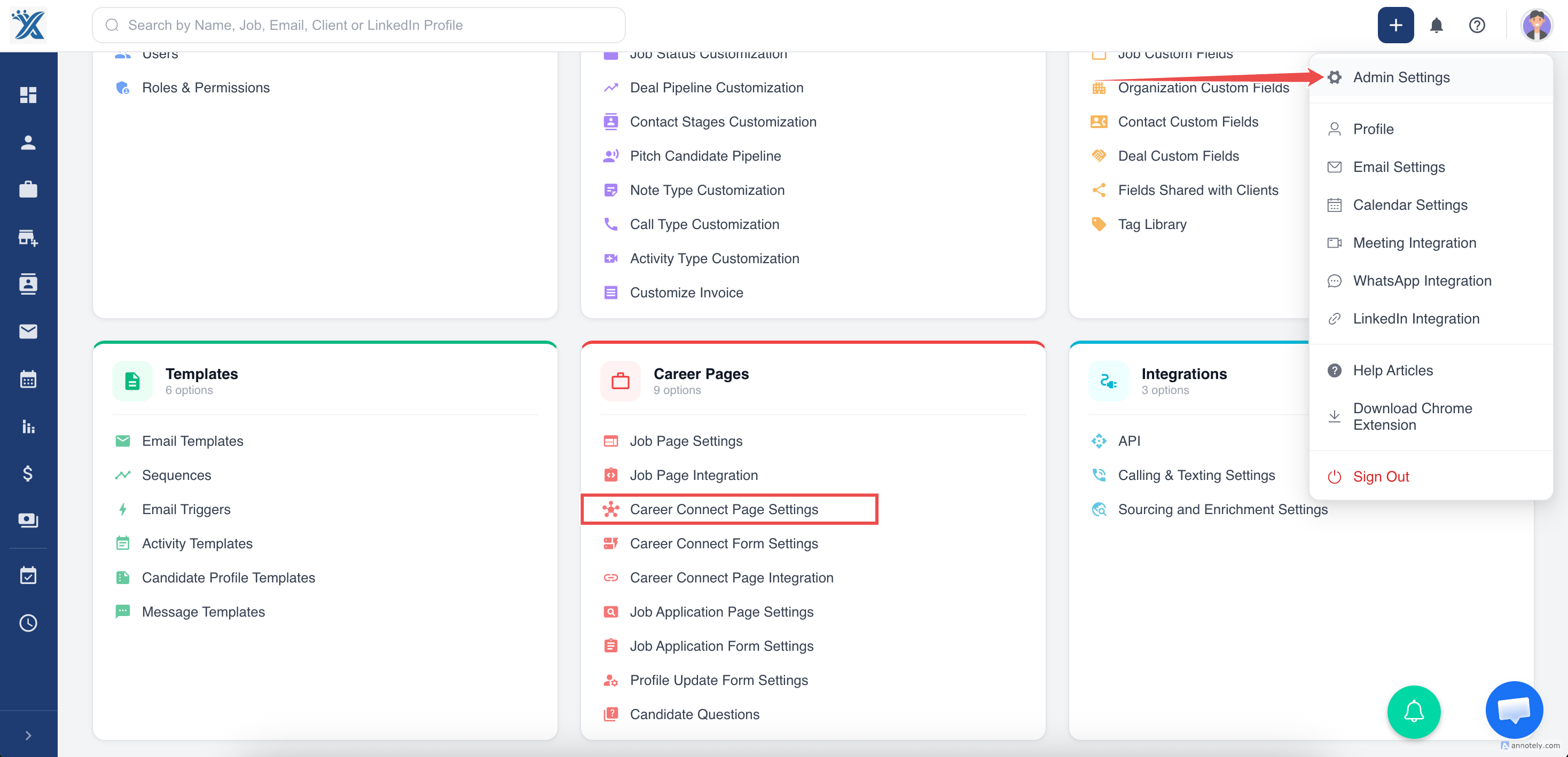
Step 1: Open Career Connect Page Settings
Go to settings and select Career Connect Page Settings.
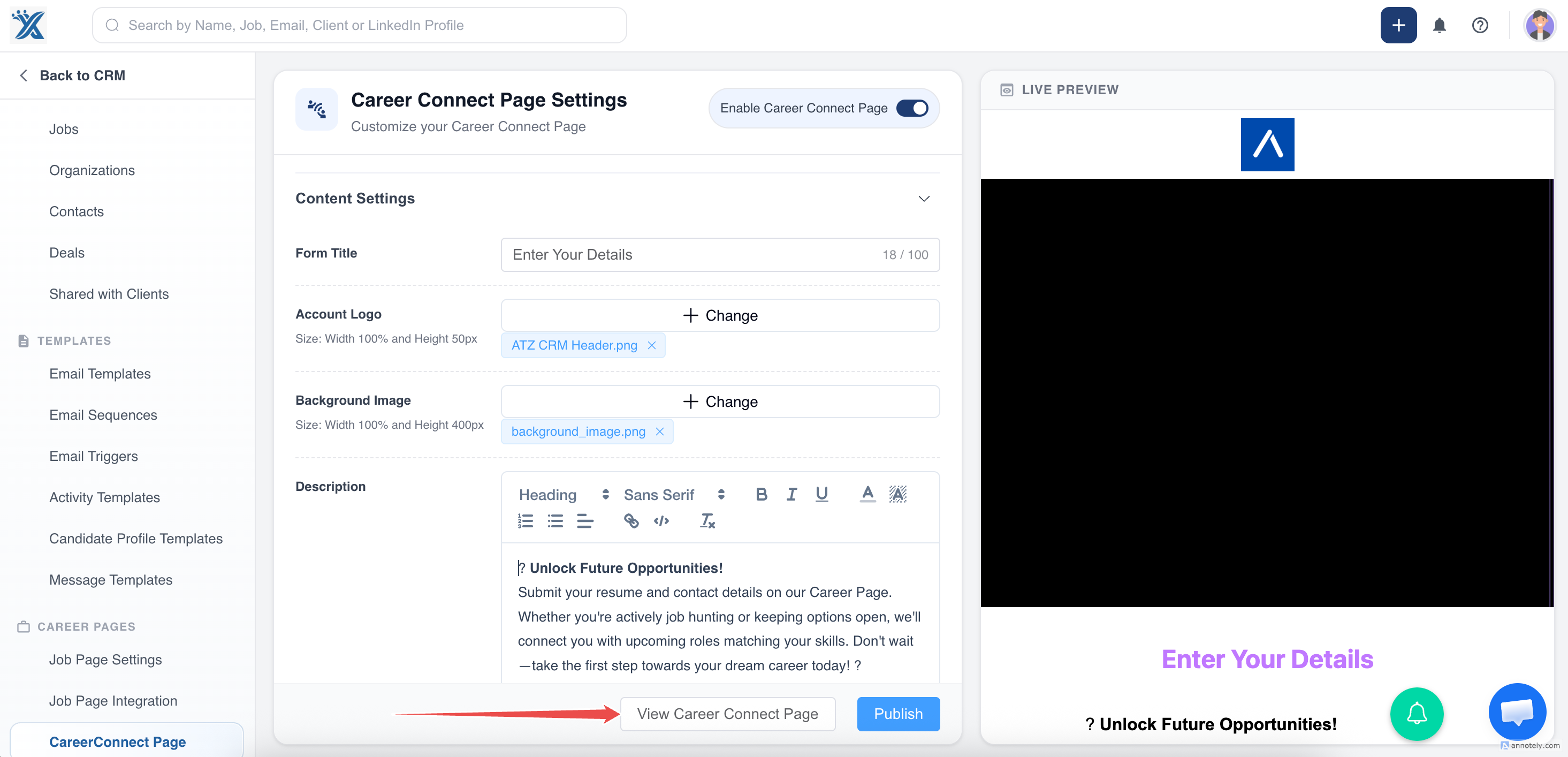
Step 2: View the Career Connect Page
Click View Career Connect Page.
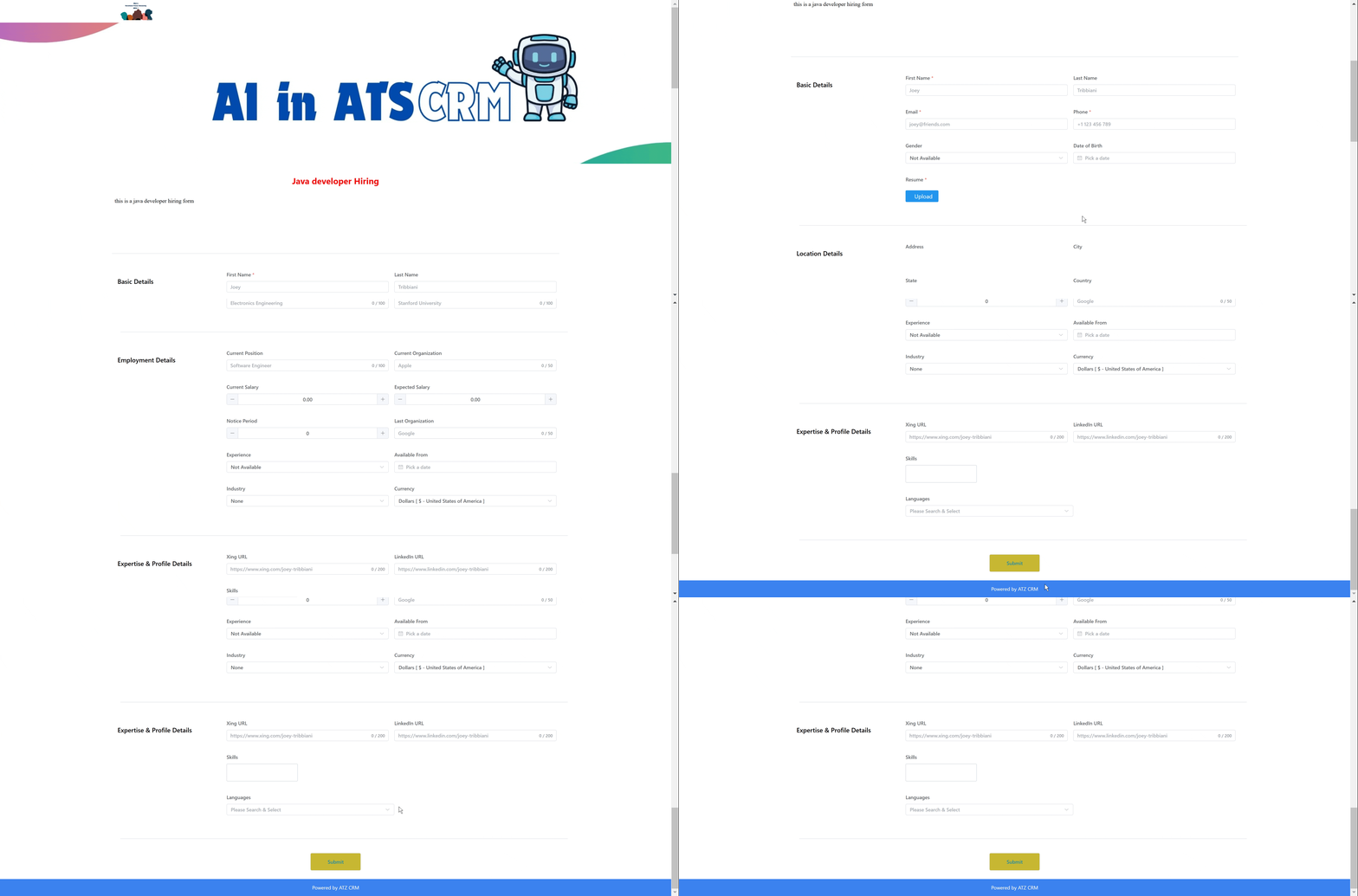
A new tab opens with the Career Connect Page. Before branding is removed, you may see default branding such as Powered by ATZ CRM.
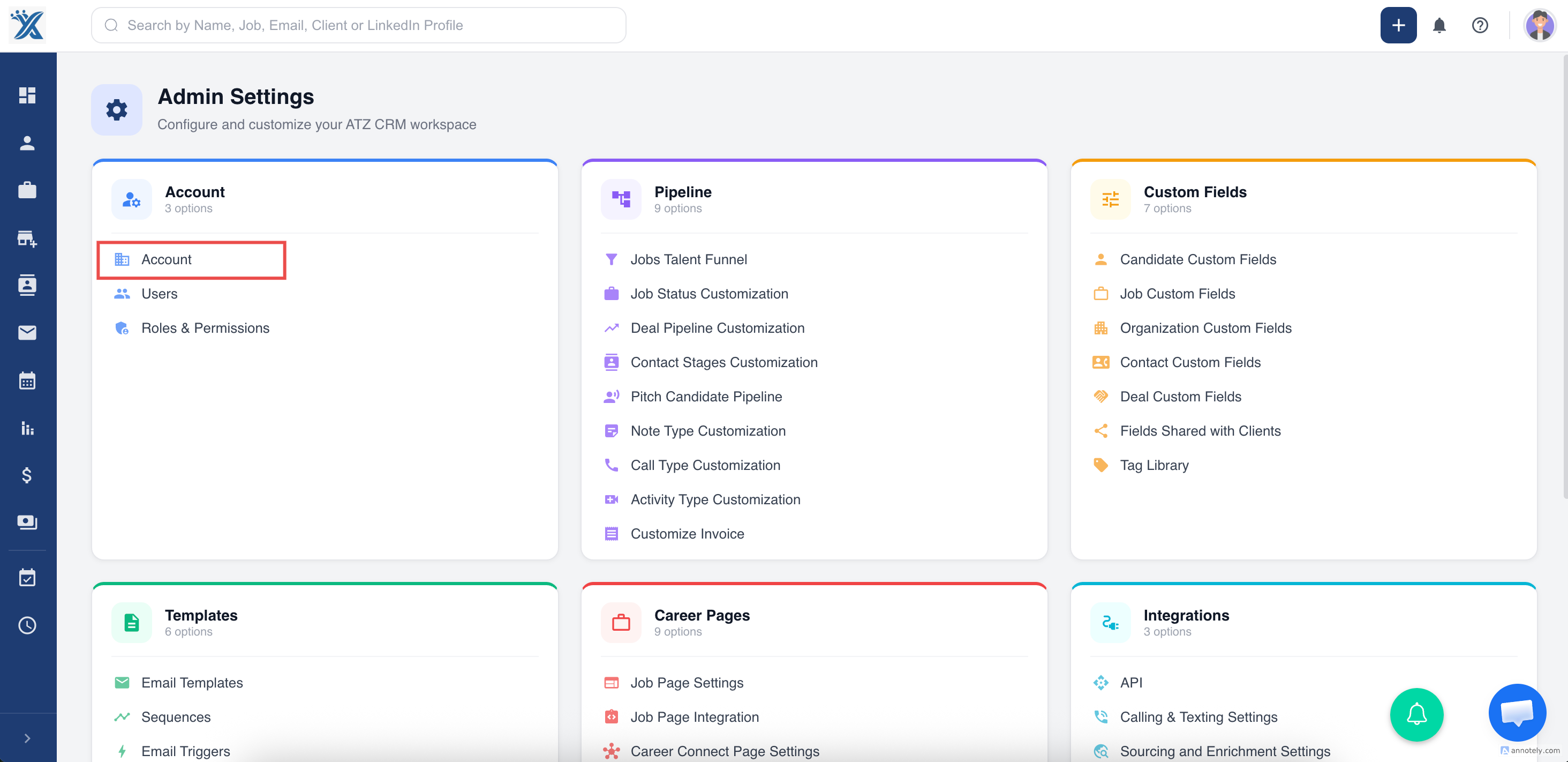
Step 3: Open Account Settings
Return to ATZ CRM and open Account Settings from the main settings menu.
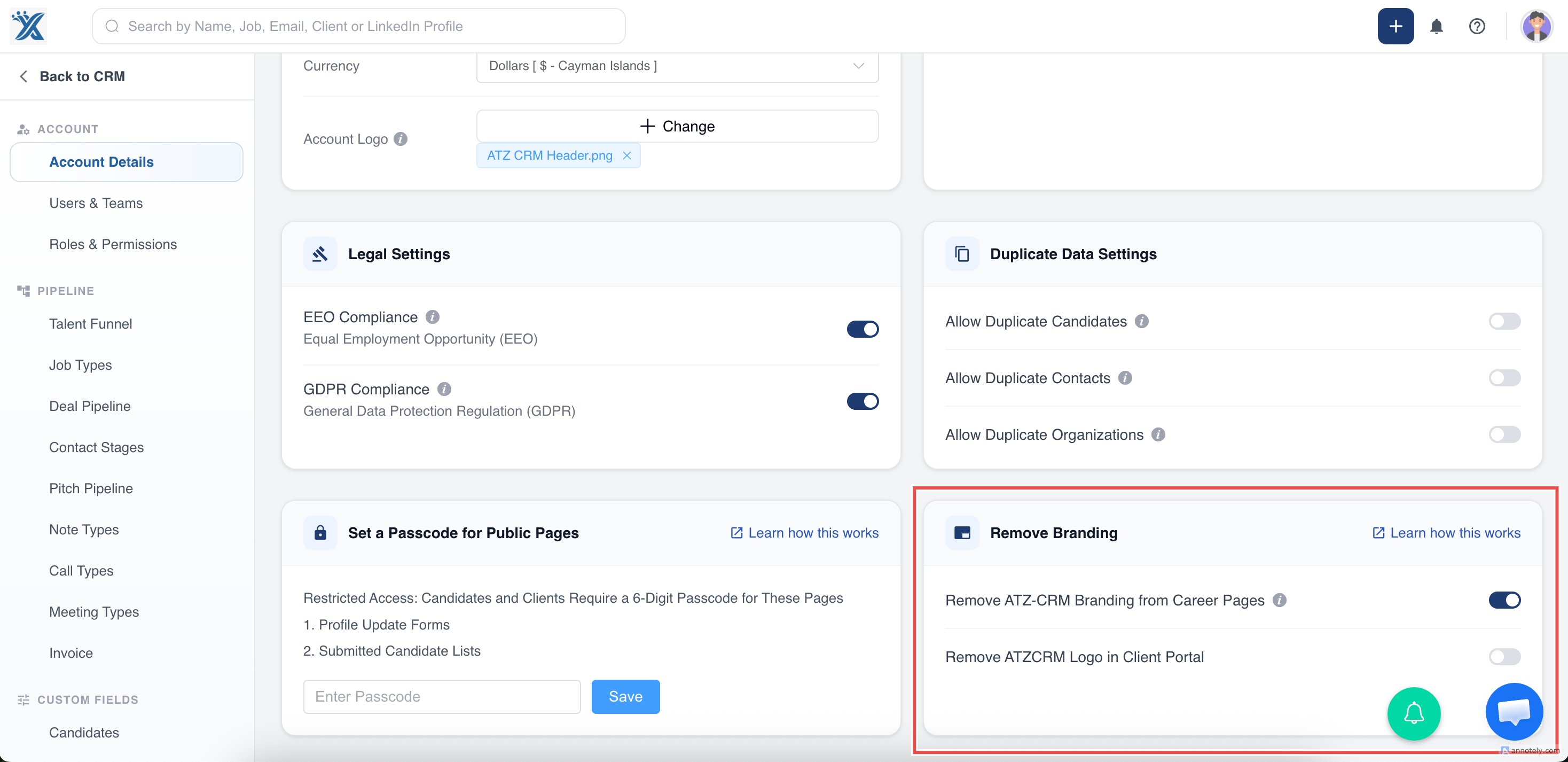
Step 4: Enable Remove Branding
Find the Remove Branding section and switch on the toggle.
Step 5: Refresh the External Page
Return to the Career Connect Page in your browser and refresh the page.
The ATZ CRM branding is removed from the career-related external pages.
Use Cases
White-Labeled Candidate Experience
Remove default branding so candidates see your agency or company brand on external pages.
Embedded Career Pages
Keep embedded forms and Career Connect pages visually aligned with your website.
Client-Facing Consistency
Use branding controls when external pages are shared with candidates, clients, or hiring stakeholders.
Troubleshooting
Branding Still Appears
Refresh the page and confirm the Remove Branding toggle is enabled. Also check whether you are viewing the latest external page URL.
I Cannot Access Account Settings
Ask an admin to review your role permissions. Account settings access may be restricted.
Branding Is Removed on One Page but Not Another
Confirm the external page belongs to the same ATZ CRM account and refresh each page after enabling the setting.
FAQs
Does Remove Branding affect internal ATZ CRM pages?
No. This setting is intended for external career-related pages and forms.
Can I add my own logo instead?
Yes. Career Connect and career page settings allow branding elements such as logos and images.
Do I need to republish the page?
After enabling the setting, refresh the external page. For other page design changes, publish or save according to the specific page setting.