Contact-detail enrichment helps recruiters complete candidate and contact profiles without paying for information they do not need.
Before You Start
The profile must include:
- Full name.
- Current Company.
A LinkedIn URL is recommended for a more accurate match. You also need permission to edit the candidate or contact and enough enrichment credits for the selected option.
Open Contact-Detail Enrichment
- Open a candidate or contact profile.
- In the Actions panel, select Enrich Contact Details.
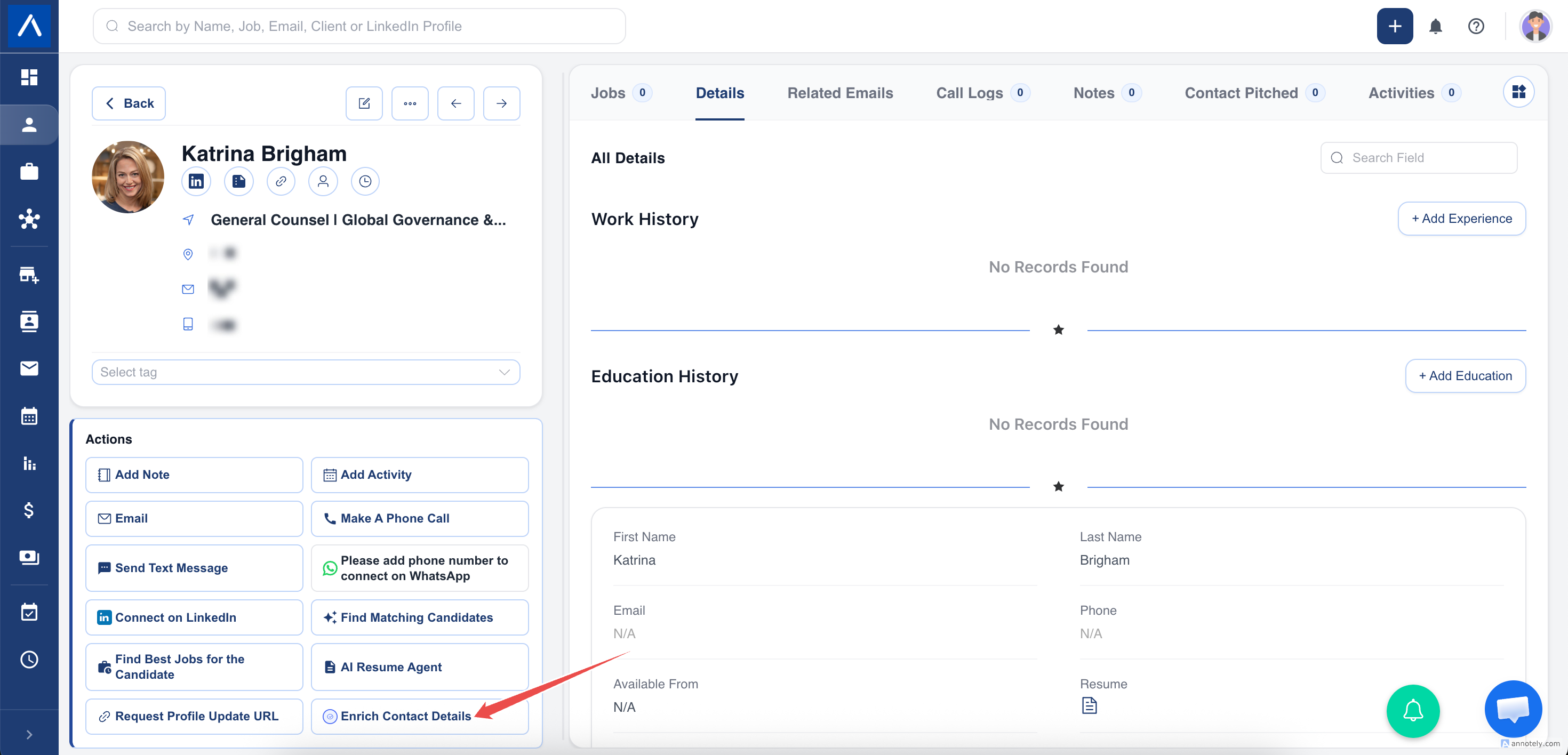
If the action is unavailable, ask your administrator to review your access.
Choose What You Need
Select one of the following options:
| Option | Use it when | Maximum credit cost |
|---|---|---|
| You only need an available email address | Up to 1 credit | |
| Phone | You only need an available phone number | Up to 8 credits |
| Email and Phone | You need both types of contact information | Up to 9 credits |
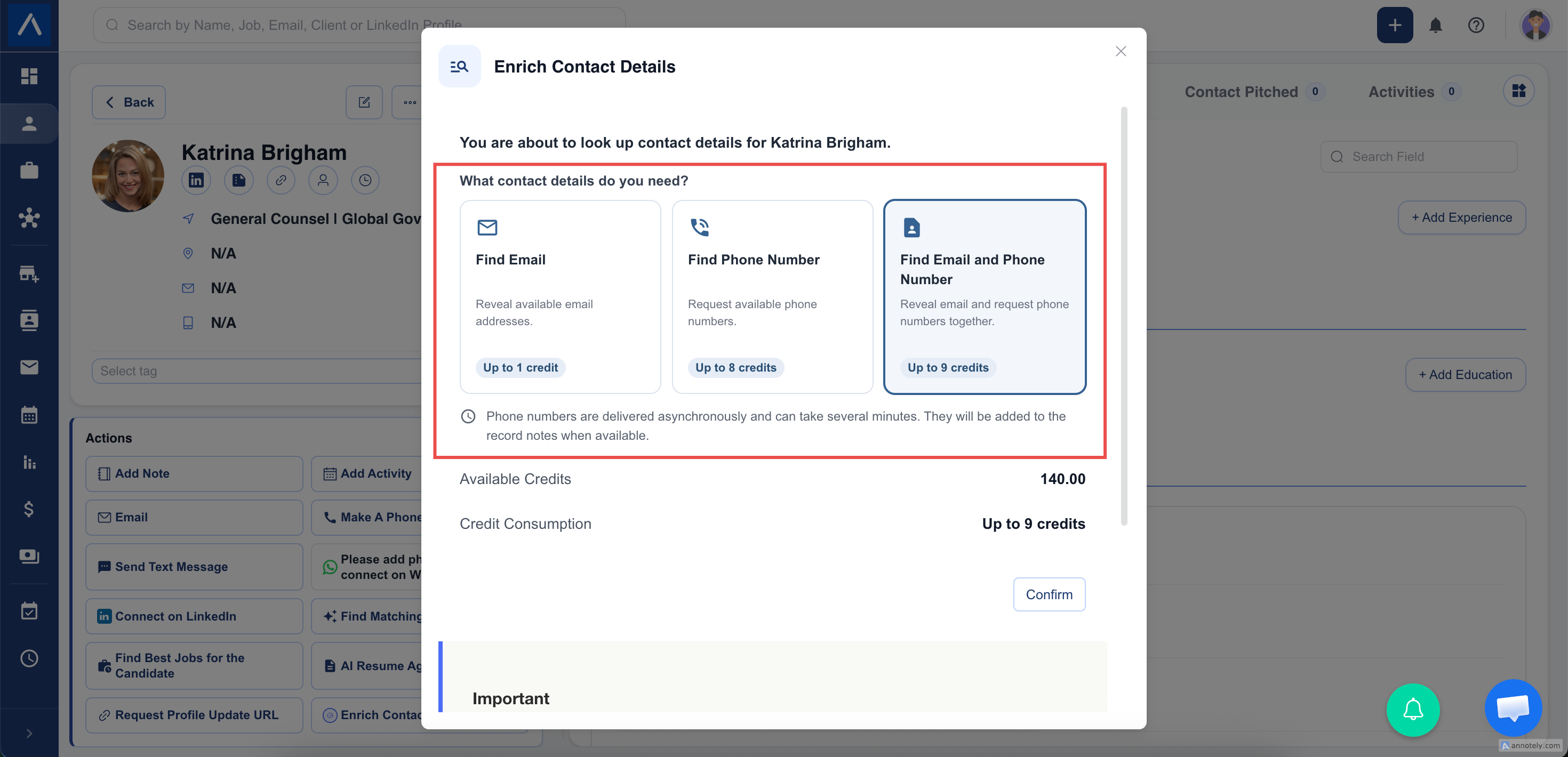
The dialog shows your available balance and the maximum cost before you confirm. Choosing phone only avoids the separate email cost.
Review and Apply the Result
When email details are available, review the returned choices and select the information you want to add to the record.
ATZ CRM can also add relevant professional information returned with the match. Candidate work history may be used to identify useful skills for the profile.
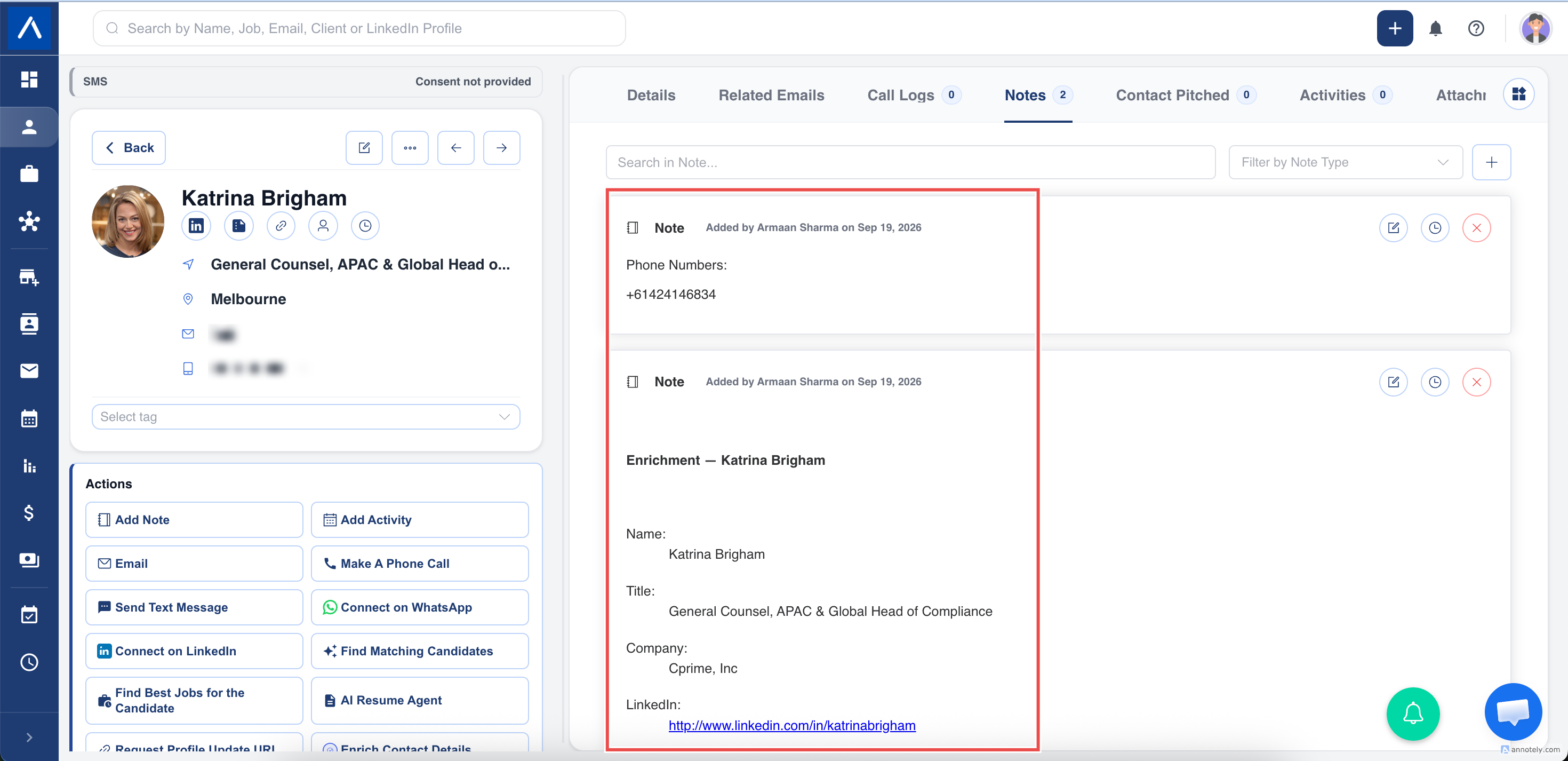
After the update, ATZ CRM adds a note so your team can see what information was enriched and when.
Phone Results Arrive in the Background
Phone verification can take several minutes. You can continue working while it runs.
When a number is returned, ATZ CRM:
- Updates the phone field when appropriate.
- Adds the result to the enrichment note.
- Charges only the applicable enrichment credits.
Do not submit the same phone request repeatedly while the first request is still in progress.
Credit Guidance
- Credits are shared at account level.
- The maximum cost is shown before confirmation.
- If the balance is too low, the confirmation action remains unavailable.
Use the in-app chat if you need additional credits.
Troubleshooting
No Match Was Found
Check the spelling of the person’s name and current Company. Add a LinkedIn URL when possible, then try again.
The Phone Number Has Not Appeared Yet
Wait a few minutes and refresh the profile. Phone verification is not always immediate.
The Confirm Button Is Disabled
Check the available credit balance and make sure the record contains the required name and current Company.
FAQs
Can I request a phone number without paying for an email?
Yes. Choose Phone. The maximum cost is 8 credits.
Is a note created after enrichment?
Yes. The note records the returned enrichment information for your team.
Are phone numbers always available?
No. Availability depends on whether a verified number can be found for that person.