
The Career Connect Page lets candidates submit their profiles even when they do not see a suitable job. It helps you build a proactive candidate database from your website or external career page.
Quick Answer
Open Admin Settings > Career Connect Page Settings, enable the page, customize branding and text, configure form fields, publish, and copy the iframe code if you want to embed the page on your website.
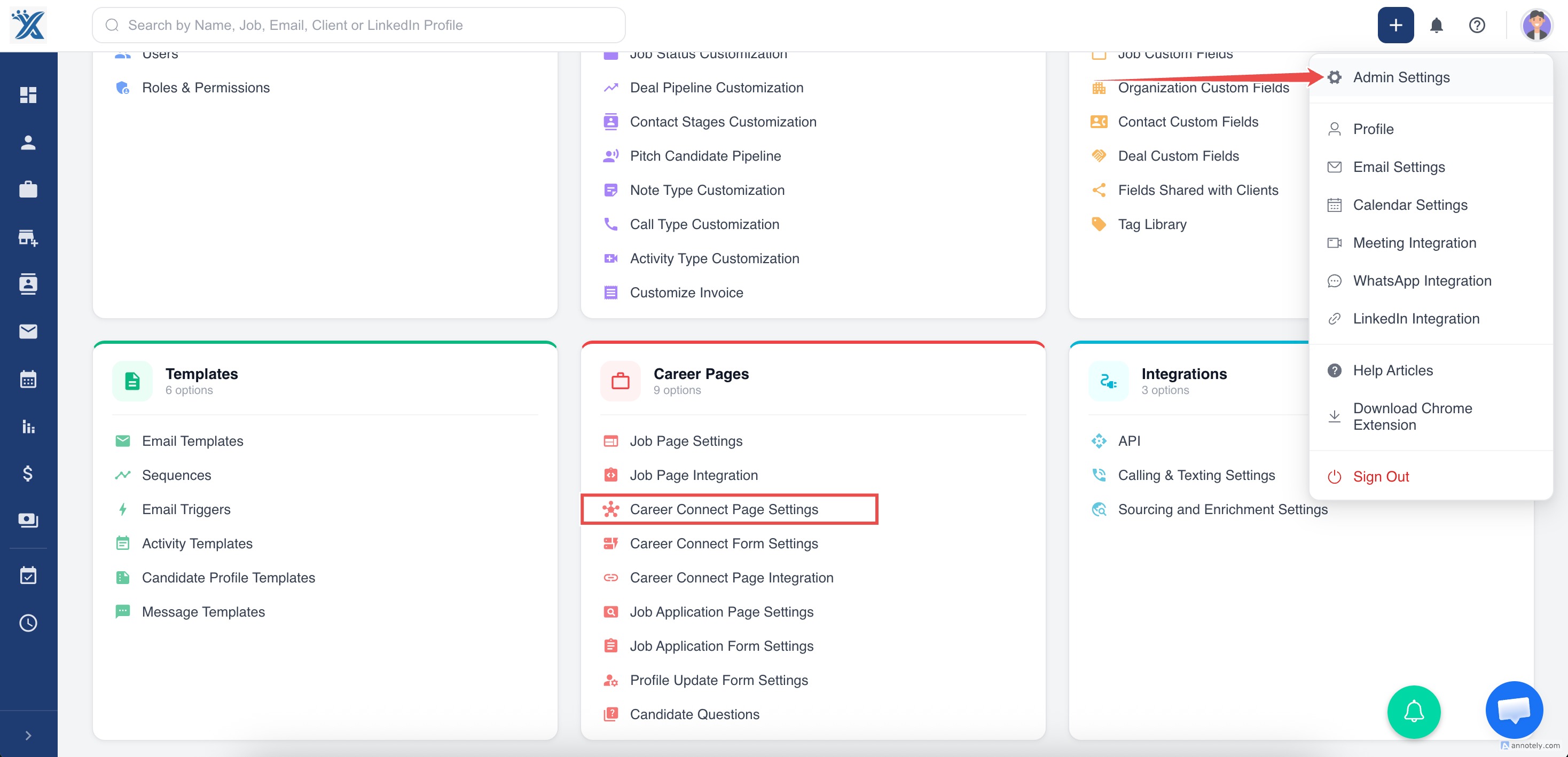
Step 1: Open Career Connect Page Settings
Go to Admin Settings > Career Connect Page Settings.
Step 2: Customize Page Appearance
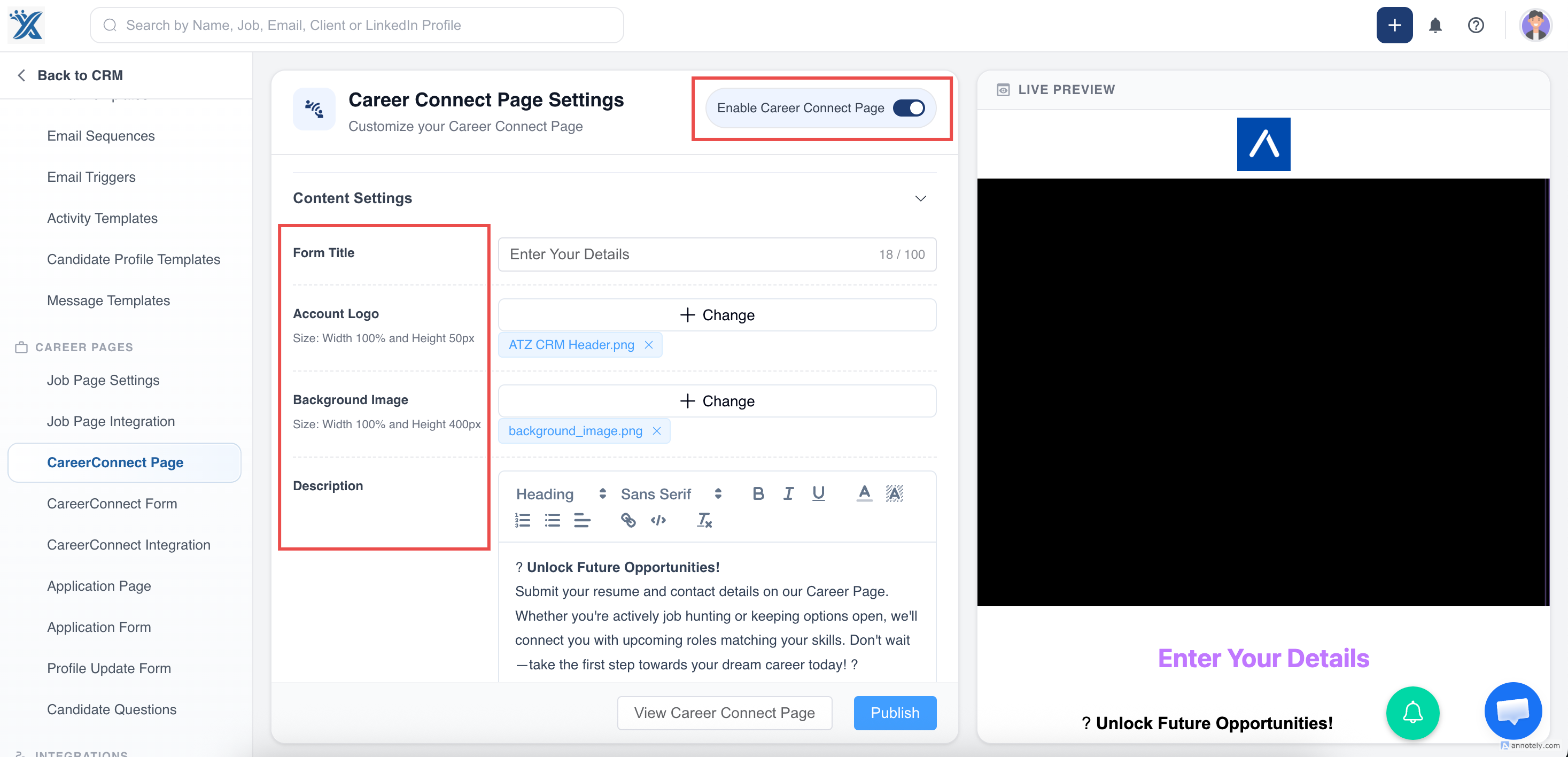
Turn on Enable Career Connect Page.
Add visual branding:
- Account logo in JPEG, PNG, or JPG format.
- Cover image for the page.
Customize page content:
- Page title.
- Form title.
- Description in the language you want candidates to see.
Step 3: Configure Button and Label Colors
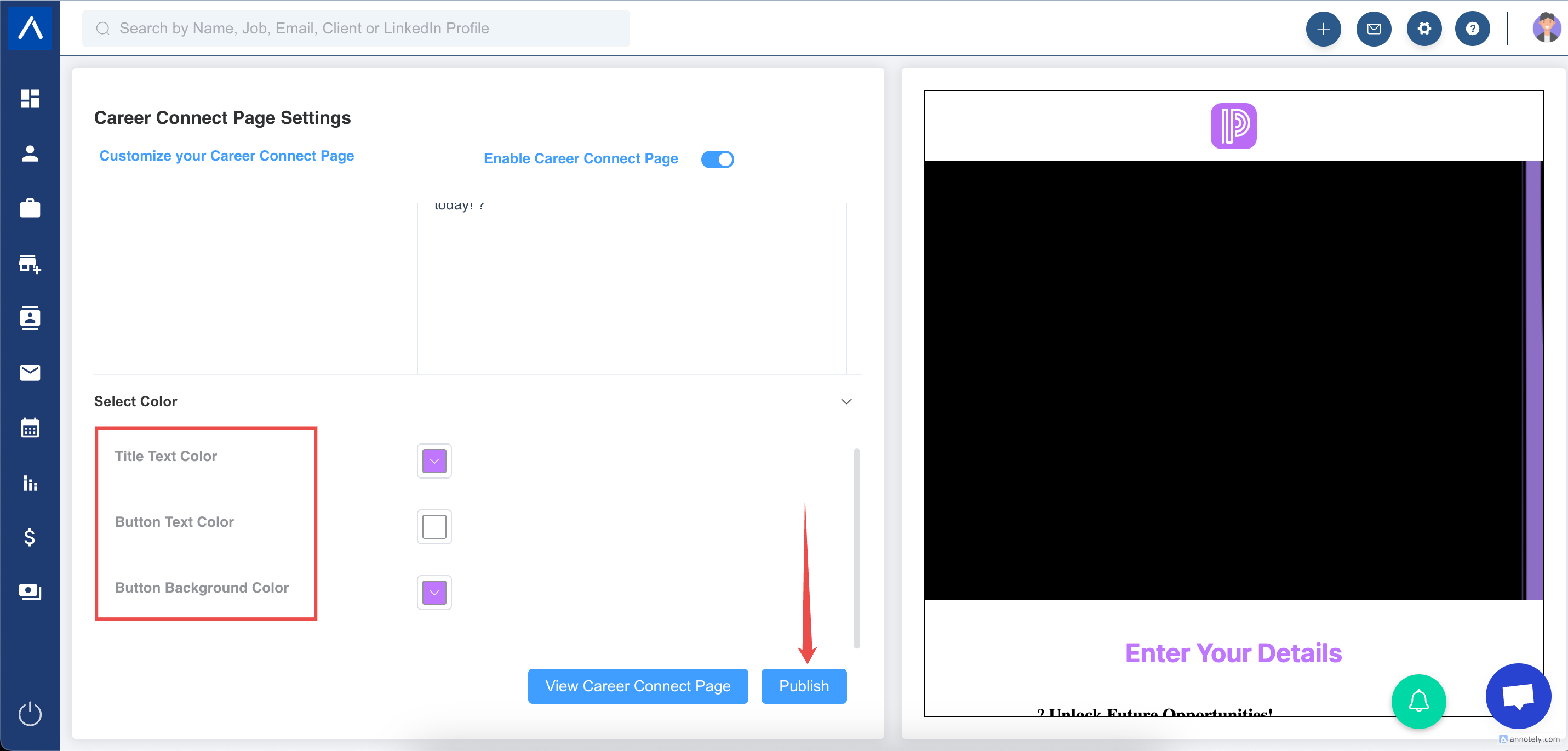
Edit button and label colors to match your brand, then click Publish.
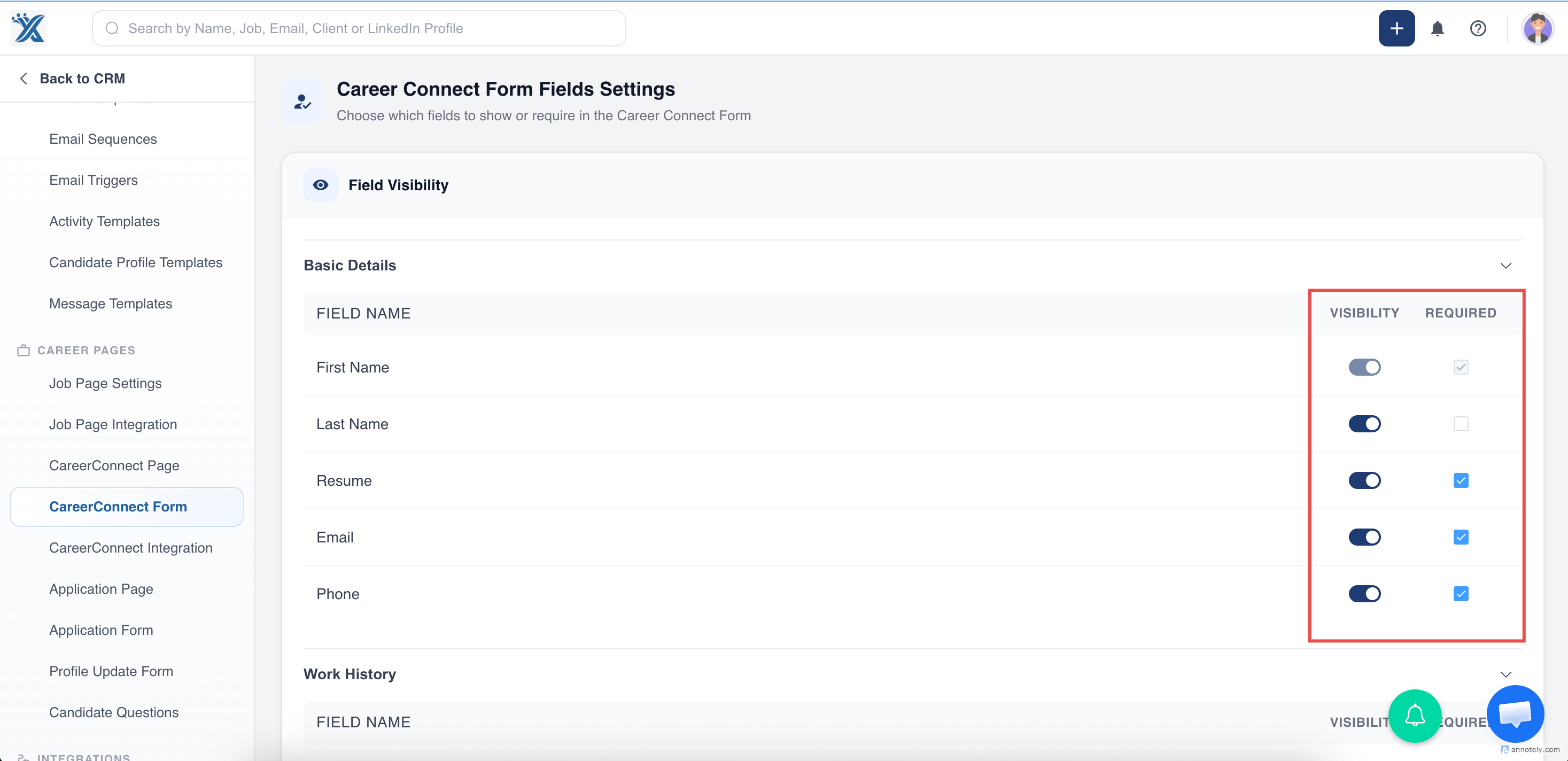
Step 4: Customize Career Connect Form Fields
Go to Admin Settings > Career Connect Form Settings.
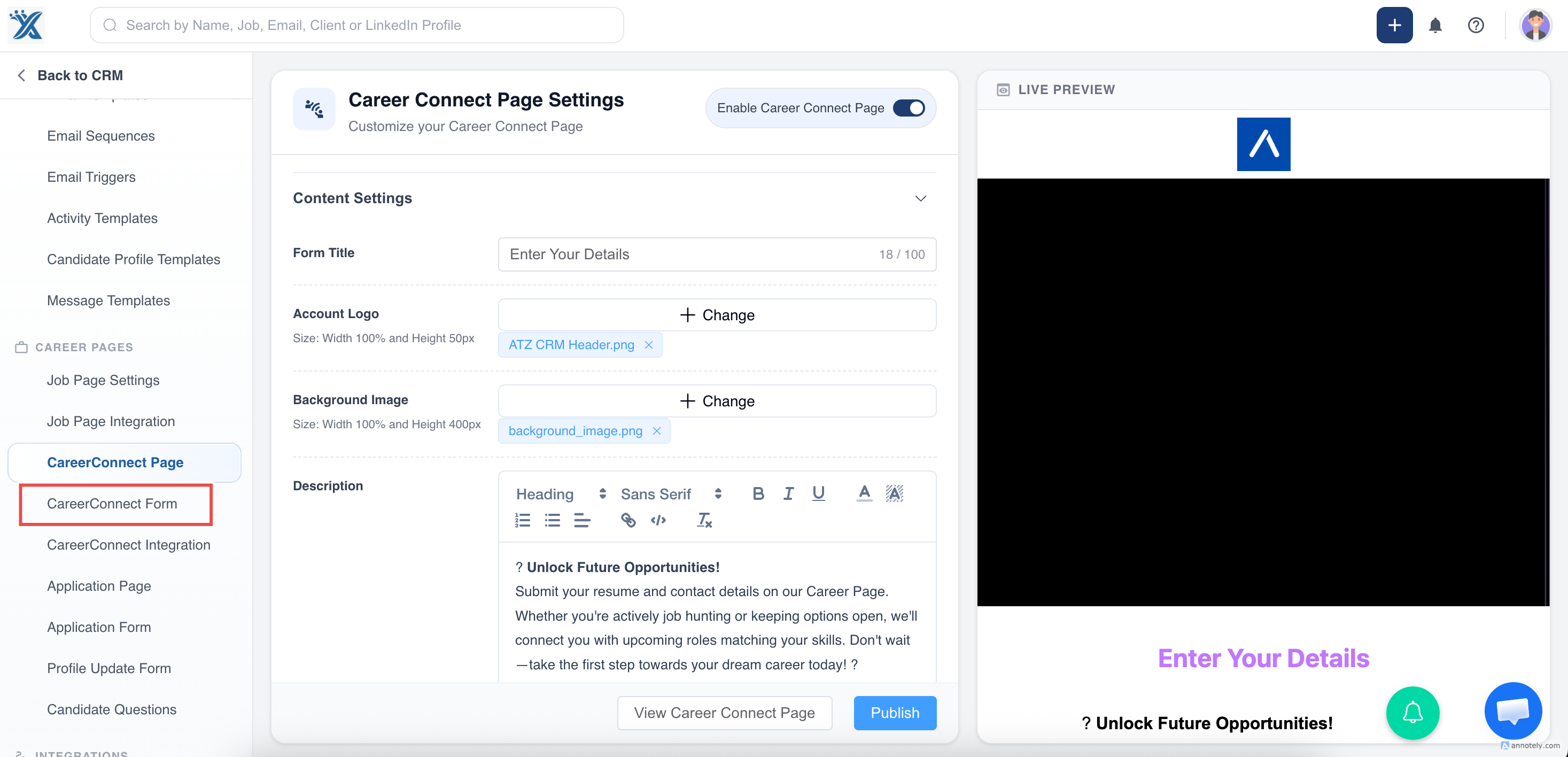
Select and configure fields for the Career Connect form.
You can:
- Set mandatory fields.
- Turn fields on or off.
- Save the form configuration.
Step 5: Integrate With Your Website
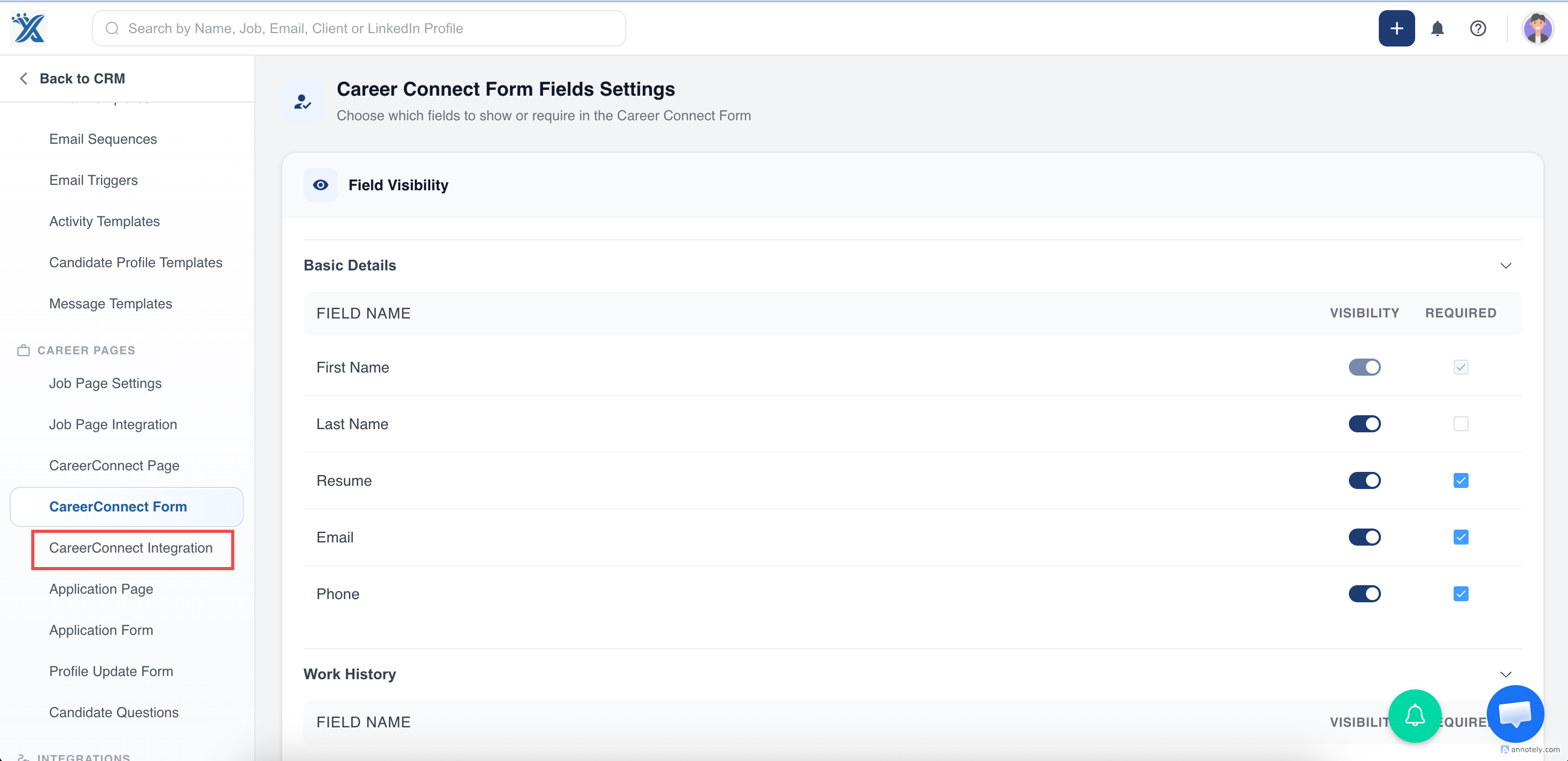
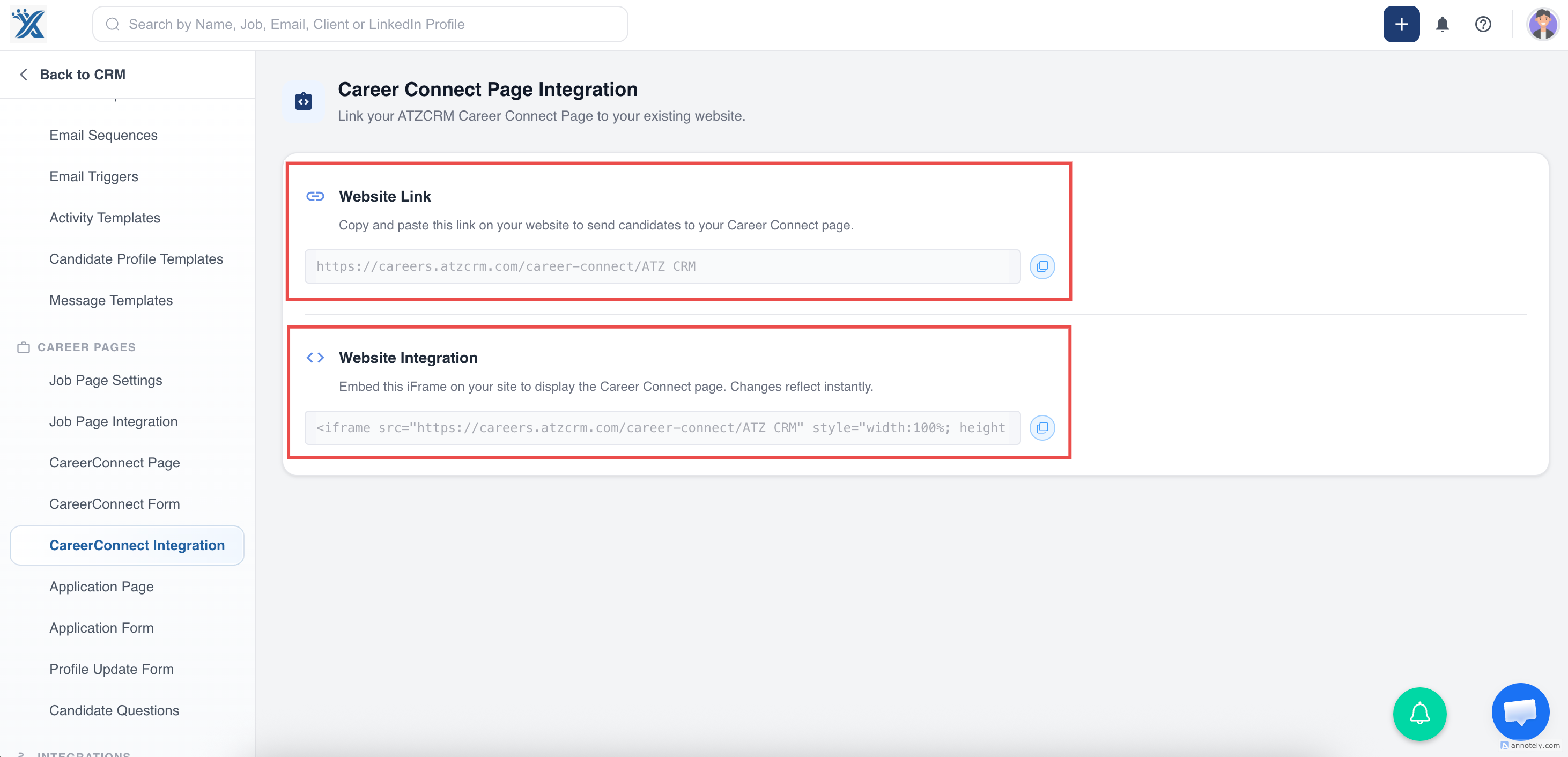
Go to Admin Settings > Career Connect Page Integration.
Copy the iframe code and paste it into your website to embed the Career Connect form.
Manage Candidate Submissions
When a candidate submits a profile through the Career Connect Page, the profile appears in the Candidates entity with source shown as Career Connect Page.
You can access Career Connect applicants from the Quick View section on the candidate list page.
The Career Connect form remains active unless it is manually disabled or the account is deactivated.
Use Cases
Build a Talent Pool
Let candidates submit profiles even when no matching job is currently open.
Embed a General Application Form
Add Career Connect to your website as a general candidate intake form.
Maintain Brand Consistency
Customize images, colors, descriptions, and branding removal settings to match your website.
Troubleshooting
Career Connect Page Is Not Visible
Confirm Enable Career Connect Page is turned on and the page has been published.
Form Fields Are Missing
Open Career Connect Form Settings and check whether fields are toggled on and saved.
Embedded Form Does Not Load
Confirm the iframe code was copied correctly and your website allows iframe embeds.
FAQs
Can I make fields mandatory?
Yes. Career Connect Form Settings lets you mark fields as required.
Can I remove ATZ CRM branding from the page?
Yes. Use the Remove Branding setting if it is available for your account.
Where do submitted candidates go?
Submissions are added to the Candidates entity and can be reviewed from the candidate list.