
What Resume and CV Formatting Does
ATZ CRM resume formatting helps recruiters create client-ready candidate documents with consistent branding. You can apply headers, footers, cover letters, watermarks, and redactions before sharing a resume externally.
Note: Resume/CV Formatting, including text redaction and custom templates, is available on the Business Plan and above.
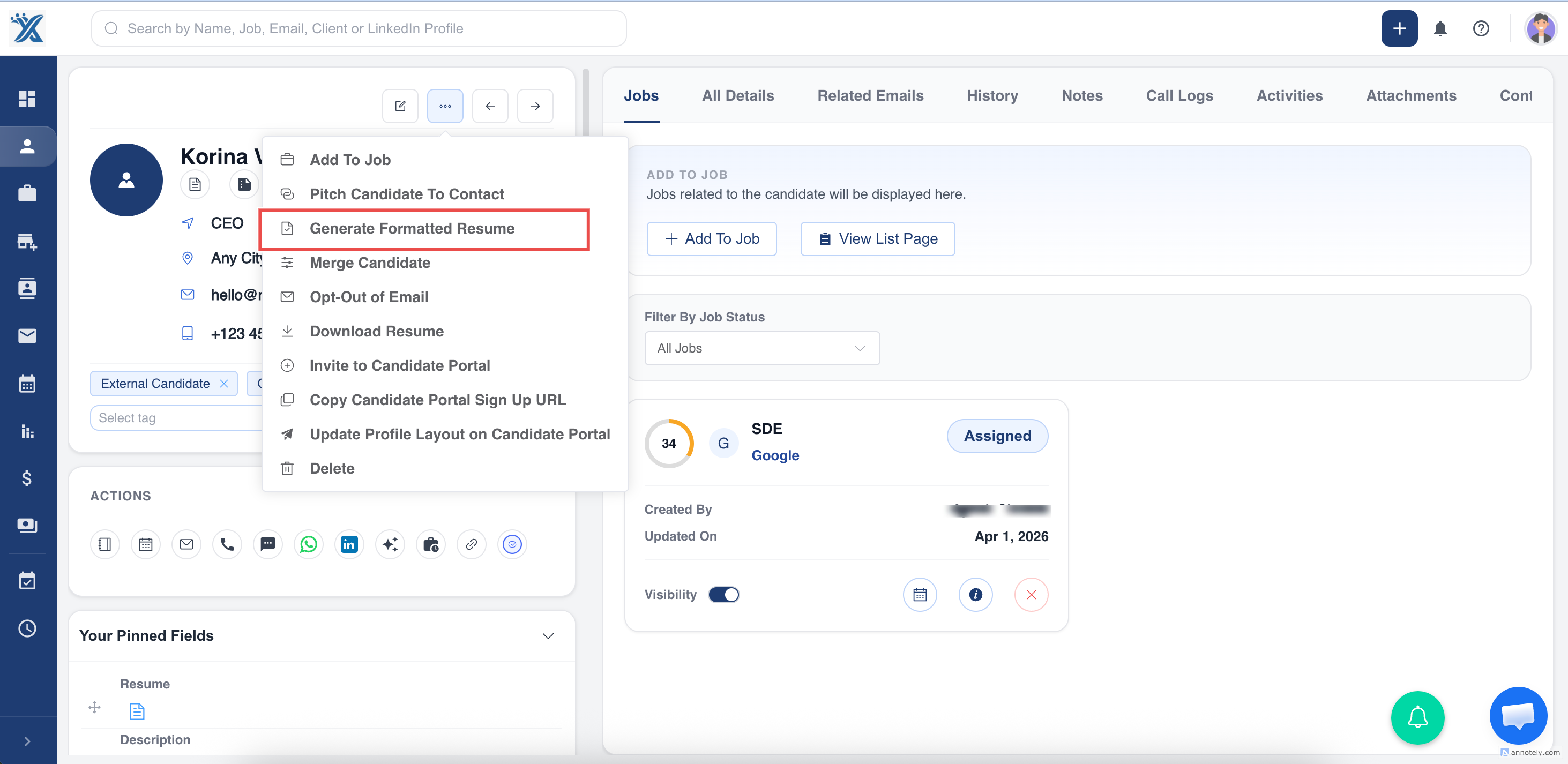
Step 1: Open Generate Formatted Resume
Open the candidate profile, select the three-dot menu, and choose Generate Formatted Resume.
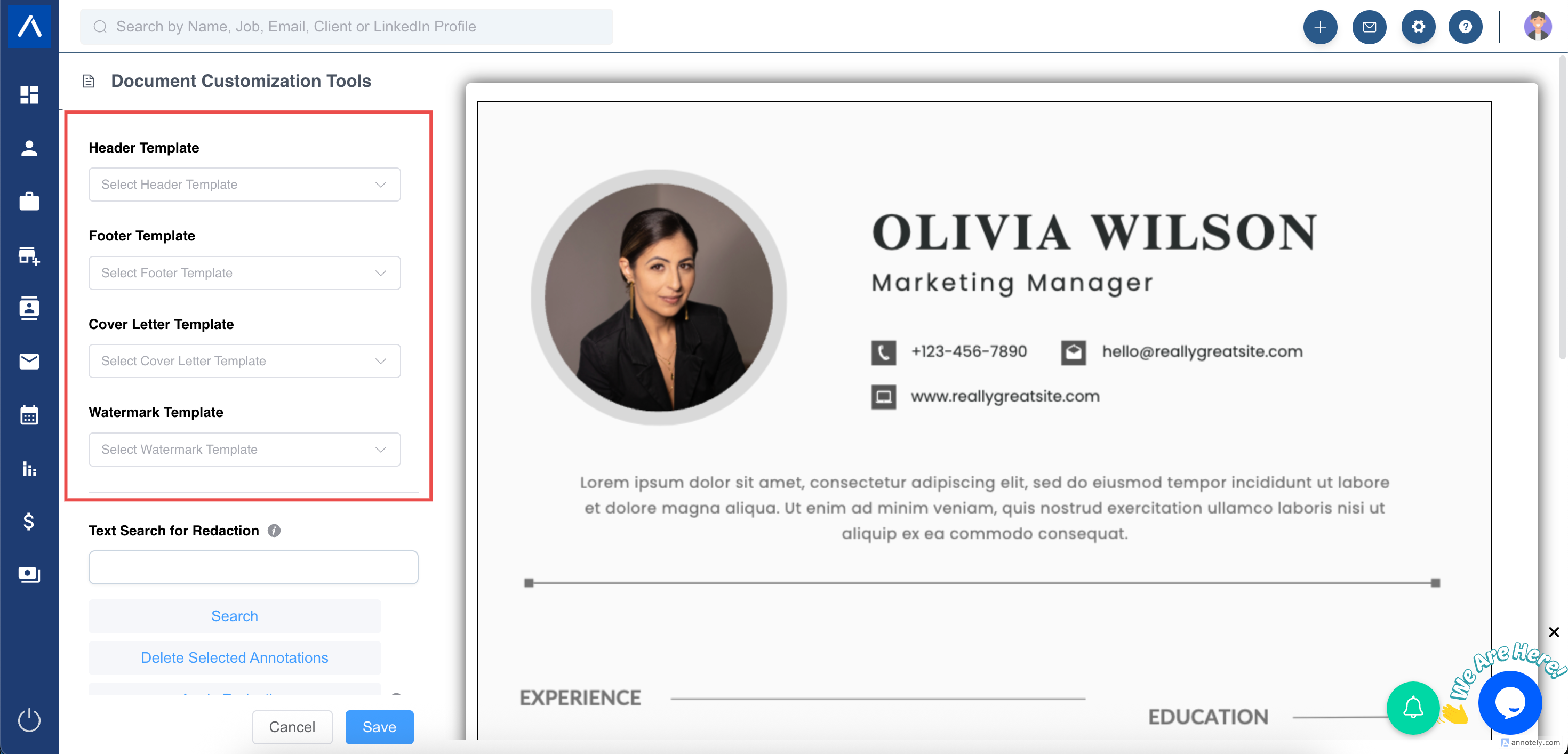
Step 2: Choose a Template
Select a saved template for headers, footers, cover letters, or watermarks.
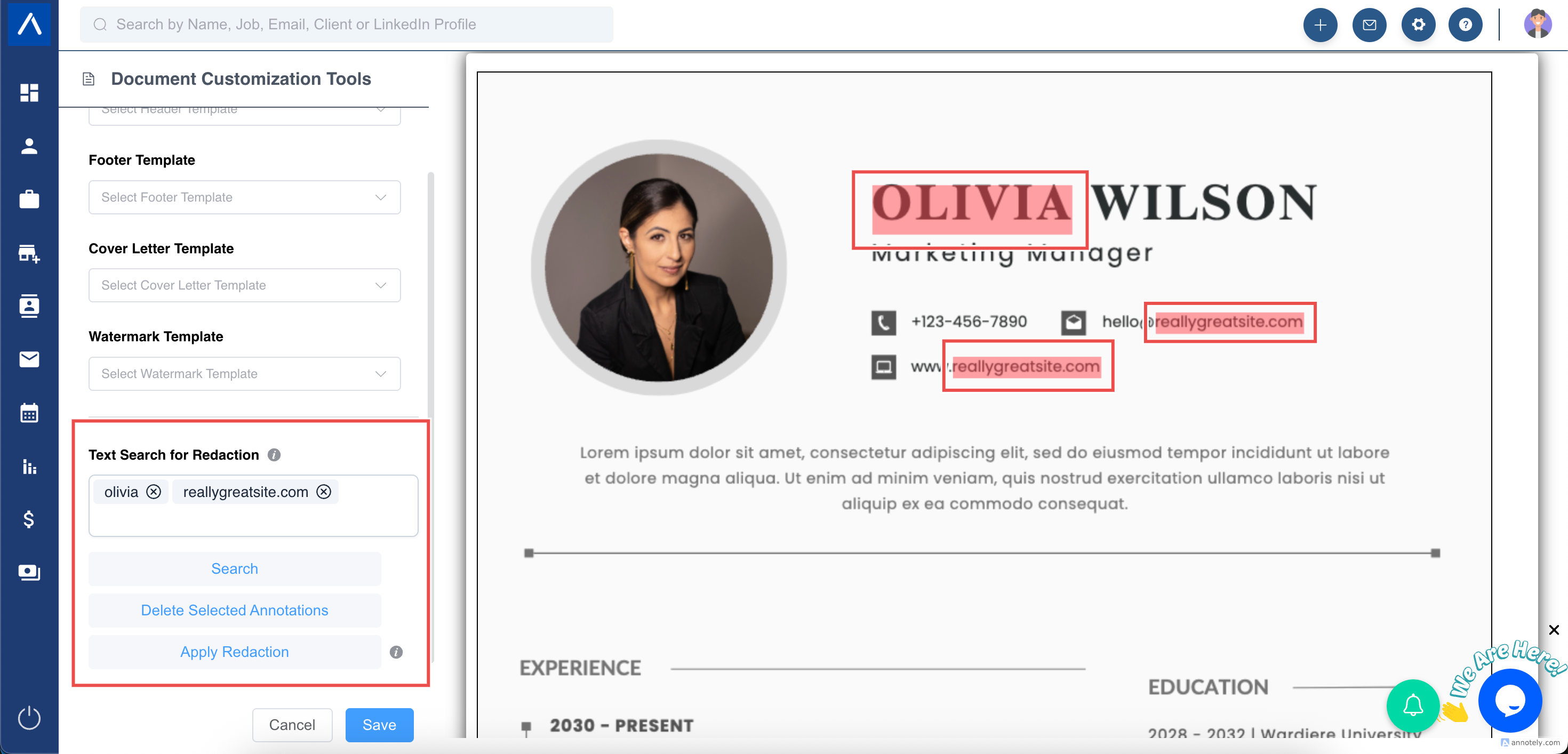
Step 3: Redact Sensitive Text
Use text redaction to search for sensitive words or details and apply redaction.
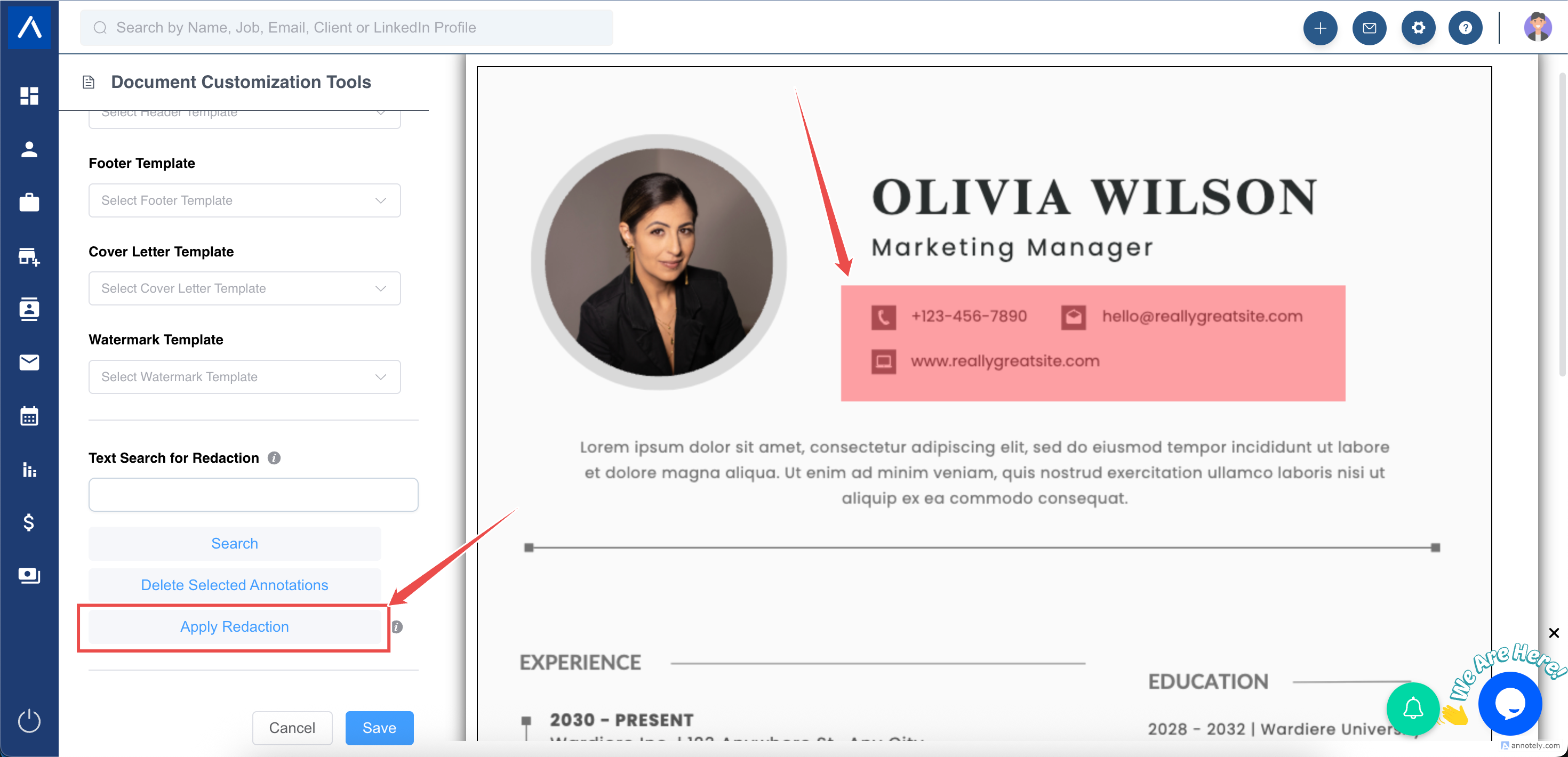
Step 4: Manually Select Text to Hide
You can also draw a box around text you want to hide and apply redaction manually.
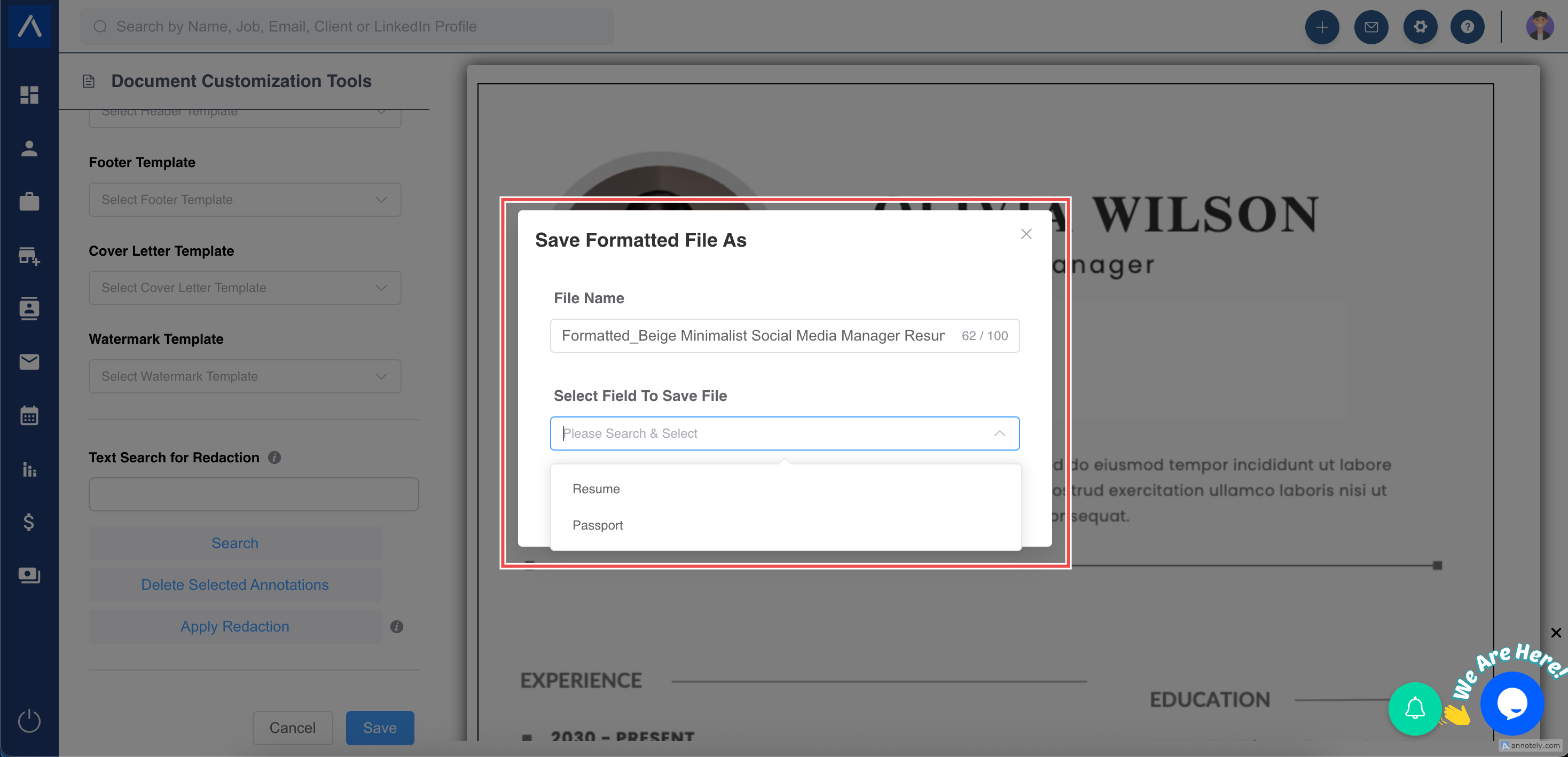
Step 5: Save the Formatted Resume
Select Save, rename the file if needed, and save it to the candidate Files section.
Step 6: Save to a Custom Field
If your account has a candidate file-type custom field, select it from Select Custom Field To Save File and save the formatted resume there.
Use Cases
Client-Ready Resume Submission
Apply agency branding and remove sensitive information before sending a resume to a client.
Standardized Candidate Presentation
Use templates so every recruiter sends resumes in a consistent format.
Confidential Candidate Sharing
Redact personal information when a client needs to assess fit before seeing identifying details.
Troubleshooting
Formatting Looks Off
Review the template and preview the resume before saving.
Redaction Missed a Detail
Use manual redaction for any text that keyword search does not catch.
Custom Field Is Missing
Only candidate file-type custom fields appear in the save dropdown.
Frequently Asked Questions
Can I save multiple formatted versions?
Yes. Save each formatted version with a clear filename so recruiters can identify it later.
Can I use resume formatting without templates?
Templates are recommended because they keep formatting consistent and faster to apply.
Does redaction change the original resume?
Use the formatted output for sharing. Keep the original resume available in candidate files when needed.