
Target reports help you separate the result so far from the result you are aiming for. Review both the numbers and their context before deciding what action the team needs.
Open a Goal and Select a Period
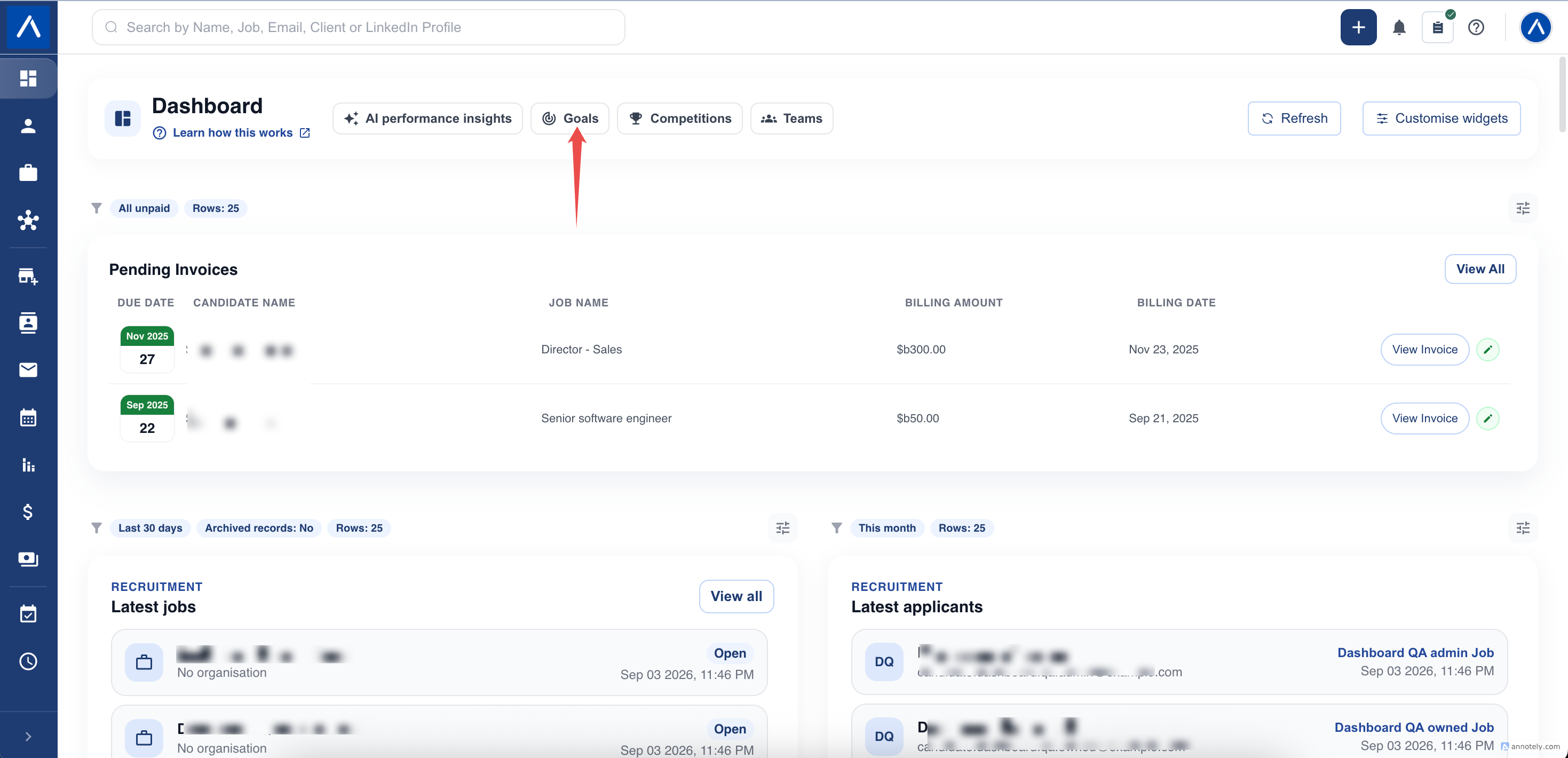
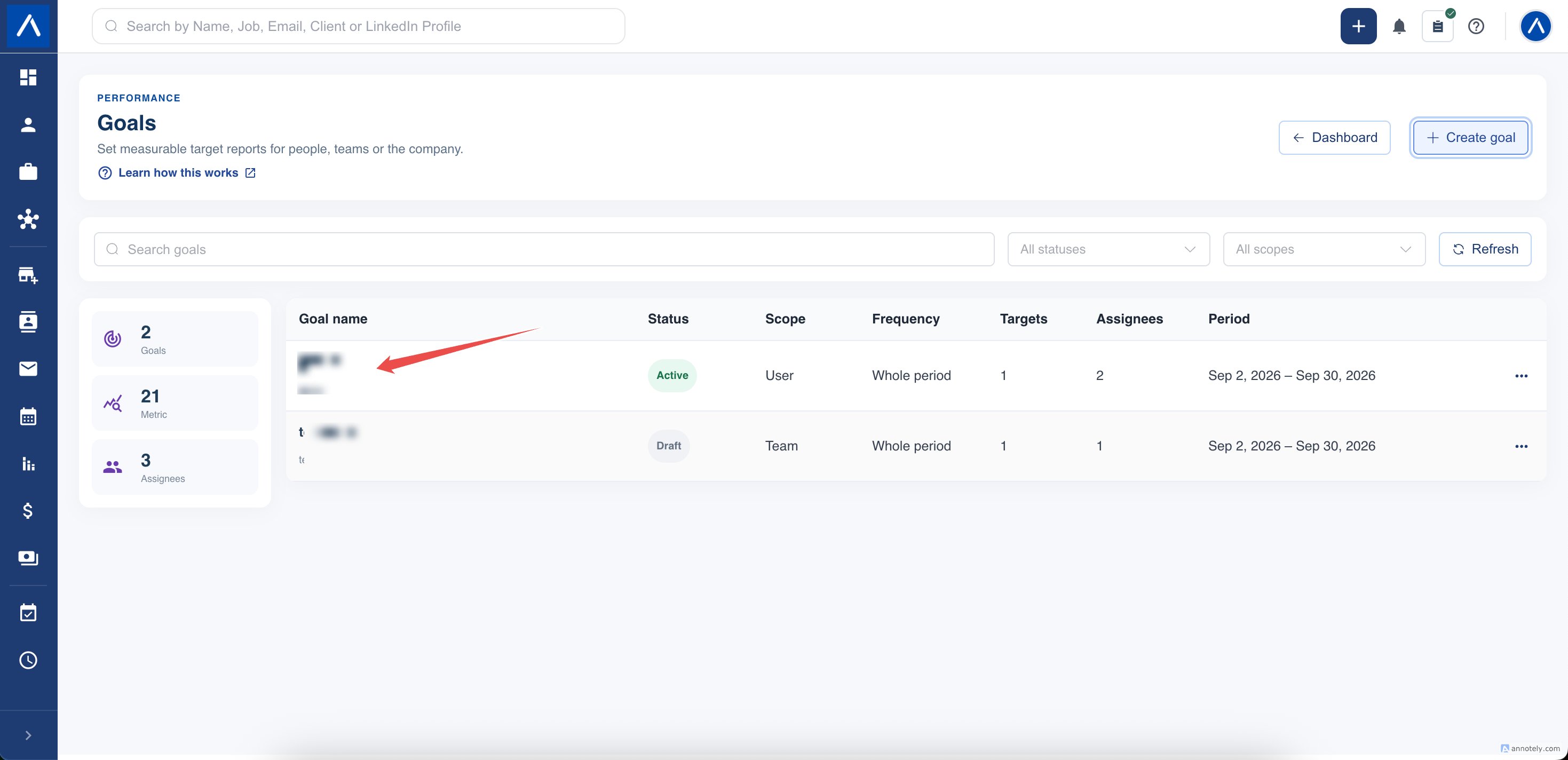
Open Goals from Home or Admin Settings. Choose a goal, then select the reporting period you want to inspect.
An upcoming goal has not started yet. An active goal has live progress. A completed period represents a closed reporting window. Cancelled goals retain their history but no longer continue normal tracking.
Read Each Target
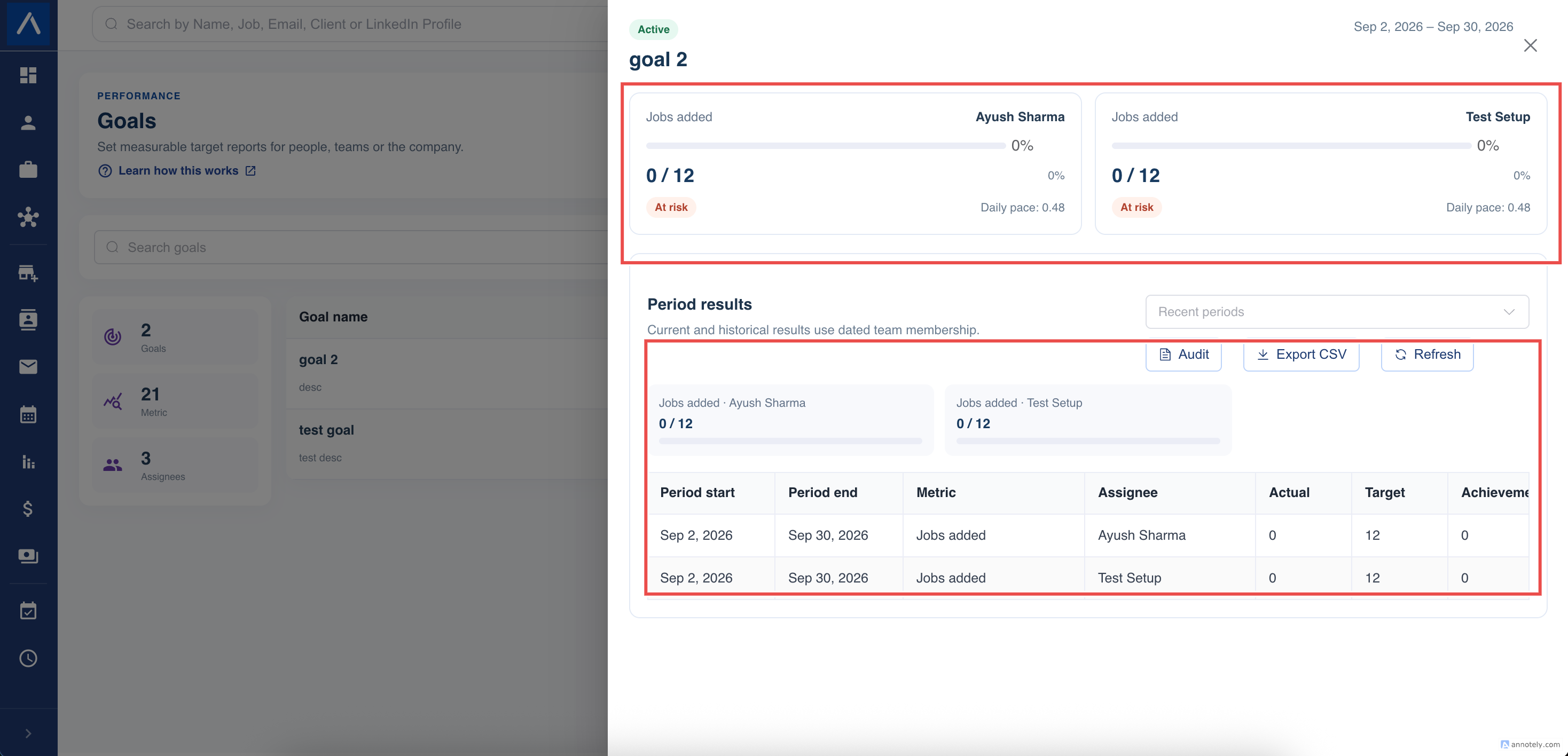
Compare the actual result with the target and its direction.
- At least is a minimum, such as at least 25 applications.
- At most is a ceiling.
- Exact requires the actual result to match the target.
For a live period, an at-most or exact result can change as more work is recorded. A target that appears achieved today is not necessarily a guaranteed final result.
Read the metric itself as well as its percentage. An activity count, a placement count, and a billing amount describe different things.
Use Pace and Projections Carefully
Pace and projected results help you spot whether work is on track. A projection is based on available progress; it is not a separate confirmed result.
Very early periods, quiet days, missing records, and changes in workload can make projections less useful. Pair the number with a conversation about the team’s actual pipeline.
Understand Team History and Access
For team goals, historical activity is attributed using the membership relevant to when the activity happened. Current membership is still important for what a user may access now.
A team transfer does not give a recruiter permanent access to their old team’s records. Similarly, changing a record’s owner is not the same as changing who originally performed a dated action.
Individual breakdowns require the appropriate permission even when someone can open the goal itself.
Follow a Goal on Home
Show the Goal progress widget, open its settings, and choose the goal. The widget follows its current period. Use the goal page when you need a different period or more detail.
Export Results and Review History
In Period results, select the period you need or review recent periods. Compare period rows with the overall totals carefully: a recurring goal has a target for each period.
If your role permits exports, select Export CSV to download the available target results. Check the selected period before using the file in a review.
Use Audit to inspect recorded goal changes and corrections. Result versions help distinguish the original closed-period result from a later authorized recalculation.
Correct or Stop Tracking
Draft goals can be edited before activation.
For a closed period that needs an authorized correction, a user with the relevant management permission can use Recalculate and provide a reason. This creates an auditable correction rather than silently replacing the original result.
If a goal should stop, use the available cancellation action. Retain the history for later reviews instead of deleting recruitment records to change the total.
Troubleshoot a Missing Result
Check the period, time zone, metric definition, archive choice, and attribution. For stage milestones, ask your administrator whether the relevant hiring stages are configured.
Allow background updates to complete, then refresh. If the result remains unexpected, share the goal, period, assignee, and a permitted example record with support. Do not assume every report with a similar label counts the same event.
FAQs
Is a projected result guaranteed?
No. A projection estimates the result from recorded progress. It is a planning aid, not a promise that the target will be met.
Does moving a recruiter to another team rewrite historical goal credit?
Historical team activity uses membership dates. Moving someone today does not simply transfer all of their earlier activity to the new team.
What happens if a goal is cancelled?
Cancellation retains the goal’s history and stops future tracking. It does not delete the underlying CRM records.