
Bulk email helps you contact multiple candidates or contacts at once while still using templates and placeholders for personalization.
Quick Answer
Select candidates or contacts from the list page, click Email, compose or select a template, add placeholders or attachments, and click Send.
Step 1: Open the Candidate or Contact List
Go to the candidate or contact list page in ATZ CRM.
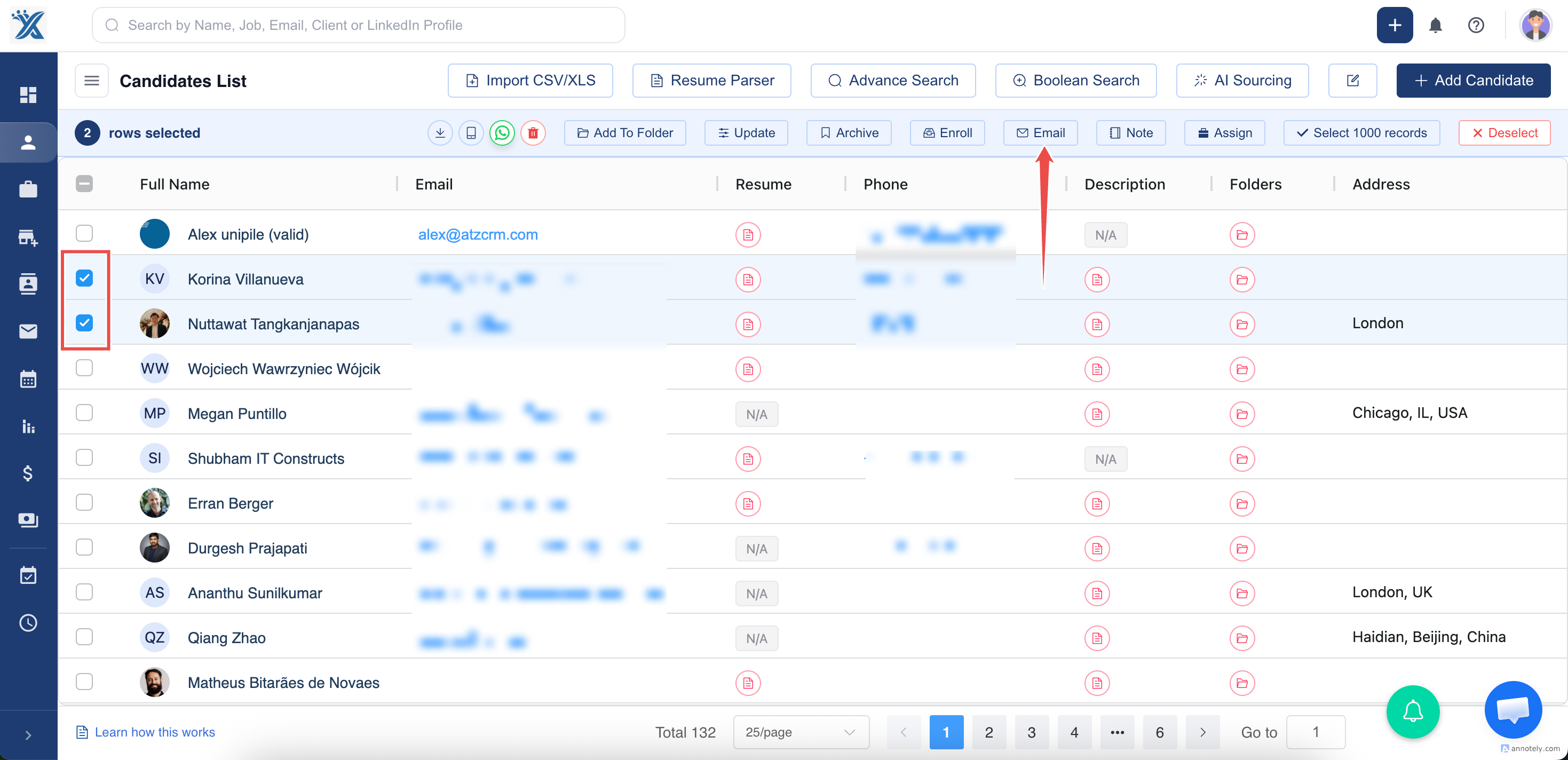
Step 2: Select Recipients
Use checkboxes to select the people you want to email.
Step 3: Click Email
After selecting records, click the Email button in the header bar.
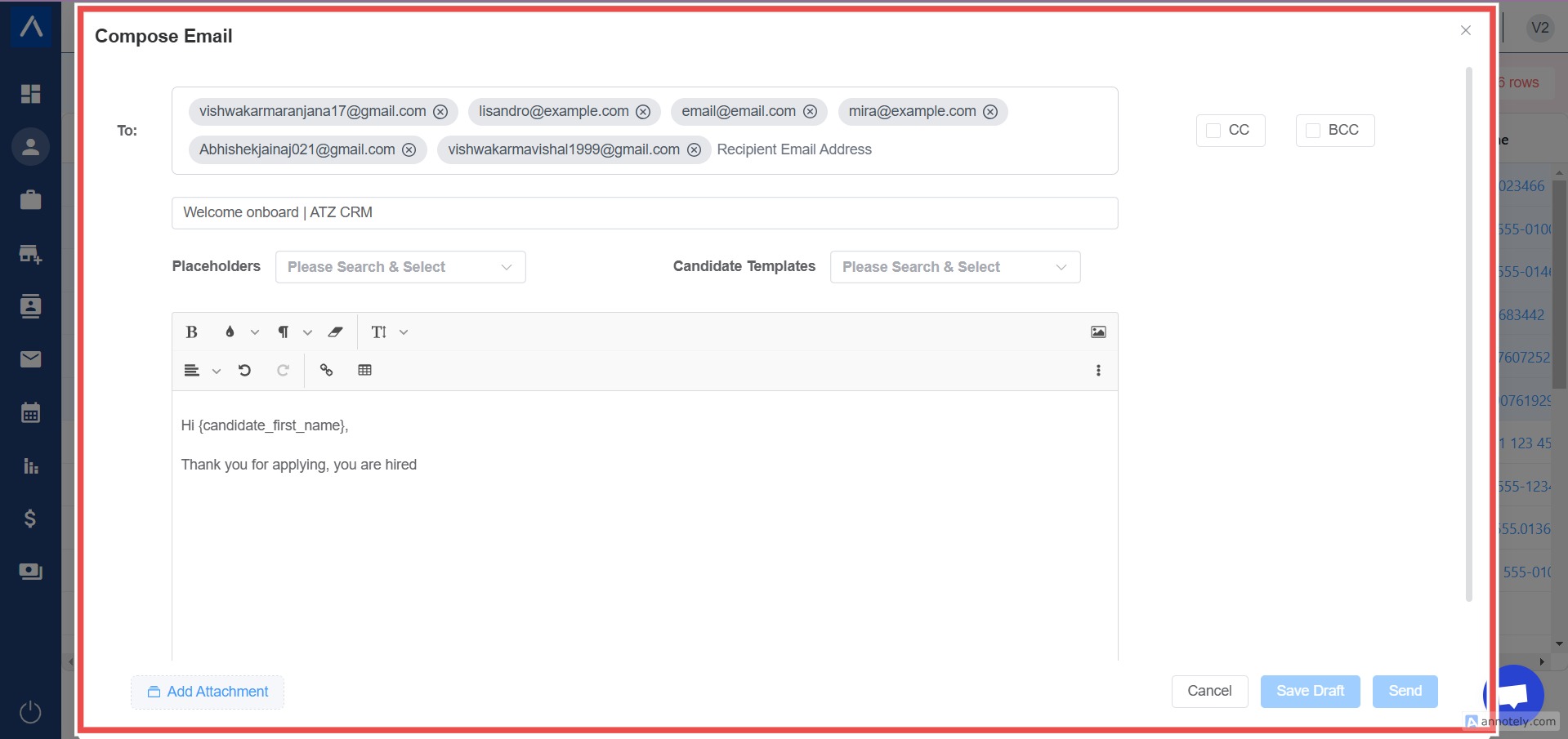
Step 4: Compose the Email
Write your message in the email editor. You can use templates, placeholders such as first name, and attachments.
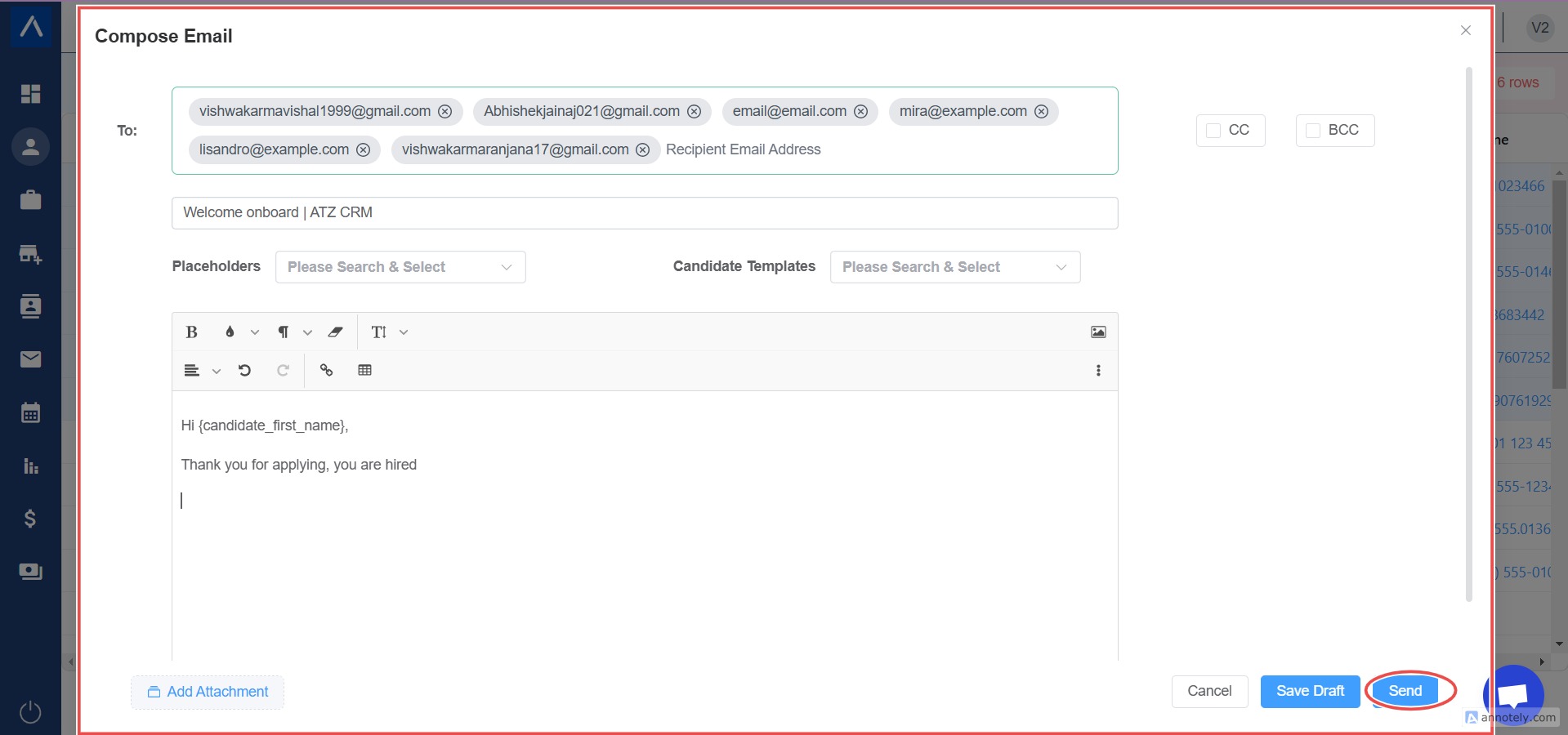
Step 5: Send the Email
Review the message and click Send.
Use Cases
Candidate Updates
Send role updates, interview reminders, or status messages to selected candidates.
Client Outreach
Email multiple contacts with updates, announcements, or follow-up messages.
Short Campaigns
Use bulk email for one-time outreach when a full sequence is not required.
Troubleshooting
Some Records Were Skipped
Check whether records are missing email addresses or are opted out.
Placeholders Did Not Populate
Confirm each selected record has the fields used by the placeholders.
Email Cannot Be Sent
Make sure your email account is connected and verified.
FAQs
Should I use bulk email or sequences?
Use bulk email for one-time messages. Use sequences for scheduled multi-step follow-up.
Can I add attachments?
Yes. Attach files from the bulk email composer.
Can recipients opt out?
Yes. Include unsubscribe links where required and honor opt-out status.