
When to Add a Candidate Manually
Manual candidate creation is useful when you receive candidate details through referrals, inbound emails, job applications, spreadsheets, calls, or direct submissions. It gives you full control over the profile before it enters your recruitment database.
You can also upload a resume during this process. When a resume is available, ATZ CRM can extract key information and reduce repetitive typing.
Step 1: Open the Add Candidate Form
Go to the Candidates section in ATZ CRM and select Add Candidate.
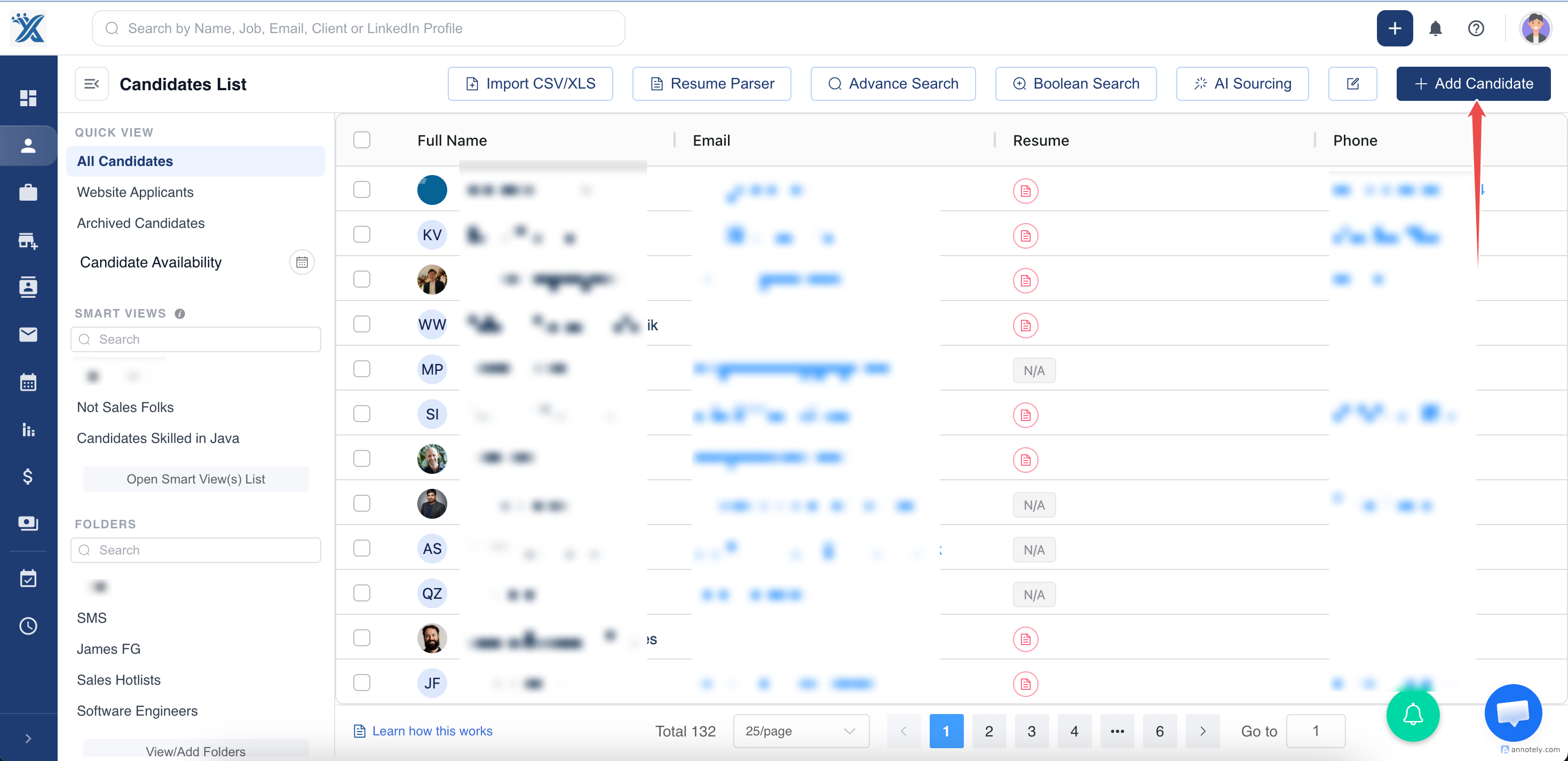
Step 2: Fill in Candidate Details
Enter the candidate details you have available. Depending on your account setup, this may include:
- Name and contact details
- Current position
- Location
- Skills
- Source
- Owner
- Candidate stage
- Custom fields
Pro tip: If you have a resume, upload it first. ATZ CRM can parse resume data and auto-fill available fields, which saves time and reduces manual errors.
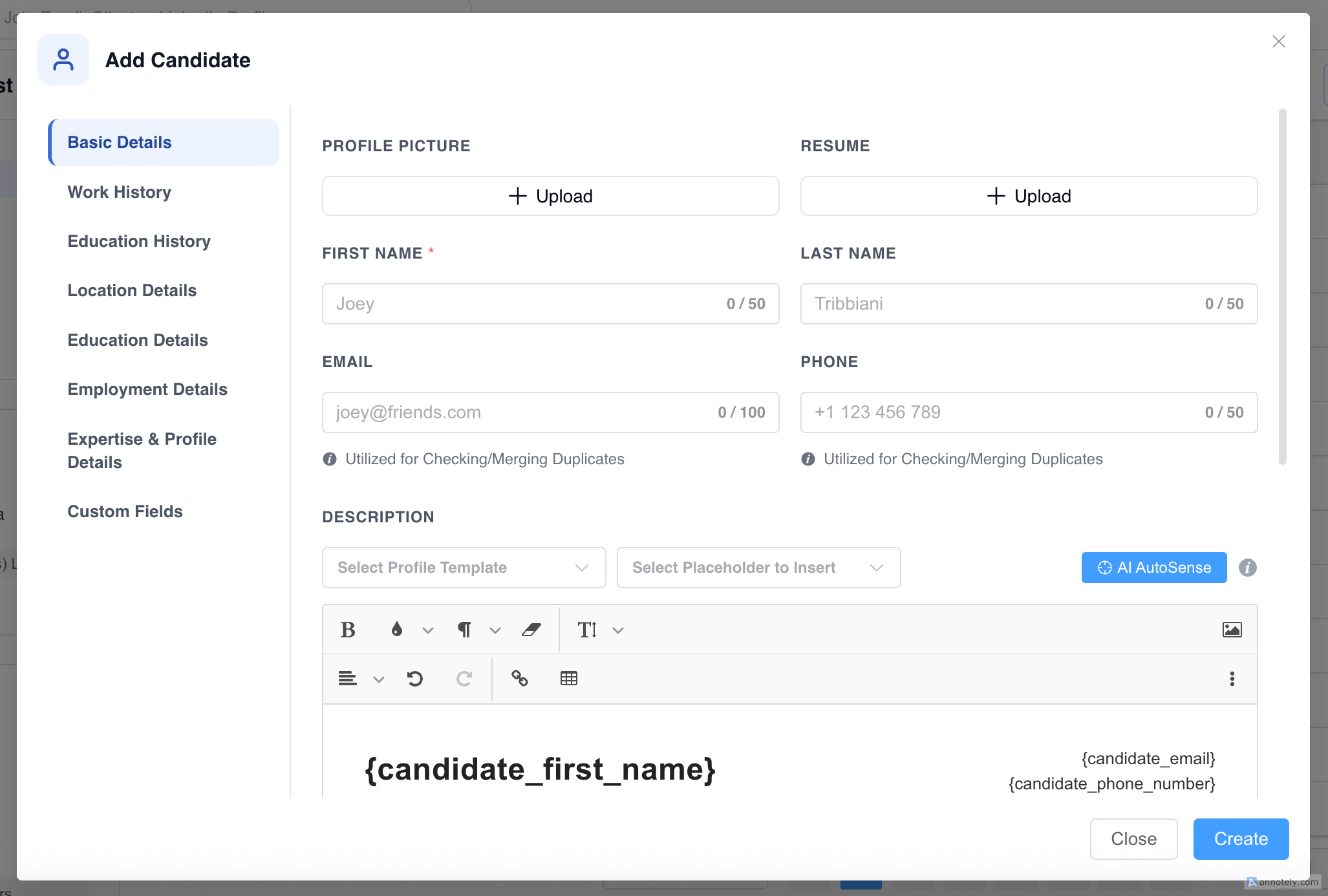
Step 3: Upload the Candidate Resume
Attach the candidate’s resume from the resume upload field. Make sure the file is current and readable so recruiters and account managers can review it later.
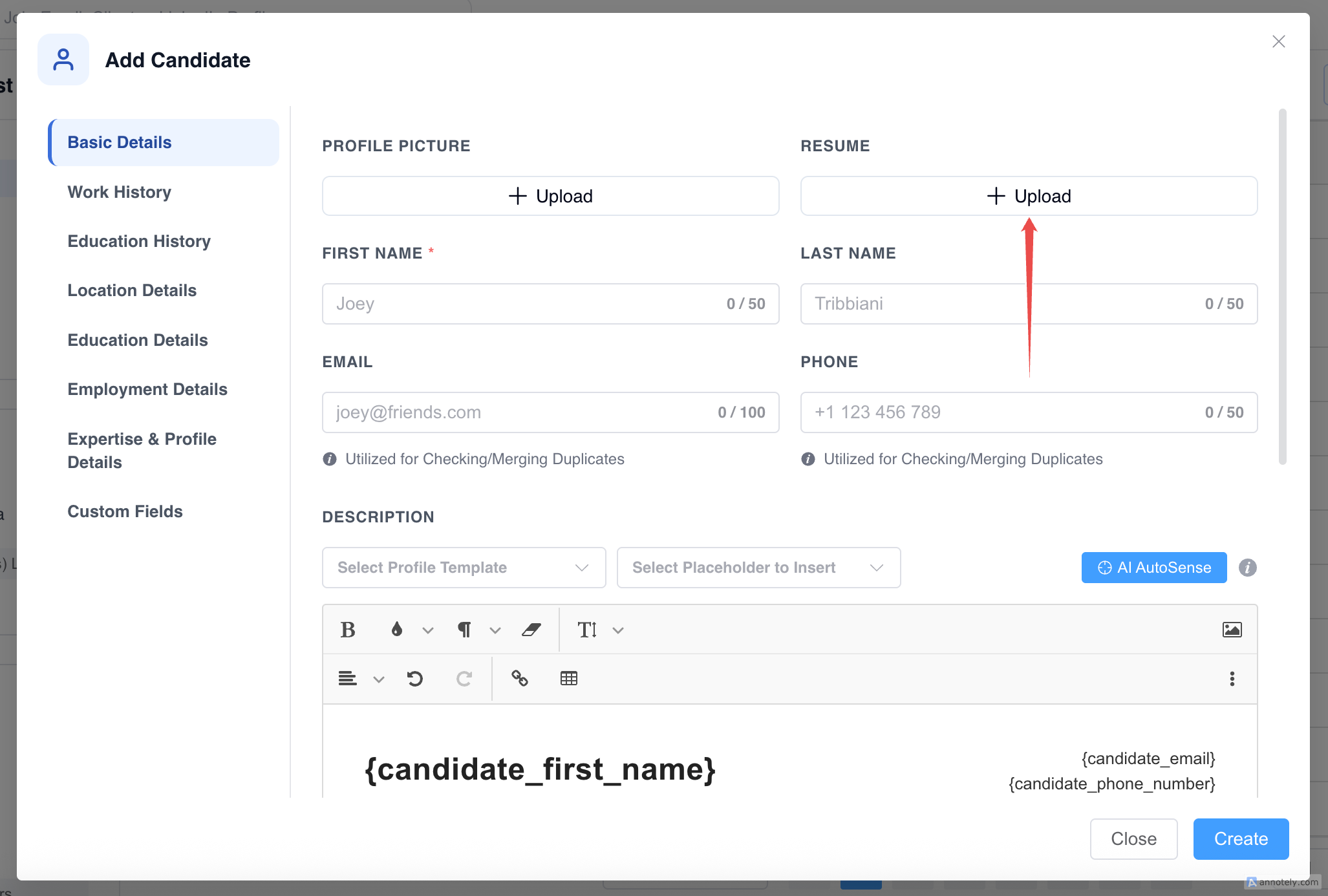
Step 4: Review and Create the Profile
Before saving, check that required fields are complete and that parsed information is accurate. Then select Create to save the candidate profile.
Use Cases
Referral Candidates
Add candidates manually when a colleague, client, or existing candidate shares a referral outside your sourcing tools.
Email or Call Intake
When a candidate sends a resume by email or shares details during a call, manual creation keeps the record inside ATZ CRM immediately.
Controlled Data Entry
For sensitive or senior roles, manual entry lets recruiters review ownership, source, tags, and fields before the candidate enters an active pipeline.
Troubleshooting
Required Fields Are Missing
Check highlighted fields and complete mandatory details before saving. Required fields may vary based on your admin settings.
Resume Parsing Did Not Fill Every Field
Resume parsing depends on the resume format and content. Add missing details manually before creating the profile.
Duplicate Candidate Warning Appears
Review the existing record before creating a new one. If the candidate already exists, update the existing profile instead of creating a duplicate.
Frequently Asked Questions
Can I add a candidate without a resume?
Yes. A resume is helpful, but not required unless your account settings make it mandatory.
Can I assign the candidate to a job during manual creation?
Depending on your workflow, you can create the candidate first and then assign them to one or more jobs from the candidate profile.
Can I use candidate profile templates while adding a candidate?
Yes. If your account uses candidate profile templates, a default template may apply automatically, or you can select one manually.