
The ATZ CRM Client Portal lets clients manage job requisitions and view jobs shared by your recruiting team. You can invite client contacts directly from their contact profile.
Quick Answer
Open the contact profile, click the three-dot menu, and select Invite to Client Portal. ATZ CRM sends an email invitation with a portal sign-up link. The option appears only when the contact has a valid email address and is linked to an organization.
Before You Start
The Client Portal is an add-on feature of ATZ CRM, available separately from the standard subscription. For access or pricing details, contact support from in-app chat or email support@atzcrm.com.
Before inviting a contact, confirm:
- The contact has a valid email address.
- The contact is assigned to an organization.
- The organization should be able to collaborate through the Client Portal.
If needed, review: Assign a contact to an organization.
Step 1: Open the Contact Profile
Log in to ATZ CRM and go to Contacts. Open the contact you want to invite.
Step 2: Select Invite to Client Portal
Click the three-dot actions menu and choose Invite to Client Portal.
If you do not see the option, check whether the contact has an email address and is linked to an organization.
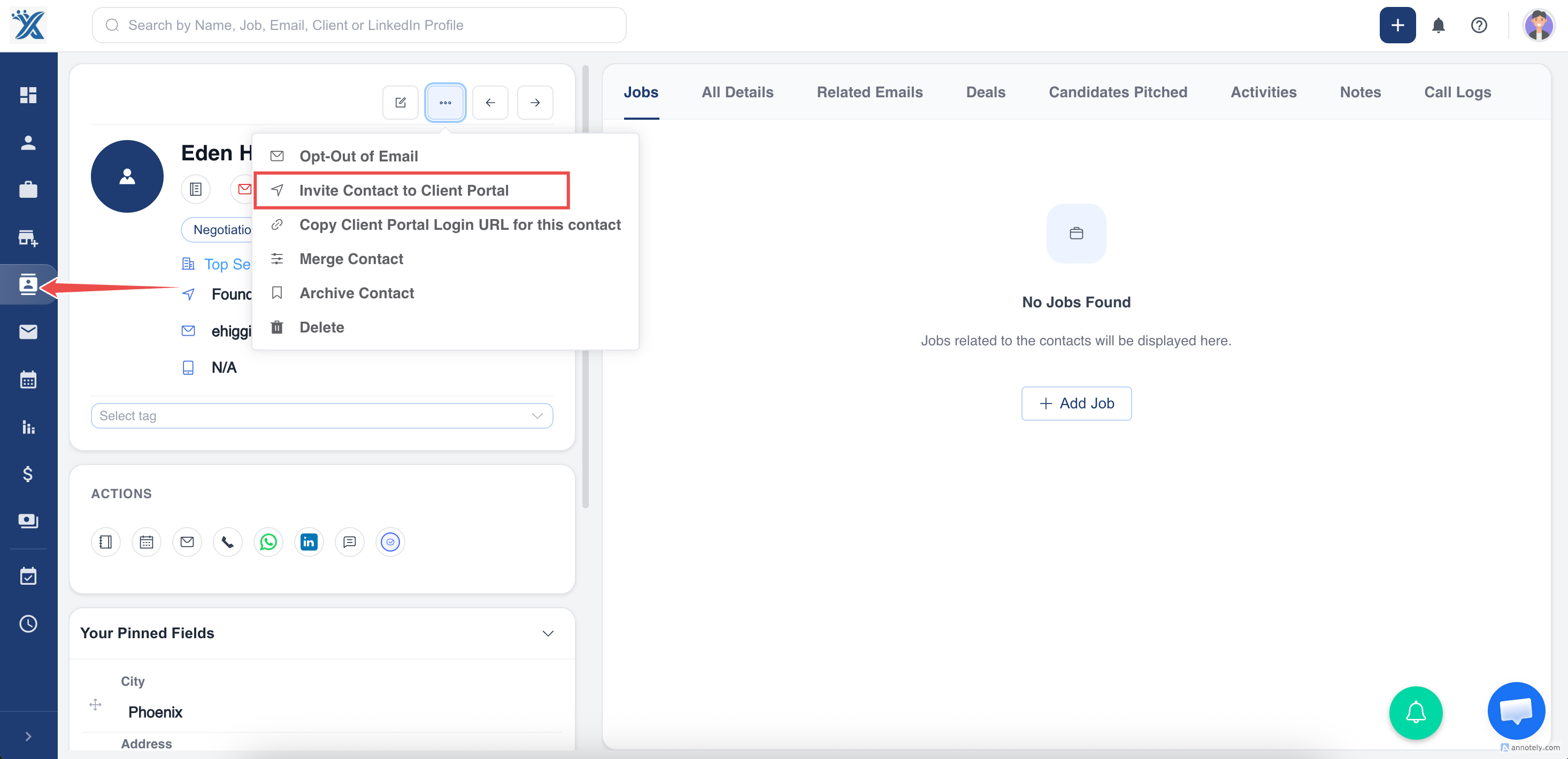
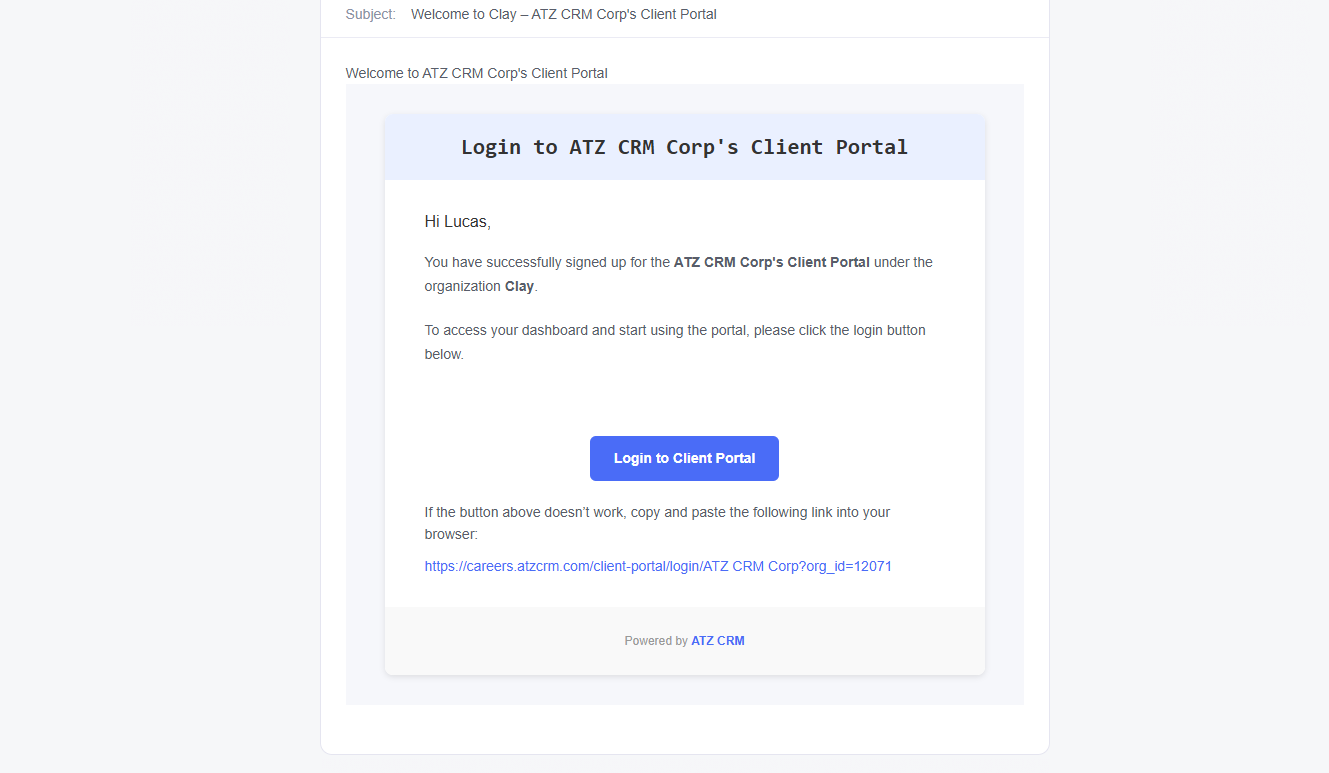
ATZ CRM sends an email invitation to the contact with a link to join the portal.
What the Client Receives
The contact receives an email invitation with a Join Client Portal button.
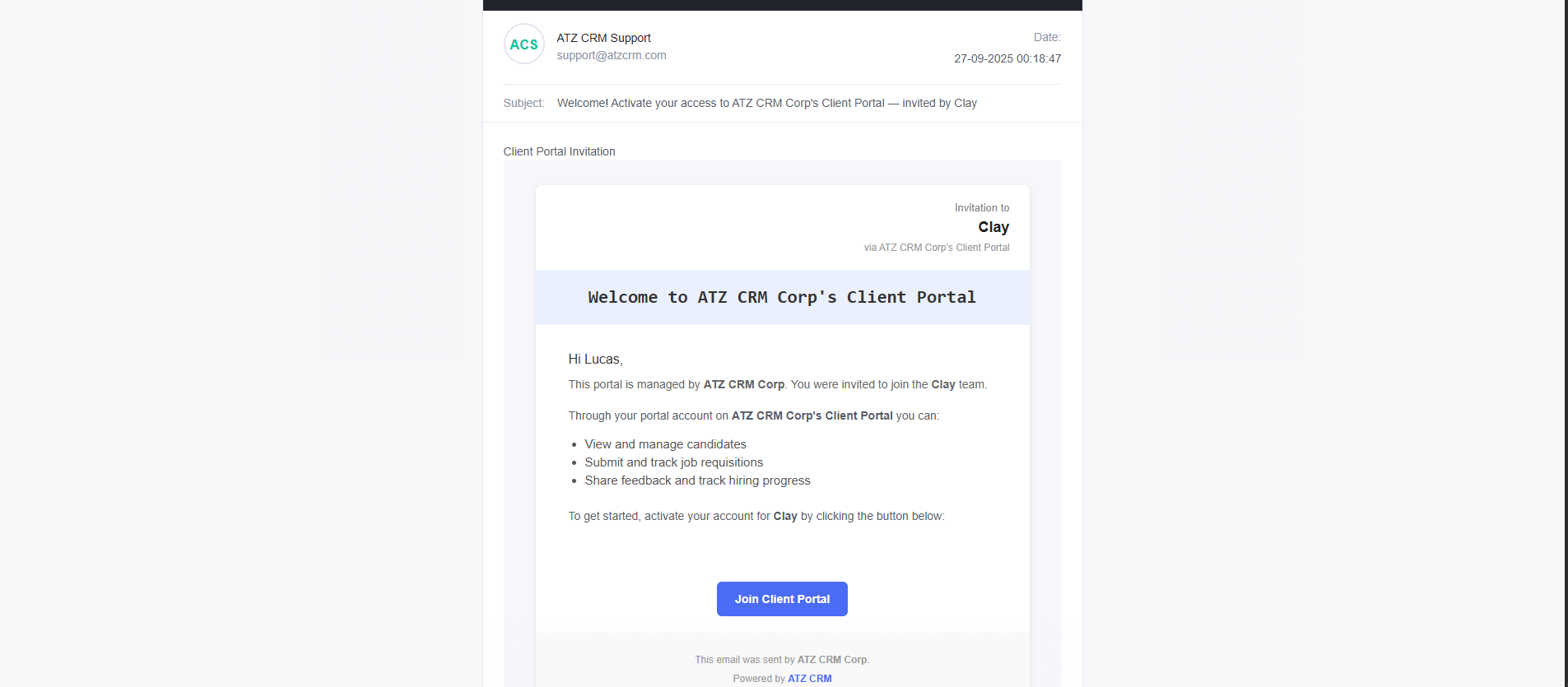
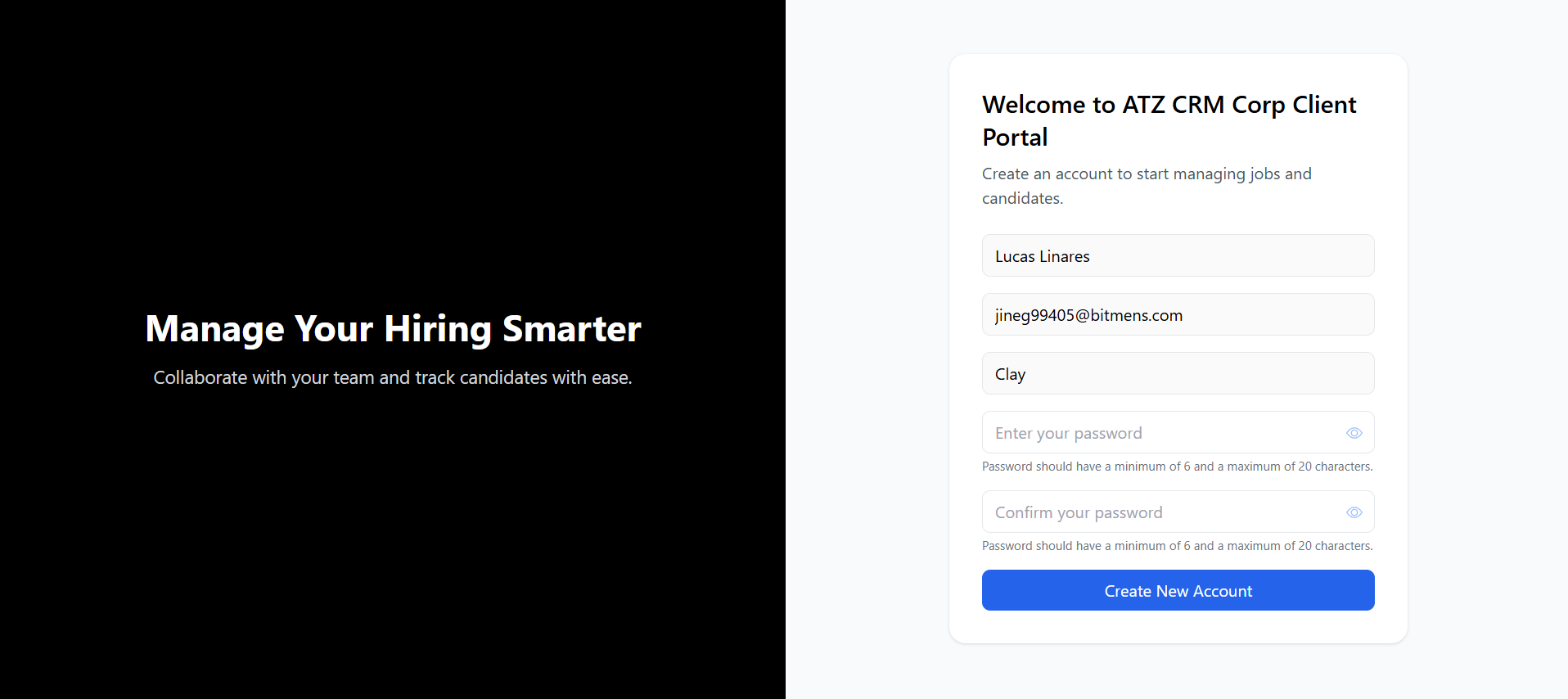
When the client clicks the button, they are taken to the Client Portal sign-up page.
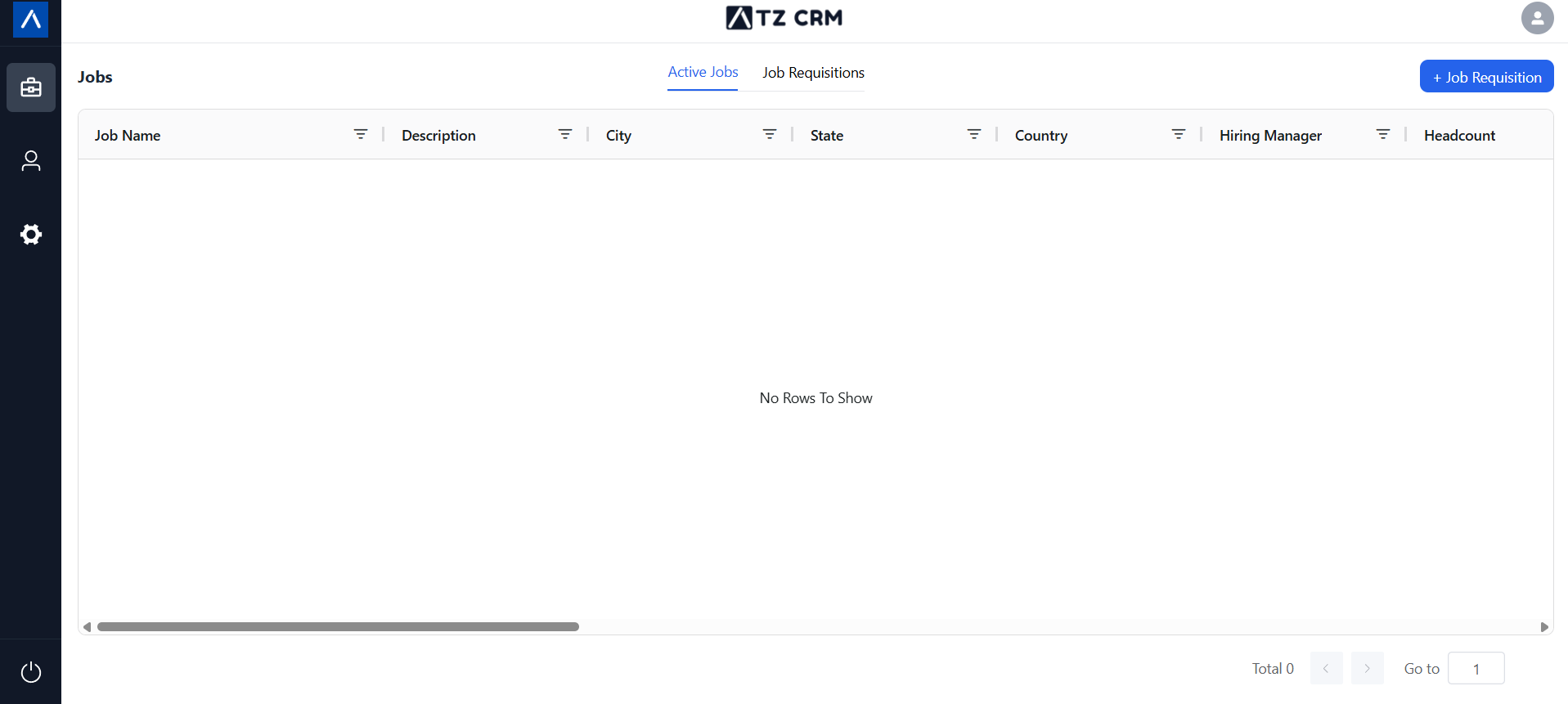
After sign-up, they are redirected to the Client Portal app.
What Clients Can Do in the Portal
Inside the Client Portal, clients can:
- Manage job requisitions.
- View jobs submitted from ATZ CRM.
- Review submitted candidates when jobs are shared with them.
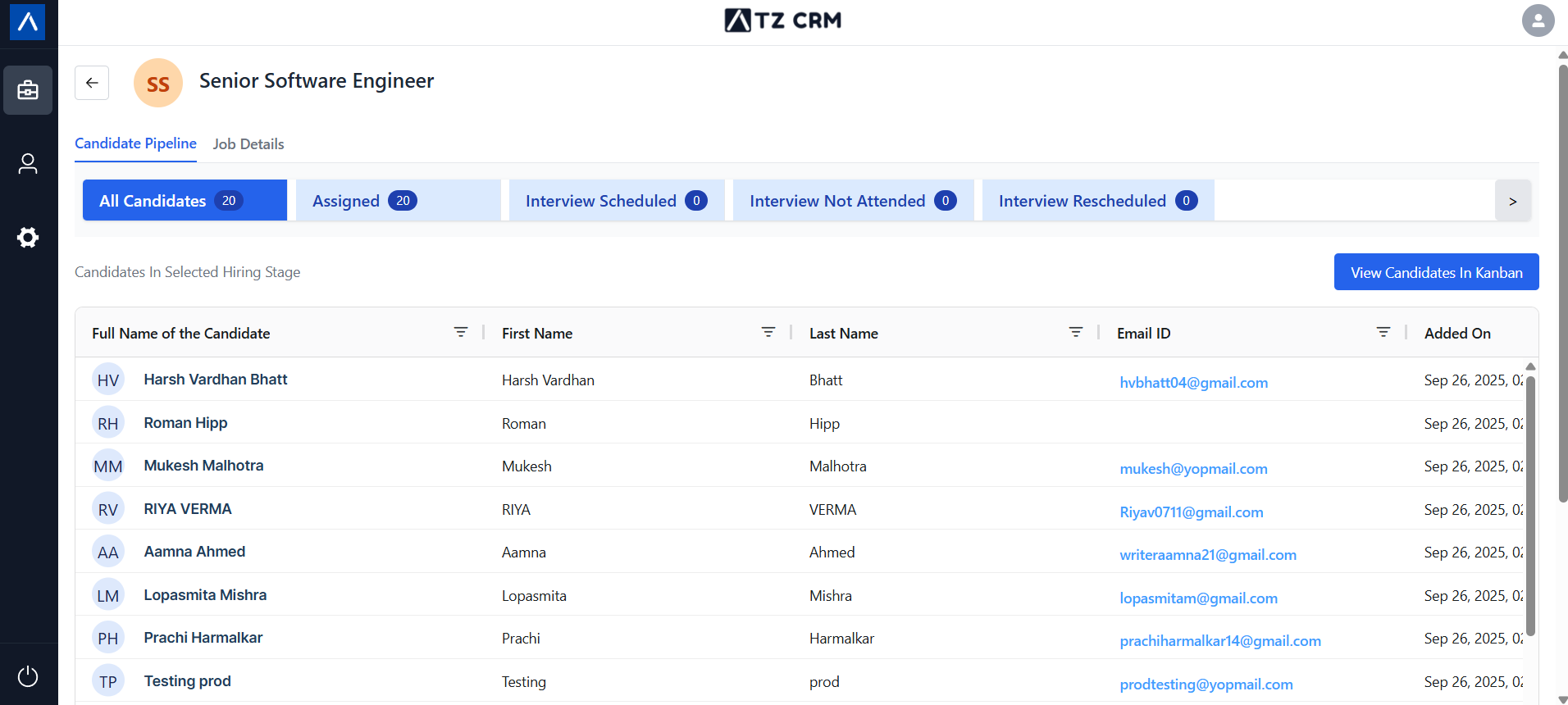
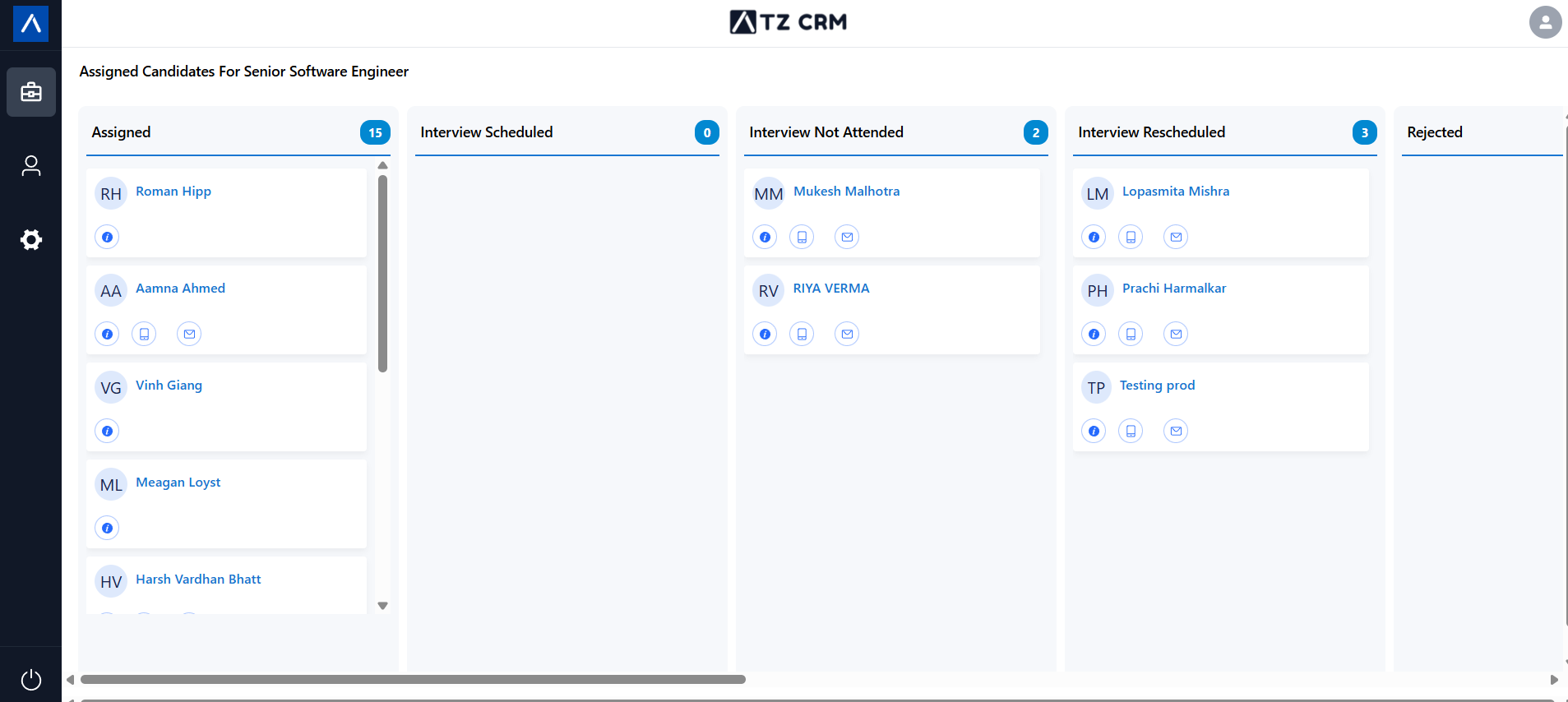
They also receive a login link email that can be used to log in again later.
Use Cases
Client Hiring Collaboration
Invite client-side hiring managers so they can review jobs and candidates without needing internal ATZ CRM access.
Job Requisition Intake
Invite contacts who should submit new job requirements directly through the portal.
Candidate Review
Invite contacts who need to review submitted candidates and share feedback with your recruiting team.
Troubleshooting
Invite to Client Portal Is Missing
Confirm the contact has a valid email address and is linked to an organization. If either is missing, the invite option may not appear.
Client Did Not Receive the Email
Ask the client to check spam or junk folders. Also verify the contact email address in ATZ CRM.
Client Can Log In but Cannot See Jobs
Jobs must be shared to the Client Portal from ATZ CRM. Review: Share jobs to the Client Portal.
FAQs
Can multiple contacts from the same organization use the portal?
Yes. Invite each contact who should access the portal, as long as each contact has a valid email and is linked to the organization.
Can I invite a contact without an organization?
No. Client Portal access depends on the contact being connected to an organization.
Can a client submit job requisitions after accepting the invite?
Yes. Once they have portal access, clients can submit job requisitions if the portal is enabled for your account.