
AI sequence generation helps you create tailored candidate or contact outreach faster. You still need to review the output for accuracy, tone, and compliance before using it.
Quick Answer
Choose Create Sequence Using AI, enter a detailed prompt, generate the sequence, review and edit every step, then save and enroll the right records.
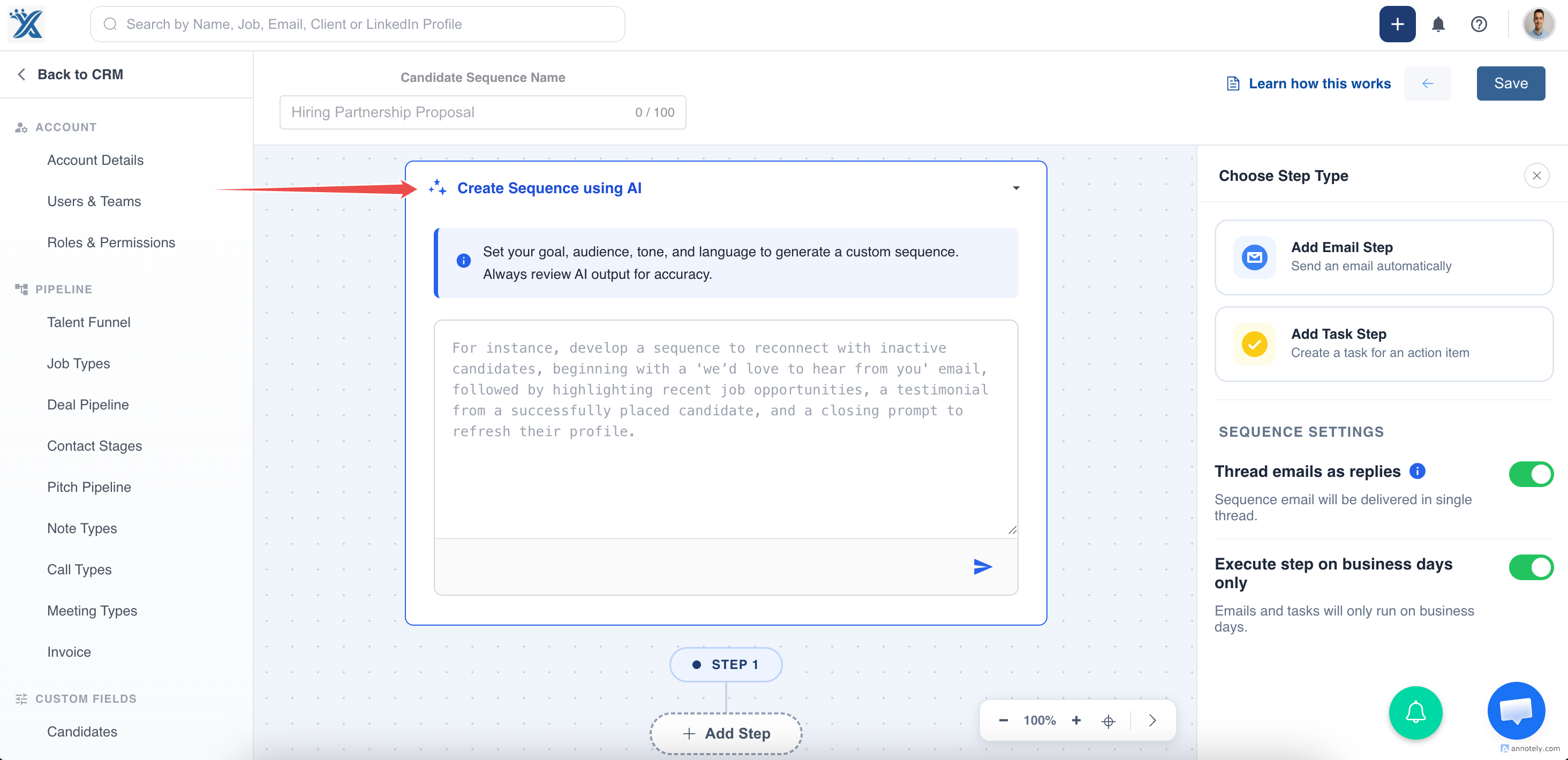
Start AI Sequence Creation
While creating a candidate or contact sequence, select Create Sequence Using AI.
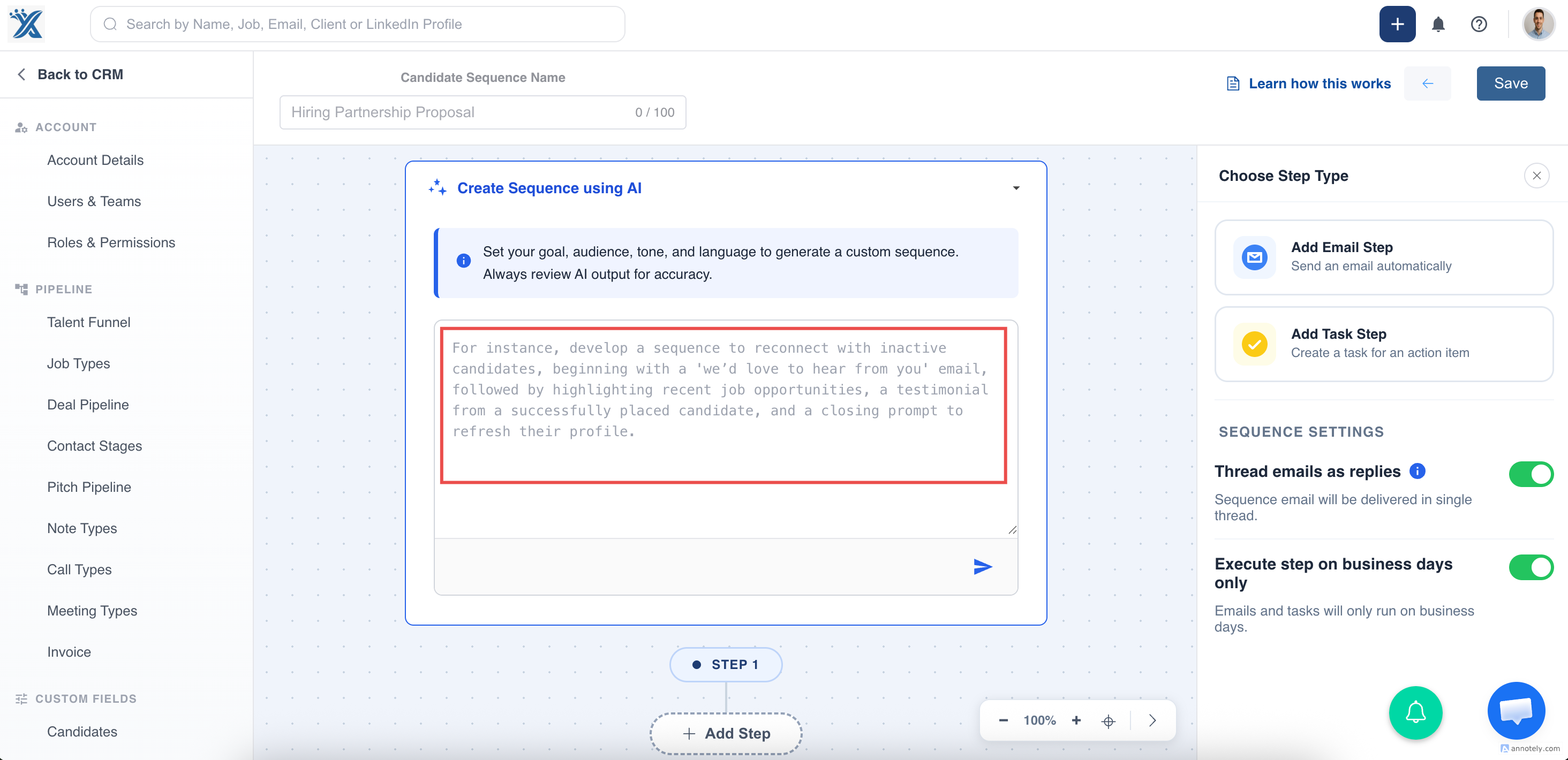
Write a Detailed Prompt
In the prompt box, include details such as:
- Goal, such as candidate outreach or job promotion.
- Use case, such as first contact or follow-up.
- Audience, such as software engineers or hiring managers.
- Tone, such as professional or friendly.
- Language, such as English or Spanish.
The more specific the prompt, the more useful the generated sequence.
Generate and Regenerate
Click Send to generate the sequence. By default, AI creates a sequence with 5 to 6 steps.
Use Regenerate to create a fresh sequence, or regenerate an individual step when only one step needs improvement.
Edit Before Saving
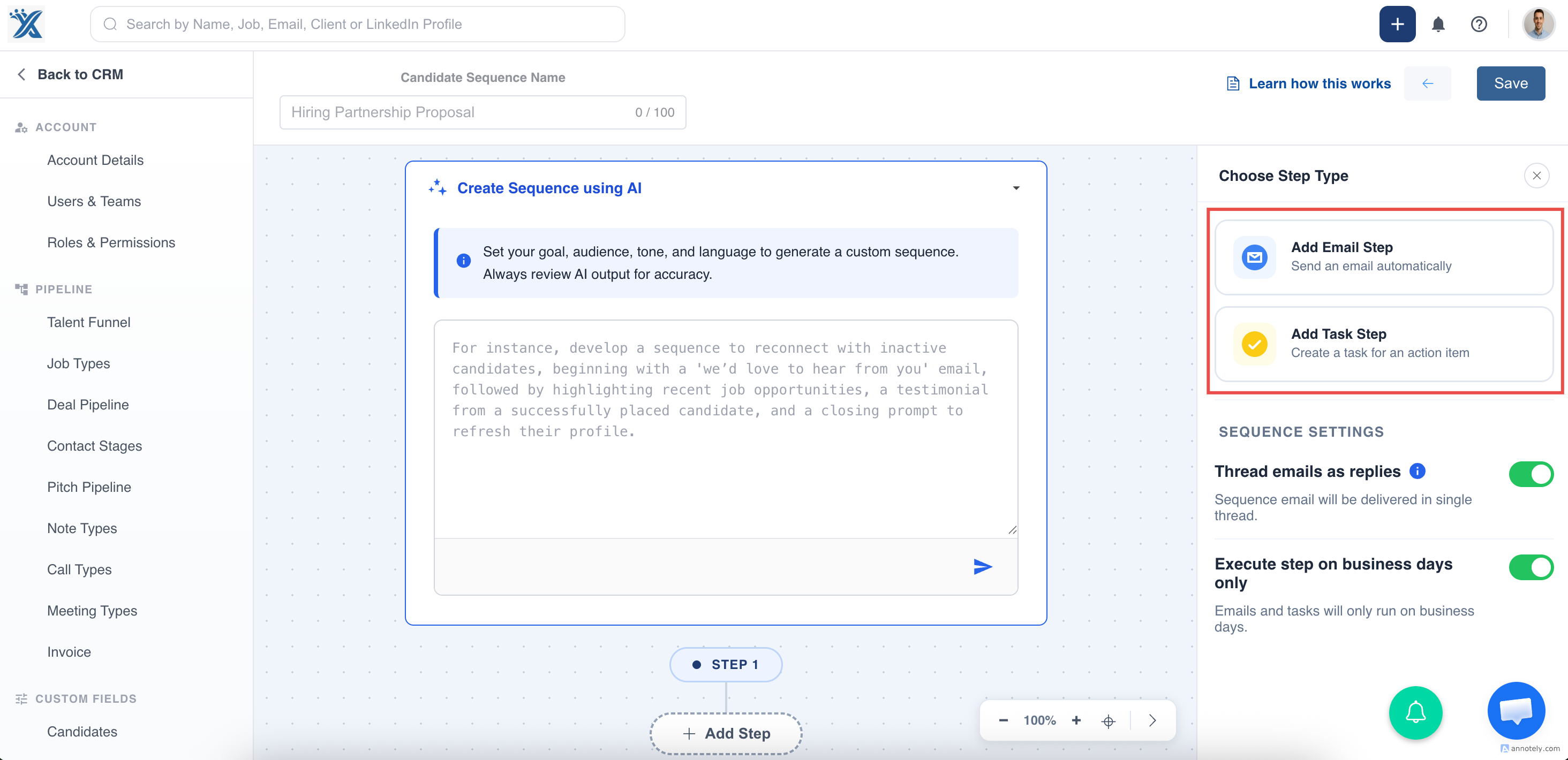
Review every generated step before saving. You can edit the subject, body, timing, and sequence structure or add manual steps.
If you manually added steps before using AI, generating an AI sequence overwrites those manual steps after confirmation.
Save and Enroll Records
After reviewing and editing the sequence, click Save and enroll the relevant candidates or contacts.
Important AI and Compliance Notes
AI-generated content may be inaccurate, misleading, too generic, or mismatched to your audience. Always verify facts, tone, personalization, and compliance.
Make sure sequence emails follow email authentication and sender policy requirements: Email policy compliance.
Use Cases
Candidate Outreach
Generate multi-step candidate outreach campaigns for sourced talent.
Client Prospecting
Create follow-up sequences for contacts or hiring managers.
Multilingual Outreach
Prompt AI in the target language and review before sending.
Troubleshooting
The Sequence Feels Too Generic
Add more detail to the prompt, including job type, recipient profile, tone, and desired call to action.
Manual Steps Disappeared
AI generation overwrites manual steps when confirmed. Rebuild or restore the steps manually if needed.
Compliance Is Unclear
Review unsubscribe links, consent, and domain authentication before enrolling recipients.
FAQs
Is there an AI usage limit?
AI Assist has a monthly limit of 2 million tokens per user, approximately 400,000 to 450,000 English words. Token usage varies by language and content.
Can I regenerate only one step?
Yes. Use the regenerate option on the individual step.
Should I send AI output without editing?
No. Always review AI-generated content for accuracy, relevance, personalization, and compliance.