
Activity templates help teams reuse consistent structures for interviews, follow-ups, notes, tasks, and other activity workflows.
Quick Answer
Open Settings > Activity Templates, create a template, choose the entity and template purpose, save it, then use Insert Template when creating activities or notes.
Create a Custom Activity Template
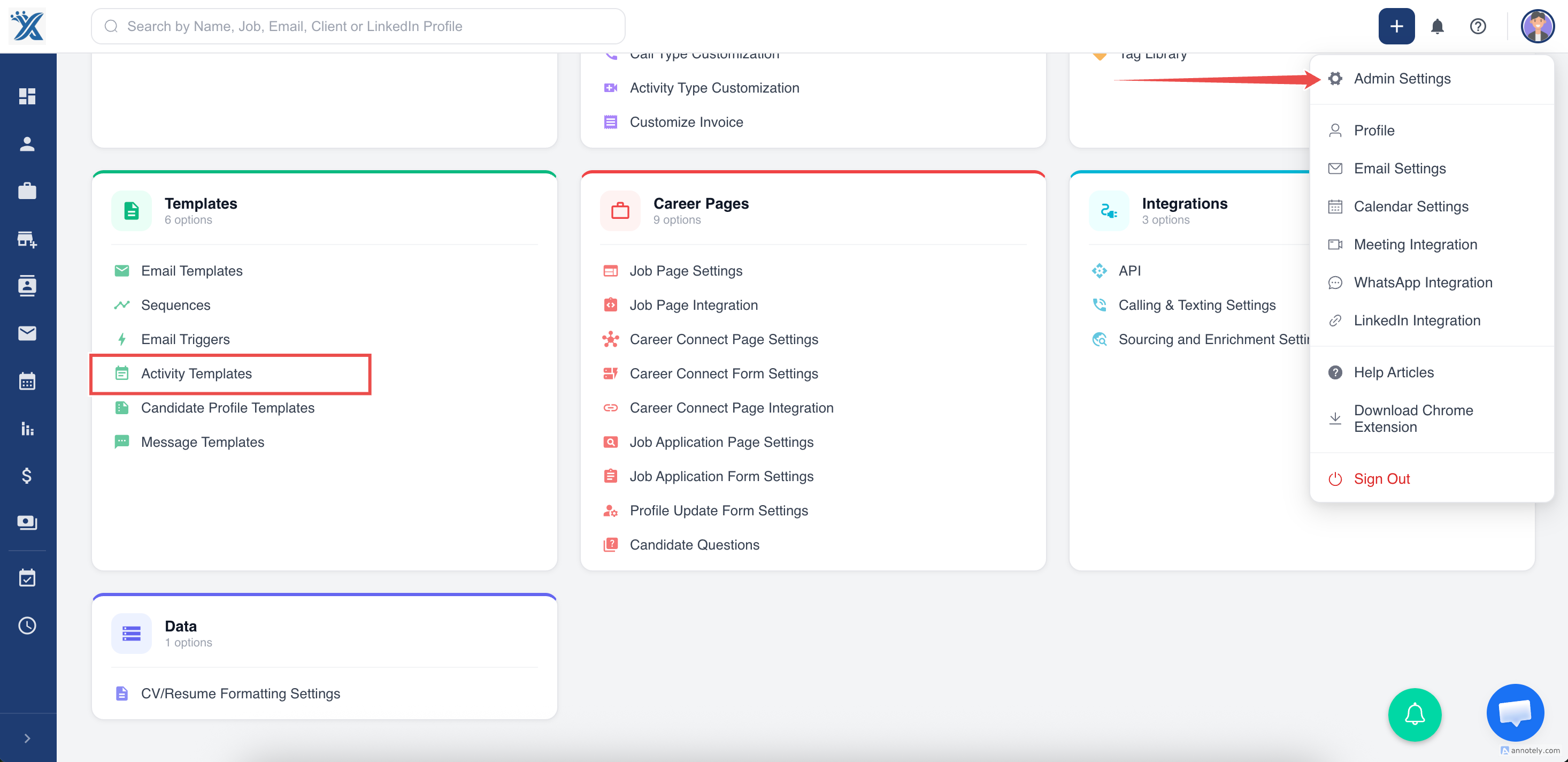
Open Activity Templates from settings.
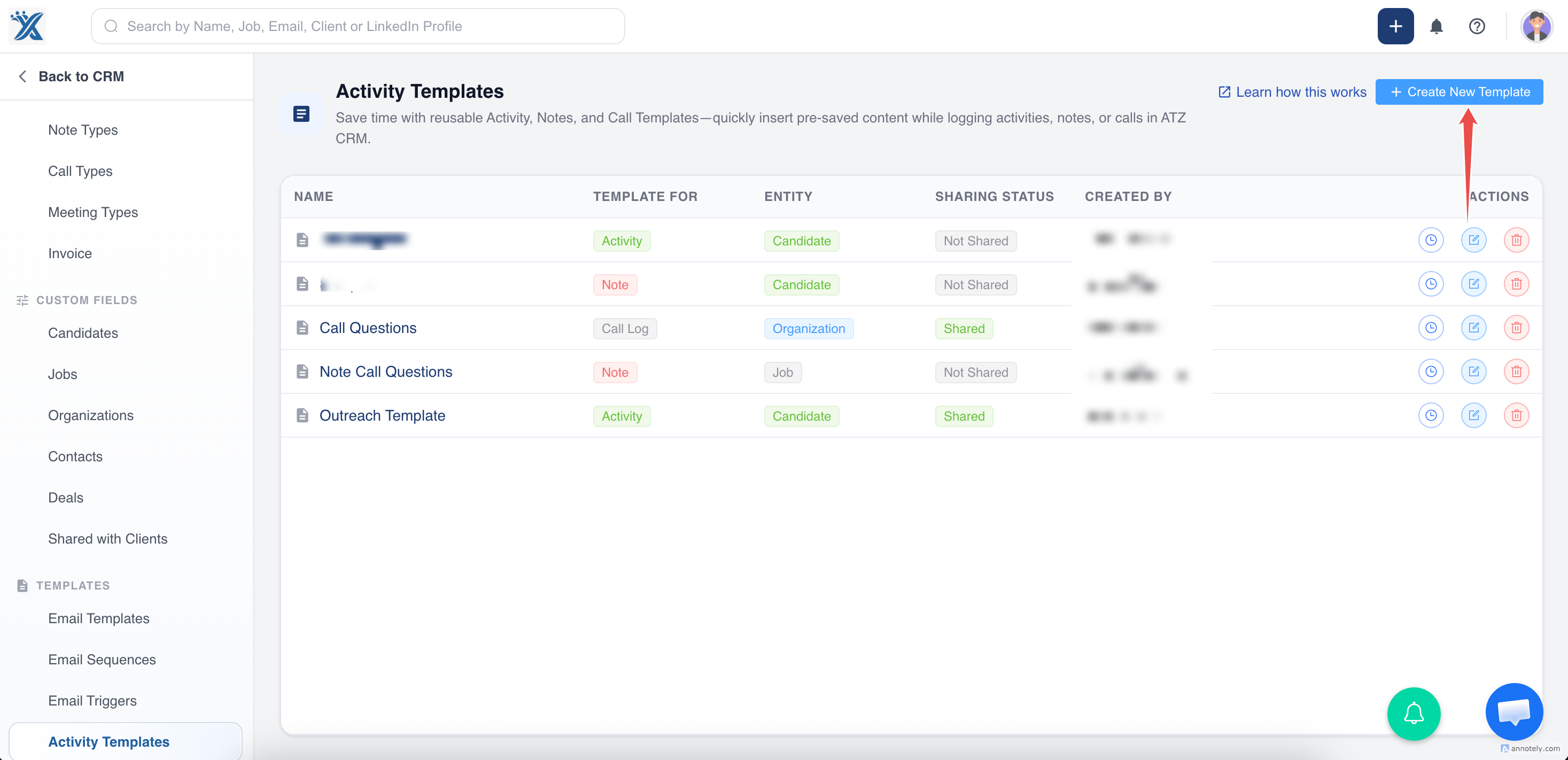
Click Create New Template.
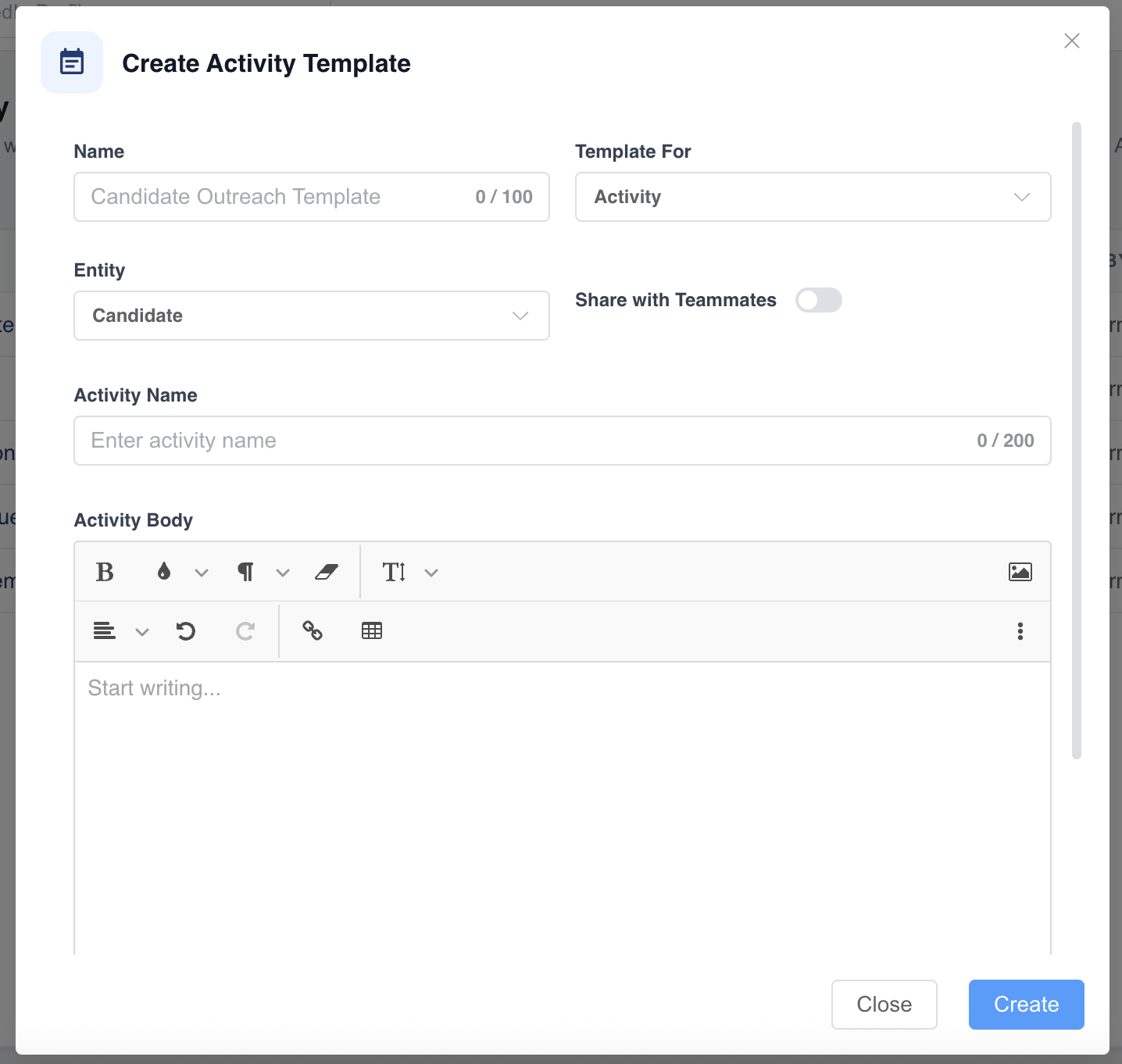
Name the template, choose the entity, set Template For to Activity, and save.
Update a Custom Activity Template
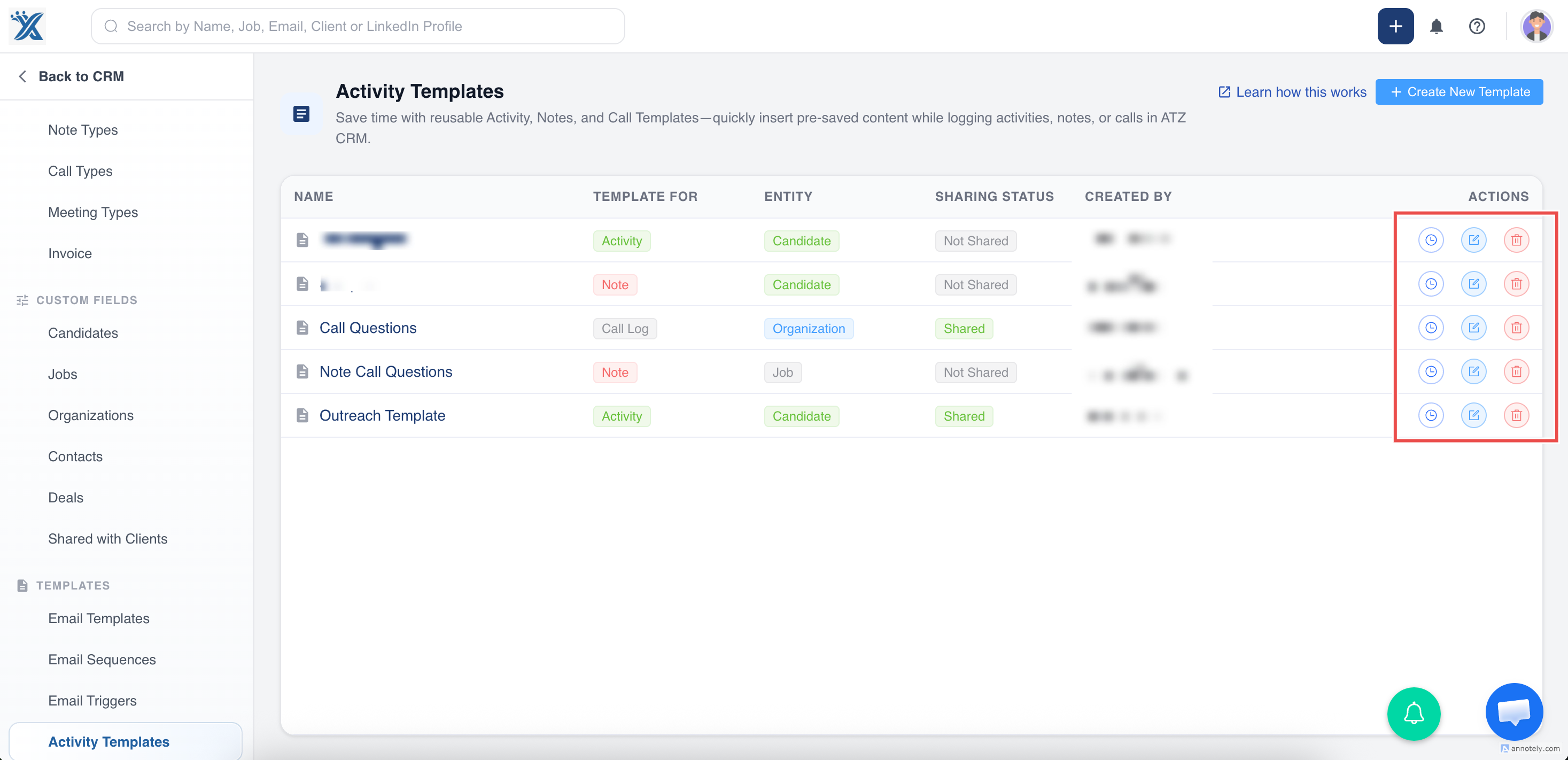
Find the template in Activity Template Customization, click Edit, update the template, and save changes.
Delete a Custom Activity Template
Find the template, click Delete, and confirm.
Use Templates in Activities
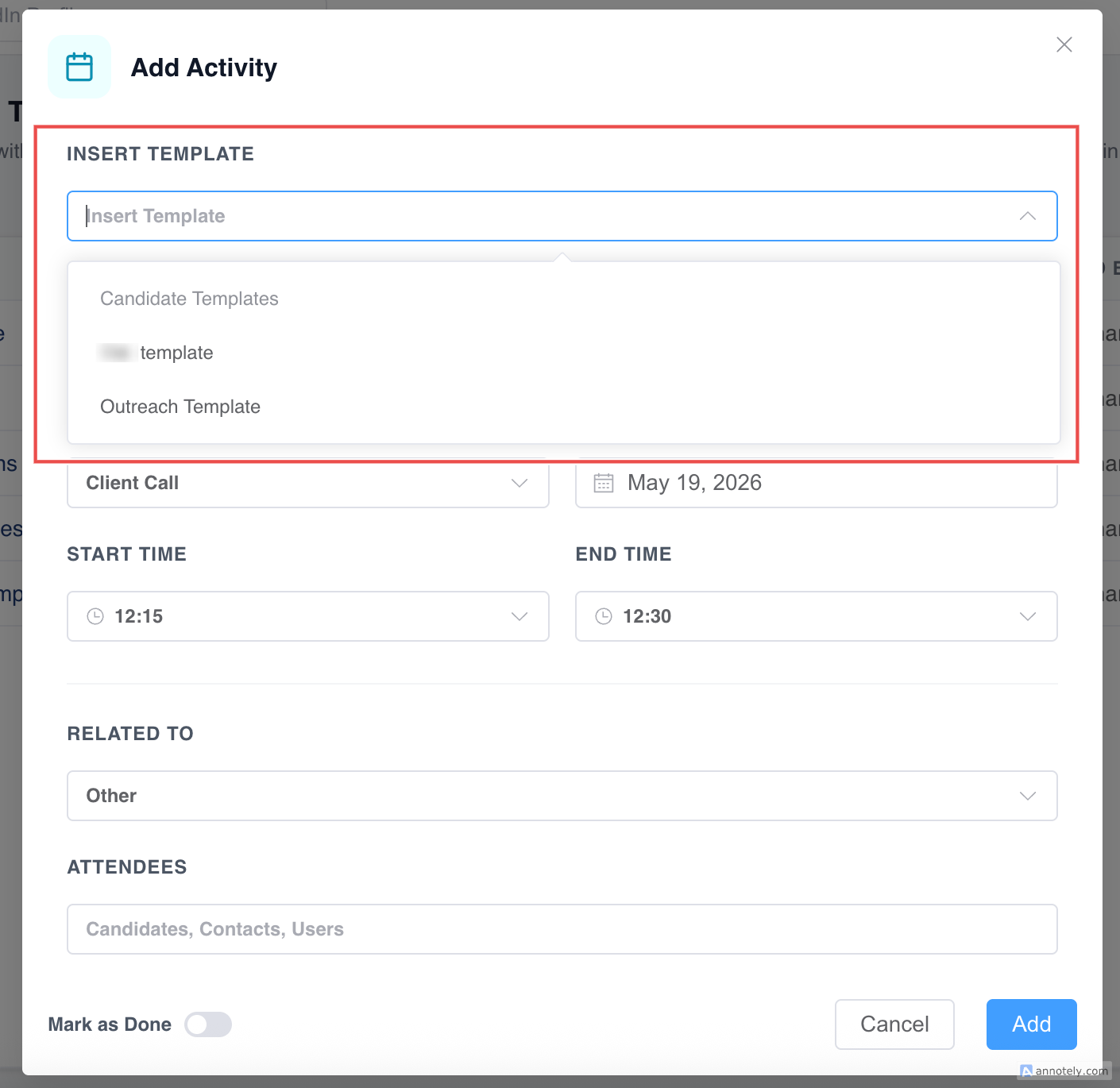
When creating a new activity, click Insert Template and select the desired template.
The predefined content is inserted into the activity creation form. Add any additional details and save.
Use Templates in Notes
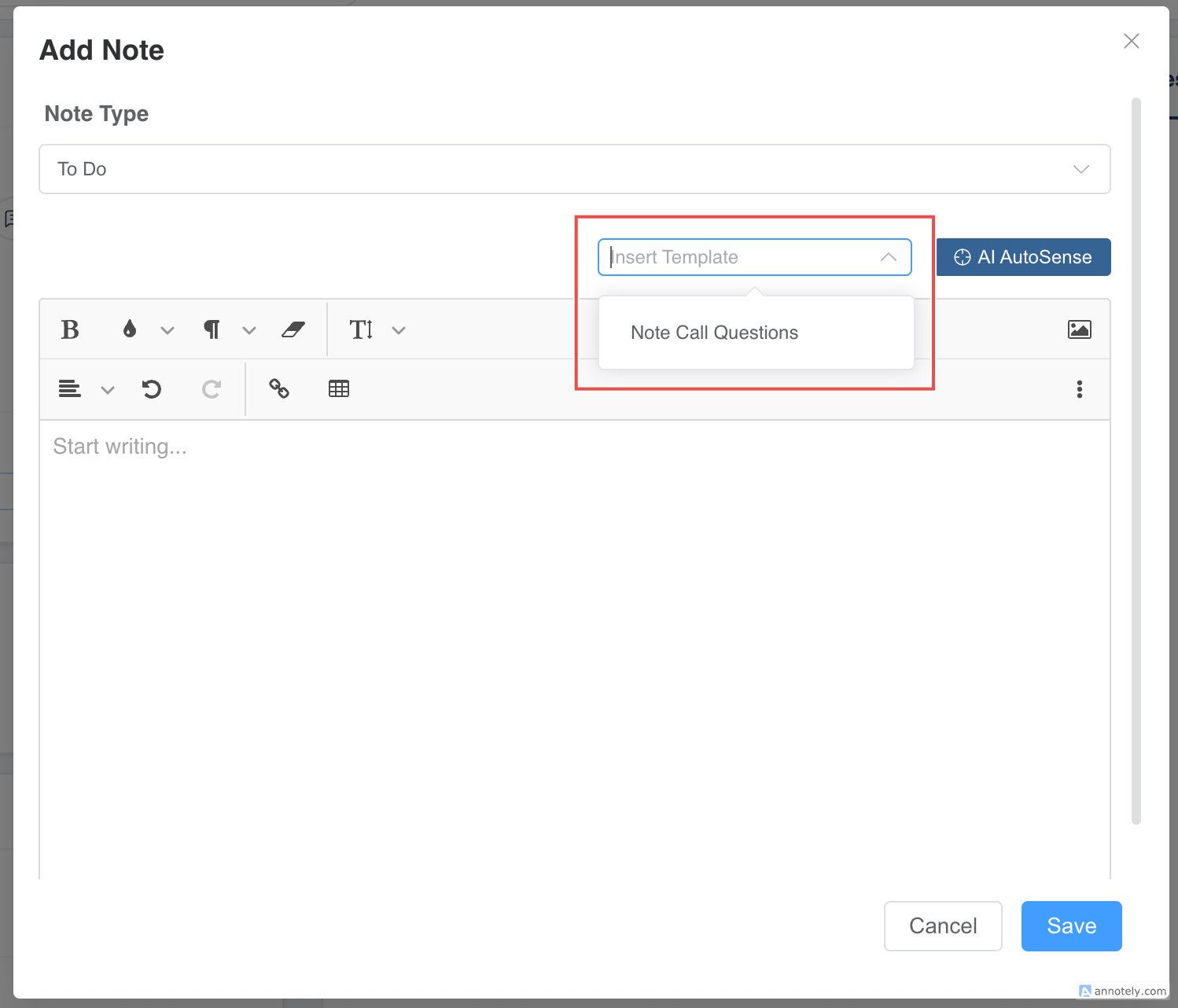
While adding notes for an entity, use Insert Template, select the note template, and save after adding details.
Use Cases
Interview Templates
Create a reusable interview structure with questions and evaluation sections.
Follow-Up Call Templates
Use a consistent format for call notes and next steps.
Candidate Feedback Templates
Standardize feedback notes across recruiters and managers.
Troubleshooting
Template Does Not Appear
Check that the template was saved for the correct entity and purpose.
Inserted Content Needs Editing
Templates provide a starting point. Edit inserted content before saving the activity or note.
Too Many Templates Exist
Archive or delete unused templates to keep the list clean.
FAQs
Can I use templates for both activities and notes?
Yes. Insert Template is available in supported activity and note workflows.
Can I delete old templates?
Yes. Use Delete from the template list and confirm the action.
Do templates replace custom activity types?
No. Activity types categorize the activity; templates provide reusable content.