
Pipeline Conversion shows how many candidate-and-job applications entered each pipeline stage during a selected period and compares adjacent displayed stages.
Generate the Report
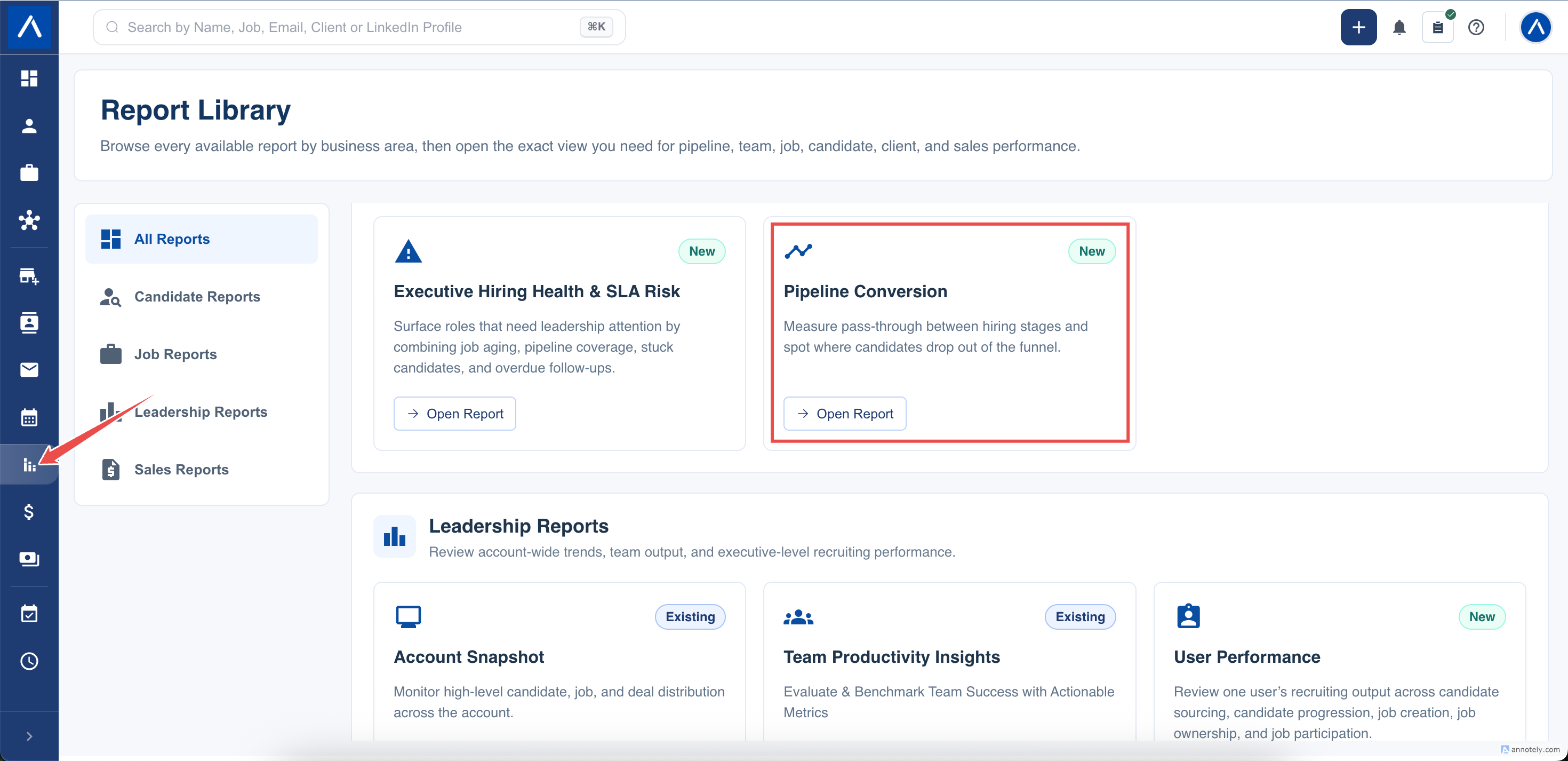
- Open Reports > Pipeline Conversion.
- Choose the date range.
- Apply a recruiter or team filter if required.
- Select specific talent funnel stages, or leave the stage filter empty to use all available stages.
- Decide whether archived candidates and jobs should be included.
- Select Generate Report.
What Is Counted
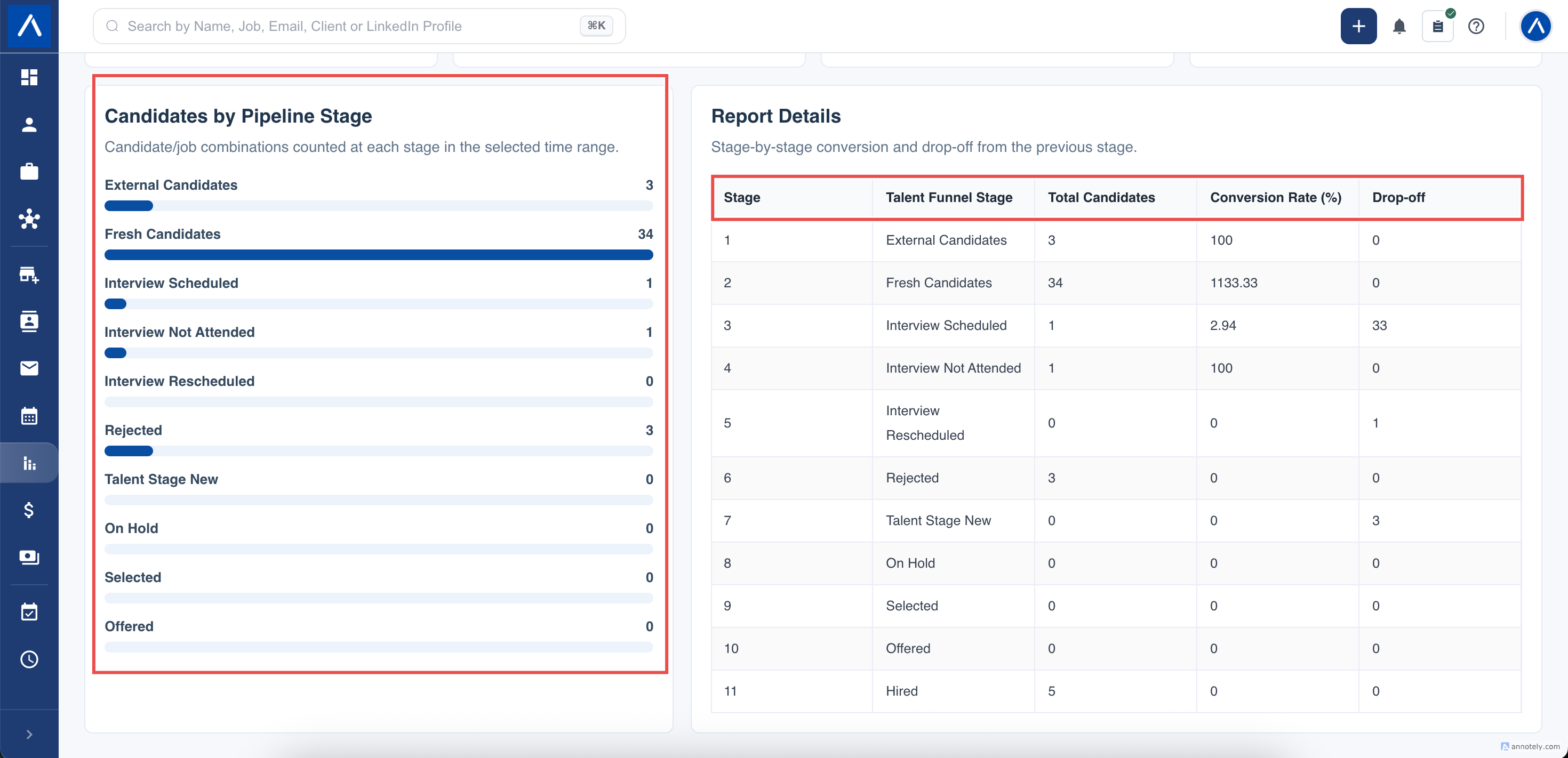
Each row counts distinct candidate-and-job applications that entered that stage during the selected period.
This distinction matters:
- One candidate assigned to two jobs can contribute two applications.
- Repeated report records for the same candidate and job do not create extra applications in the stage count.
- Deleted jobs are excluded.
- Archived candidates and jobs are excluded unless Include archived is enabled.
Stages appear in the order configured for your account. Account-specific stages and available standard stages can both appear.
Read Conversion and Drop-Off
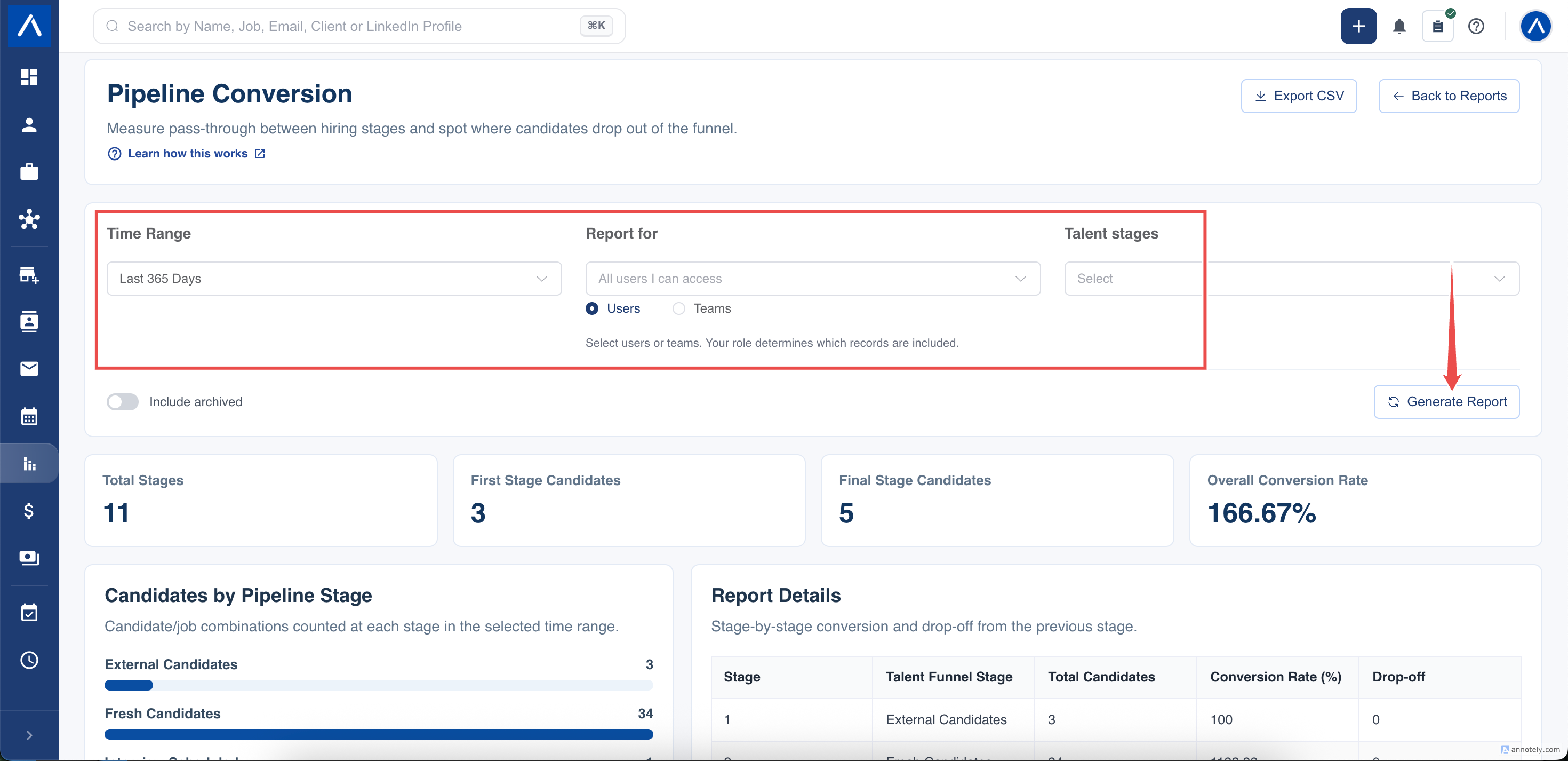
- The first displayed stage is the baseline and shows 100%.
- Each later conversion percentage is its application count divided by the previous displayed stage’s count.
- Drop-off is the previous stage count minus the current stage count. It never displays below zero.
- Overall conversion compares the final displayed stage with the first displayed stage.
If you select only certain stages, the comparison uses those selected stages in pipeline order. It does not silently insert omitted stages between them.
Why a Percentage Can Exceed 100%
The report counts entries recorded during the selected dates; it does not follow one fixed candidate cohort from first stage to last stage.
For example, applications may enter Interview during this month after entering Applied last month. Interview can therefore have more entries than Applied for the current period, producing a percentage above 100%. When that happens, drop-off displays zero rather than a negative value.
Use the report to spot patterns and investigate stage flow. For cohort-level analysis, compare a longer period and ensure pipeline updates are recorded consistently.
Apply Access Filters Consistently
People filters and report permissions limit both candidate and job records. When reconciling the report with another screen, use the same date range, selected stages, team or recruiter scope, and archive setting.
FAQs
What exactly is counted at a stage?
A distinct candidate-and-job application that entered the stage during the selected period.
Why can conversion be above 100%?
Applications entering a later stage during the period may have entered the previous stage before the period began.
What happens when I select only some stages?
Each displayed stage is compared with the previous displayed stage in configured pipeline order.