
The AI Call Transcript Generator helps teams record calls, generate searchable transcripts, and extract useful notes from candidate or contact conversations.
Quick Answer
Turn on Record Call and select Generate Call Transcript when starting a call. After the call, open Call Logs, click View Transcription, and review or export the transcript.
Availability and Compliance
This feature is available on the Business plan.
Always obtain consent before recording or transcribing calls, and review applicable call recording laws in your region. Recording and transcription may require calling credits.
Generate a Transcript During a Call
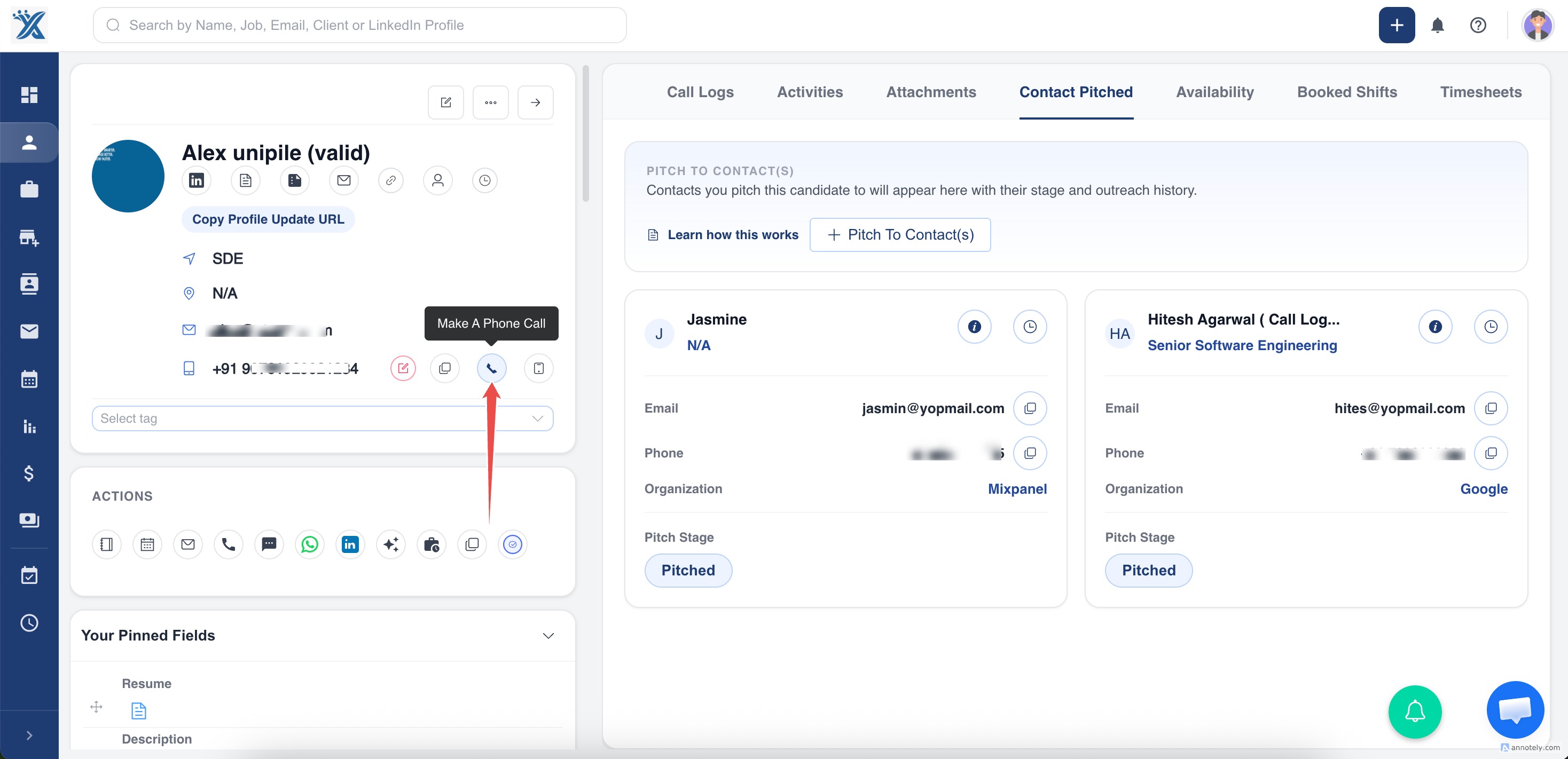
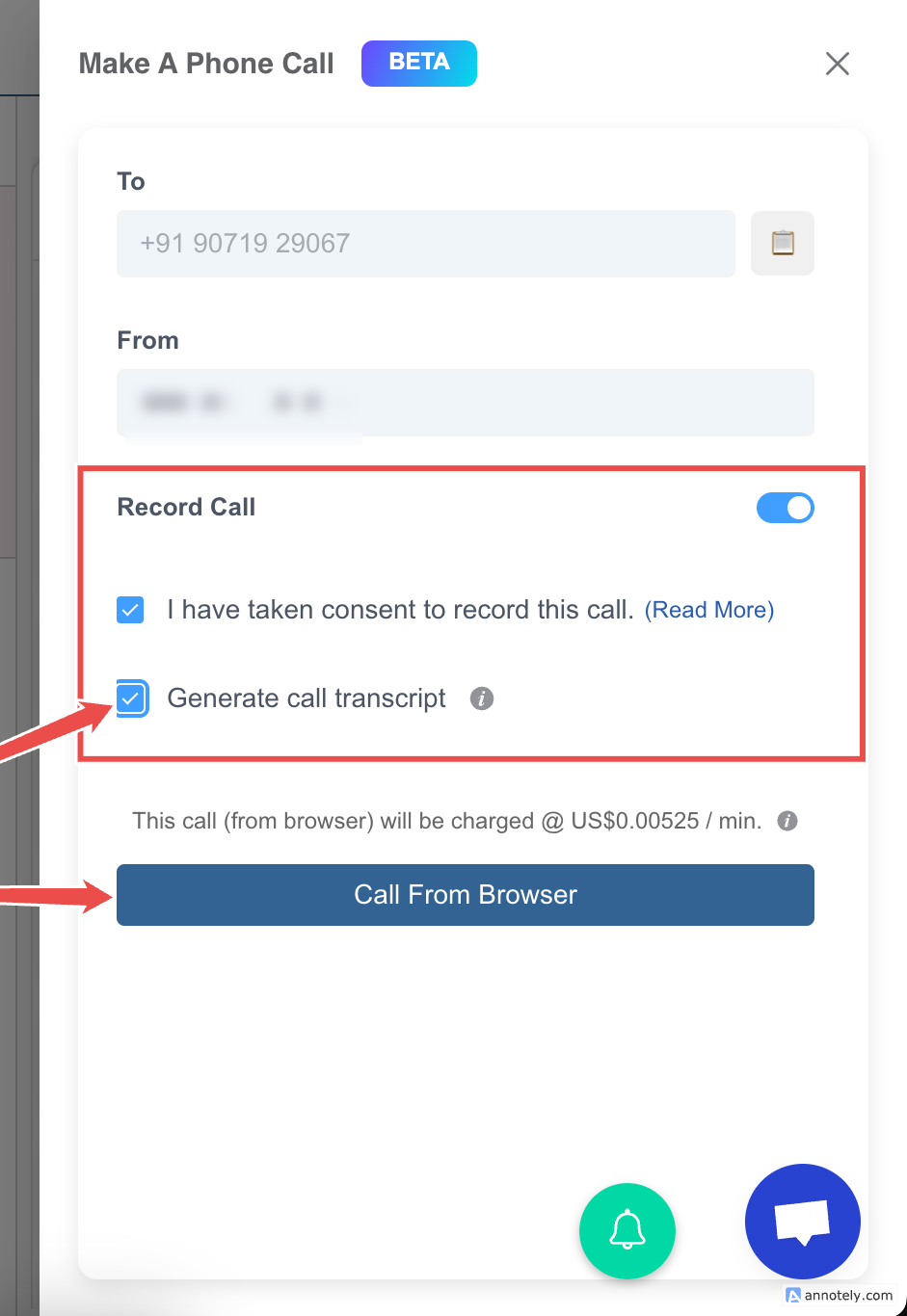
When initiating a call in ATZ CRM, turn on Record Call and check Generate Call Transcript.
Access the Transcript
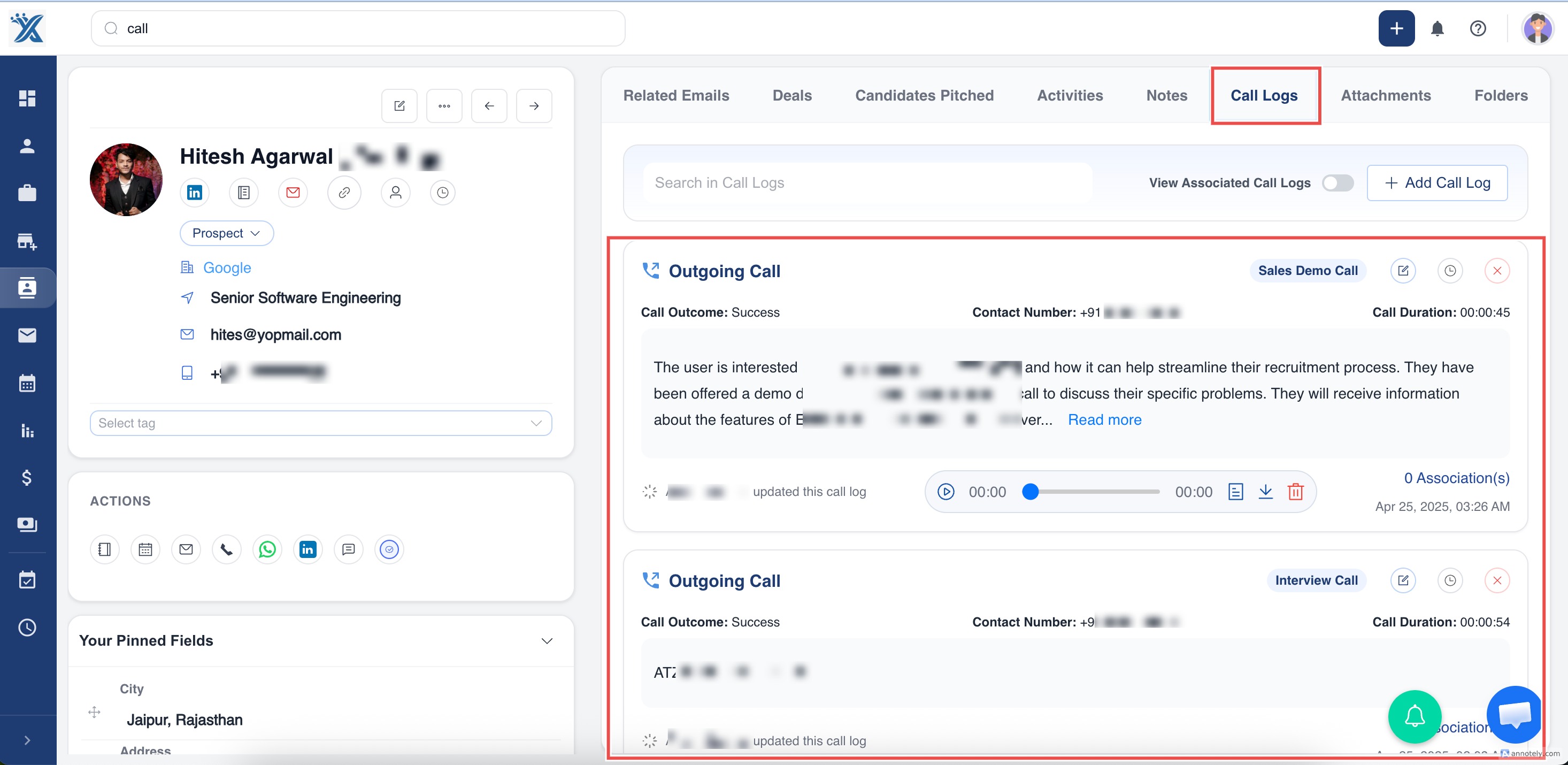
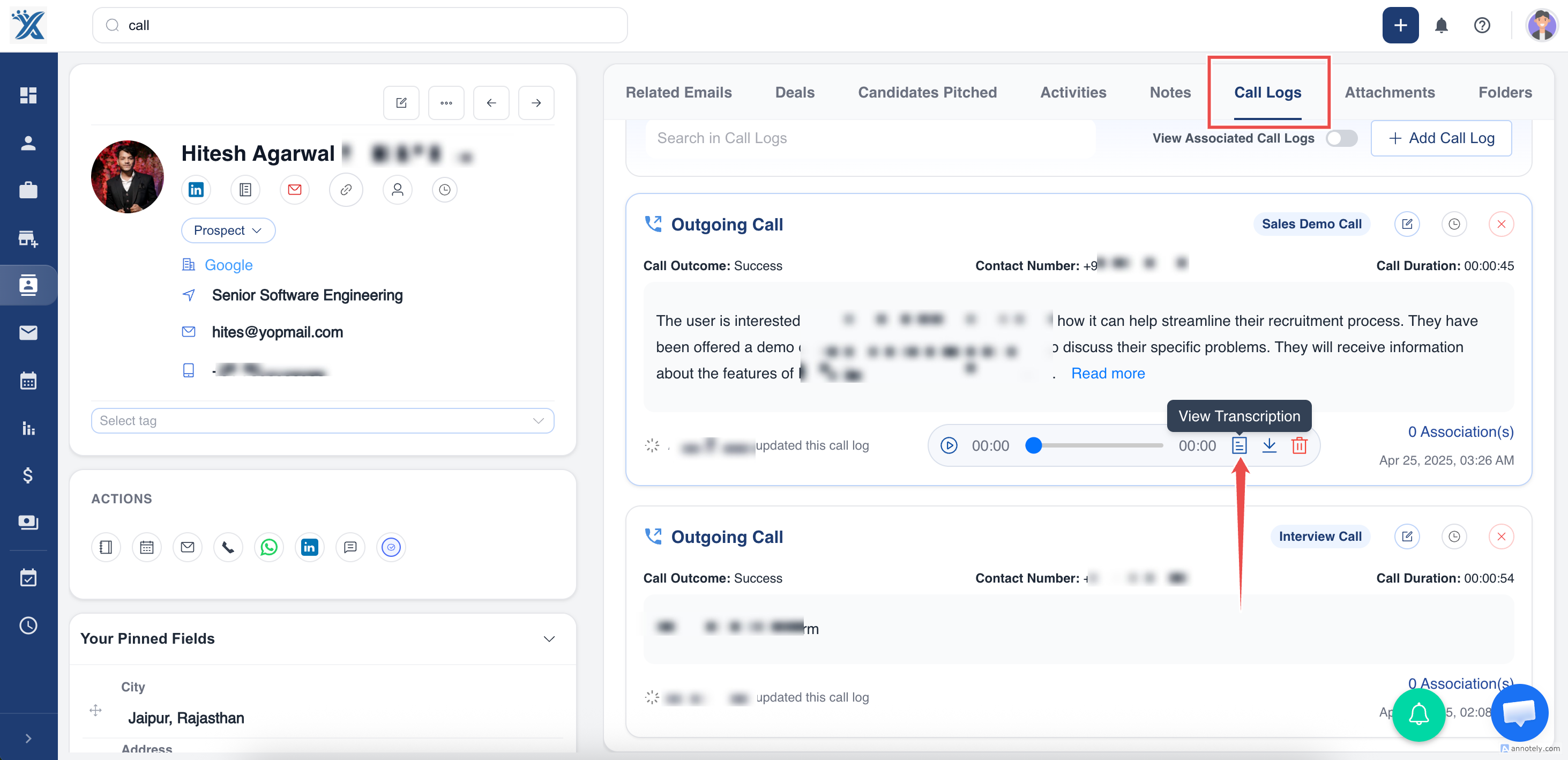
After the call ends, open the candidate or contact profile and go to Call Logs. Click View Transcription next to the call recording.
Transcribe Past Calls
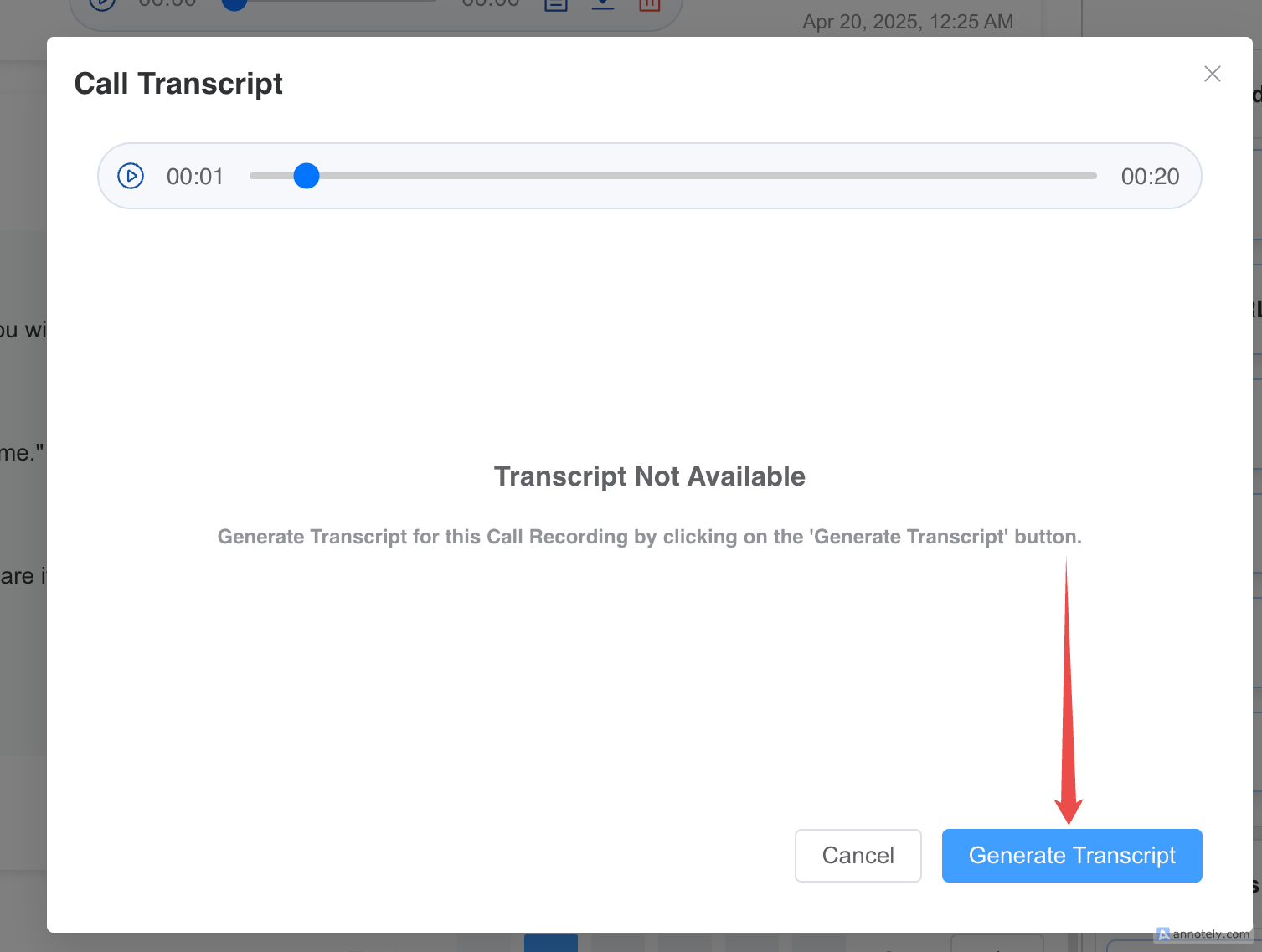
For previously recorded calls, open the recording in Call Logs, click View Transcription, and select Generate Transcript.
Search and Review Transcripts
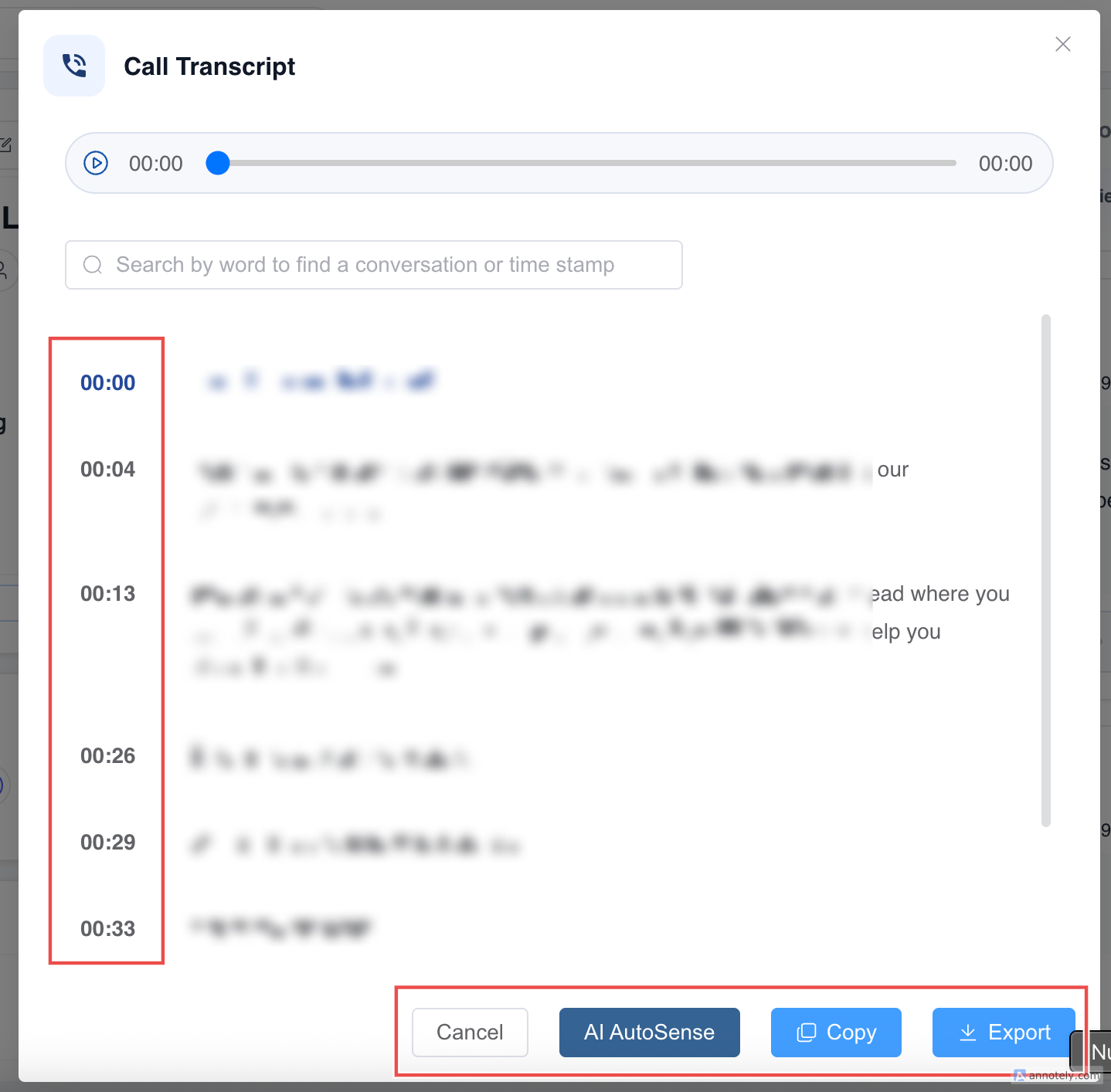
Click View Transcription to open the full transcript. You can search for specific words or timecodes to quickly find important parts of the conversation.
Copy or Export a Transcript
Use Copy to copy the transcript to your clipboard, or Export to download it as a .txt file.
Use AI Assist
Use AI Assist to process the transcript and generate:
- Key points.
- A concise summary.
- Improved transcript formatting or clarity.
After AI processing, you can copy the result, replace the call log note with the generated content, or regenerate the output.
Use Cases
Candidate Screening Calls
Convert candidate conversations into searchable notes and summaries for faster follow-up.
Client Discovery Calls
Capture requirements, concerns, and next steps from client conversations.
Compliance and Audit Review
Keep call records, transcripts, and notes connected to the candidate or contact profile.
Troubleshooting
View Transcription Is Missing
Confirm the call was recorded and that your plan supports AI transcripts.
Transcript Generation Fails
Check call size, audio quality, available credits, and whether the recording is accessible in Call Logs.
Transcript Accuracy Looks Low
Accuracy can vary based on audio quality, background noise, accents, speaker overlap, and language clarity.
FAQs
What languages are supported?
The transcription engine supports many languages, including English, Spanish, French, German, Chinese, Arabic, Hindi, and others.
Can I update the call log note with AI output?
Yes. After using AI Assist, choose Replace to update the call log note with the generated summary or key points.
Are transcripts stored on the candidate or contact record?
Yes. Call transcripts are stored with the call activity on the relevant candidate or contact profile.