
Client Productivity Insights gives you a performance snapshot across clients or organizations so you can compare account health, delivery activity, and revenue-related outcomes.
Quick Answer
Select Clients or Organizations, choose KPIs, set a time range, and click Generate Report. Use the resulting charts to compare client performance.
When to Use This Report
Use Client Productivity Insights when you need to answer questions such as:
- Which clients are receiving the most recruiting activity?
- Which clients have the most candidates moving through hiring stages?
- Which clients are generating revenue or payments?
- Which accounts need follow-up, attention, or operational review?
Generate the Report
- Open Client Productivity Insights.
- Select Clients or Organizations from the dropdown.
- Choose the KPIs from the KPI selection menu.
- Set a time range.
- Click Generate Report.
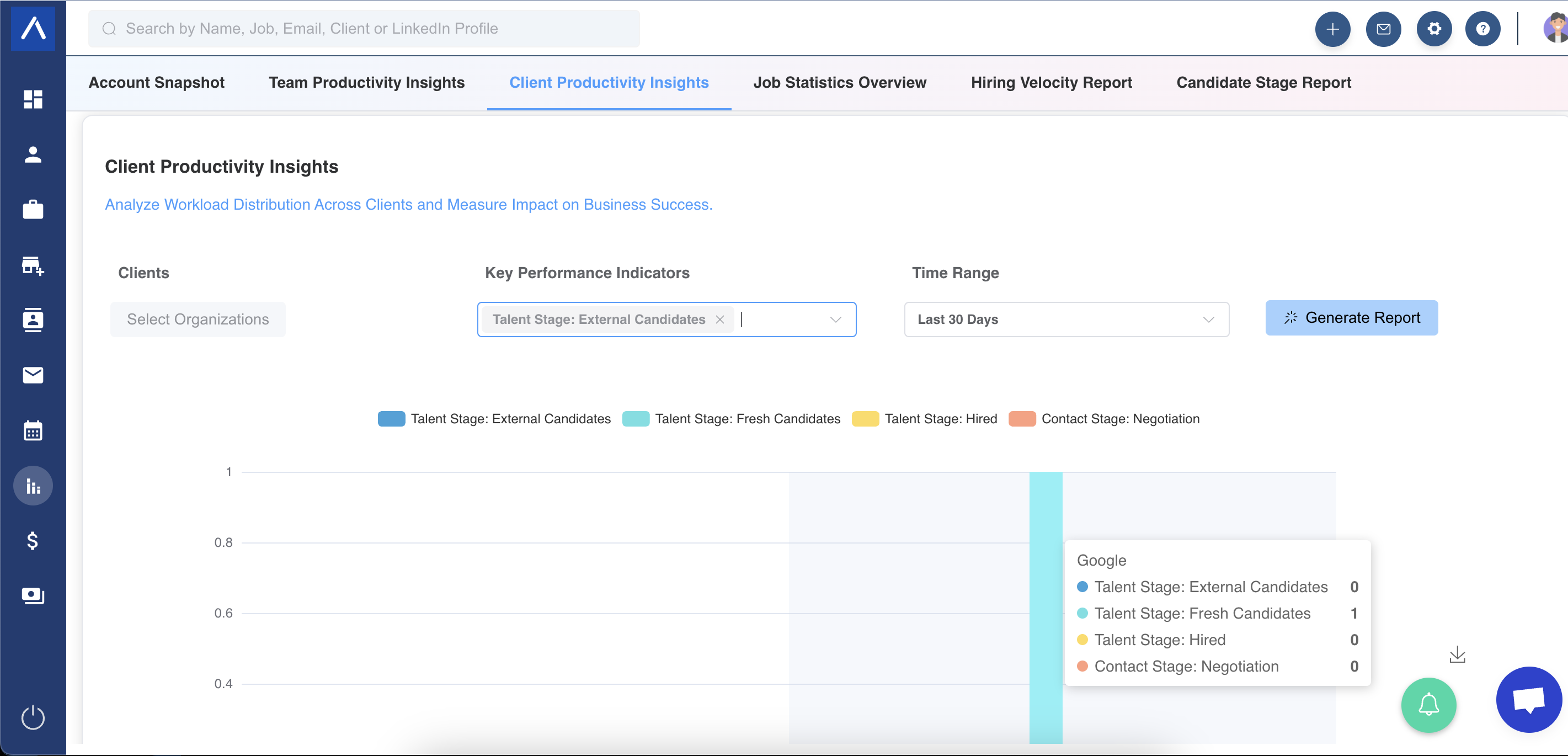
Available KPIs
You can report on:
- Stages in the primary recruitment workflow.
- Notes linked to a client.
- Activities linked to a client.
- Candidate stages in the Candidates Pitched pipeline.
- Contact stages.
- Revenue generated from client-related deals.
- Payments received from client-related deals.
Understand Historical Stage Data
Stage-related metrics are historical. For example, if the report shows candidates in Hired or External Candidates, that means those candidates were in that stage at some point during the selected date range.
Their current stage may be different.
Use Cases
Account Reviews
Use client productivity data in client review meetings to show activity and outcomes.
Revenue Follow-Up
Compare revenue generated and payments received across clients.
Client Prioritization
Identify clients that have high activity but low conversion, or strong revenue but low recent engagement.
Troubleshooting
Report Shows Unexpected Stage Counts
Remember that stage counts are historical for the date range, not always current dashboard counts.
A Client Is Missing
Check whether you selected Clients or Organizations correctly and whether the time range includes activity for that account.
Revenue Looks Incomplete
Confirm deal records, payment data, and client links are correctly maintained.
FAQs
Can I compare multiple clients at once?
Yes. The report is designed to compare selected clients or organizations using chosen KPIs.
Does this report include activities and notes?
Yes. Notes and activities linked to a specific client can be included as KPIs.
What chart type is used?
The report displays selected data in bar charts.