
Why Candidate Stage Updates Matter
Candidate stages show where each candidate stands in a job pipeline. Keeping stages current helps recruiters, managers, and clients understand progress without chasing status updates.
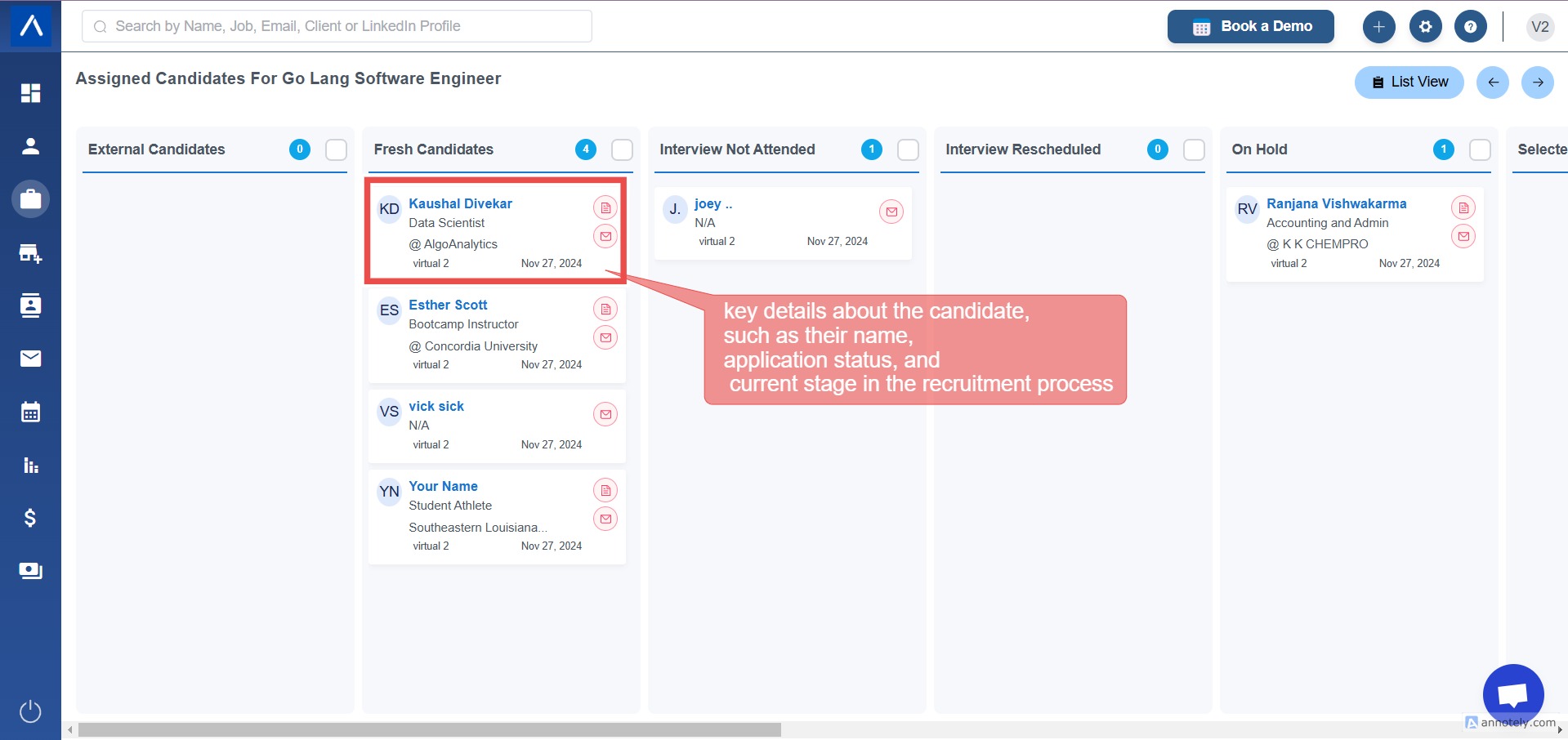
Method 1: Change Stages from Board View
- Open Jobs.
- Select the job.
- Open Board View.
- Find the candidate card.
- Move the candidate to the correct stage and add a reason if prompted.
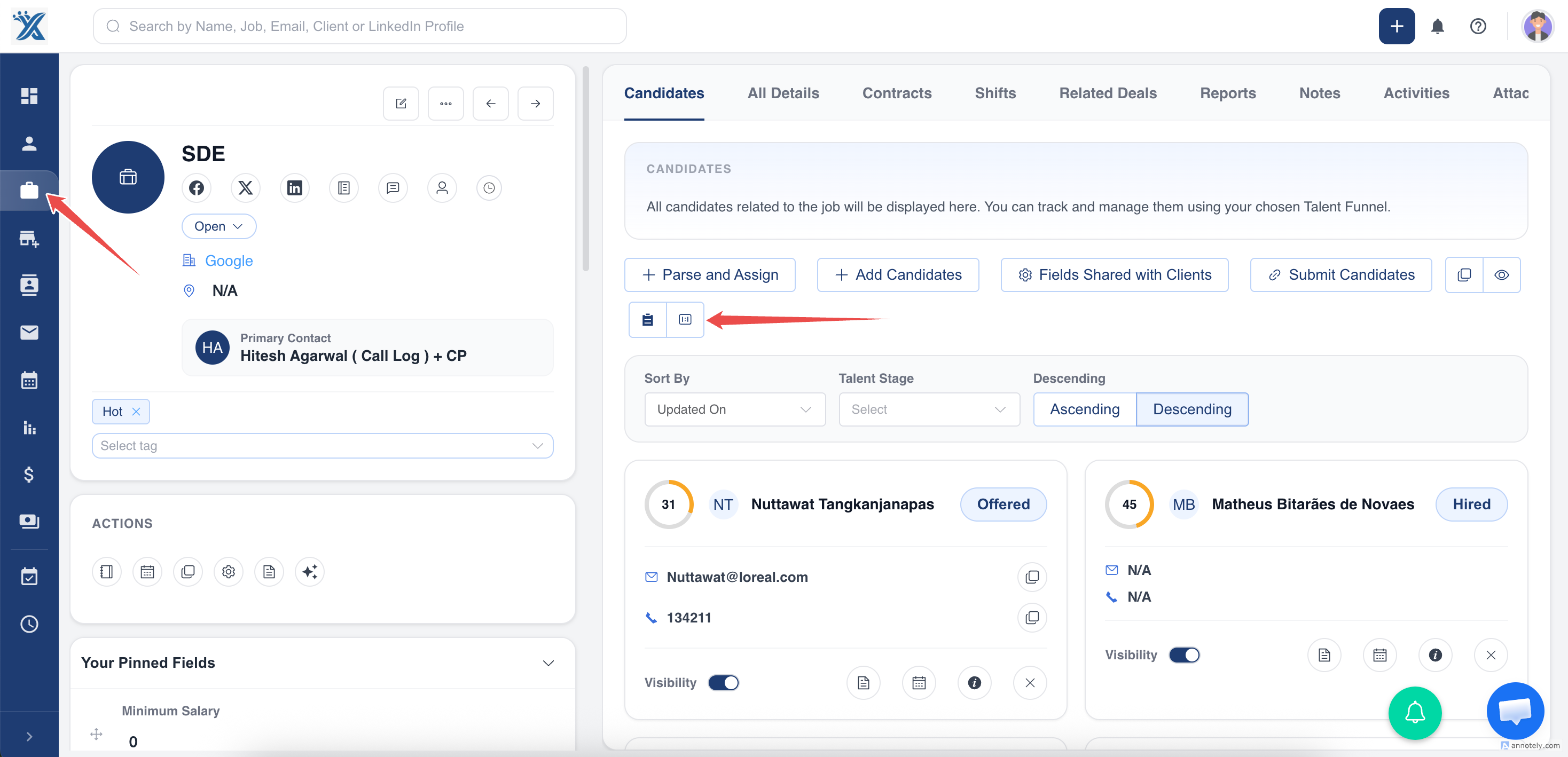
Method 2: Change Stages from the Job Candidate List
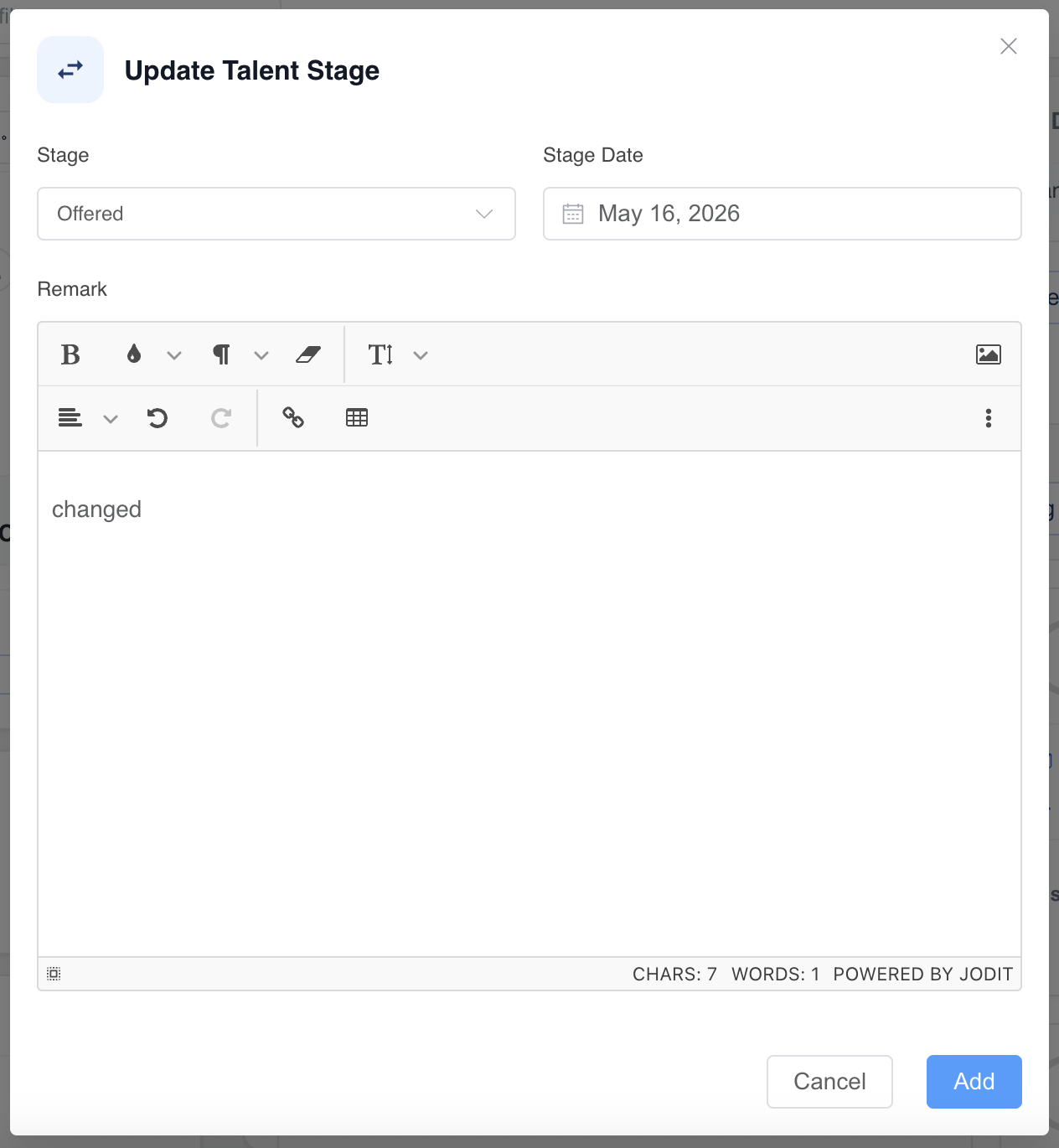
Open the job, go to the candidate list, select the stage field, choose the new stage, and add a remark.
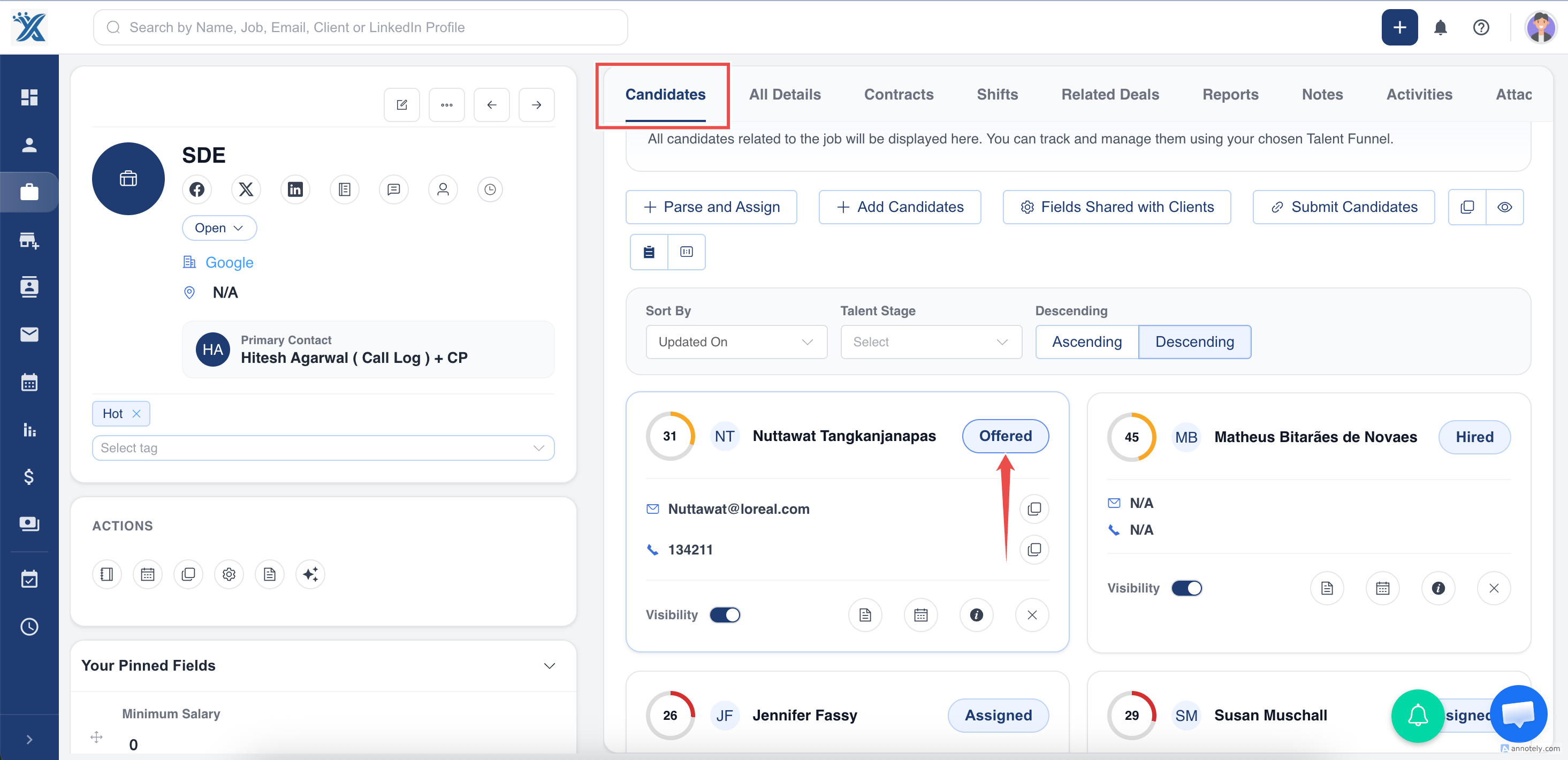
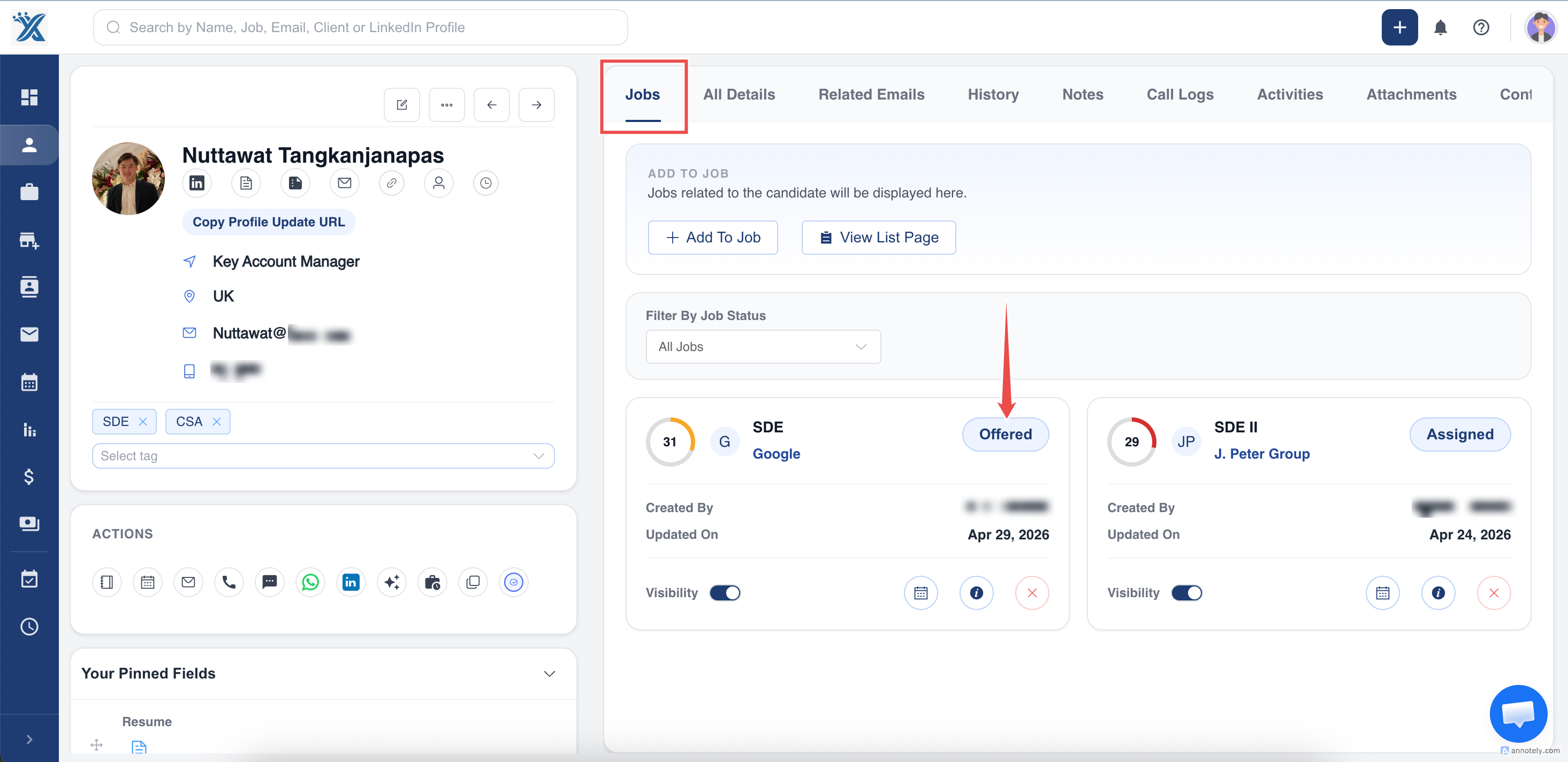
Method 3: Change Stages from the Candidate Profile
Open the candidate profile, review the Jobs section, select the relevant job stage, update the stage, and add a remark.
Use Cases
Interview Progress
Move candidates from screening to interview stages as soon as meetings are scheduled.
Client Submission Tracking
Update stages when candidates are submitted, shortlisted, rejected, offered, or hired.
Pipeline Reporting
Accurate stages improve job pipeline visibility and recruiter reporting.
Troubleshooting
Stage Update Is Not Available
Check your role permissions and whether the candidate is assigned to the job.
Candidate Is in Multiple Jobs
Update the stage for the correct job assignment. One candidate can have different stages in different jobs.
Stage Changed Accidentally
Update the candidate back to the correct stage and add a remark explaining the correction.
Frequently Asked Questions
Does changing a stage affect all jobs?
No. Stage changes usually apply to the candidate’s assignment for the selected job.
Can managers see stage changes?
Yes, if they have access to the relevant candidate and job records.
What should I include in remarks?
Include the reason for the stage change and the next expected action.