
Goals turn a recruitment objective into a measurable target report. Use them for an individual desk, a saved team, or account-wide performance.
Goals are available on Free, Business, and Enterprise plans, subject to your role. Pro accounts show a locked preview. Viewing goals and managing them are separate permissions.
Create a Goal
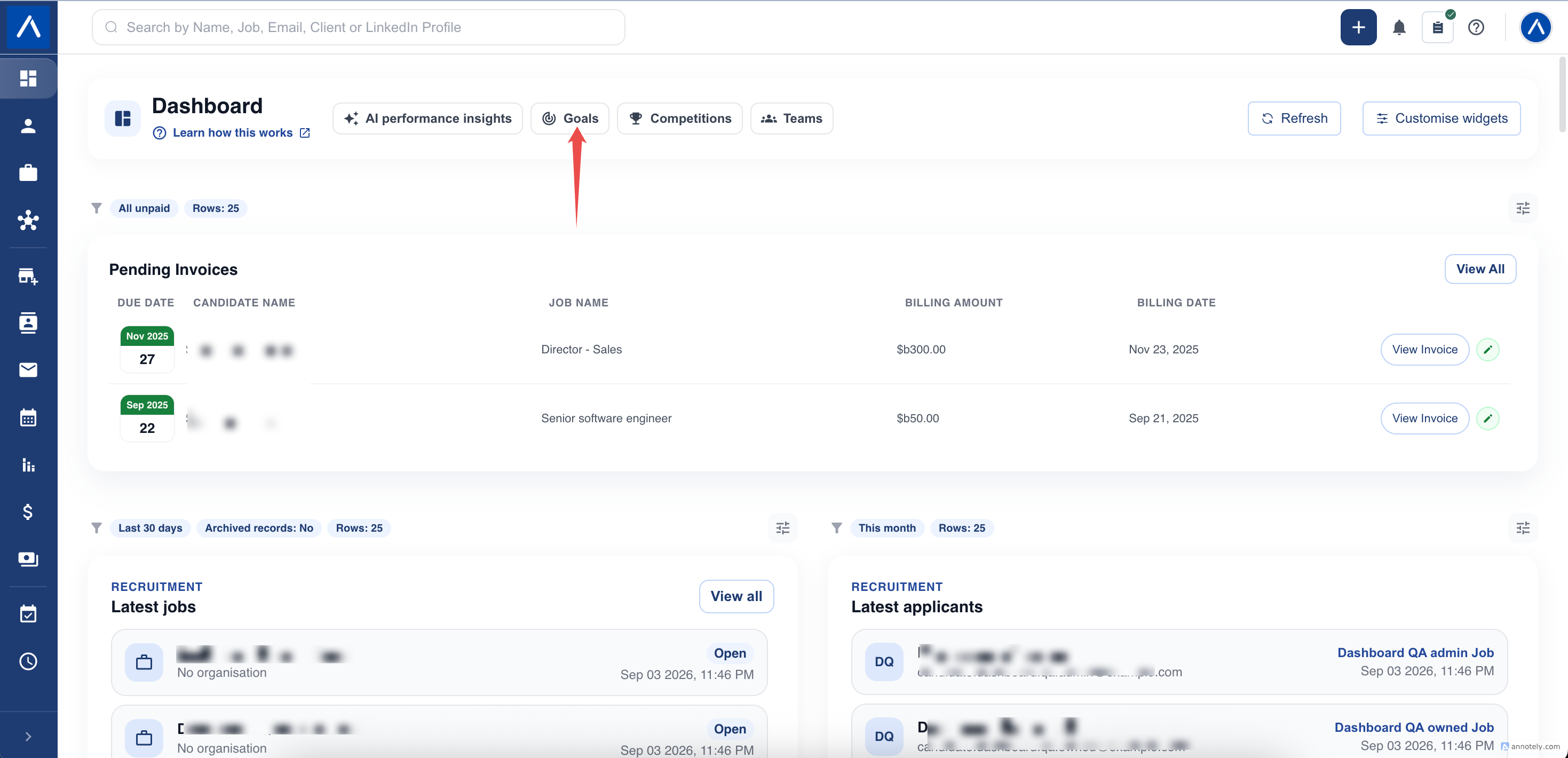
- Open Goals from Dashboard.
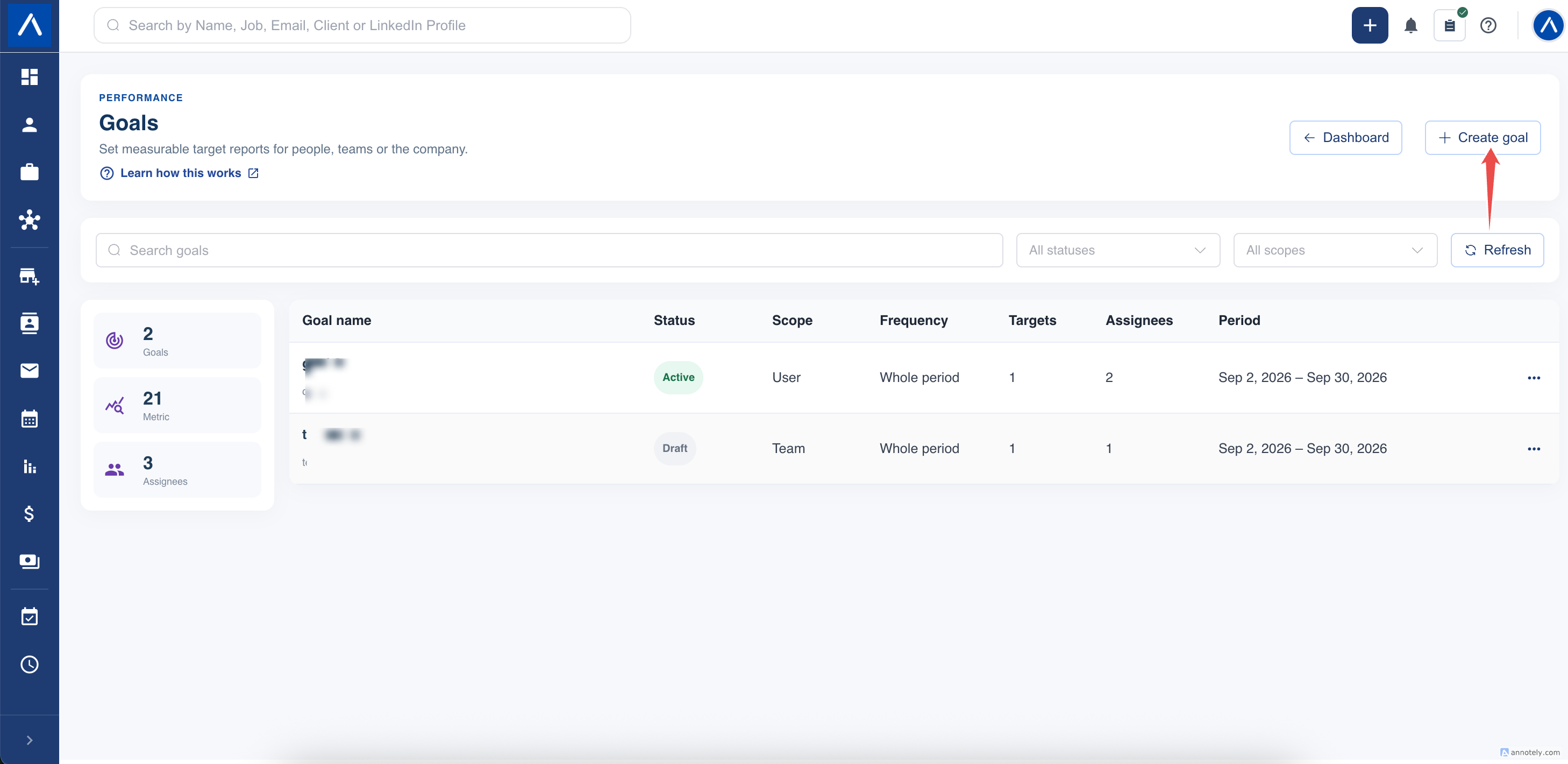
- Select Create goal.
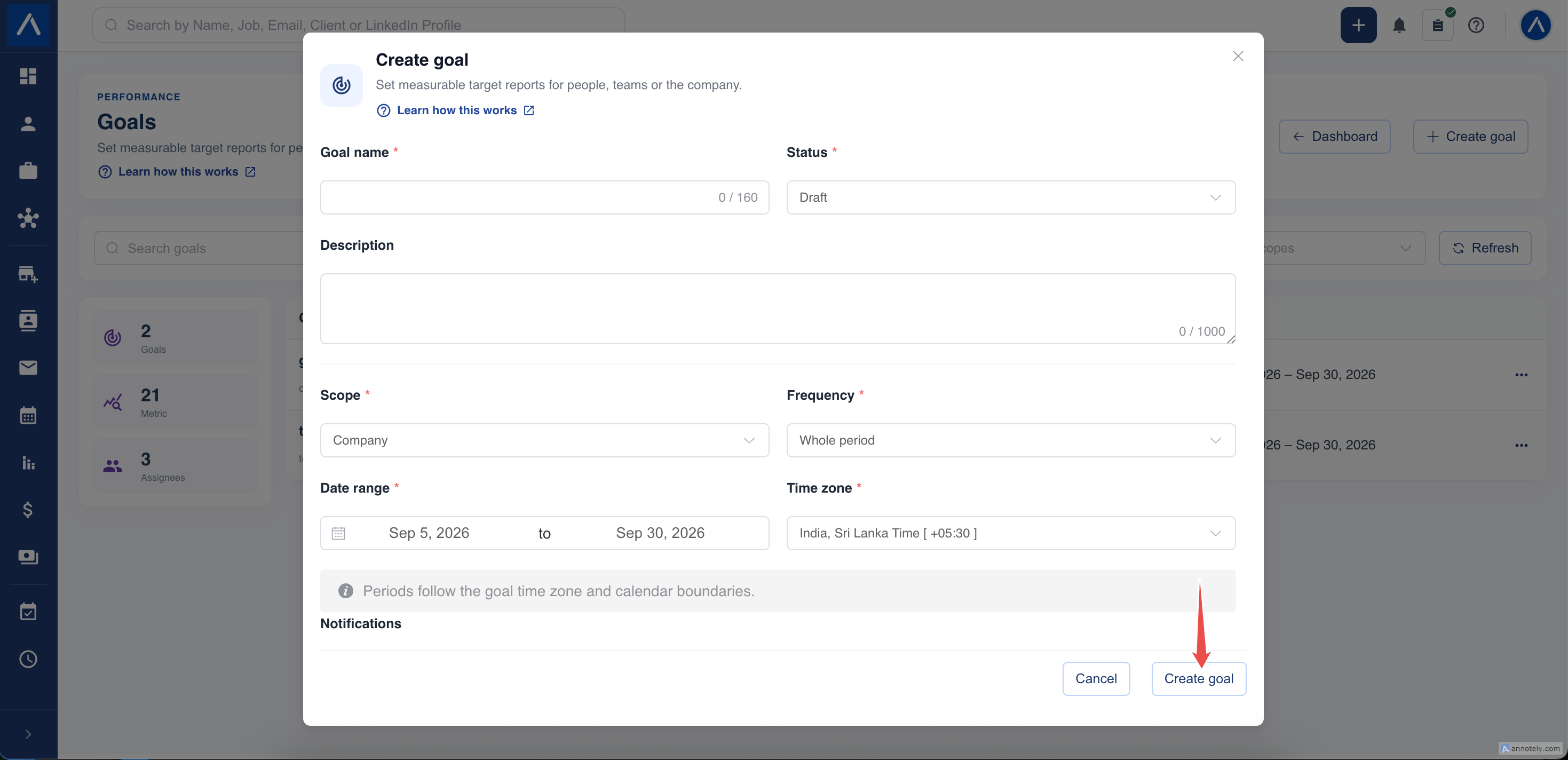
- Enter a clear name and an optional description.
- Keep it as a draft while reviewing the setup, or choose to activate after creation.
- Set the scope, frequency, dates, and time zone.
- Add the required KPI targets and notification preference.
- Create the goal.
Choose Who the Goal Is For
Company means your whole ATZ CRM account. It does not mean one client Organization.
Teams assigns the target to selected saved teams. Each team’s result is tracked separately.
Users assigns the target to selected users. This option depends on permission to view individual performance.
For example, selecting two users with a target of 20 candidates added means a target of 20 for each user, not 10 each. A team target is measured for that team rather than separately for every member.
Set a Fair Reporting Period
Choose daily, weekly, monthly, quarterly, or whole-period tracking.
Weekly goals start on a Monday. Monthly goals start on the first day of a month. Quarterly goals start on the first day of a calendar quarter. The selected time zone determines the goal’s calendar boundaries.
A recurring target applies again in each period. A monthly target of 30 applications is 30 for each month, not 30 spread across the goal’s entire duration.
If the final period is shortened by the goal’s end date, its target is not automatically reduced. Use complete periods when you want directly comparable targets.
Add KPI Targets
Add between one and ten different metrics. For each one, choose:
- The KPI.
- Its target value.
- At least, At most, or Exact.
- Whether archived records should be included.
Use whole numbers for count targets. An At least target must be greater than zero. Zero can be meaningful for an At most or Exact target.
Start with a few KPIs the team understands. See Choose Performance KPIs before selecting similarly named activity and hiring-stage metrics.
Choose Achievement Notifications
Notifications are off by default. Choose the creator, assignees, or both if achievement alerts would be useful.
These are important in-app alerts, not an email for every change in progress. Delivery still depends on current eligibility and access.
Review Before Activation
Check the assignees, period boundaries, time zone, target direction, and KPI definitions. Activation locks the definition for consistent tracking. Use a draft if the team has not agreed on the target yet.
After activation, open the goal to review its periods and results, or select it in the Goal progress widget on Home.
FAQs
Does Company mean a selected client Organization in a goal?
No. Company goals cover your ATZ CRM account. Selecting a particular client Organization is an AI Insights option, not the Company goal scope.
Is one target split between selected users or teams?
No. The configured target applies to each selected assignee for each goal period. It is not automatically divided between them.
Can I edit a goal after activating it?
The goal definition can be edited while it is a draft. Review its dates, scope, and targets before activation; active tracking is not an editable draft.