
Activities help teams organize schedules, track deadlines, manage calls or meetings, and avoid missing important candidate or client follow-ups.
Quick Answer
Open Activities, click Add Activity, enter the activity details, and save. To edit, open the activity from the list, update the fields, and save changes.
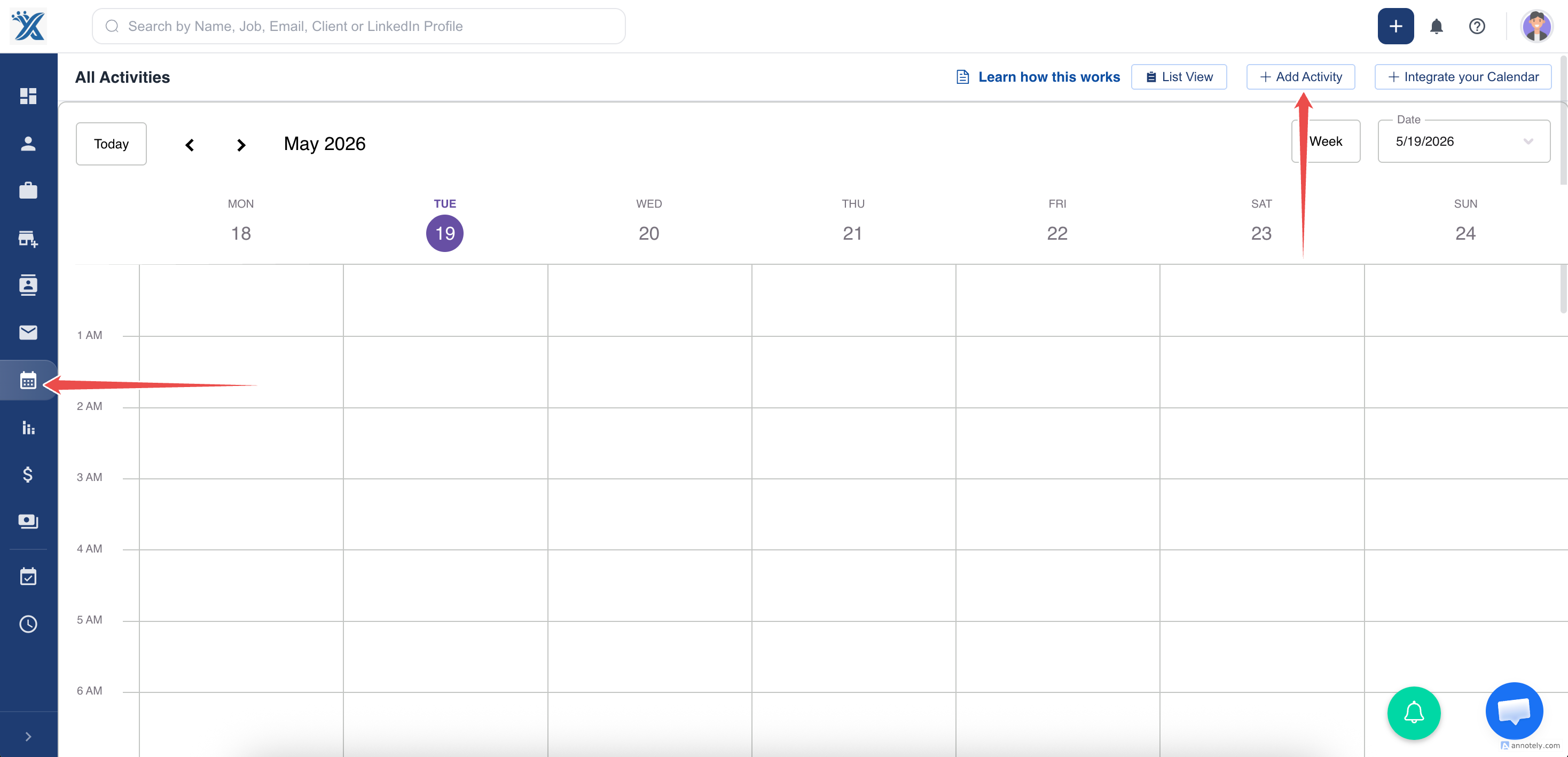
Step 1: Open Activities
Navigate to the Activities tab in ATZ CRM and click Add Activity.
Step 2: Create the Activity
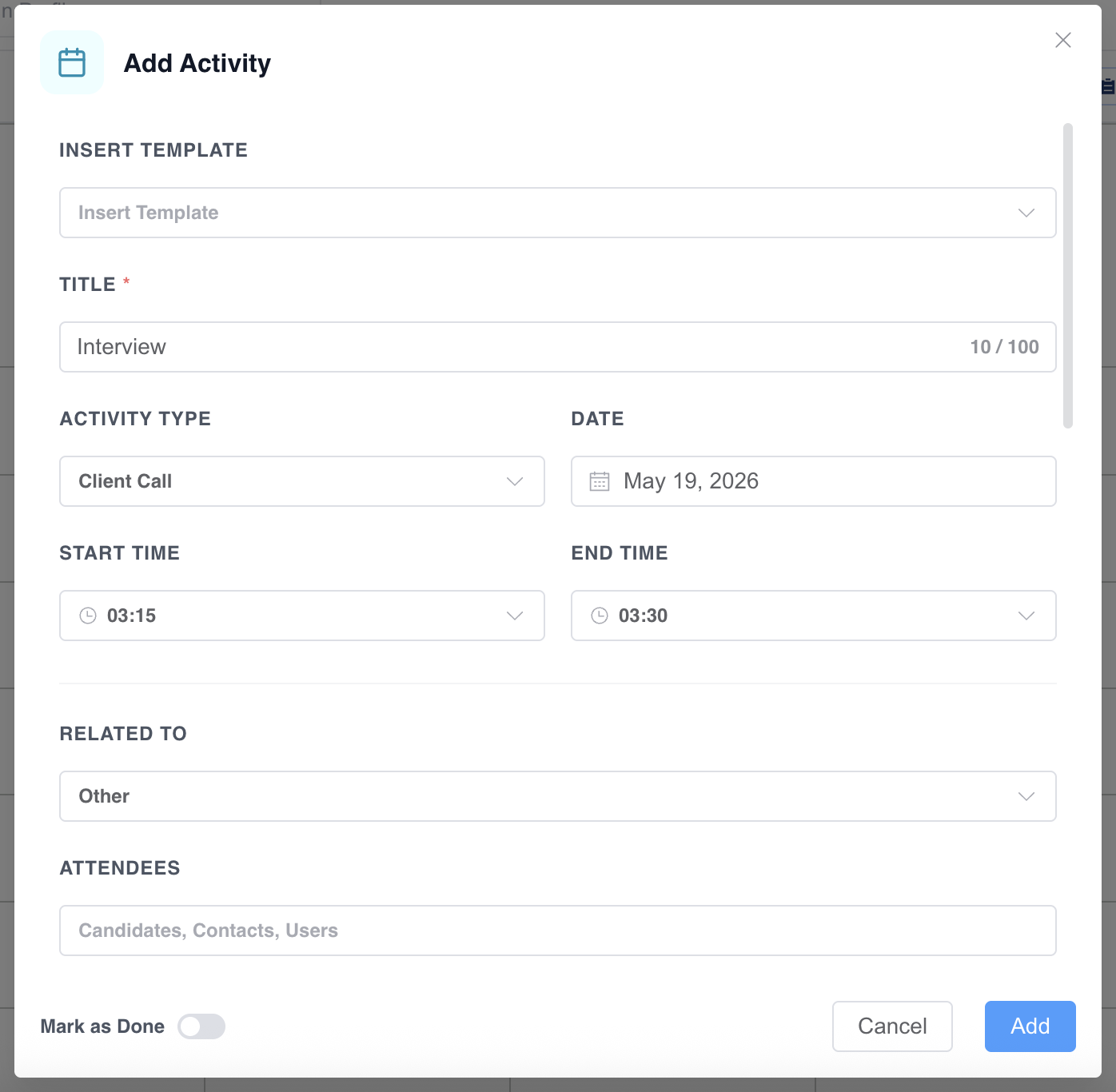
Enter:
- Activity title.
- Date and time.
- Assigned recruiters.
- Attendee email addresses.
- Location, description, or attachments.
Step 3: Save the Activity
Click Add to save the activity. The activity appears in the ATZ CRM calendar.
Edit an Activity
Open the activity by clicking its name or selecting it from the activity list.
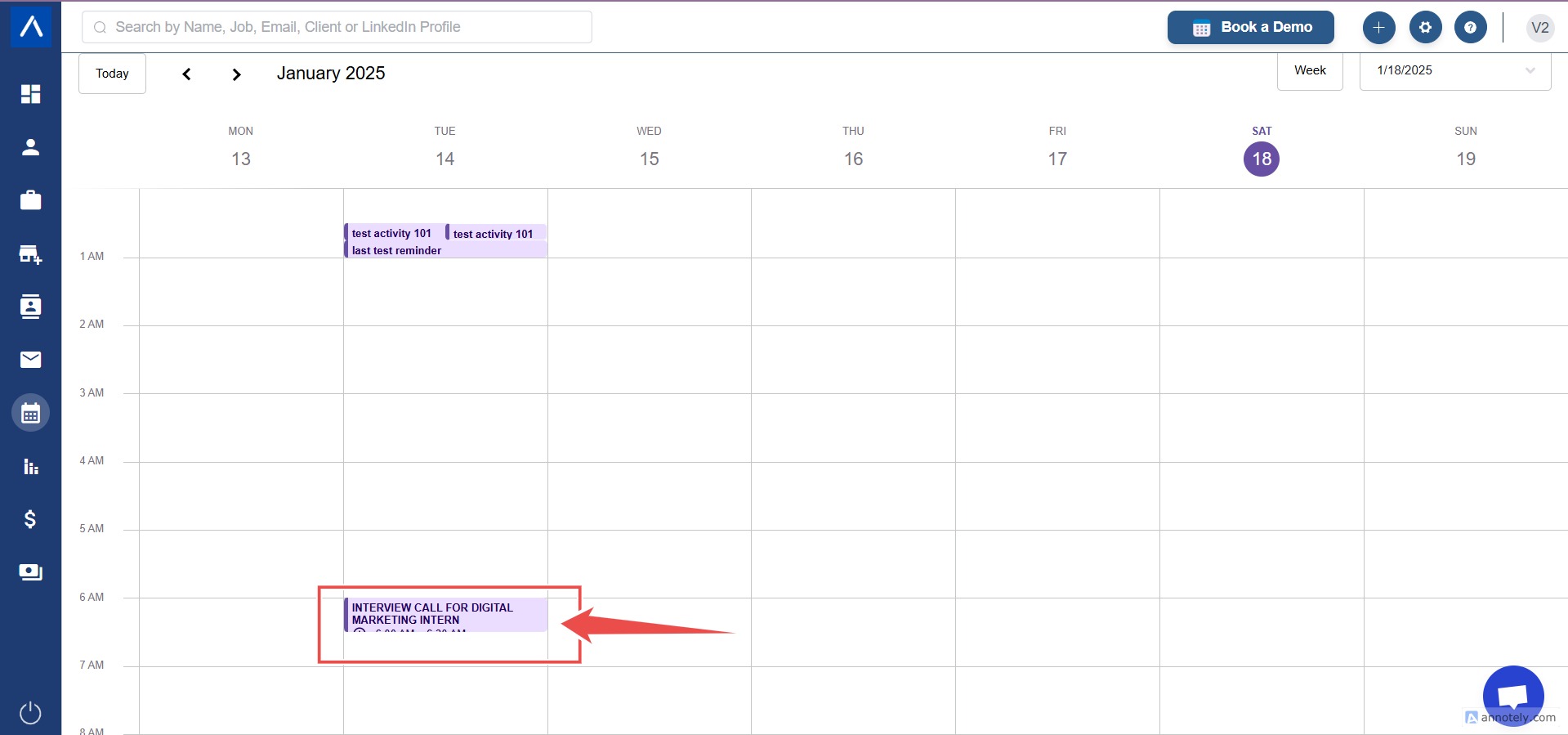
Update details such as title, date, time, description, or associated contact, then save changes.
Use Cases
Interview Scheduling
Create activities for interviews and assign recruiters or attendees.
Follow-Up Tasks
Schedule follow-up reminders for candidates, clients, or internal team members.
Client Meetings
Track meetings and outcomes in one CRM calendar.
Troubleshooting
Activity Does Not Appear in Calendar
Confirm the activity was saved and has a valid date and time.
Attendee Did Not Receive Details
Check the attendee email address and calendar integration status.
Wrong Activity Type Is Missing
Create or update custom activity types if your workflow needs more categories.
FAQs
Can I add attachments?
Yes. Add supporting details or attachments while creating the activity.
Can I add Google Meet links?
Yes. Use the Google Meet integration when creating or editing an activity.
Can activities be customized?
Yes. Use custom activity types and templates for consistent activity tracking.