
What Bulk Update Does
Bulk update lets you change the same field or set of fields across multiple records. It saves time when you need consistent updates across candidates, jobs, organizations, contacts, or deals.
Step 1: Open the Entity
Navigate to the entity you want to update:
- Jobs
- Candidates
- Organizations
- Contacts
- Deals
Step 2: Select Records
Use the selection checkbox to choose multiple records. Review the selected records before continuing.
Step 3: Select Update
Click the Update option.
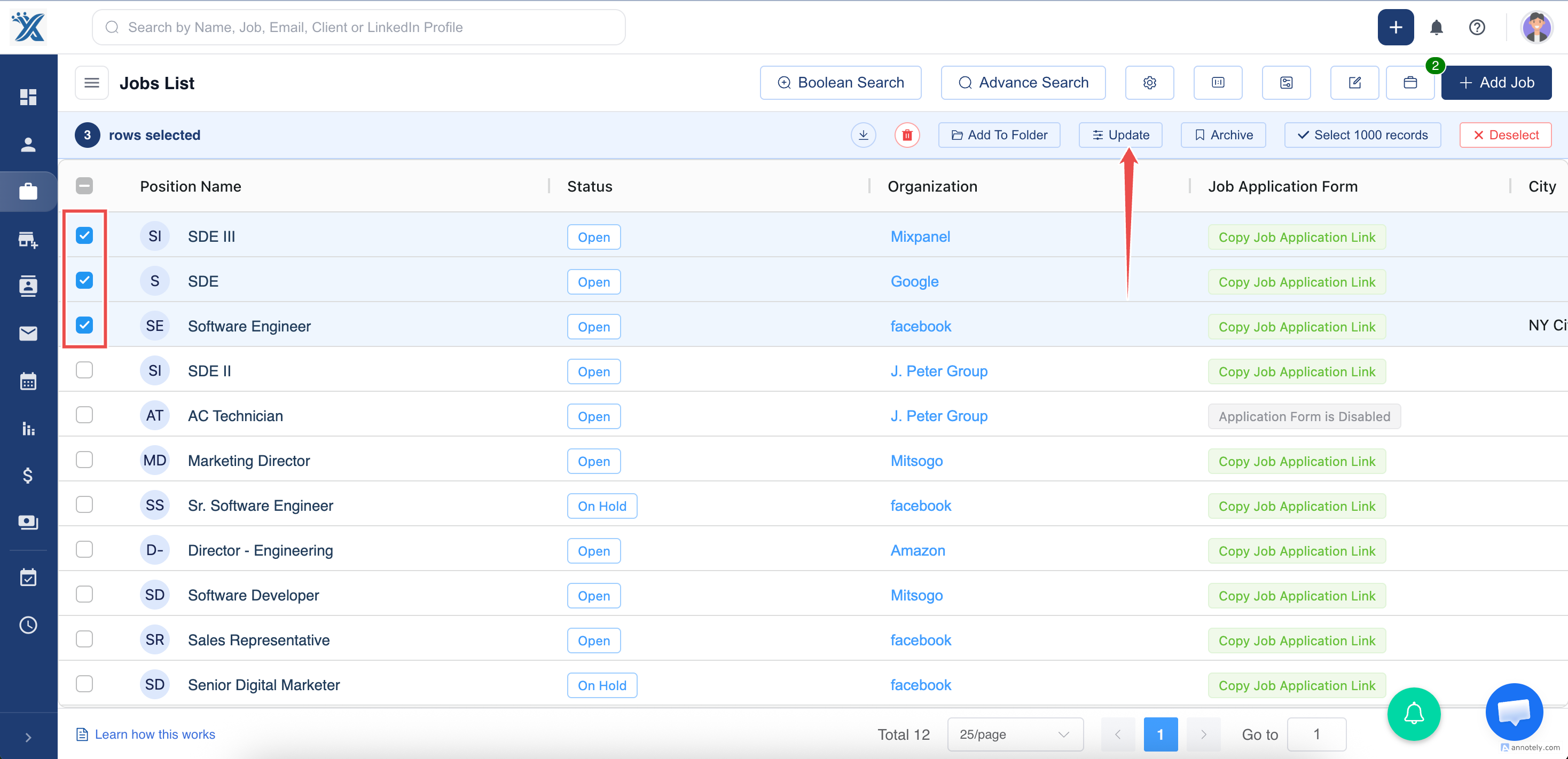
Step 4: Choose Fields and Values
Choose the fields you want to update and enter the new values.
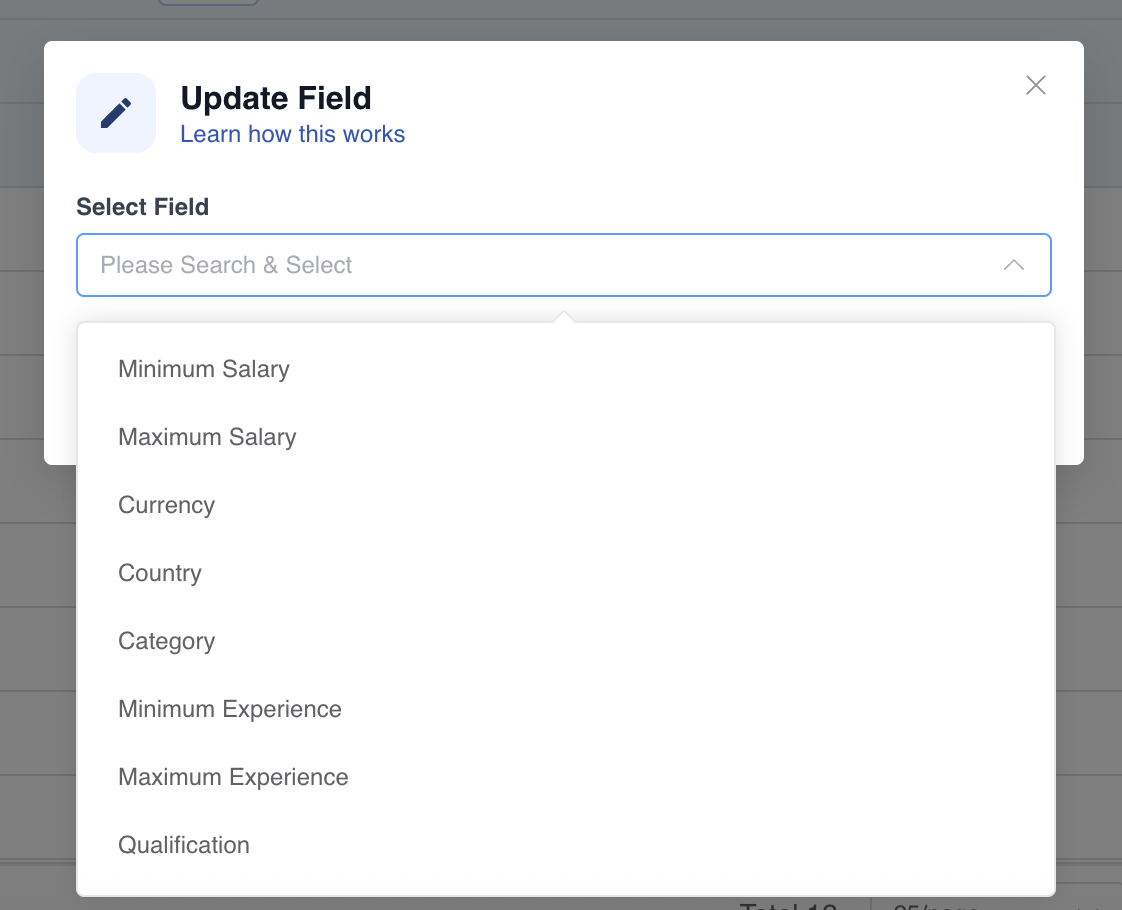
Step 5: Save Changes
Select Save to apply the update to all selected records.
Use Cases
Reassign Ownership
Move records from one recruiter to another after territory, team, or workload changes.
Clean Record Statuses
Update statuses, categories, or tags after filtering a specific group of records.
Campaign Follow-Up
Apply common source, segment, or workflow values to a selected list.
Troubleshooting
Wrong Records Were Selected
Cancel before saving if possible. Use filters carefully and review the selected count.
Field Is Not Available
Check whether the field belongs to that entity and whether your role can edit it.
Update Did Not Apply
Refresh the list and check permissions, required values, or validation errors.
Frequently Asked Questions
Can I undo a bulk update?
Bulk updates may not have a simple undo. Export or review data before major changes.
Can I use Advanced Search before bulk update?
Yes. Filter the list first, then select and update the matching records.
Is bulk update safer than import?
Bulk update is better for changing existing records. Import is better for adding or refreshing data from a file.