
What Radius Search Does
Radius Search helps recruiters find candidates within a selected distance from a specific location. It is useful for local hiring, onsite roles, commute-sensitive searches, and regional talent pools.
The feature uses Google Maps and works best when candidate address data is populated.
Example Scenario
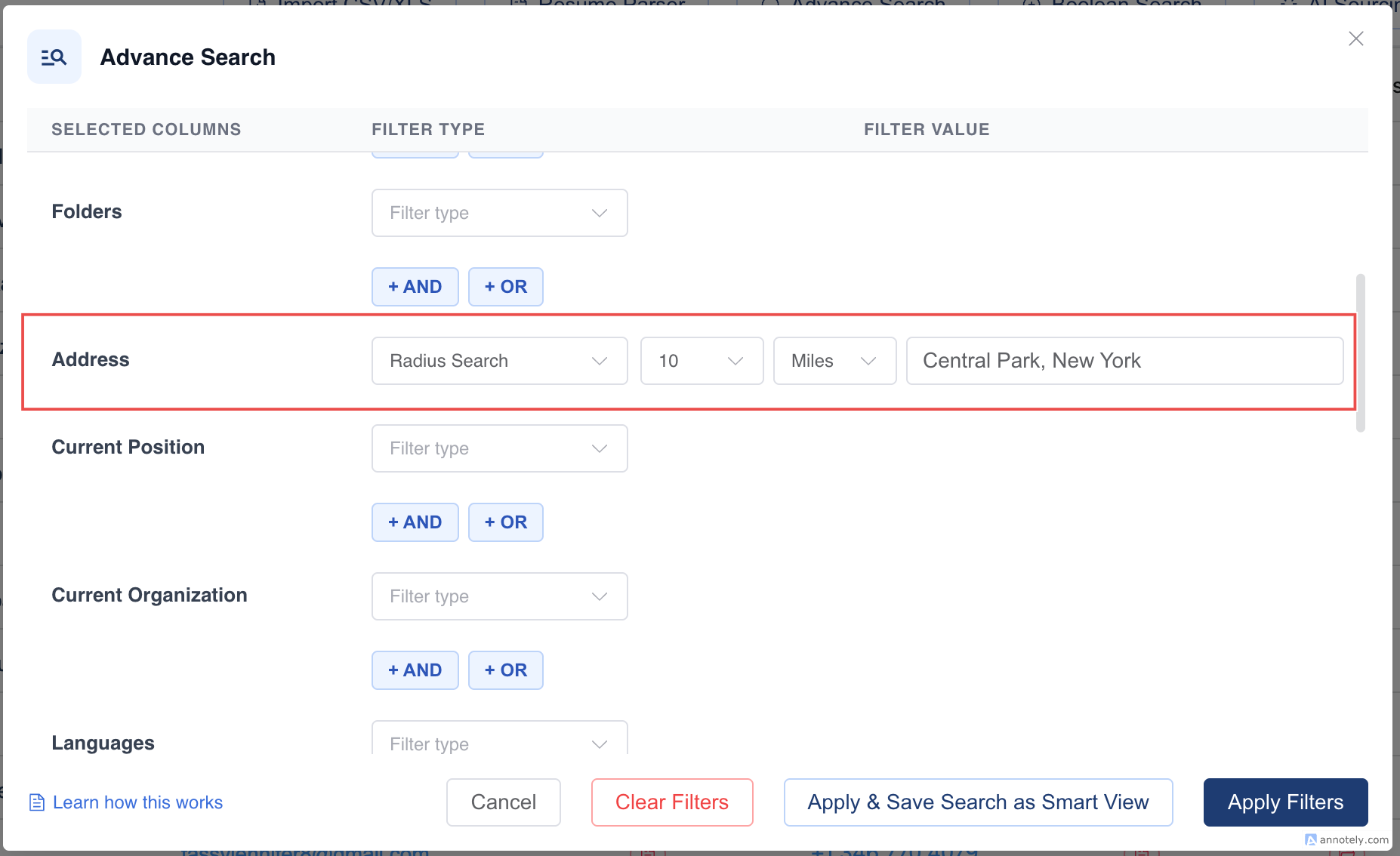
You want to find iOS developers within 10 km of Central Park, New York.
Step 1: Make the Address Field Visible
Open the list view for your entity, select Edit Columns, and make sure Address is visible.
Step 2: Open Advanced Search
Click Advanced Search from the list page.
Step 3: Enter Location and Radius
In Radius Search, enter the location, choose the correct suggestion, and select the radius distance.
Step 4: Combine with Other Filters
Add filters such as skill, job title, availability, status, or owner to refine the search.
Step 5: Apply Filters
Select Apply Filters to view matching records within the selected radius.
Use Cases
Local Candidate Search
Find candidates close to a client office, hospital, warehouse, or job site.
Commute-Sensitive Roles
Filter candidates by distance when onsite attendance is required.
Regional Talent Mapping
Review the available candidate pool near a target city or location.
Troubleshooting
Radius Search Returns No Results
Check whether candidate address fields are populated and visible.
Wrong Location Is Used
Choose the correct Google Maps suggestion from the dropdown.
Results Are Too Broad
Reduce the radius or add more filters such as skills and availability.
Frequently Asked Questions
Can I search by city instead of exact address?
Yes. Enter the location and choose the correct map suggestion.
Does Radius Search work without addresses?
It works best when records have address data. Missing addresses can prevent records from appearing.
Can I use Radius Search for entities other than candidates?
The source article focuses on candidates. Availability for other entities depends on address data and account setup.