
Why Assign Record Owners
Owners make responsibility clear. When records have the right owner, recruiters and managers can see who should follow up, update stages, complete tasks, and keep data accurate.
Assign an Owner to a Record
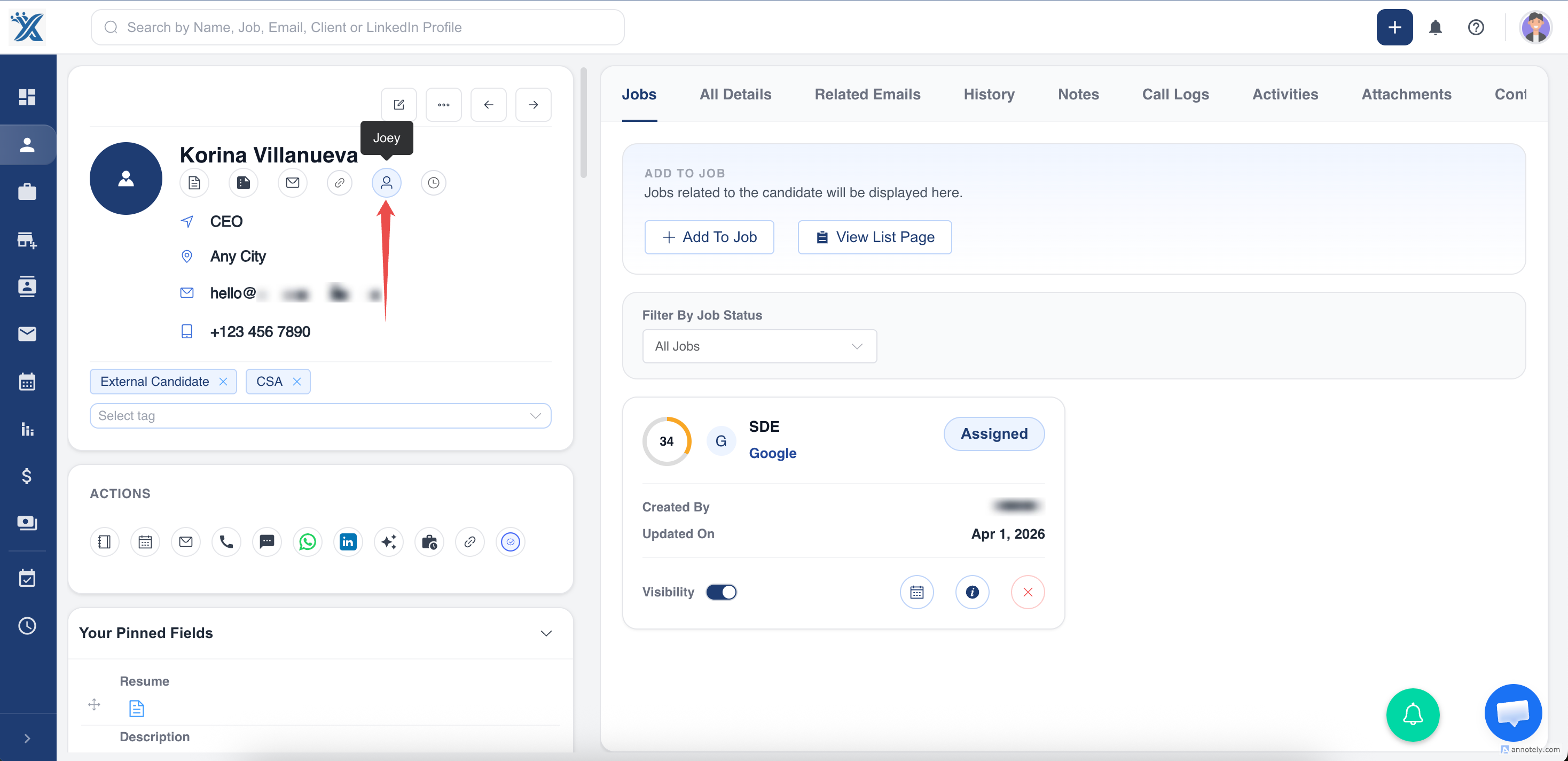
- Open the relevant entity, such as Candidates.
- Open the record you want to assign.
- Select the Owner field or button.
- Choose the team member from the user dropdown.
- Confirm and save the change.
Use Cases
Candidate Ownership
Assign candidates to recruiters responsible for screening, follow-up, and stage updates.
Job Ownership
Assign jobs to recruiters or account managers responsible for delivery.
Deal and Client Accountability
Use owners on deals, contacts, and organizations so sales and account activity remains clear.
Troubleshooting
User Is Missing from the Owner Dropdown
Check whether the user is active and has the right access in your ATZ CRM account.
Owner Change Did Not Save
Confirm the change and save the record before navigating away.
Records Have the Wrong Owner in Bulk
Use bulk update carefully, and filter records before changing ownership for many records.
Frequently Asked Questions
Does assigning an owner change permissions?
Ownership can affect visibility in owned-only permission setups. Check your role and permission configuration.
Can one owner manage multiple records?
Yes. A recruiter or team member can own many records.
Should every record have an owner?
For operational clarity, important records should have an owner.