
What Folder Management Does
Folders in ATZ CRM help your team organize records into focused groups. You can rename folders as workflows change, delete folders that are no longer needed, and create new folders for campaigns, roles, sources, or shortlists.
Open Folder Options
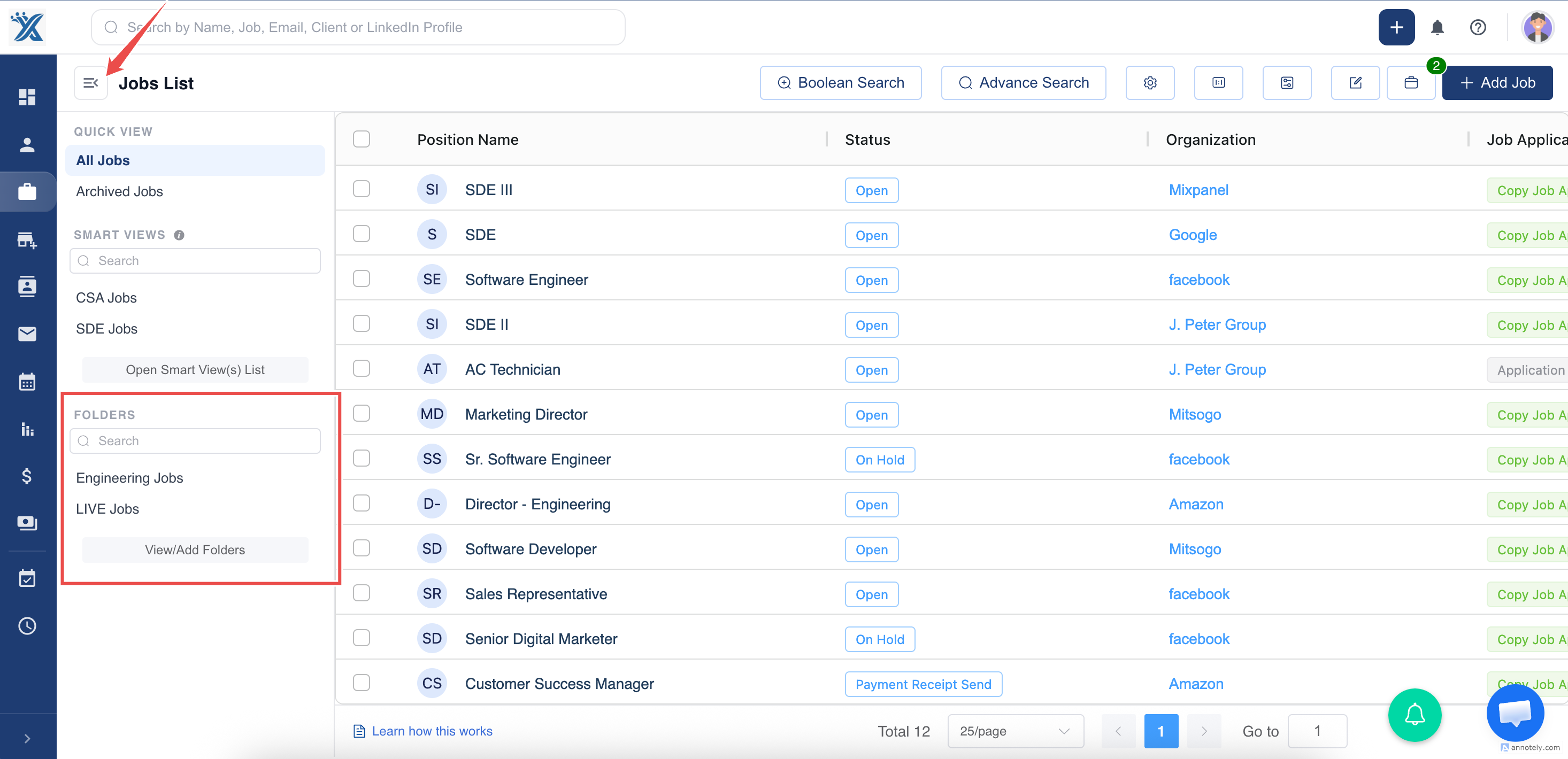
- Go to the Jobs section in ATZ CRM.
- Open the top-left menu.
- Select View/Add Folder.
Edit or Rename a Folder
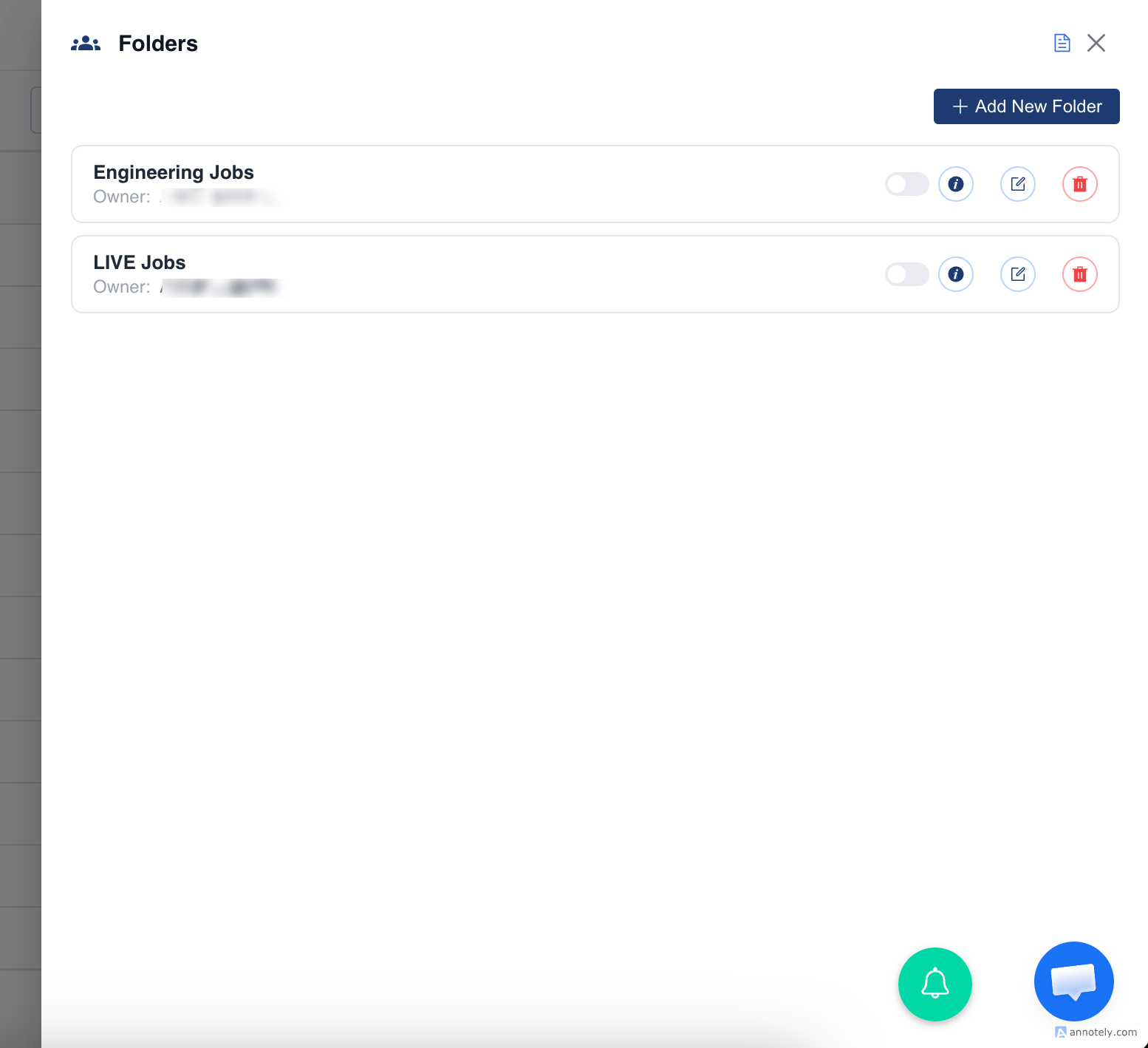
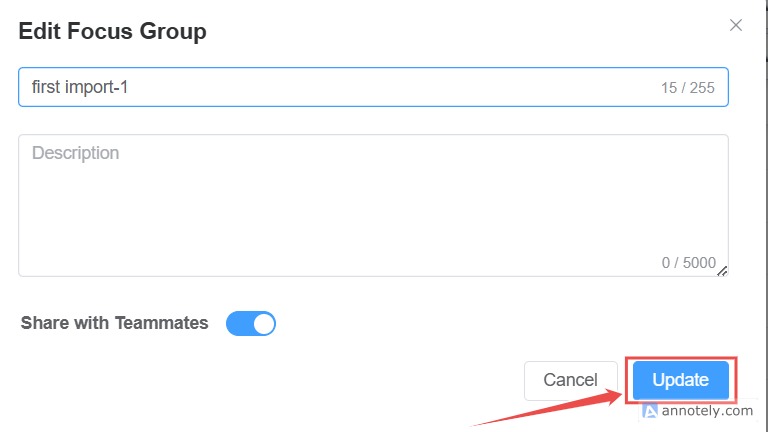
From the folder management panel, choose the folder you want to update and edit its details.
Delete a Folder
Choose Delete from the folder menu and confirm the deletion when prompted.
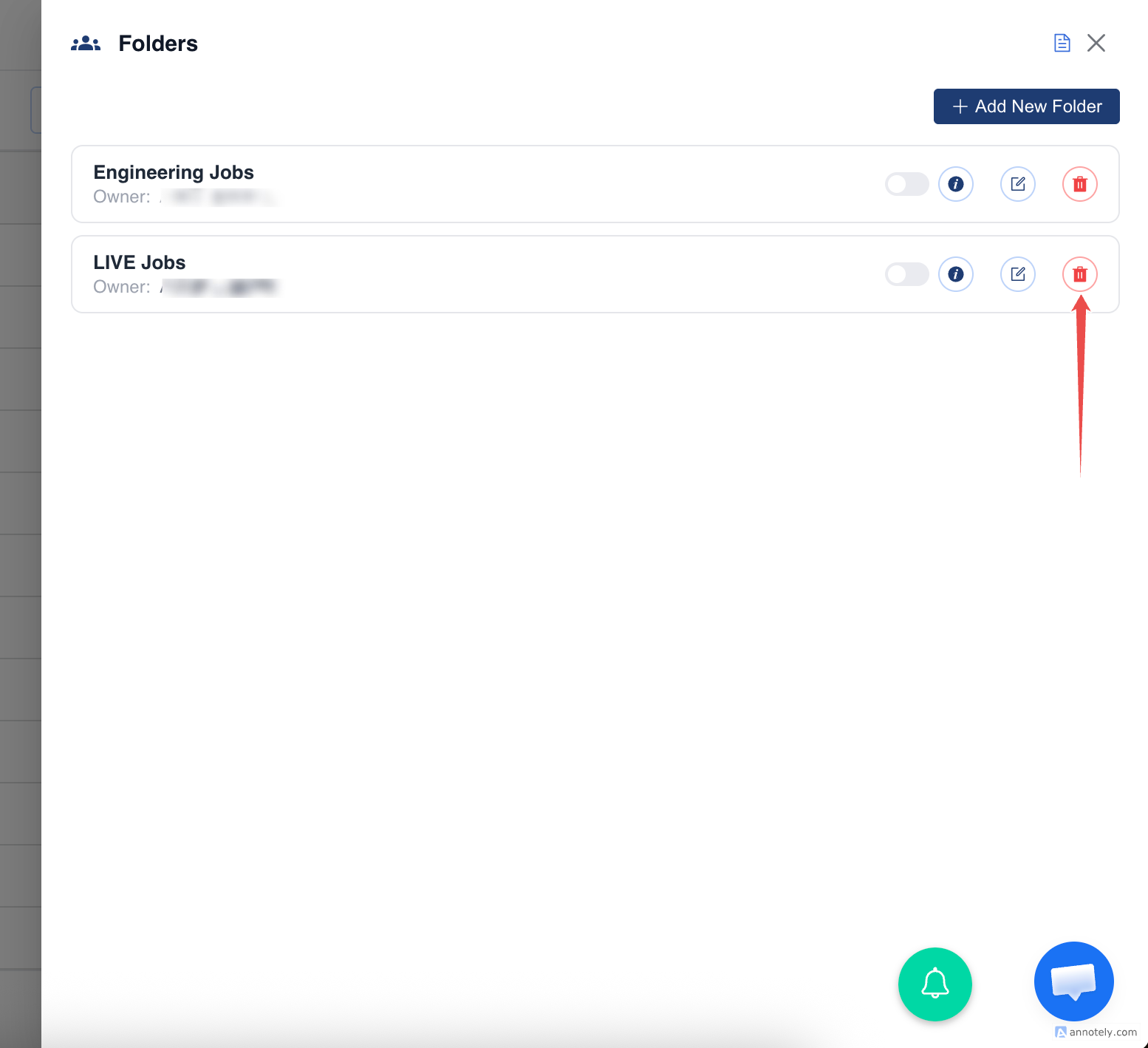
Deleting a folder is irreversible, so confirm that the grouping is no longer needed before deleting it.
Add a New Folder
Use the Add button in the folder section.
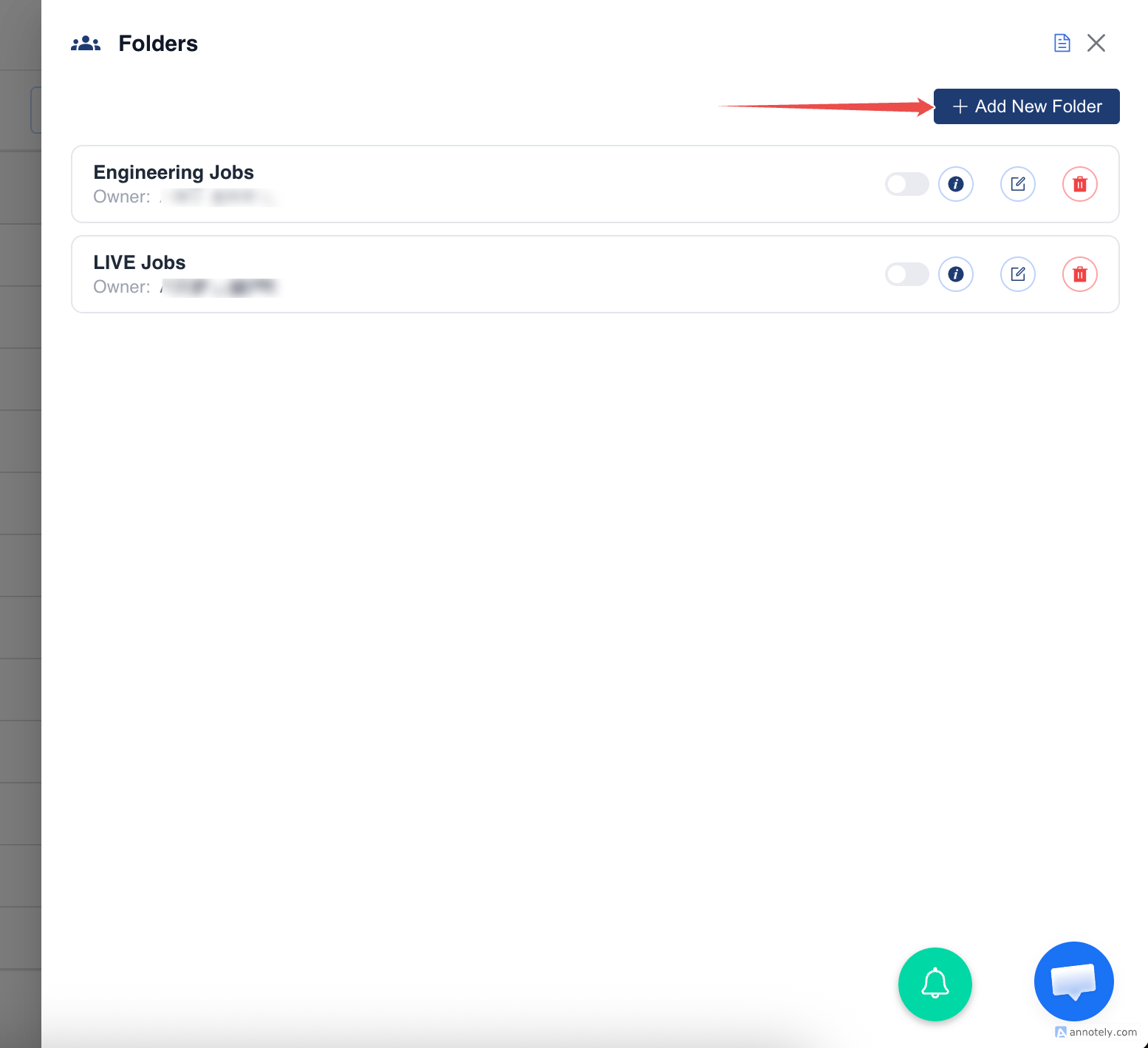
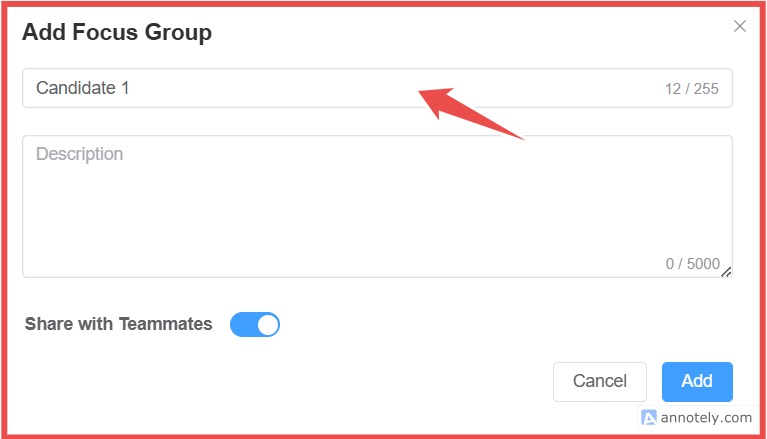
Enter the folder details and select Add.
Use Cases
Campaign Shortlists
Create folders for candidate campaigns, outreach lists, or client shortlists.
Team Organization
Rename folders as priorities shift so teammates understand what each folder is for.
Cleanup
Delete old folders that no longer support active work.
Troubleshooting
I Cannot Find Folder Options
Open the Jobs section and use the top-left menu to access folder management.
Delete Option Is Missing
Check your permissions or whether the folder can only be changed by its owner or an admin.
Folder Name Is Confusing
Rename it with a clear naming convention, such as client, role, campaign, or date.
Frequently Asked Questions
Can I recreate a deleted folder?
Yes, you can create a new folder with the same or similar name, but deleted folder membership may need to be rebuilt.
Should folders replace stages?
No. Use stages for pipeline progress and folders for grouping or organizing records.
Can folders be shared?
Folder sharing depends on the folder settings and account permissions.