
Why Job Status Matters
Job status tells your team whether a role is active, paused, won, lost, or in another configured stage. Keeping statuses accurate improves collaboration, reporting, and job board visibility.
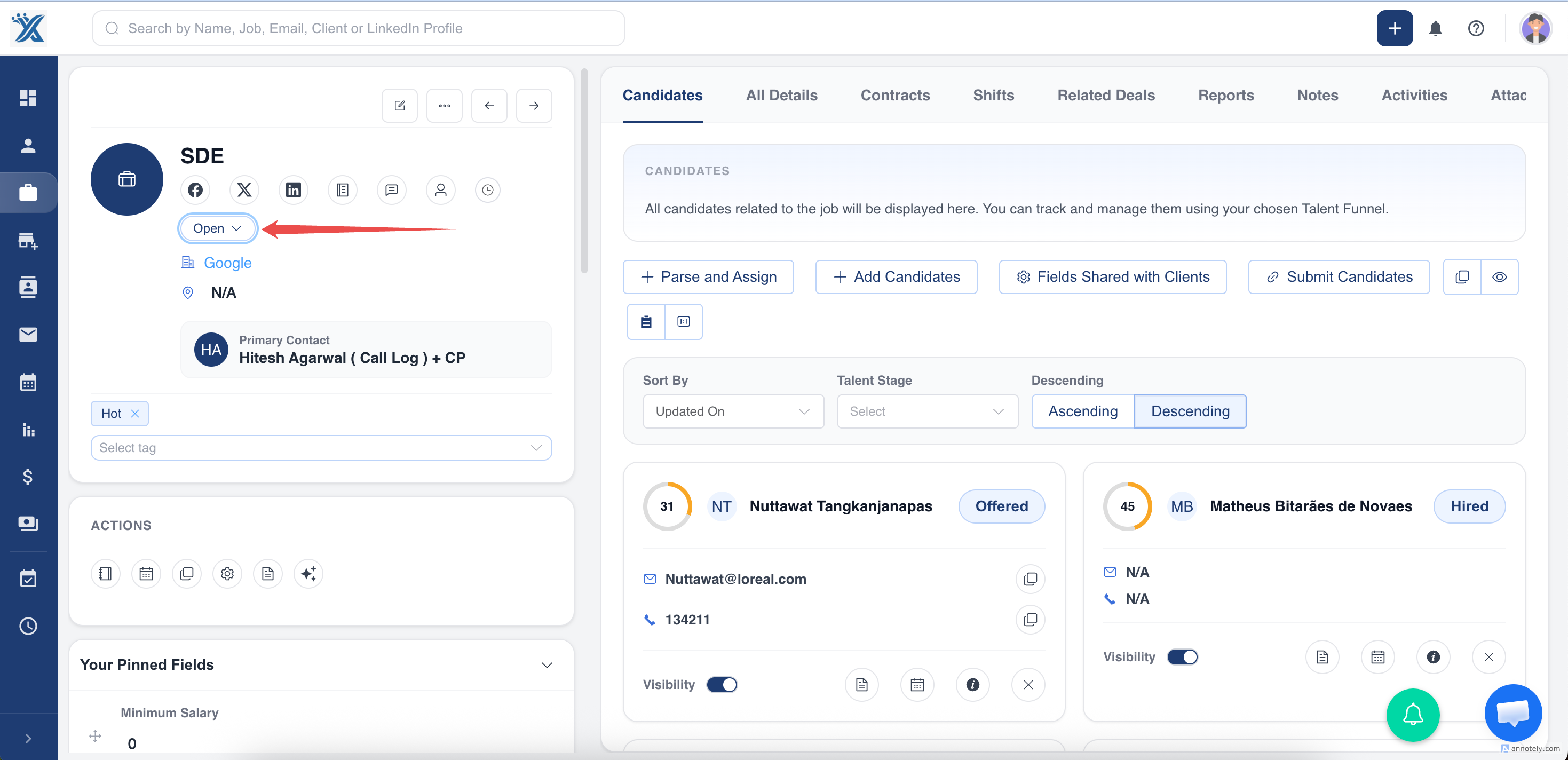
Method 1: Change Status from the Job Detail Page
- Go to Jobs.
- Open the job you want to update.
- Select the Job Status label.
- Choose the new status.
- Add a reason if prompted.
- Confirm the change.
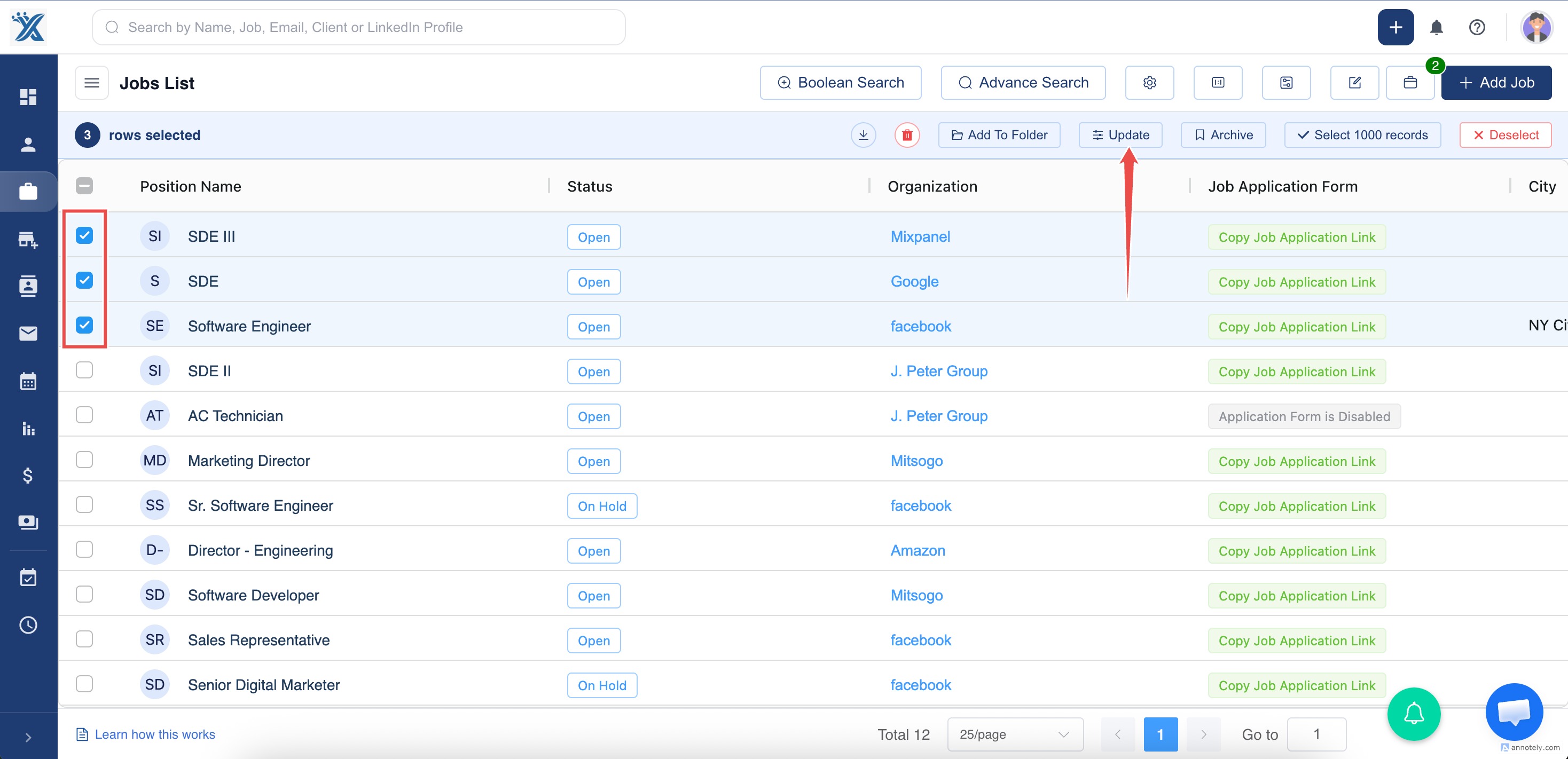
Method 2: Bulk Update Job Status
- Go to Jobs.
- Select the jobs you want to update.
- Click Update.
- Choose the Status field.
- Select the new status and save.
Use Cases
Pause a Role
Move a job to On Hold when the client pauses hiring.
Close a Successful Role
Move a job to Won when the role is filled or completed.
Stop External Visibility
Use job status and application form visibility to control whether jobs appear on boards and career pages.
Troubleshooting
Status Change Is Not Available
Check your permissions and whether the status exists in job status settings.
Wrong Jobs Were Updated
Review selected jobs carefully before bulk updating. Correct individual job statuses if needed.
Job Still Appears on Job Boards
Review job status and disable the job application form link if the role should not be visible.
Frequently Asked Questions
Can statuses be customized?
Yes. Admins can create custom job statuses while predefined system statuses remain protected.
Does status affect job board publishing?
Yes. Job visibility can depend on status and job application form visibility.
Can I change status from list view?
Use bulk update or quick edit options where available.