
Why Archive Jobs
Archiving keeps your active job list clean without deleting job history. Use it for old, paused, duplicate, or no-longer-active jobs that you still need for reference.
Archive a Job
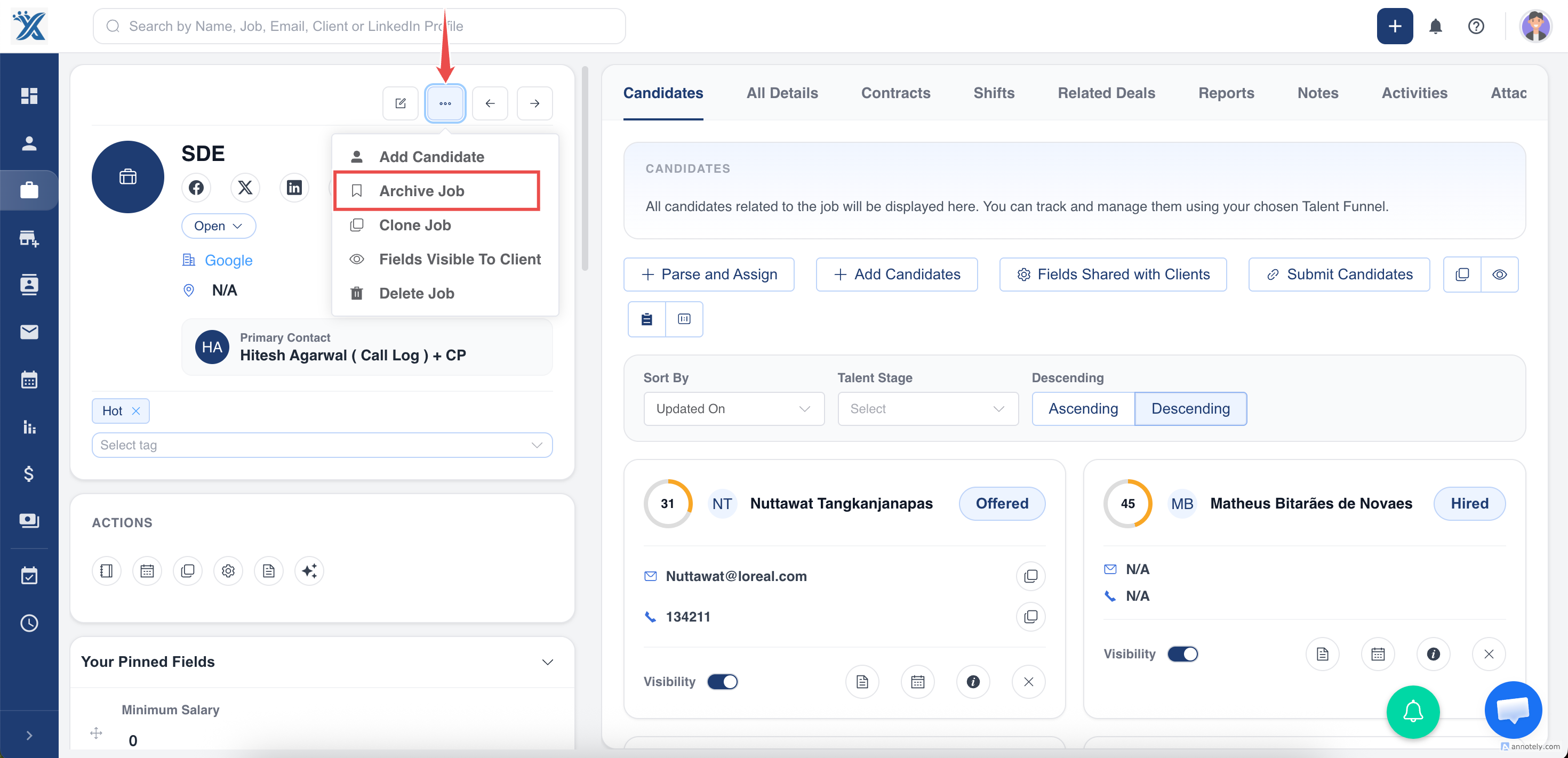
- Go to Jobs.
- Find and open the job you want to archive.
- Open the action menu.
- Choose Archive.
- Confirm the action.
Unarchive a Job
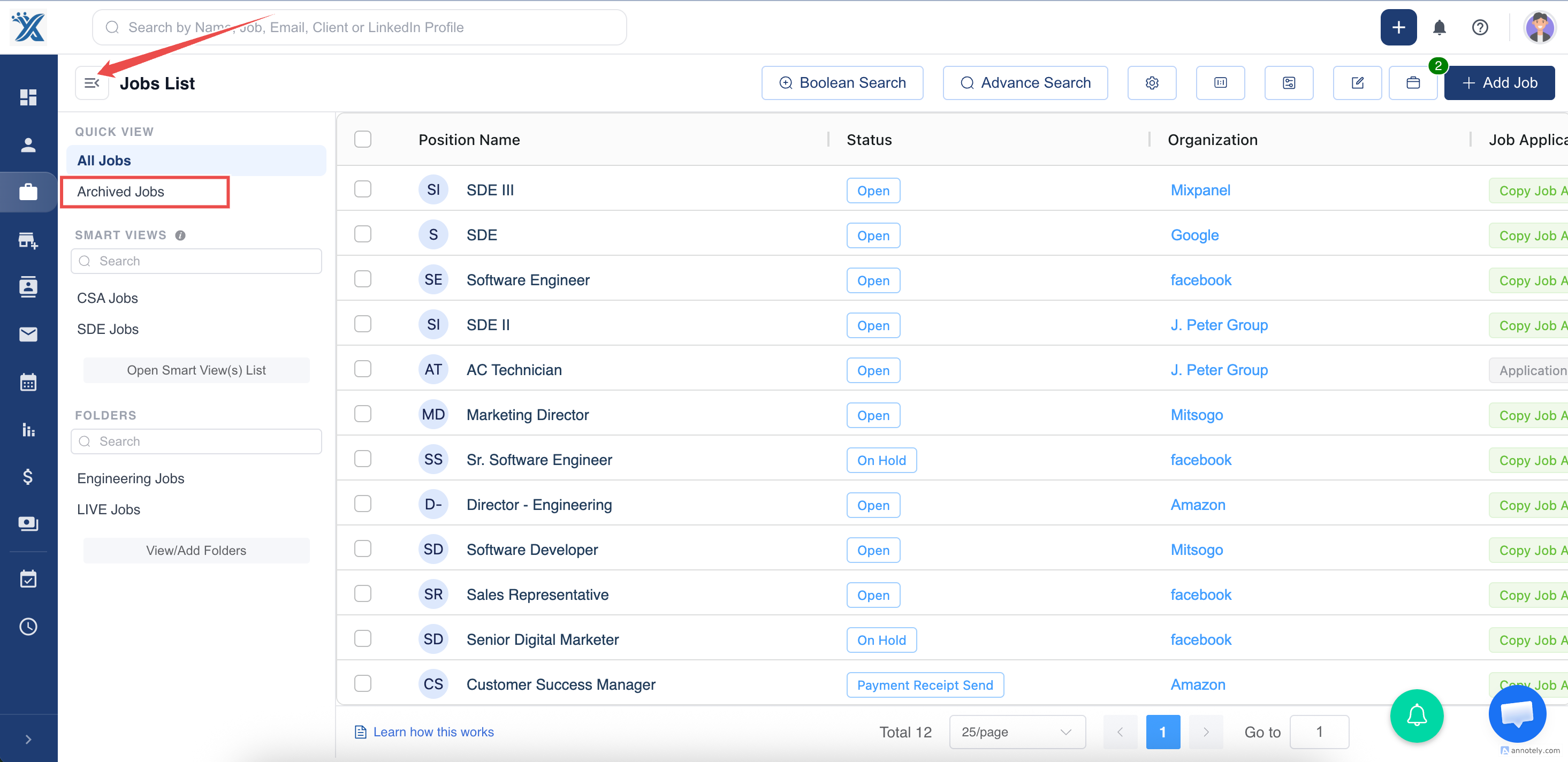
- Open the archived jobs area.
- Locate the archived job.
- Open the job detail page.
- Choose Unarchive, Restore, or the available active-list action.
- Confirm the action.
Find Archived Jobs
Open Jobs, select the menu icon, and choose Archived Jobs.
Use Cases
Clean Active Job Lists
Archive old jobs so recruiters focus on current roles.
Preserve History
Keep job records available for reporting, client history, or reference.
Restore Reopened Roles
Unarchive a job when the client reopens the requirement.
Troubleshooting
Job Is Still Visible
Refresh the list and check whether you archived the correct job.
Archived Job Cannot Be Found
Open the Archived Jobs view or adjust filters.
Unarchive Option Is Missing
Check your permissions or ask an admin to restore the job.
Frequently Asked Questions
Should I archive or mark a job as Lost?
Use status when you need workflow/reporting accuracy. Use archive when you want to declutter active views.
Does archiving affect candidates?
Review job and candidate assignment behavior in your account before archiving active roles.
Can archived jobs appear on job boards?
Archived jobs should not be treated as active listings, but also check job status and application form visibility.