
Why Resume Formatting Templates Matter
Resume formatting templates help agencies send consistent, branded, and client-ready candidate documents. Instead of manually editing every CV, recruiters can apply saved templates for headers, footers, cover letters, and watermarks.
Step 1: Open CV/Resume Formatting Settings
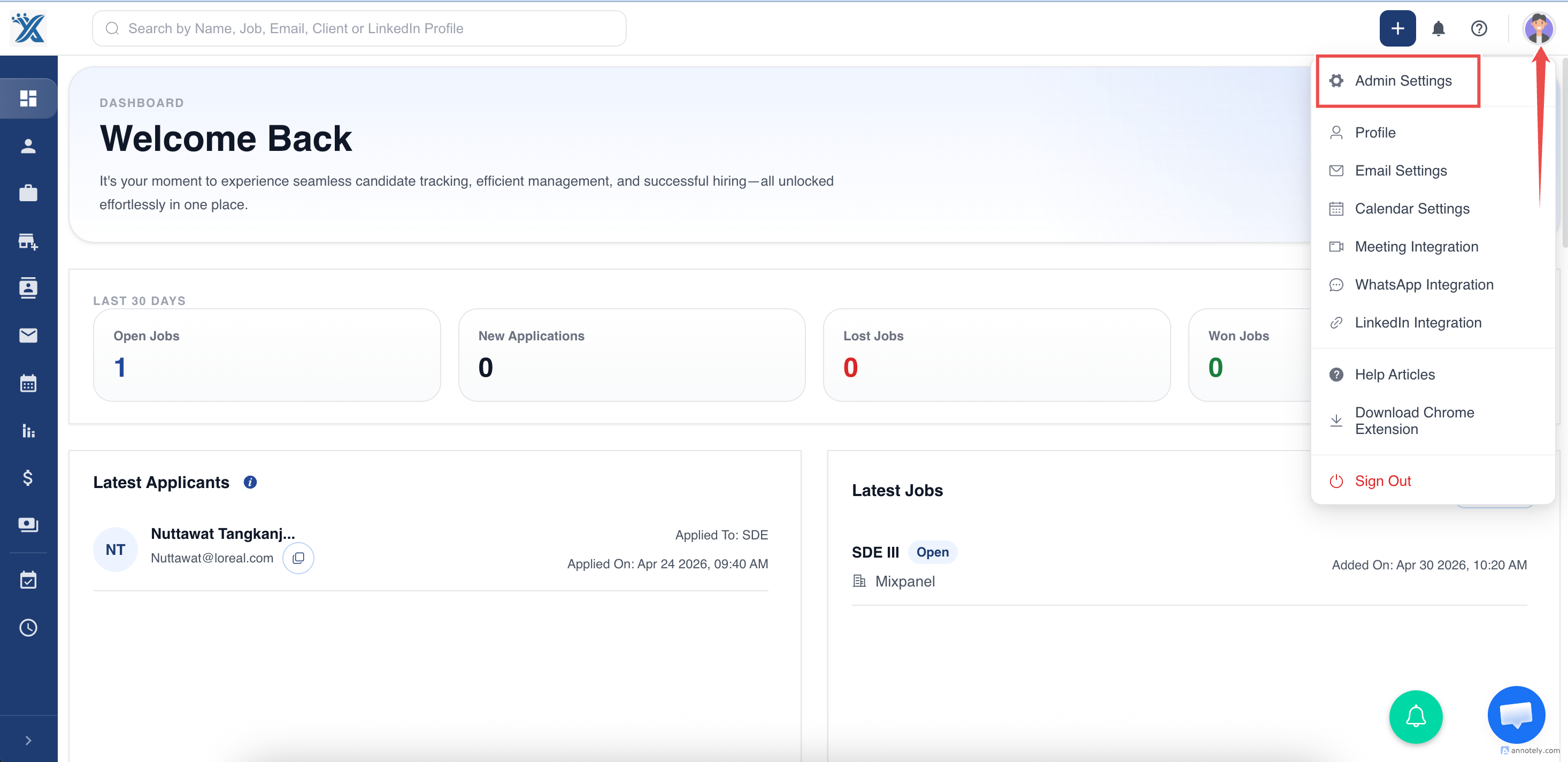
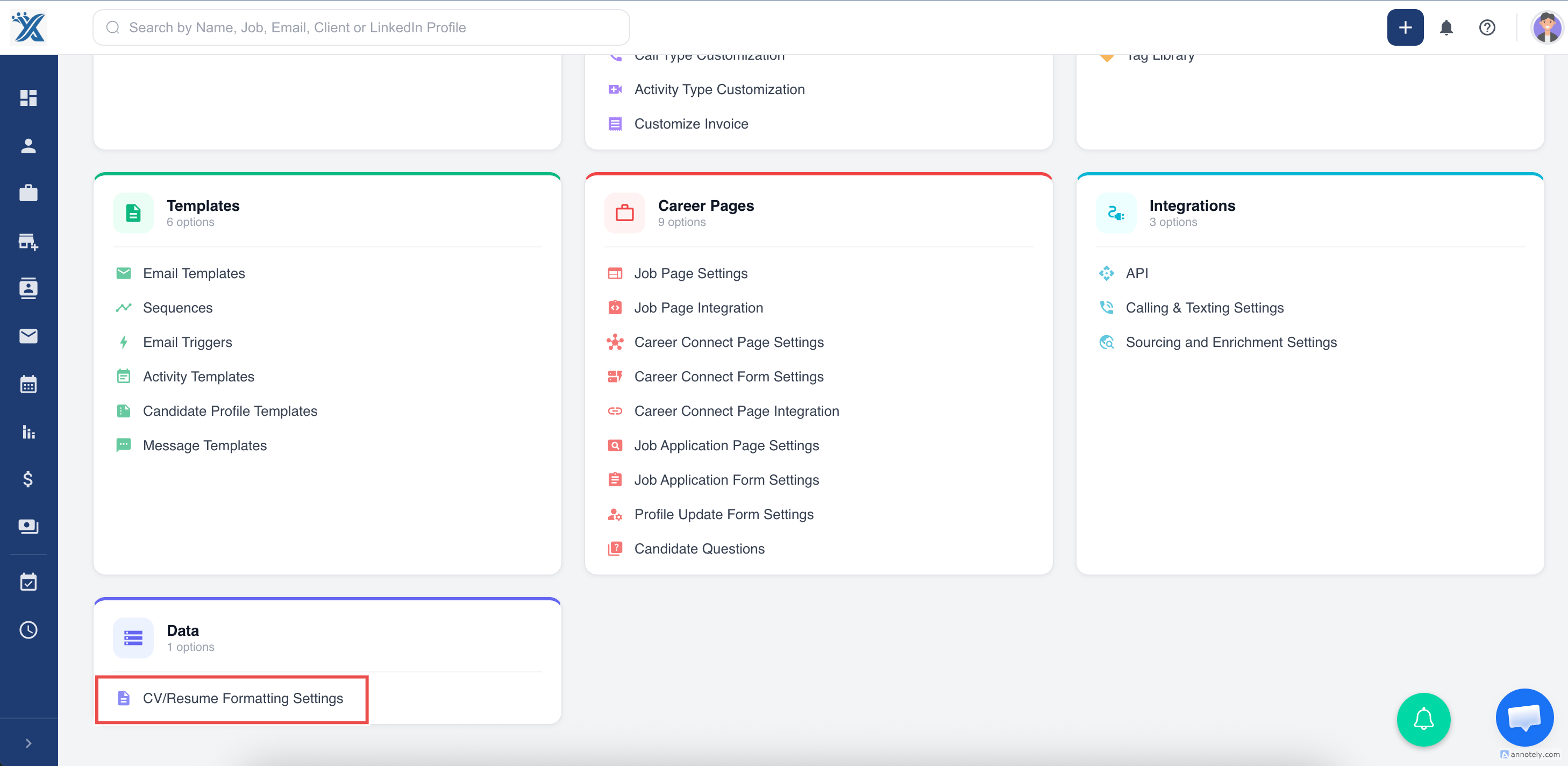
Go to Admin Settings and select CV/Resume Formatting Settings.
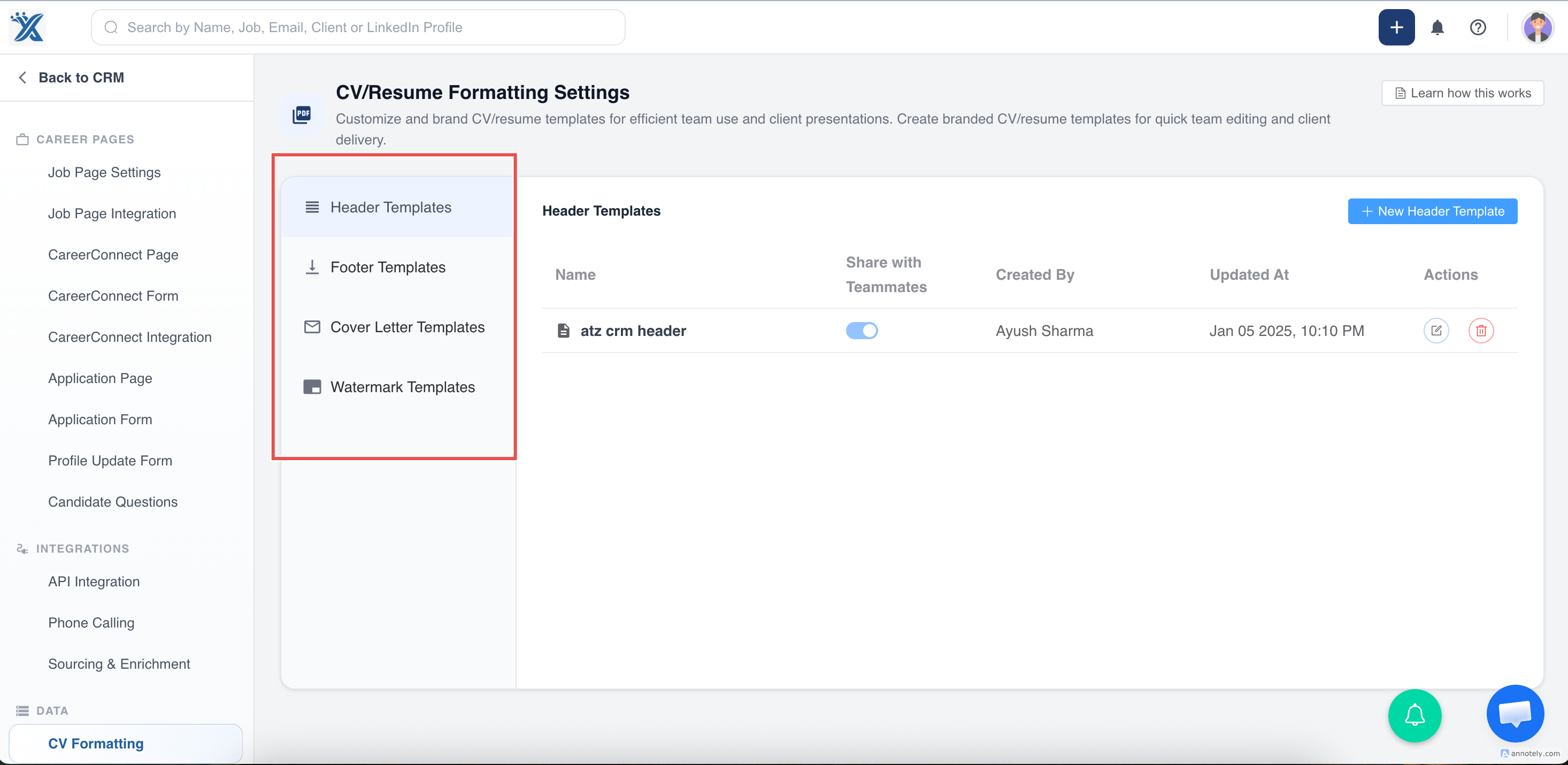
You will see template sections for headers, footers, watermarks, and cover letters.
Create a Header Template
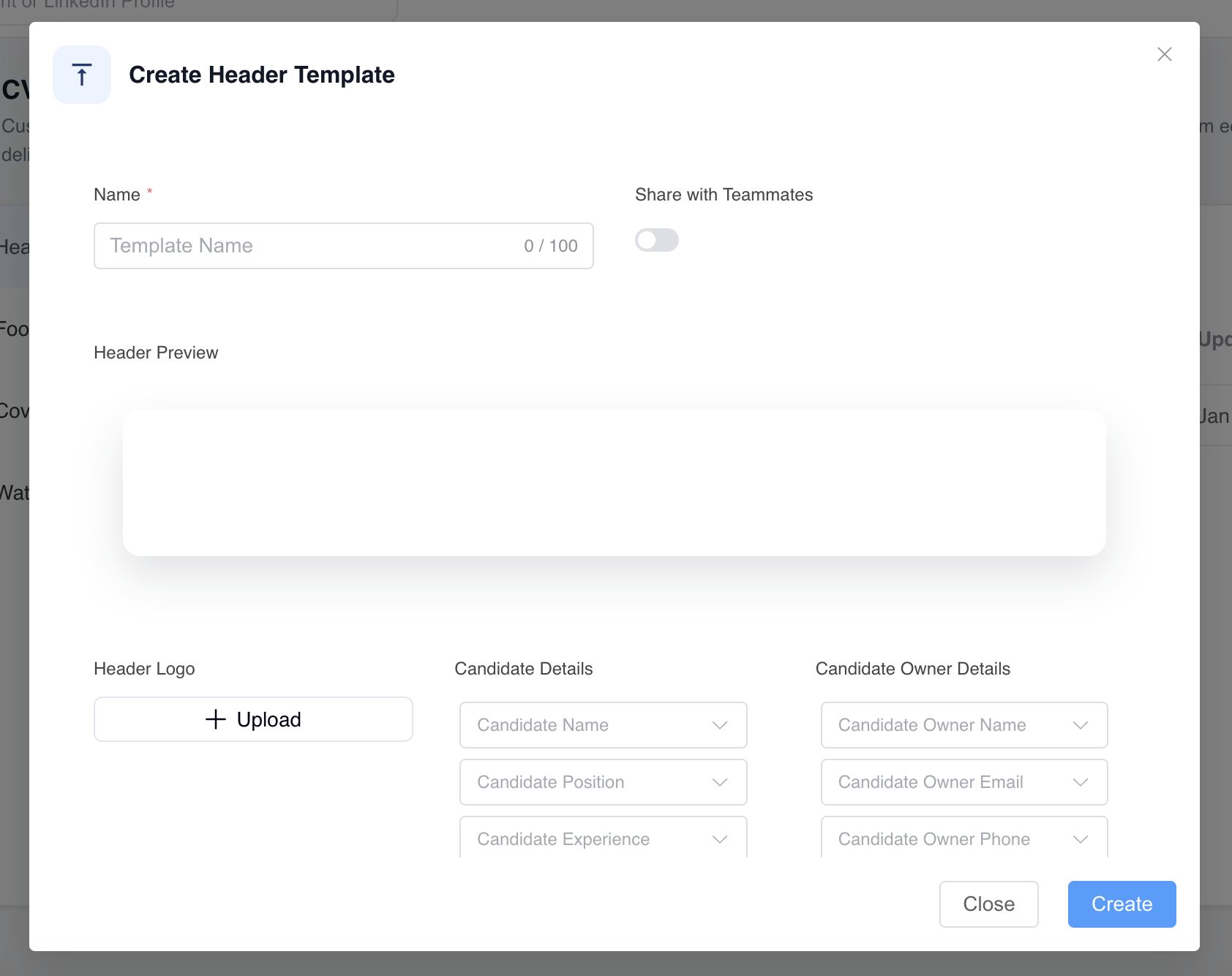
Open the header template section, select the option to create a new header, and design the header with text, colors, branding, and placeholders.
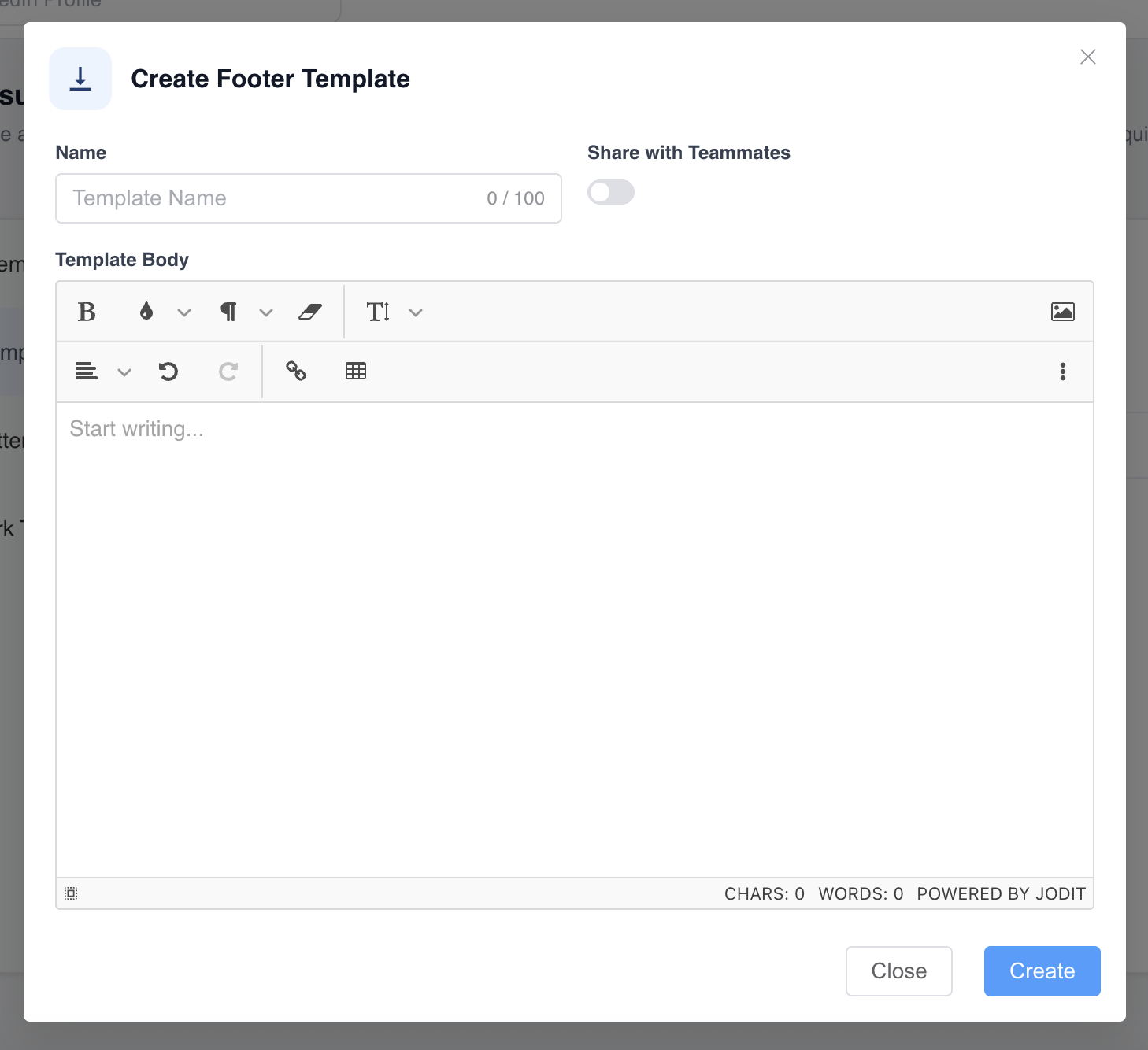
Create a Footer Template
Use footer templates for page numbers, disclaimers, contact details, or brand messaging.
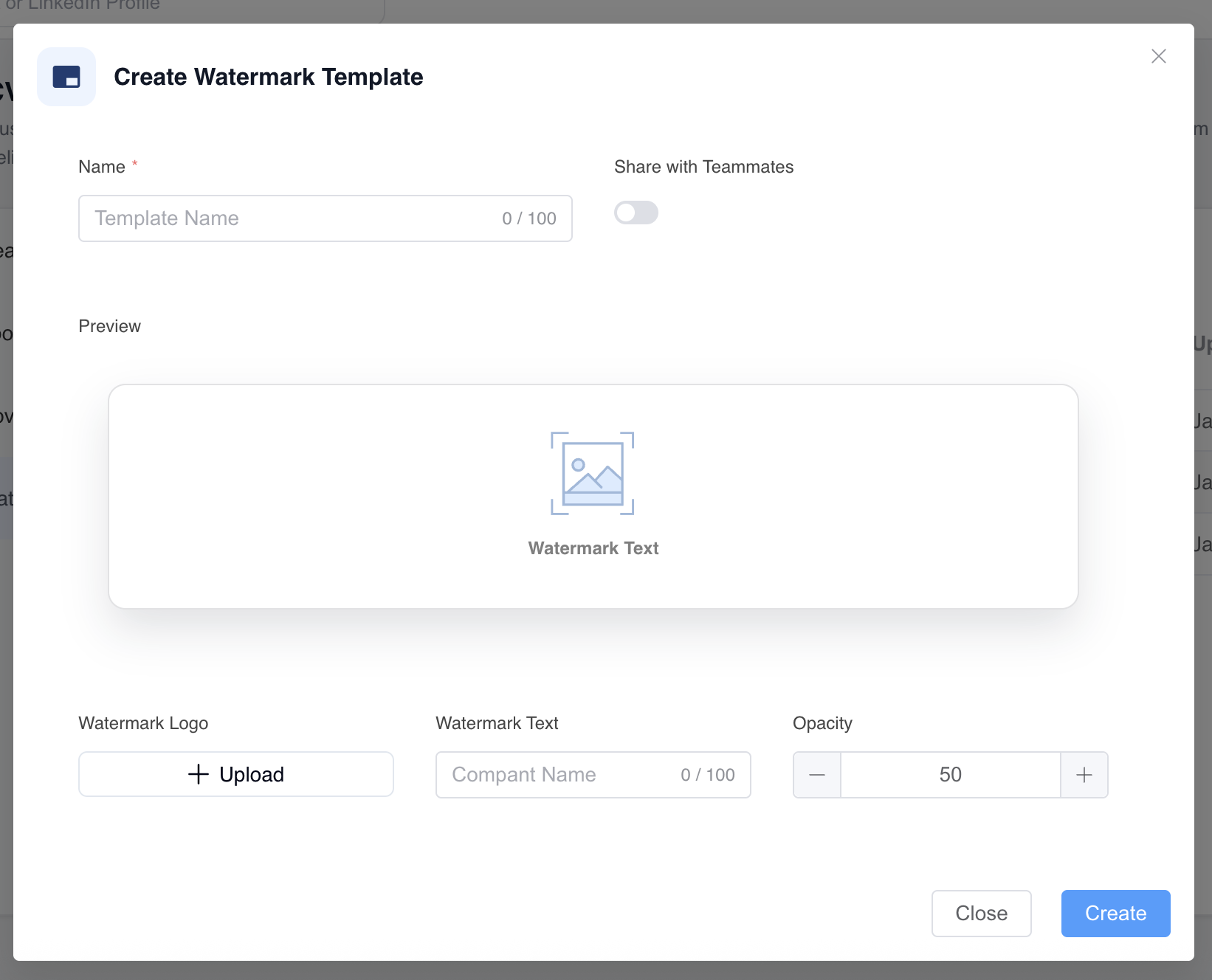
Create a Watermark Template
Create a transparent watermark with your logo, company name, or text such as “Confidential.”
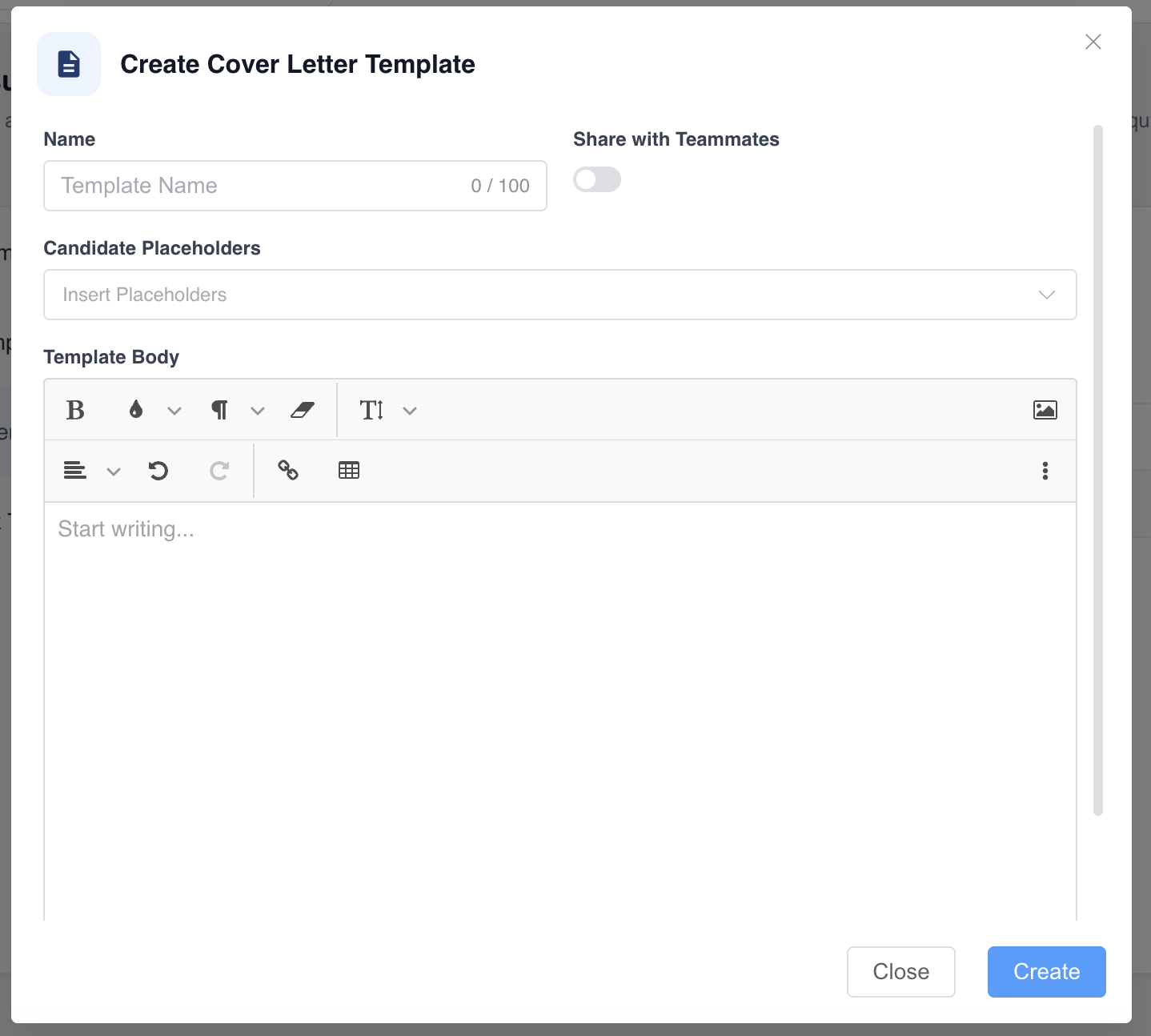
Create a Cover Letter Template
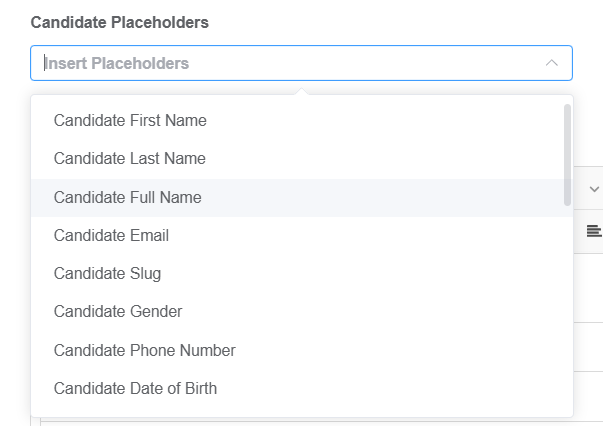
Design the cover letter template and add placeholders for candidate and recruiter details.
Use Cases
Client Submissions
Apply a standardized agency-branded CV before sharing candidates with clients.
Compliance and Confidentiality
Use watermarks and redaction workflows to control how candidate information is shared.
Faster Recruiter Workflows
Templates reduce repeated formatting work and help recruiters send polished CVs faster.
Troubleshooting
Template Formatting Looks Wrong
Preview the template and adjust spacing, placeholder fields, and design settings before using it.
Placeholder Data Is Missing
Confirm that the candidate profile contains the field used by the placeholder.
Watermark Does Not Show on Cover Letter
That is expected. Watermarks apply to resumes, not cover letters.
Frequently Asked Questions
Can I create multiple templates?
Yes. Create different templates for brands, clients, regions, or role types.
Can I edit a template later?
Yes. Return to CV/Resume Formatting Settings and update the relevant template.
Should I use templates before formatting a resume?
Yes. Creating templates first makes resume formatting faster and more consistent.