
What Field Visibility and Arrangement Controls
Field visibility and arrangement control which columns appear in entity list views and in what order. This helps recruiters focus on the data that matters most for the workflow they are using.
Common entities include:
- Candidates
- Jobs
- Contacts
- Companies
- Deals
- Placements
Step 1: Open an Entity List
Go to the entity you want to customize. The process is similar across supported entities.
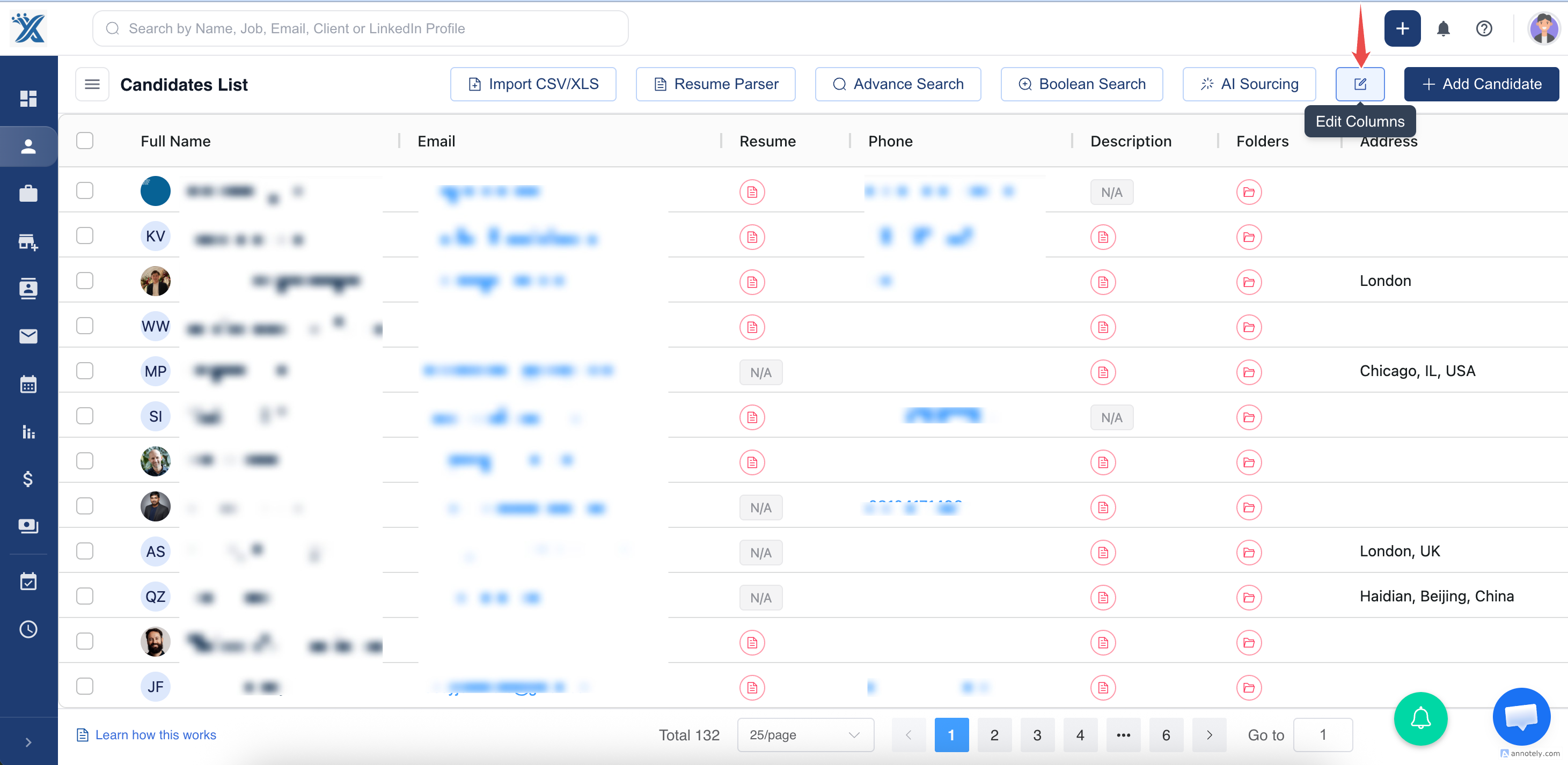
Step 2: Select Edit Columns
Click Edit Columns from the top-right area of the list.
Step 3: Show, Hide, or Reorder Fields
Use the field controls to:
- Toggle a field off to hide it.
- Toggle a field on to show it.
- Drag fields up or down to change column order.
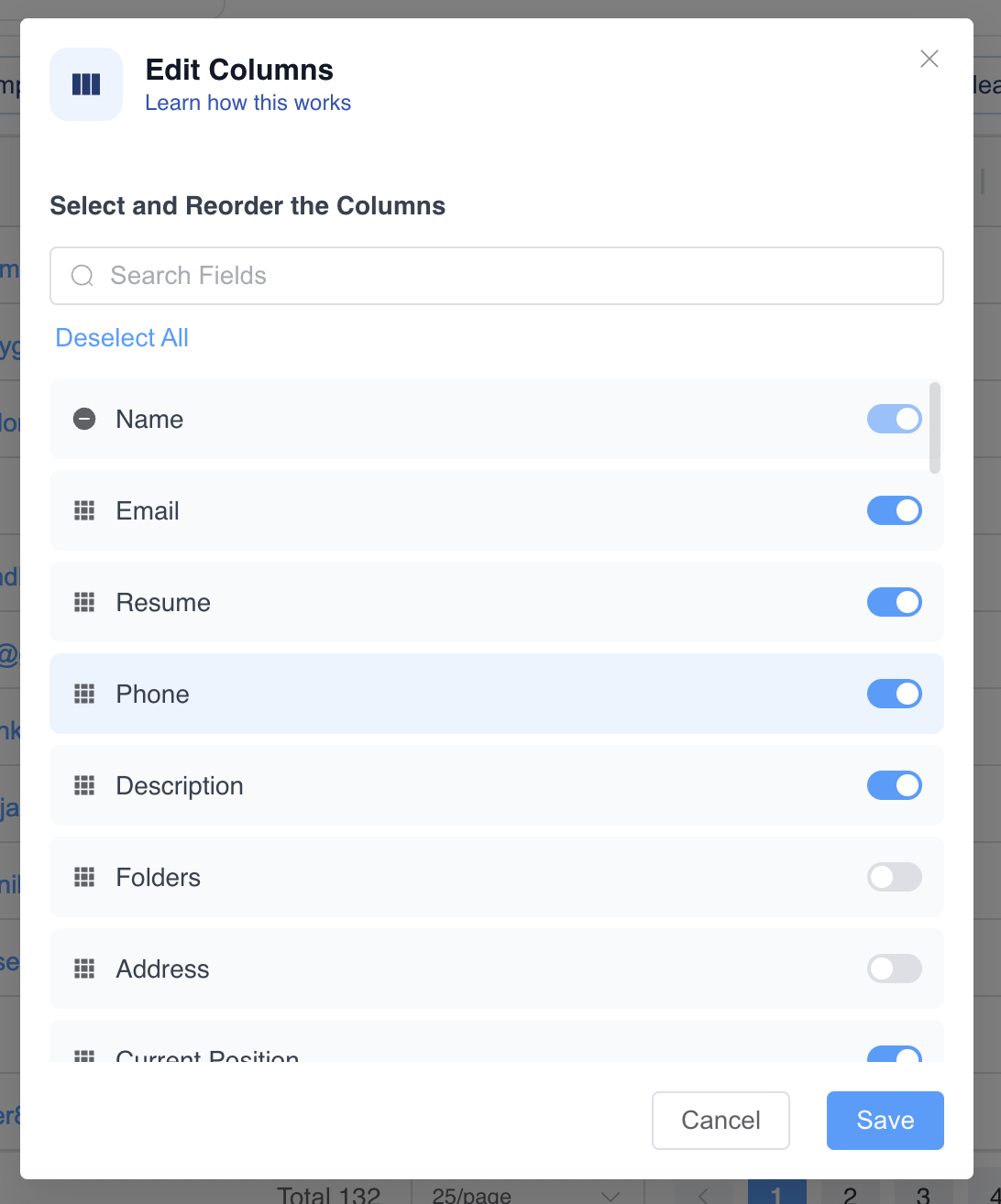
Note: The Name field is a default field and cannot be removed.
The Candidate list supports up to 30 selected fields. If the limit is reached, remove a lower-priority field before adding another one.
Step 4: Save the Layout
Save your changes. The list updates based on the selected field visibility and order.
Use Cases
Recruiter Daily Views
Show fields such as stage, owner, source, phone, email, and last updated date.
Reporting Views
Show fields needed for export, reporting, or manager review.
Cleaner Search Workflows
Keep searchable fields visible when you plan to use Advanced Search filters.
Troubleshooting
Field Is Not Available
The field may not exist for that entity, or your role may not have access.
Advanced Search Filter Is Missing
Make sure the field is visible in the list view.
Layout Does Not Save
Save changes before leaving the page and refresh to confirm the layout.
Frequently Asked Questions
Is this the same as form field visibility?
No. Edit Columns controls list/table views. Form field visibility is managed from admin data customization settings.
Can different users have different layouts?
This depends on account behavior and permissions. Confirm with your admin if layouts should be standardized.
Should I hide unused fields?
Yes. Hiding low-value fields makes lists easier to scan.