Customize Entities keeps the ATZ CRM sidebar focused on the areas your recruitment business actively uses.
What This Setting Changes
The setting controls whether optional entities appear in the main sidebar for the account. Hiding an entity removes its sidebar entry; it does not delete records.
The following core entities always remain visible:
- Dashboard.
- Candidates.
- Jobs.
- Contacts.
- Companies.
Optional entities can include Matches, Inbox, Activities, Reports, Deals, Placements and Billing, Shifts, and Timesheets.
Open Customize Entities
- Open Admin Settings.
- In the Account section, select Customize Entities.
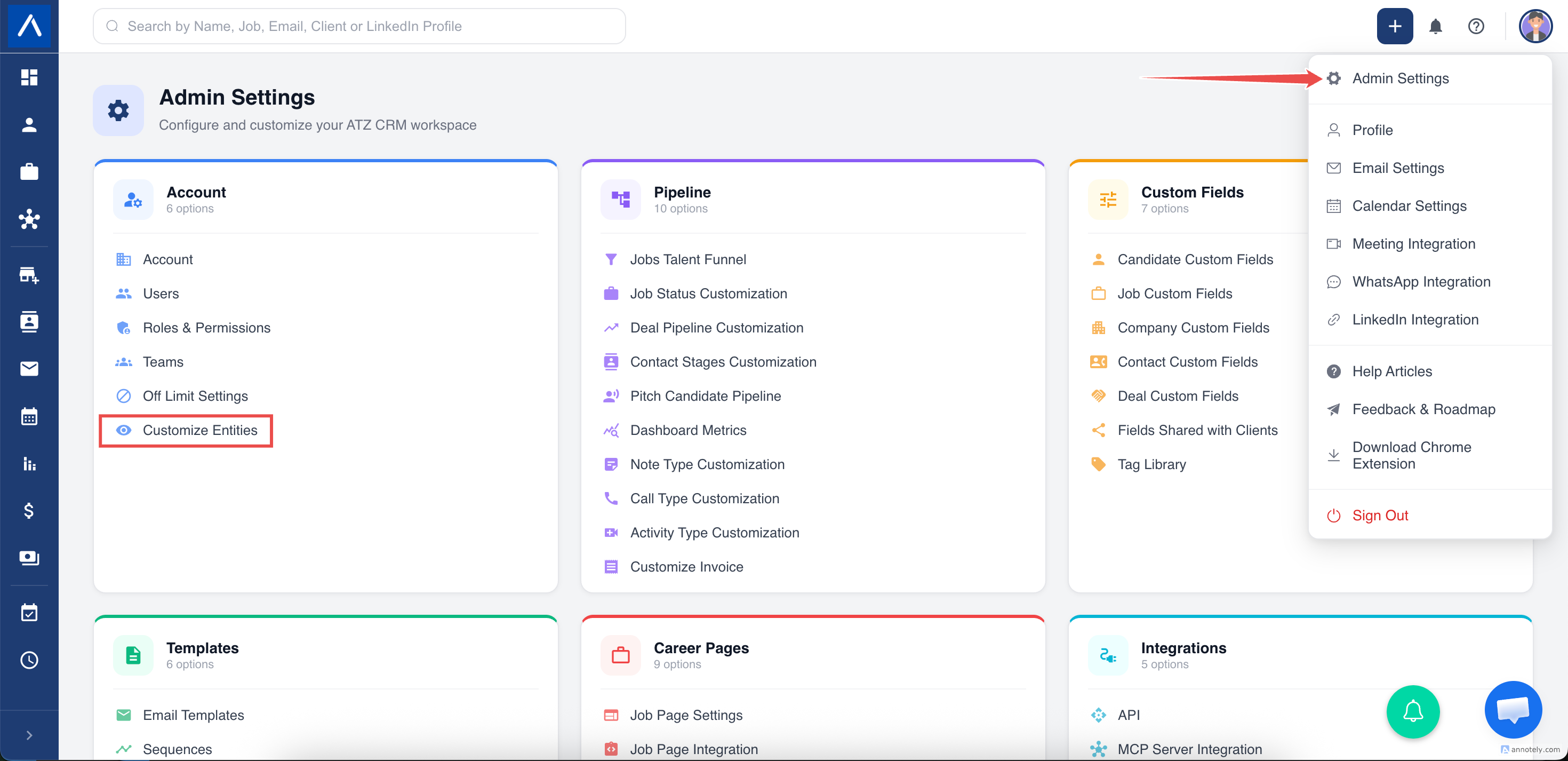
Only admins and users with Customize Entities permission can open this page.
Choose Sidebar Entities
- Review the list of entities.
- Turn an optional entity off to remove it from the sidebar.
- Turn an entity on to make it available again.
- Select Save.
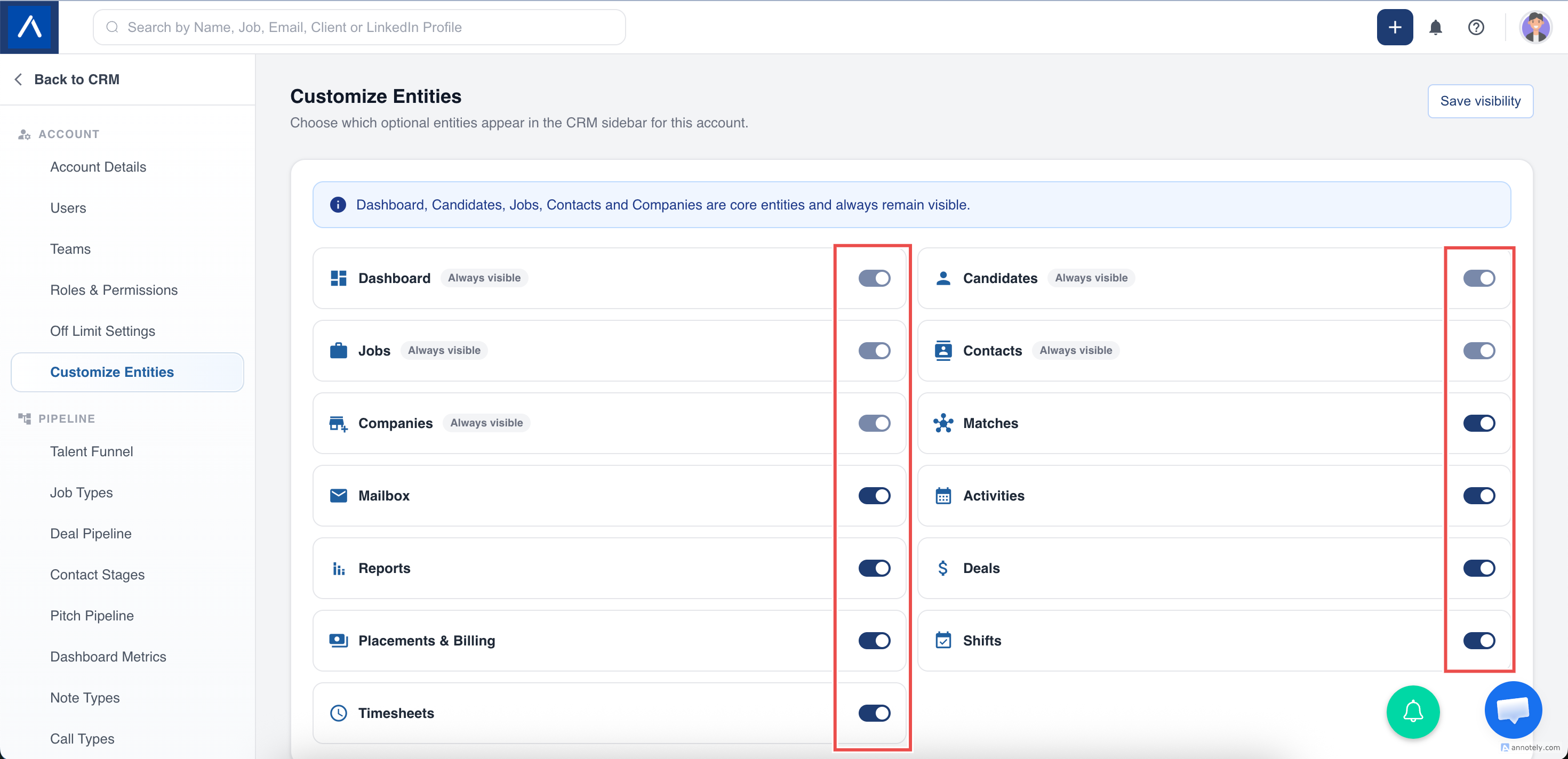
Core entities carry an Always visible label and their switches cannot be changed.
The saved visibility takes effect immediately. Users may need to refresh if they already have ATZ CRM open in another browser tab.
Give a Role Access to This Setting
Admins can allow a trusted non-admin role to manage the setting:
- Open Admin Settings > Roles and Permissions.
- Create or edit a custom role.
- Enable Customize Entities access.
- Save the role and assign it to the appropriate user.
See Understand Roles and Permissions for the complete role workflow.
Recommended Approach
- Keep only the modules your team currently uses in the sidebar.
- Confirm with team leads before hiding shared operational areas.
- Re-enable an entity before training users on a new workflow.
- Remember that permissions still control what an individual user can access.
Troubleshooting
I Cannot Open Customize Entities
Ask an administrator to confirm that you are an admin or your role has Customize Entities access.
A Core Entity Cannot Be Turned Off
This is expected. Dashboard, Candidates, Jobs, Contacts, and Companies are required.
An Entity Is Visible but a User Cannot Open It
Sidebar visibility and role permissions are separate. Review the user’s role and entity permissions.
FAQs
Does hiding an entity delete its records?
No. It only removes the sidebar entry.
Can each user choose a different entity list?
No. This is an account-wide setting.
Can I restore a hidden entity later?
Yes. Return to Customize Entities, turn it on, and save.