
The AI Candidate Summary Generator helps recruiters create a professional candidate description without writing it from scratch.
Quick Answer
Open the candidate form, click AutoSense in Candidate Description, review the generated summary, click Insert, edit if needed, and save the candidate.
Where to Find It
Use it from the candidate form:
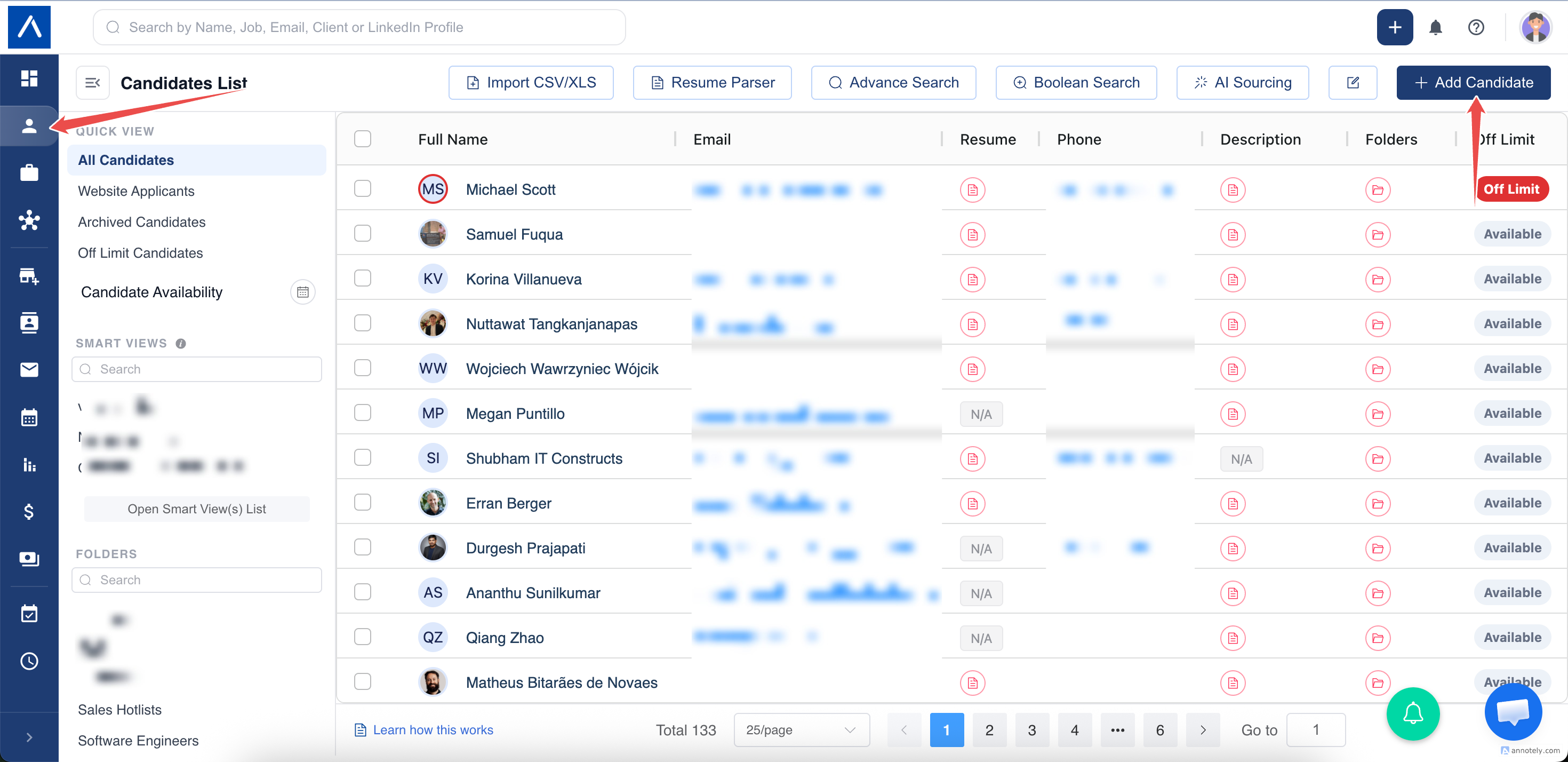
- Go to Candidates.
- Click Add Candidate or edit an existing candidate.
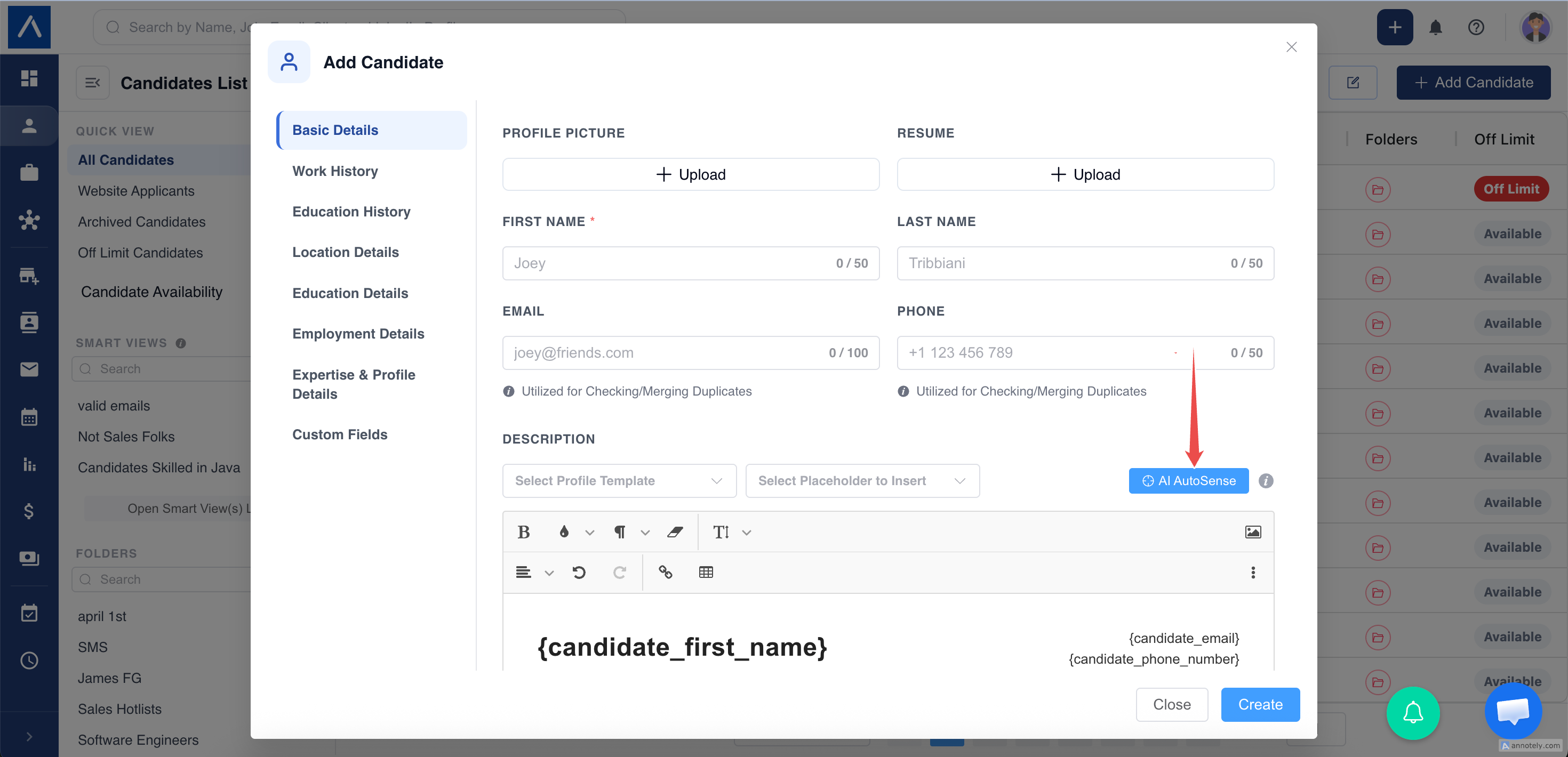
- Go to Candidate Description.
- Click AutoSense.
Required Details
Before generating, add:
- First name.
- Current position.
- At least one skill.
For stronger summaries, add work history, education, location, experience, and relevant details.
Generate a Candidate Summary
- Add required candidate details.
- Click AutoSense.
- Review the summary.
- Click Regenerate if needed.
- Click Insert.
- Save the candidate.
What Happens After Insert
ATZ CRM sanitizes the generated HTML, replaces the current Candidate Description editor content, and inserts the AI summary.
You can edit it manually before saving.
Troubleshooting
AutoSense Does Not Generate
Check first name, current position, and skills.
Summary Is Too Generic
Add more candidate details and regenerate.
Summary Needs a Different Tone
Insert it, then edit manually before saving.
FAQs
Can I edit the generated summary?
Yes. The inserted text is editable.
Does AutoSense overwrite the existing description?
Yes, inserting replaces the current Candidate Description editor content.
Should I review the summary?
Yes. Always verify AI-generated profile text before saving.