
Clients can submit job requisitions through the Client Portal. Recruiters and account users can review those requisitions in ATZ CRM, then approve or reject them.
Quick Answer
Open the Jobs page, click the Job Requisition icon, review the submitted request, and choose Approve or Reject with Feedback. Approved requisitions create new job records in ATZ CRM.
Before You Start
The Client Portal is an add-on feature of ATZ CRM, available separately from the standard subscription. For access or pricing details, contact support from in-app chat or email support@atzcrm.com.
Use this workflow after clients submit requisitions from the portal: Submit a job requisition from the Client Portal.
Step 1: Open Job Requisitions
Go to the Jobs page in ATZ CRM and click the Job Requisition icon. If there are pending requisitions, the icon shows a count badge.
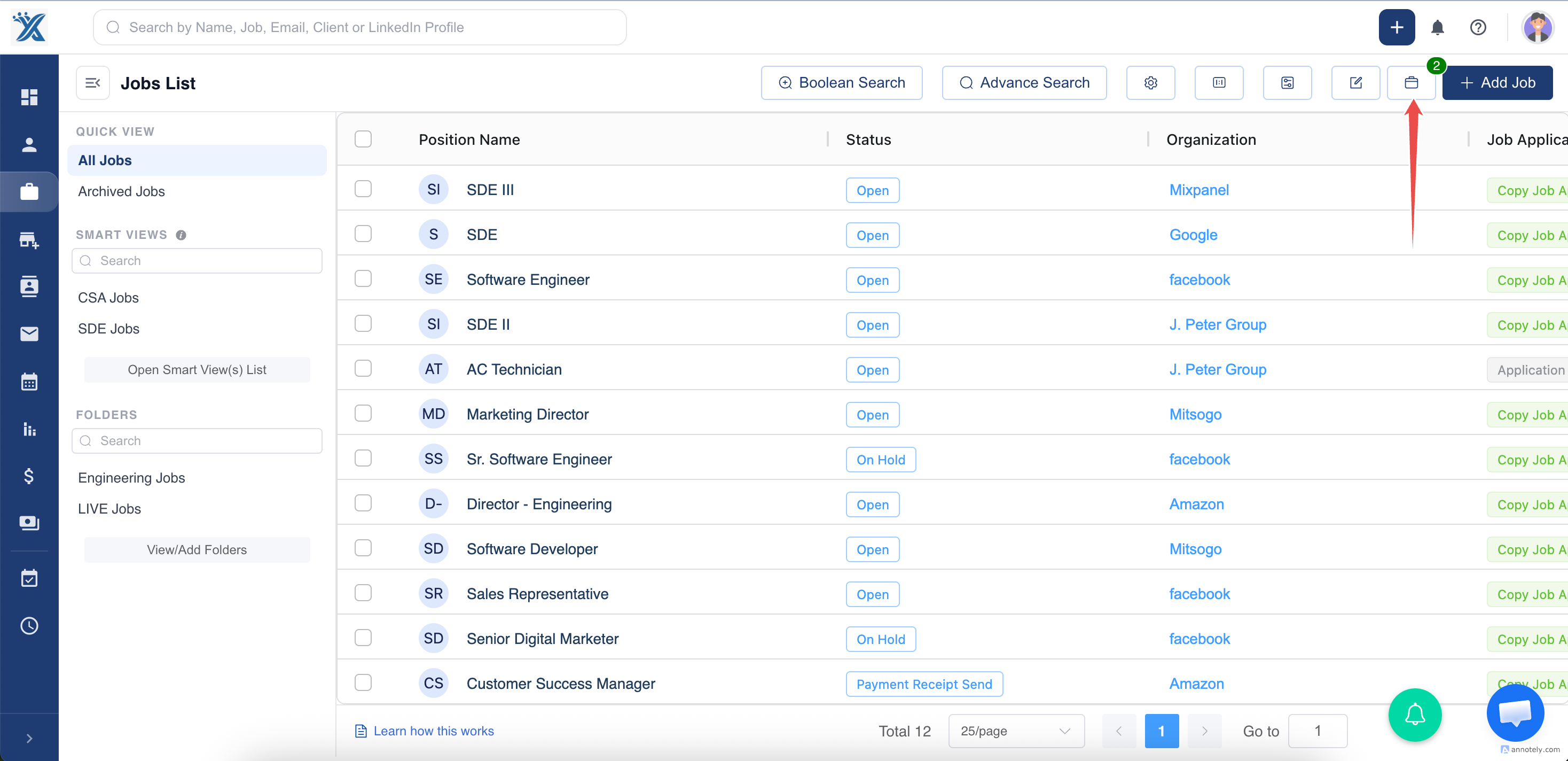
Step 2: Review the Requisition List
Open the job requisition list to see requests submitted by client contacts, including organization details.
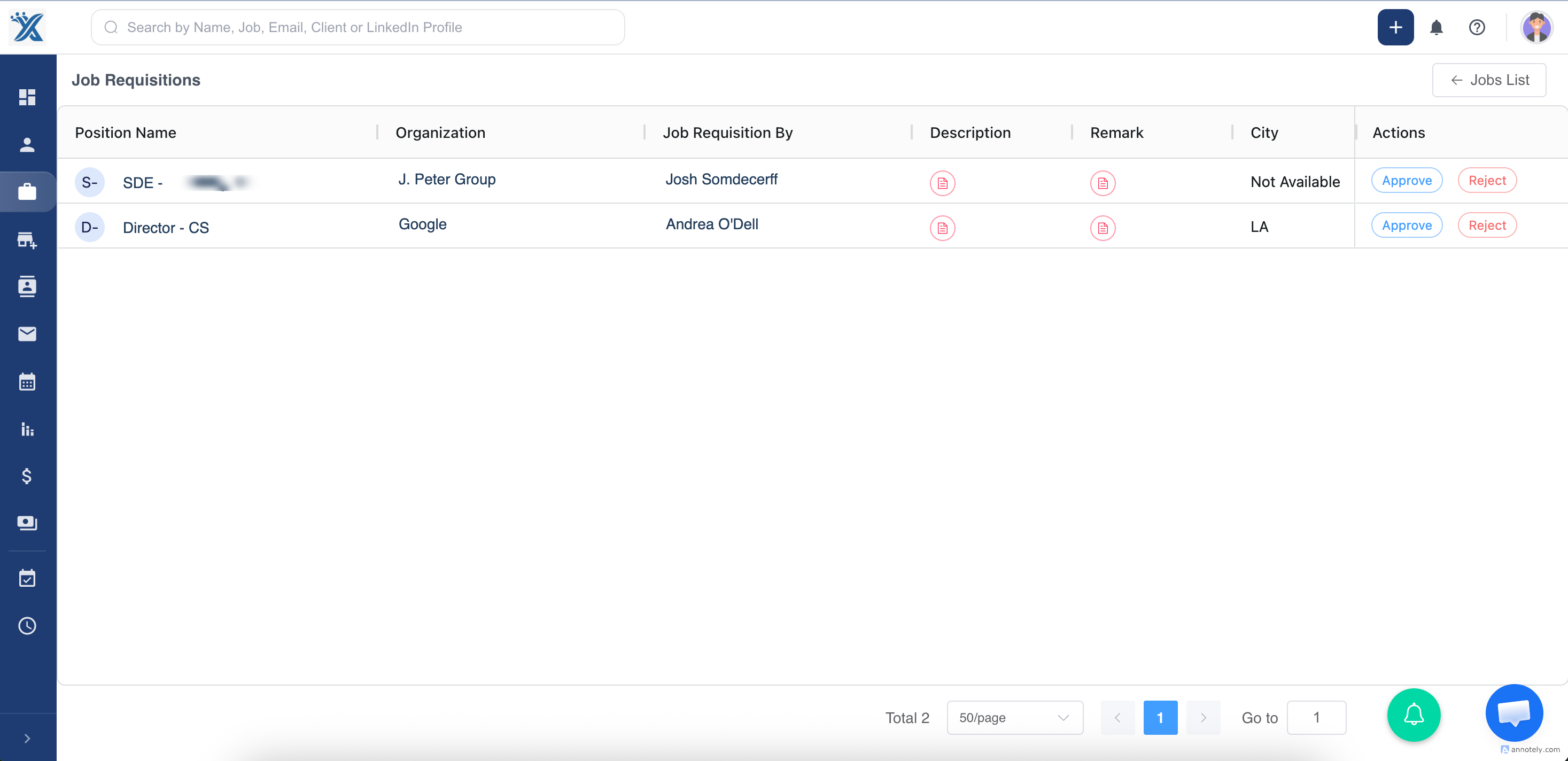
Step 3: Approve a Requisition
Approve the requisition when the job request is valid and ready to become an ATZ CRM job.
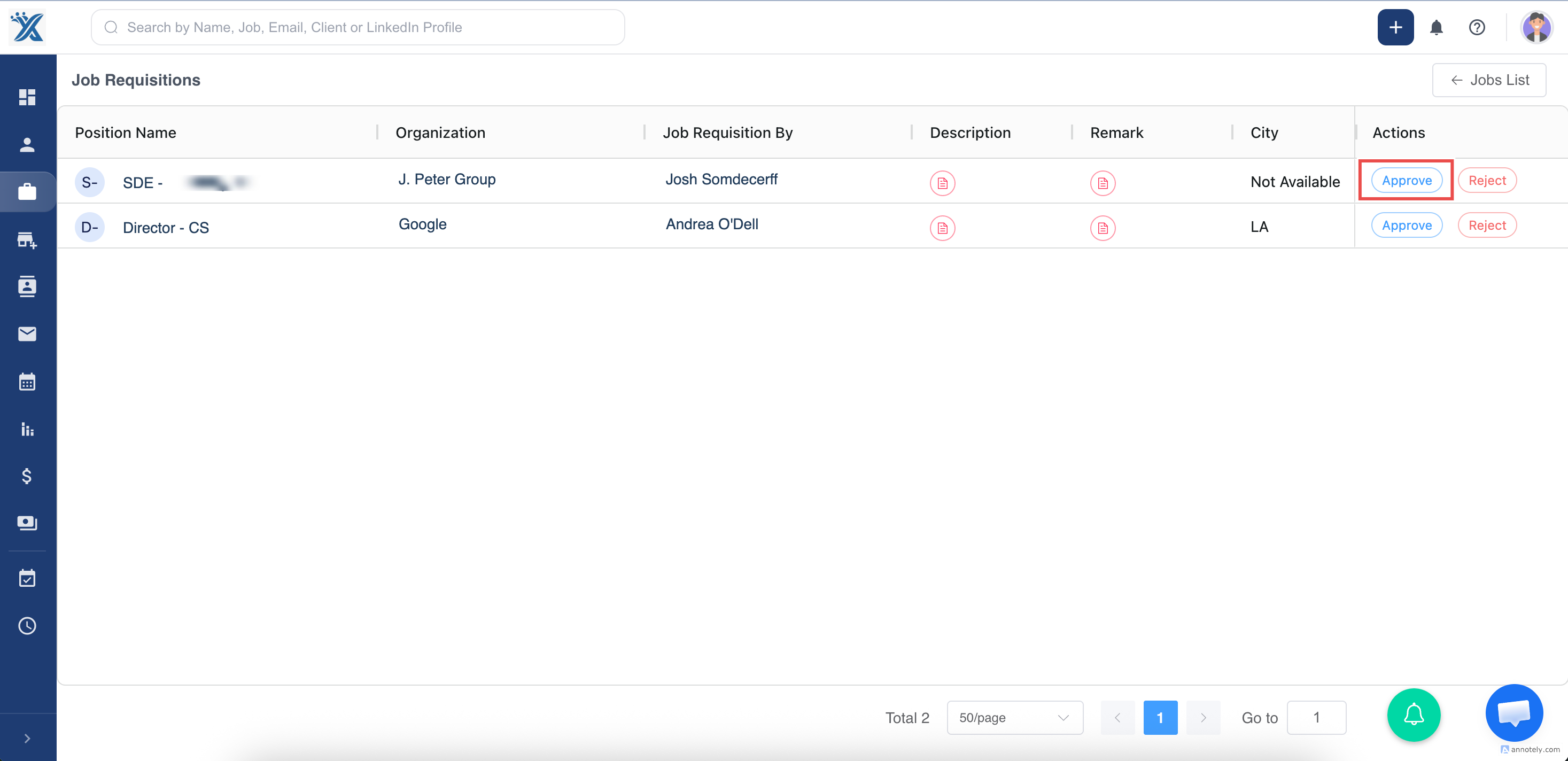
After approval, ATZ CRM creates a new job record. You can then submit candidates and share the job back to the Client Portal: Share jobs to the Client Portal.
Step 4: Reject with Feedback
Reject the requisition when it is incomplete, not approved, or needs changes before the recruiter can work on it.
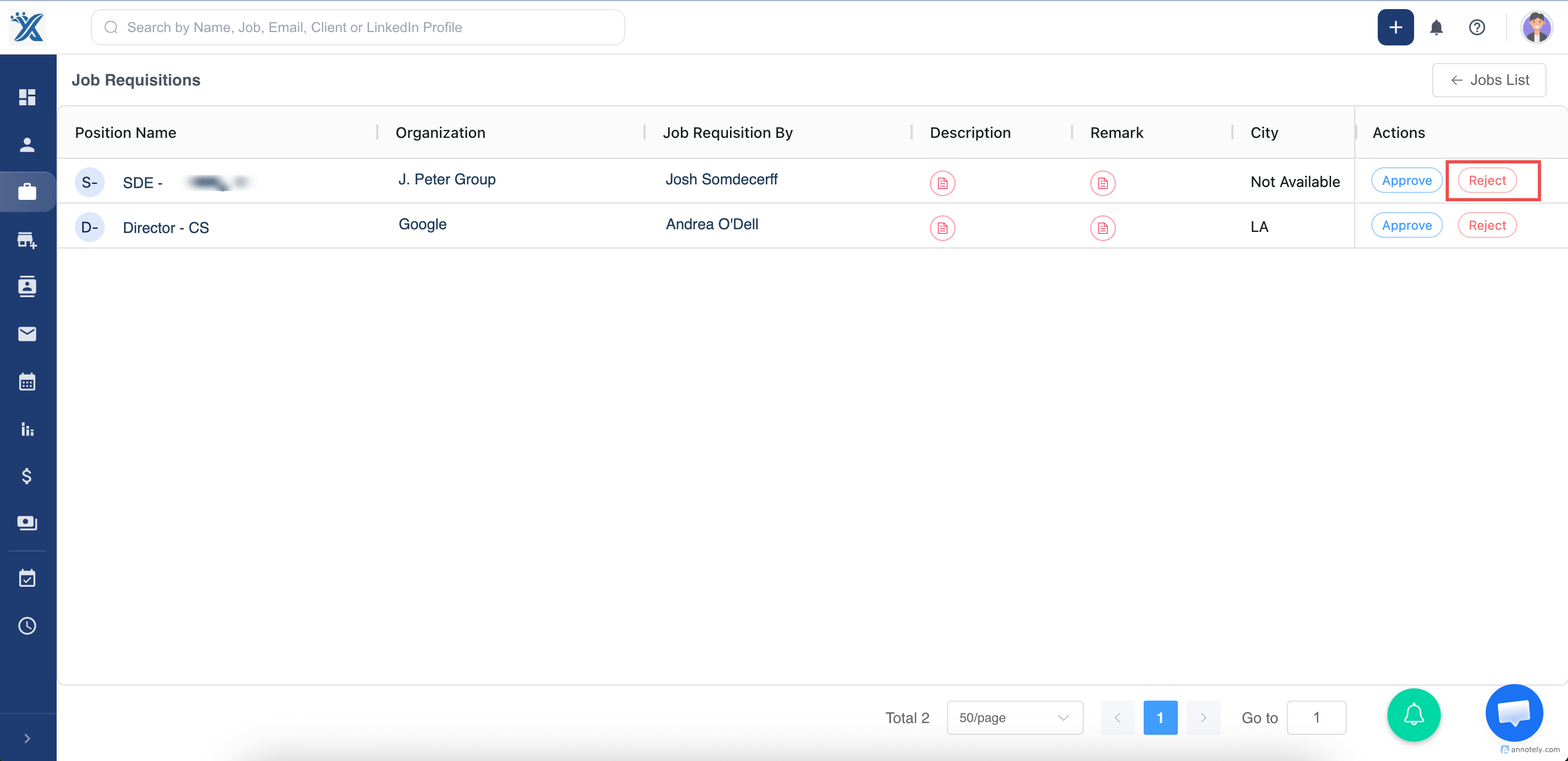
Enter remarks explaining why the requisition was not approved.
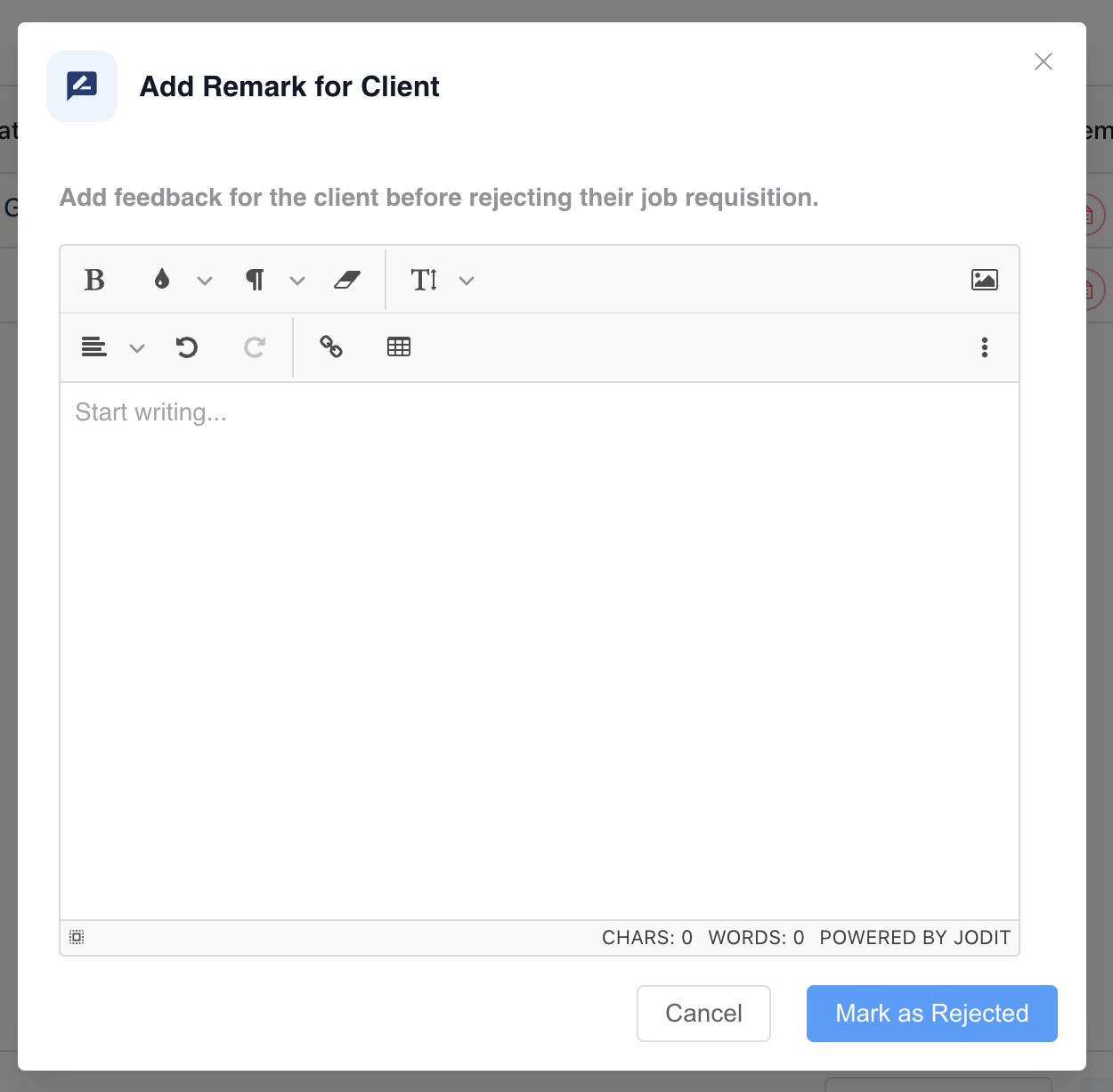
After submission, the client portal user is notified of the rejection and can view your feedback.
Use Cases
Centralize Client Job Requests
Use job requisitions to capture client requests without relying on email threads or separate documents.
Approve Qualified Job Requests
Convert approved requisitions into ATZ CRM job records so recruiters can start sourcing and submissions.
Give Clear Rejection Feedback
Reject incomplete or unsuitable requisitions with remarks so clients know what needs to change.
Troubleshooting
The Job Requisition Icon Has No Count
There may be no pending requisitions. Open the list to review all submitted, approved, or rejected requisitions if available.
The Approved Job Needs Edits
Open the new job record and update the job details. See: Add a job manually.
The Client Says They Cannot See Rejection Feedback
Confirm the rejection was submitted with remarks and ask the client to refresh the Client Portal requisition list.
FAQs
Do approved requisitions create jobs automatically?
Yes. When approved, the requisition creates a new job record in ATZ CRM.
Can rejected requisitions stay visible?
Yes. Rejected requisitions remain visible with recruiter feedback for transparency.
Can I share an approved job back to the client portal?
Yes. After approval creates the job, use the Online Candidate List workflow to share it back to the Client Portal.