
The AI Resume Formatting Agent helps recruiters convert uploaded candidate resumes into polished, client-ready PDF resumes.
Quick Answer
Admins configure the formatting rules once. Recruiters open a candidate profile, click AI Resume Formatter, review the PDF preview, and save the generated resume to the configured field.
Availability
The AI Resume Formatting Agent is available on Business and Enterprise plans.
How It Works
ATZ CRM uses the uploaded resume and available candidate profile data to create a formatted PDF. The result follows account-level settings for preset, instructions, save location, selected custom fields, logo, and redaction.
Always review the preview before saving or sharing. The agent should not invent missing employers, dates, certifications, achievements, or candidate facts.
Configure the Agent
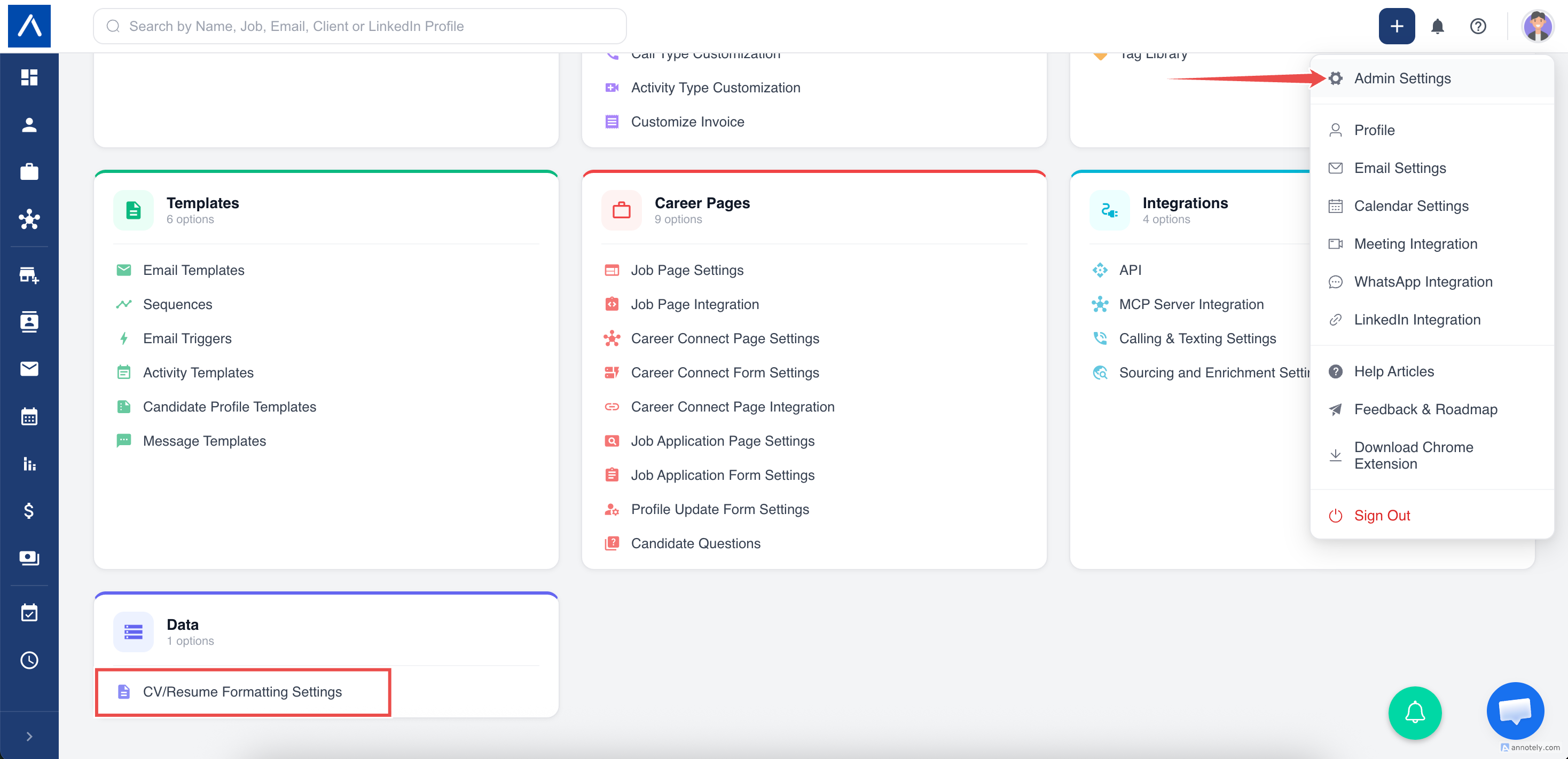
Admins should open Admin Settings > CV/Resume Formatting Settings > AI Resume Formatting Agent.
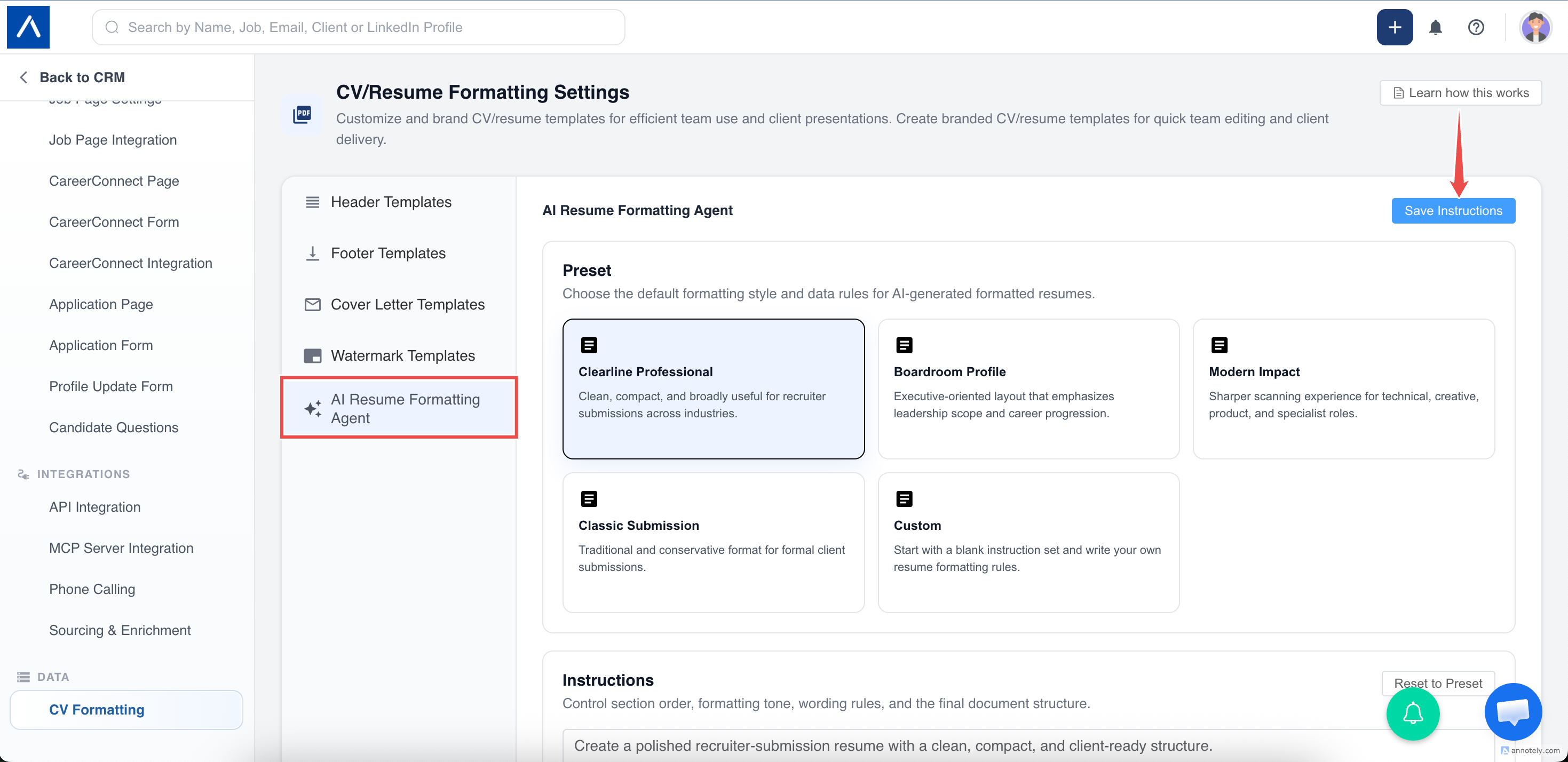
Choose a Preset
Available presets include:
- Clearline Professional.
- Boardroom Profile.
- Modern Impact.
- Classic Submission.
- Custom.
If you edit preset instructions manually, the setting changes to Custom.
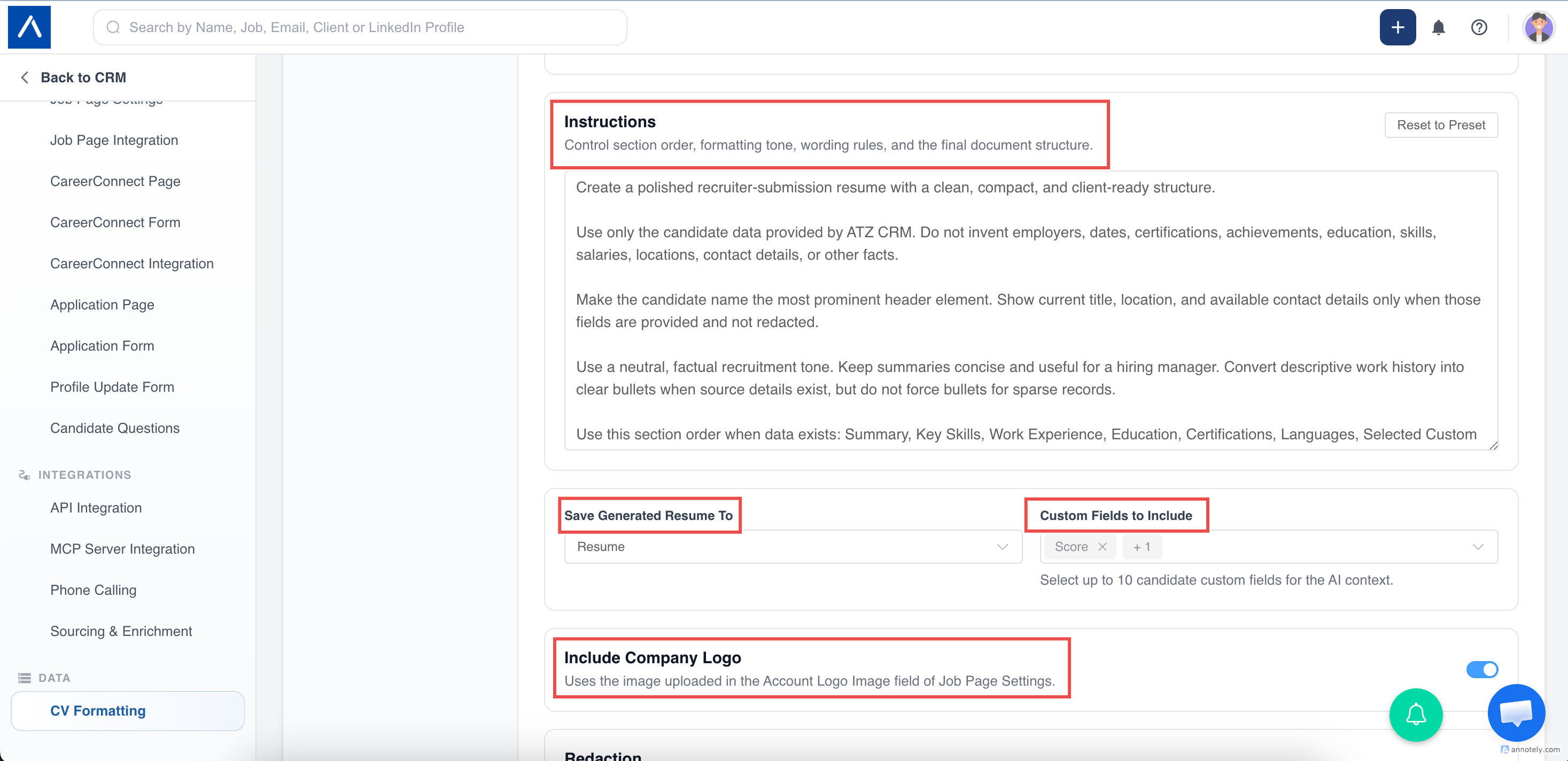
Write Custom Instructions
Use instructions such as:
- Keep the resume within two pages when possible.
- Put work experience before education.
- Use a formal client-submission tone.
- Highlight leadership experience first.
- Keep the layout compact and easy to scan.
Save Location, Custom Fields, Logo, and Redaction
Choose where the generated PDF should be saved:
- Candidate Resume field.
- Supported file-type candidate custom field.
Select custom fields to include when they add useful client context, such as notice period, work authorization, expected compensation, or availability.
Turn on Include Company Logo to use the account logo from Job Page Settings.
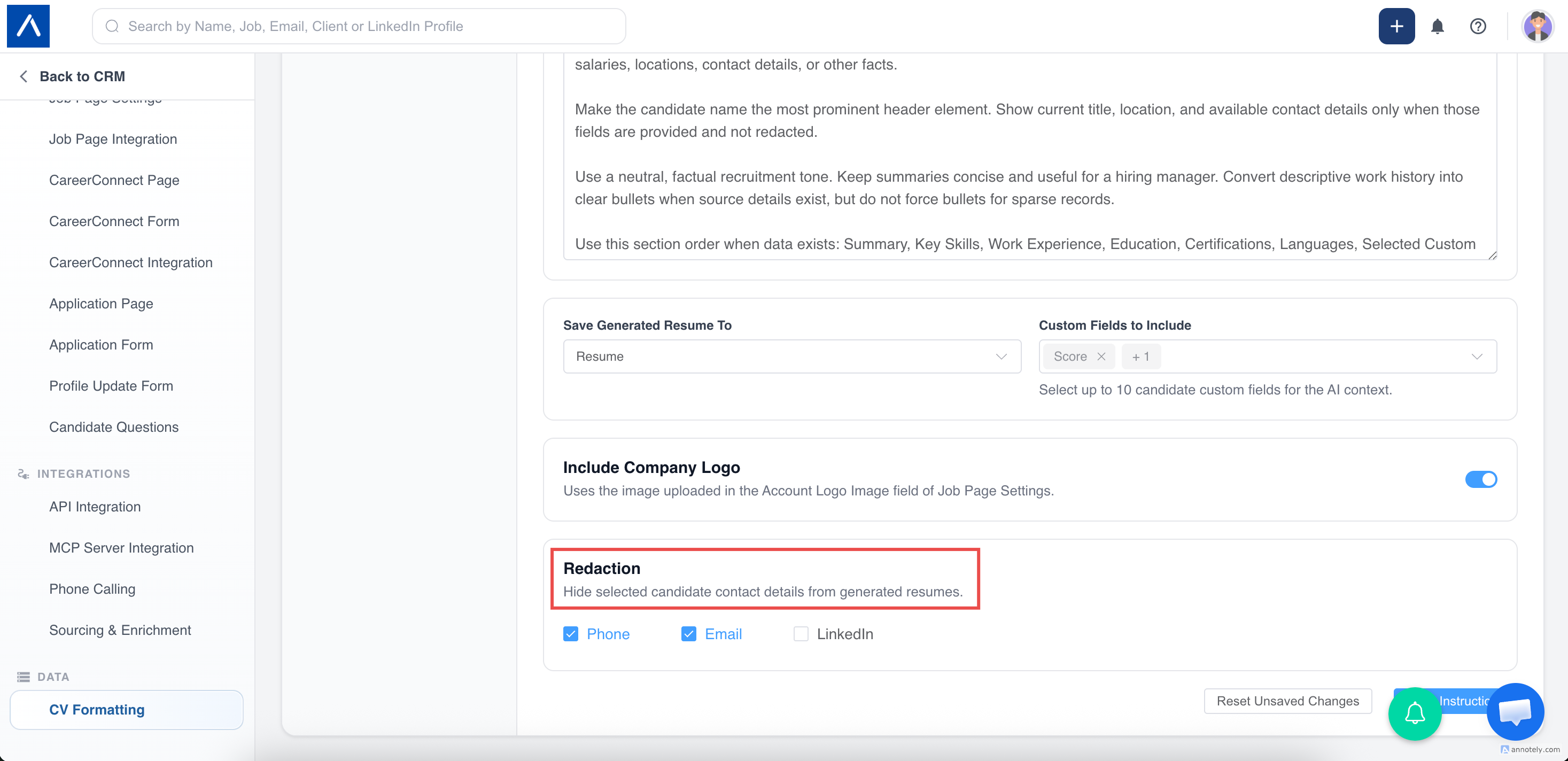
Use redaction to hide phone, email, or LinkedIn details when sharing externally.
Generate an AI-Formatted Resume
- Open a candidate profile.
- Confirm a resume is uploaded.
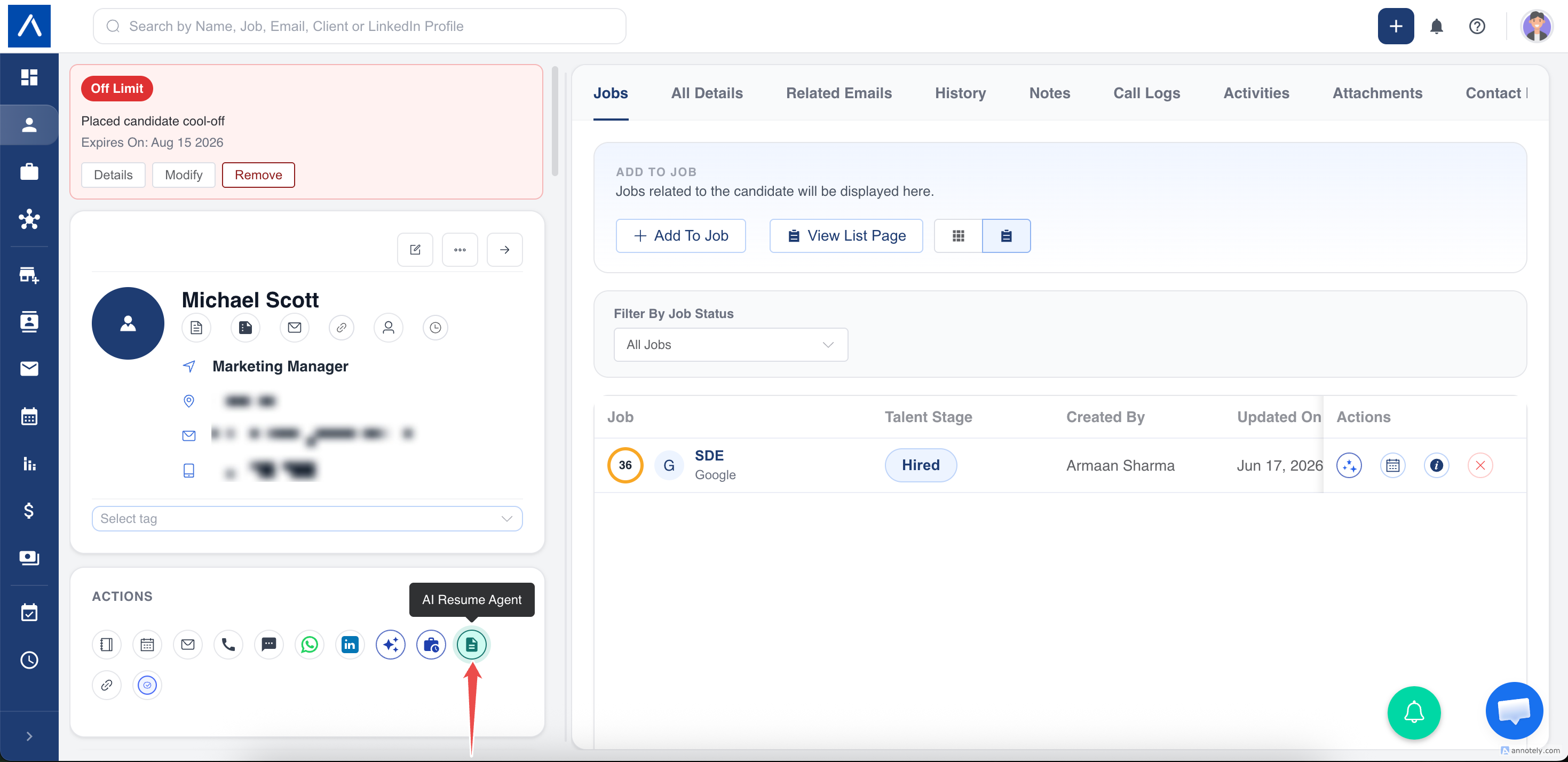
- Go to Actions.
- Click AI Resume Formatter.
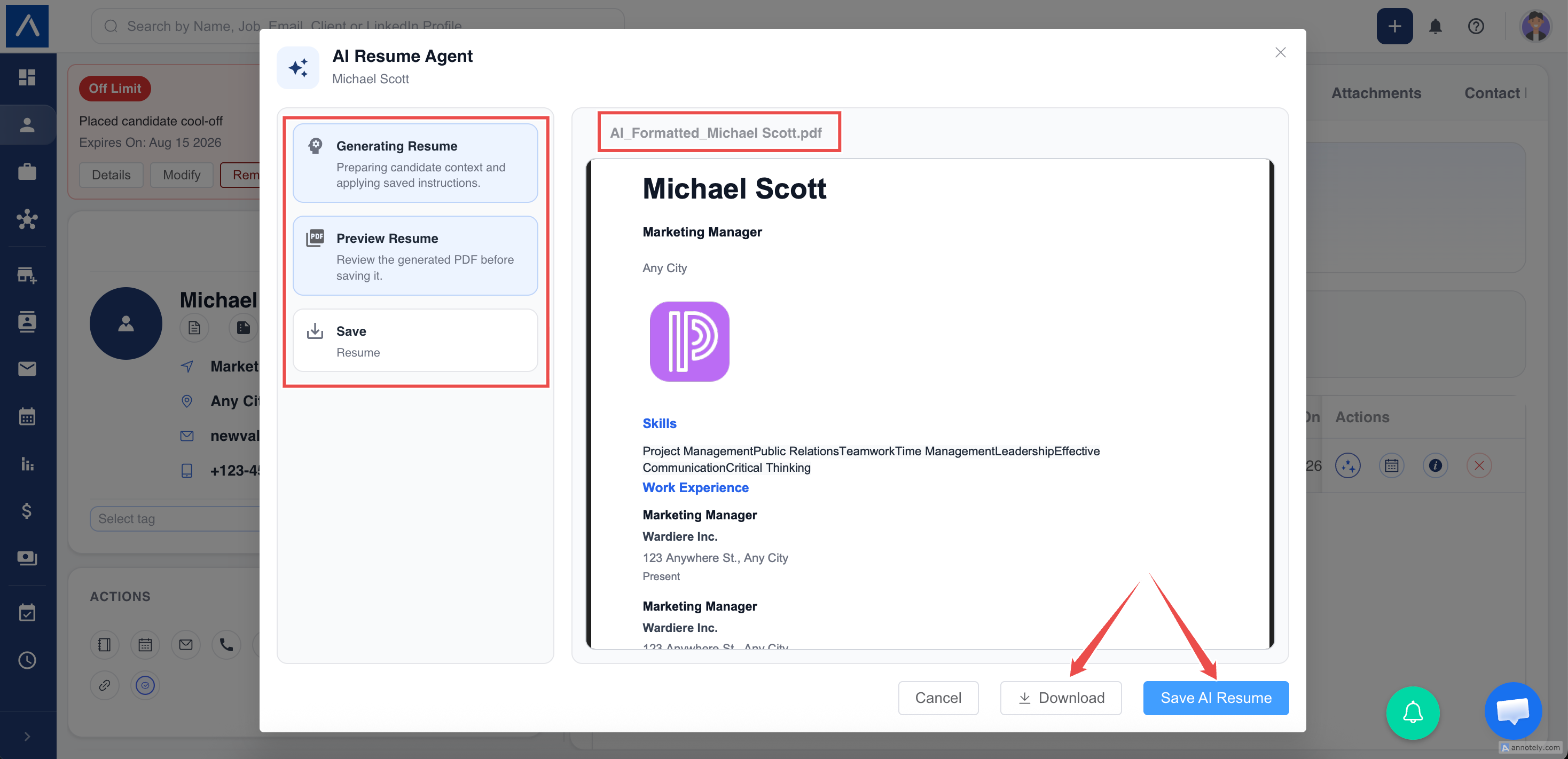
- Review the generated PDF preview.
- Click Save AI Resume.
Troubleshooting
AI Resume Formatter Is Missing
Check whether the account is on Business or Enterprise plan.
Resume Is Not Generating
Confirm the candidate has an uploaded resume.
Logo Is Missing
Turn on Include Company Logo and upload an account logo in Job Page Settings.
Layout Is Not Right
Make the instruction text more specific and regenerate.
FAQs
Are empty custom fields included?
No. Empty fields are skipped automatically.
Can the generated resume replace an existing file?
Yes, but ATZ CRM asks for confirmation before replacing a file in the selected field.
Should I keep the original resume?
Yes. Keep original candidate documents for reference and audit.