
ATZ CRM lets you pitch a candidate directly to a contact when you want to recommend a specific profile with context and track the interaction.
Quick Answer
Open the candidate profile, click Pitch, choose the target contact, select the candidate fields to share, optionally send an email, and confirm the pitch. You can track the email from the contact’s Related Emails tab.
When to Use Candidate Pitching
Use this workflow when you want to:
- Recommend one candidate to one contact.
- Share a focused profile instead of a full candidate list.
- Keep pitch activity connected to the candidate and contact records.
- Track related email communication from the contact page.
For client portal candidate review, use: Share jobs to the Client Portal.
Step 1: Open the Candidate Profile
Go to the candidate list in ATZ CRM and open the candidate you want to pitch.
Step 2: Start the Pitch
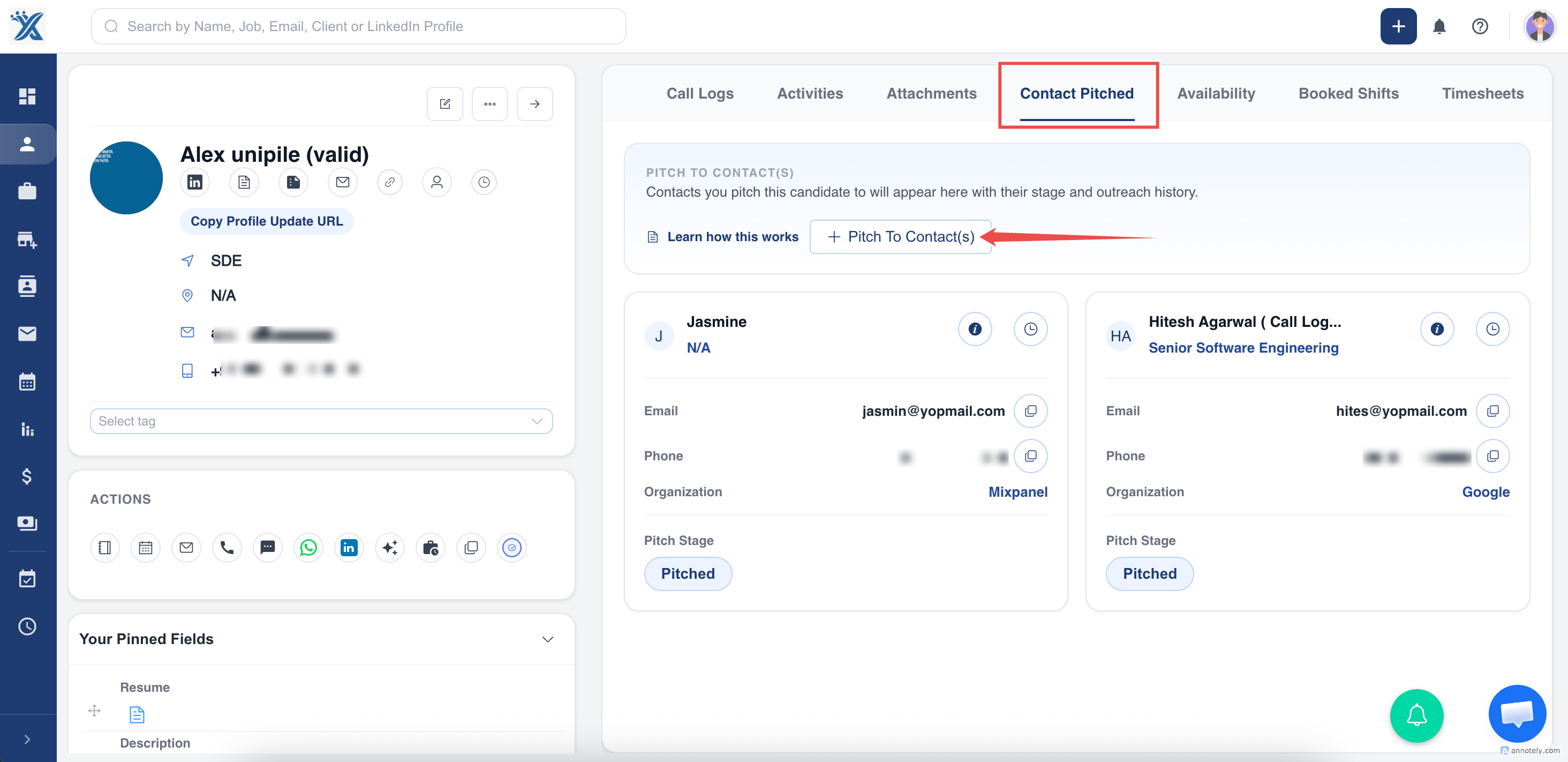
Click Pitch from the candidate profile.
Step 3: Choose the Target Contact
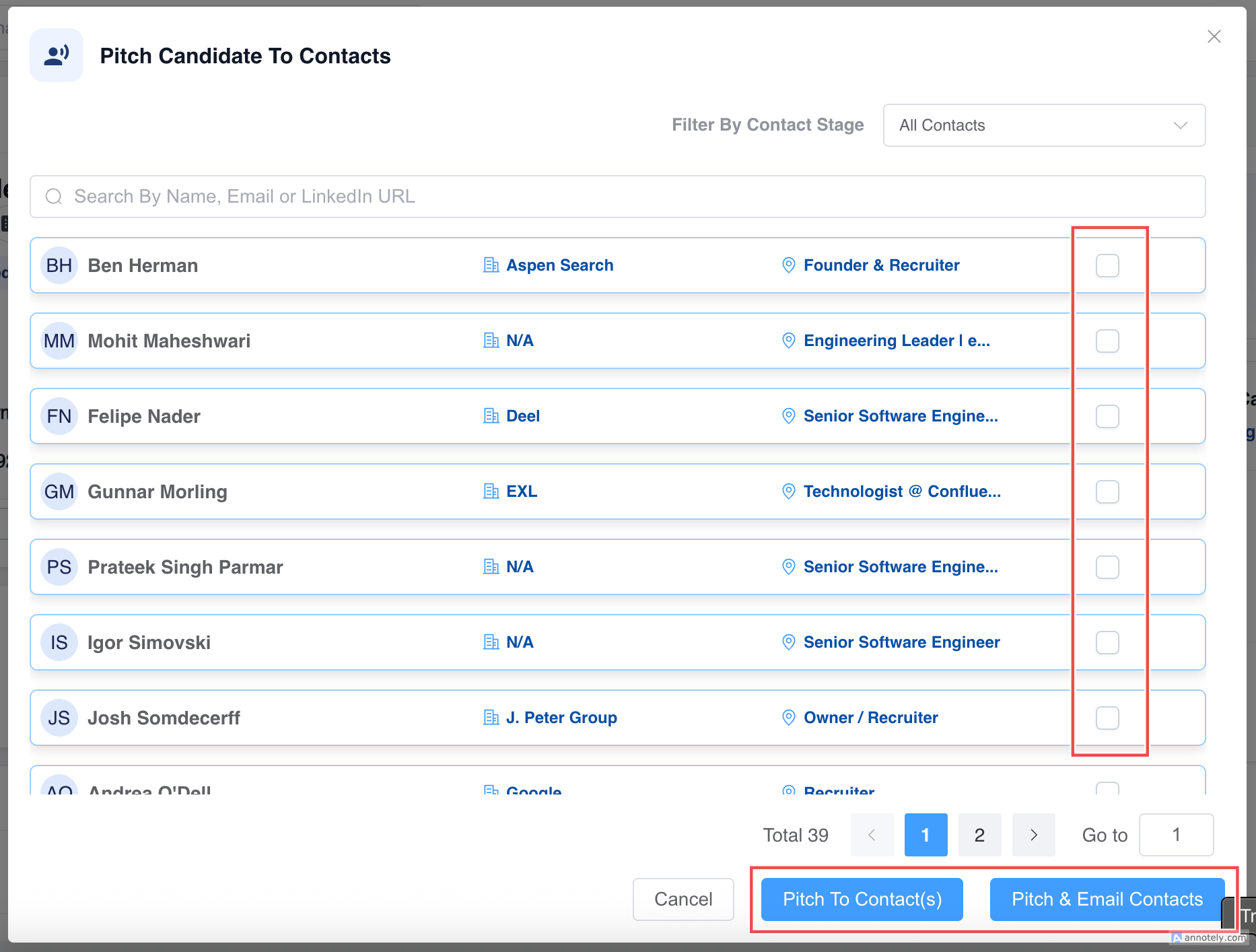
Select the contact who should receive the candidate pitch. Confirm that the contact details are correct before finalizing.
You can also choose Send Email while pitching the candidate. Use this option to email the contact and select the candidate fields you want to share.
Step 4: Confirm and Track the Pitch
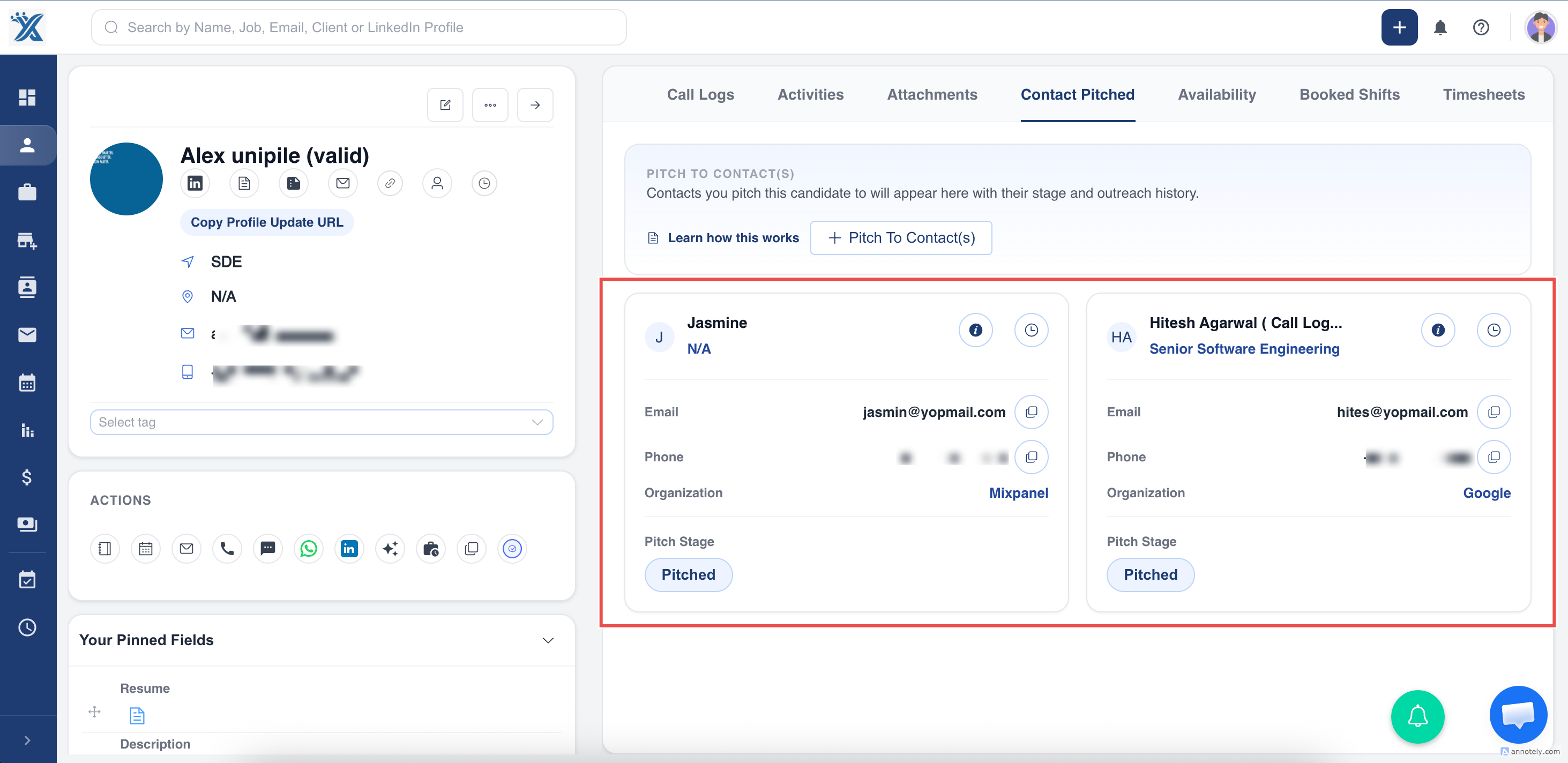
After the pitch is confirmed, ATZ CRM shows the candidate as Pitched under the contact’s activity.
The sent email can be tracked in the Related Emails tab of the contact detail page.
Use Cases
Warm Candidate Recommendations
Pitch a strong candidate to a client contact when the profile is relevant but not tied to a formal portal review.
Business Development
Use candidate pitching to introduce high-quality talent to prospects or existing clients.
Focused Client Communication
Share selected candidate fields so the contact receives only the details needed for review.
Troubleshooting
I Cannot Find the Contact
Confirm the contact exists in ATZ CRM and that you have permission to access the contact record.
The Email Is Not Visible in Related Emails
Confirm you used the Send Email option during the pitch. Also check whether email sync and user permissions allow the sent email to appear in related activity.
The Contact Needs More Candidate Details
Review which candidate fields were selected during pitching. If needed, send an updated email or use a candidate profile template to share structured details.
FAQs
Does pitching assign the candidate to a job?
No. Pitching a candidate to a contact is separate from assigning candidates to jobs.
Can I choose which candidate details are shared?
Yes. When sending an email with the pitch, you can select the candidate fields you want to share.
Where is pitch activity recorded?
Pitch activity appears on the contact activity log, and related emails can be reviewed from the contact detail page.