
Change Contact Stages in Bulk
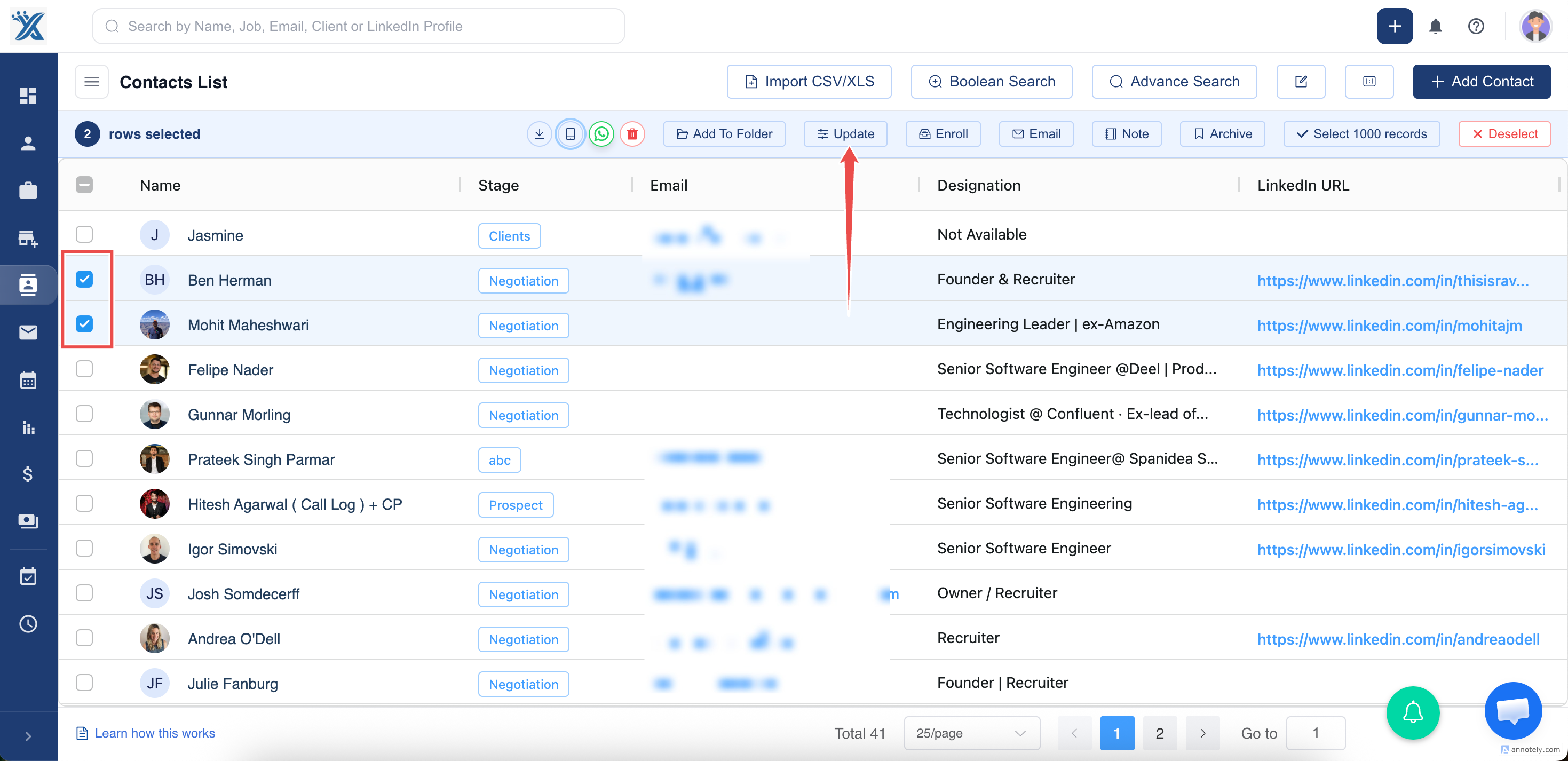
- Open the contact list.
- Select contacts.
- Click Update.
- Choose the Stage field.
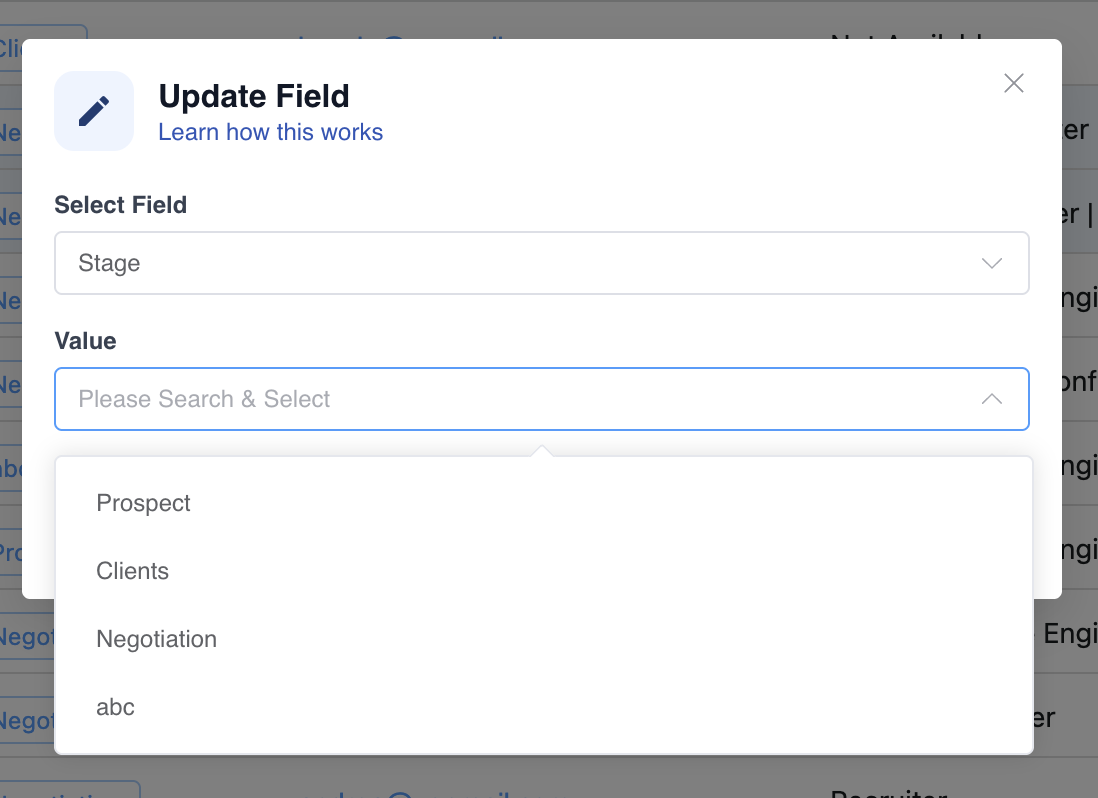
- Select the desired stage and update.
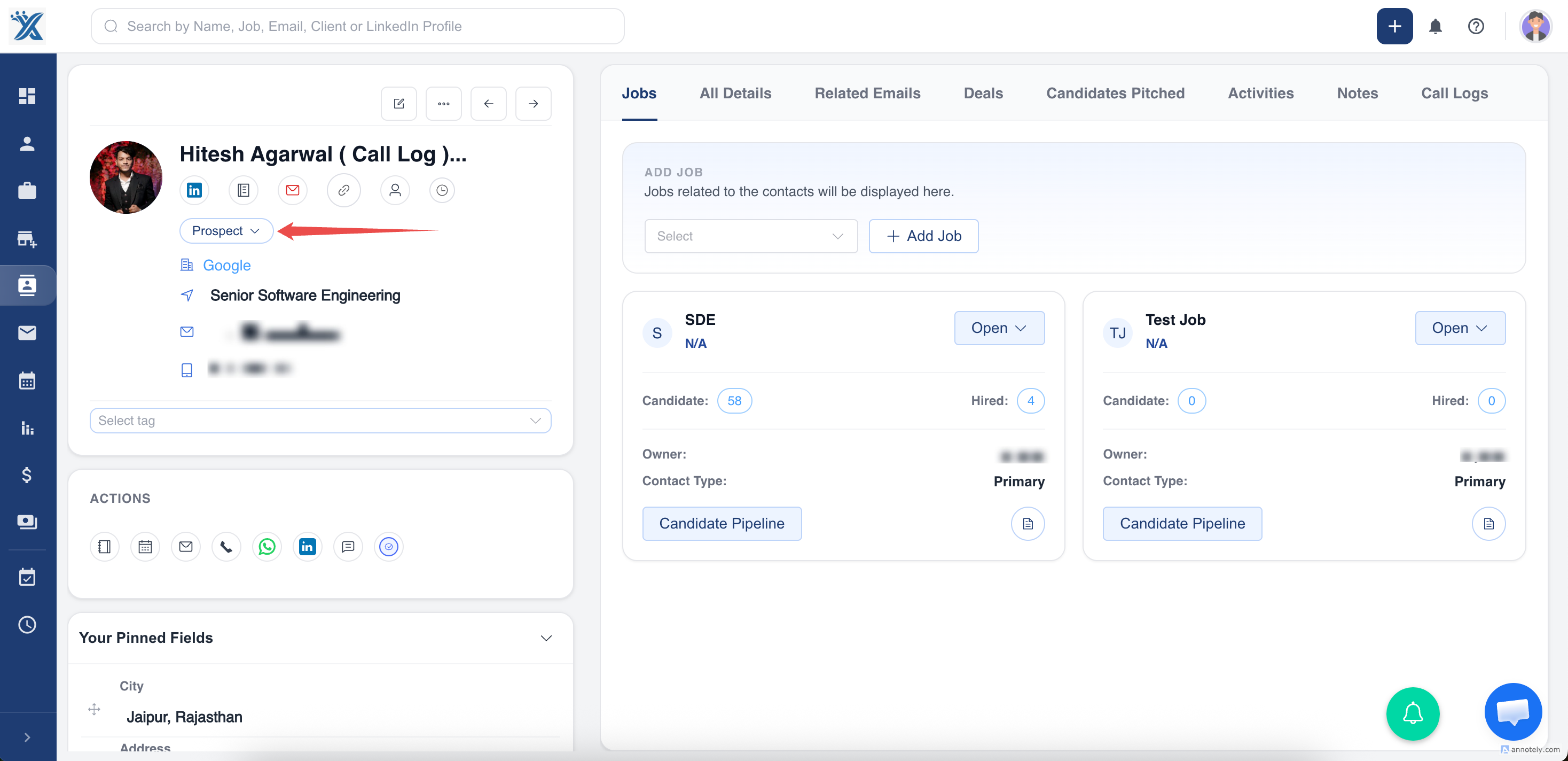
Change Stage from Contact Detail
Open a contact profile, locate Contact Stage, choose the new stage, and confirm.
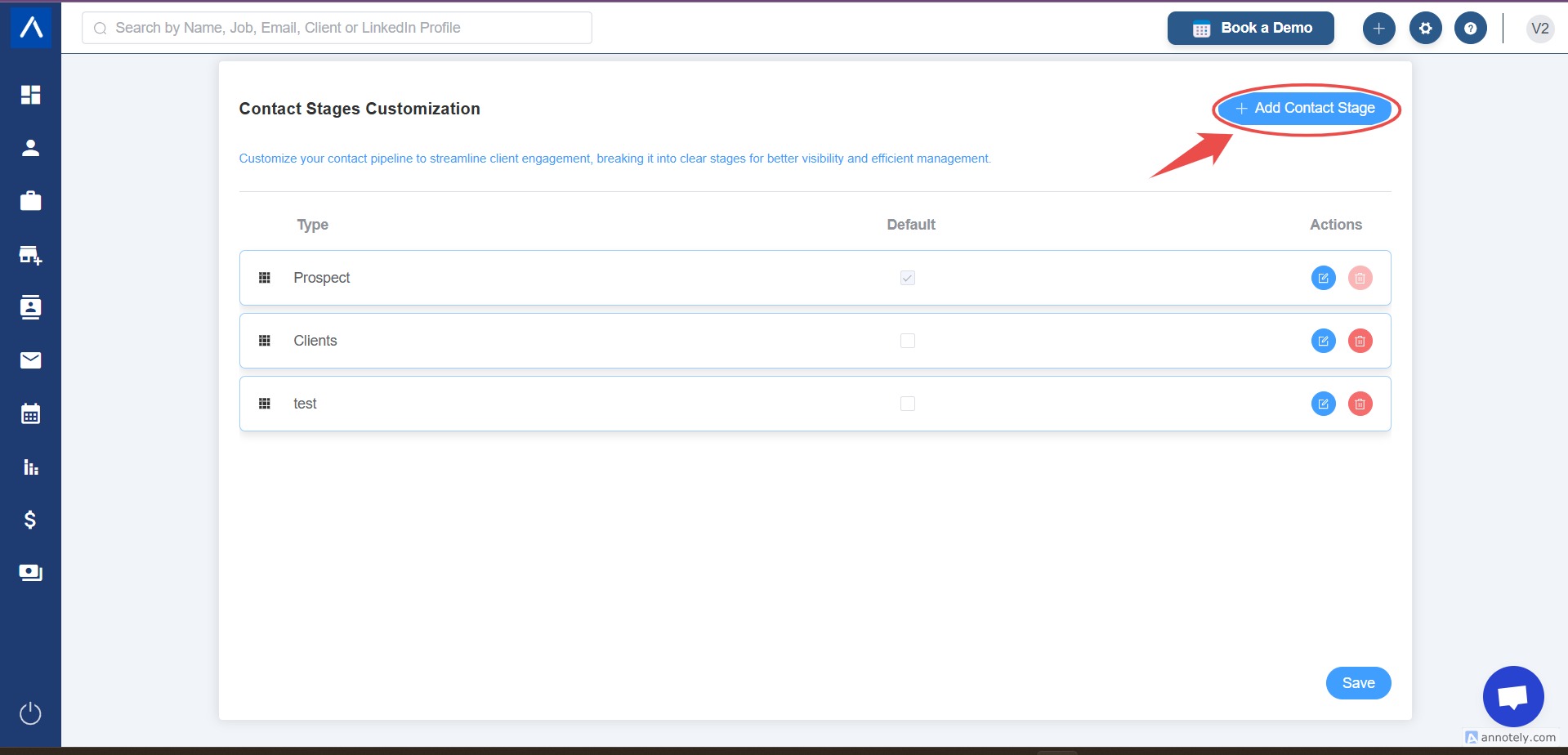
Customize Contact Stages
- Open settings.
- Select Contact Stages Customization.
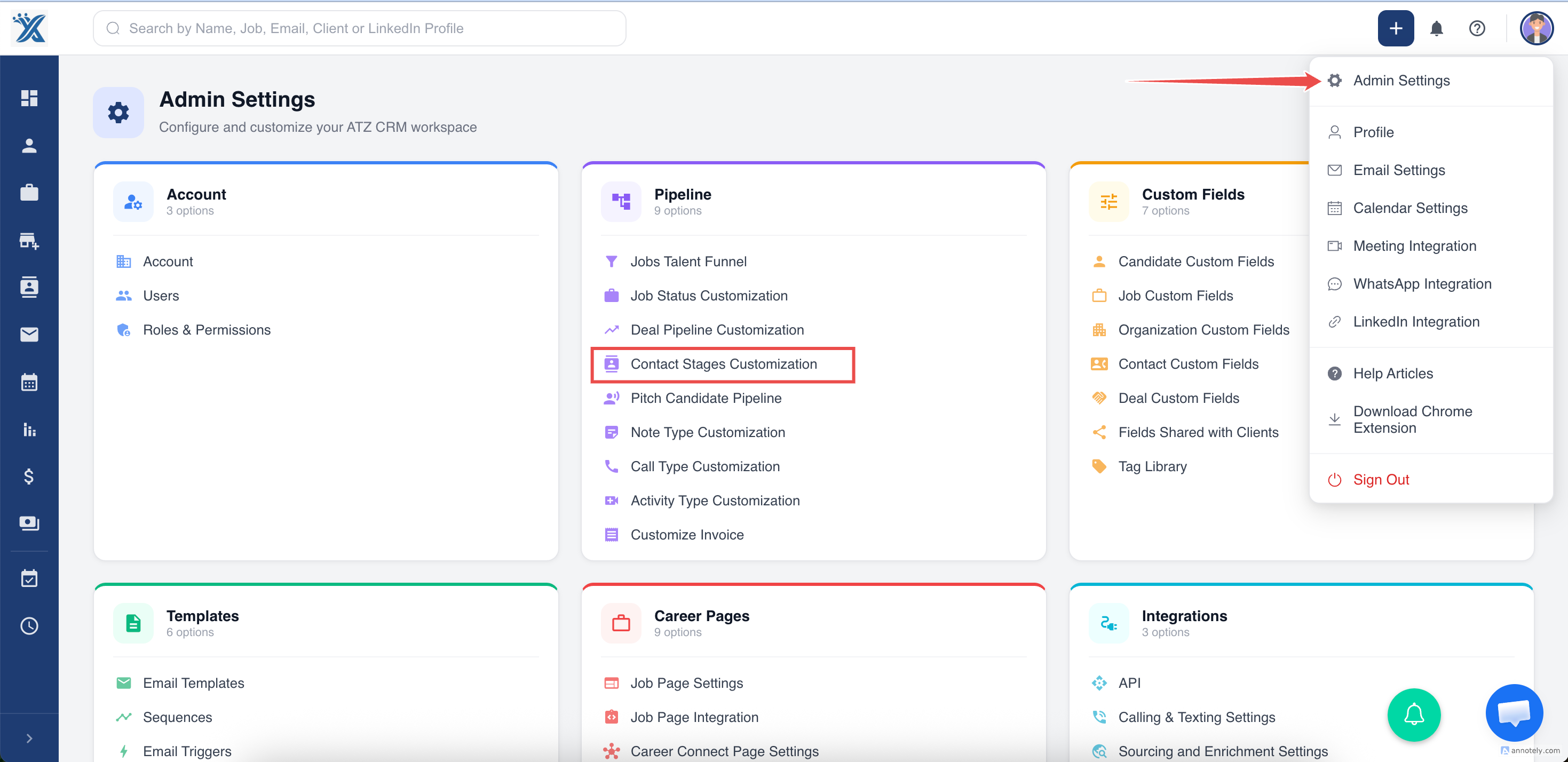
- Add a new stage, or edit/remove existing stages.
Use Cases
- Segment contacts by relationship stage.
- Track client development or account status.
- Update many contacts after a campaign.
Troubleshooting
Stage Is Missing
Check Contact Stages Customization settings.
Bulk Update Changed Too Many Records
Review filters before bulk updates and correct affected contacts manually if needed.
User Cannot Edit Stages
Check admin permissions.
Frequently Asked Questions
Are contact stages the same as job stages?
No. Contact stages track client relationships; job and candidate stages track recruiting workflows.
Can stages be deleted?
Yes, where permitted. Review active records before removing a stage.
Should all teams use the same stage names?
Usually yes. Shared naming improves reporting and collaboration.