
Google Meet integration helps teams schedule virtual meetings directly from ATZ CRM activities.
Quick Answer
Open or create an activity, click Add Google Meet Link, authenticate Google if needed, then save or update the activity.
Step 1: Open Activities
Go to Activities and open an existing activity or create a new one.
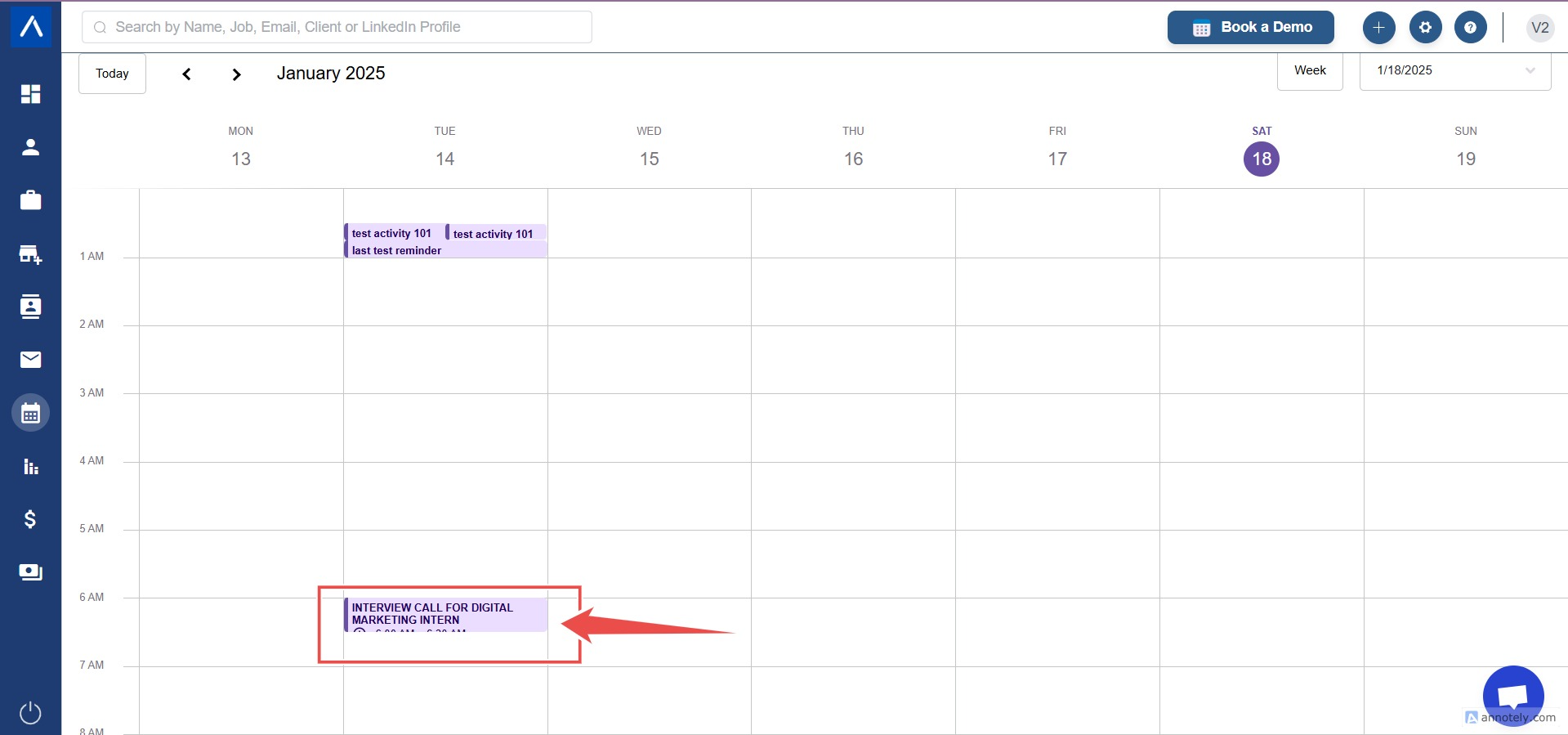
Step 2: Add Google Meet Link
Click Add Google Meet Link while creating or editing the activity.
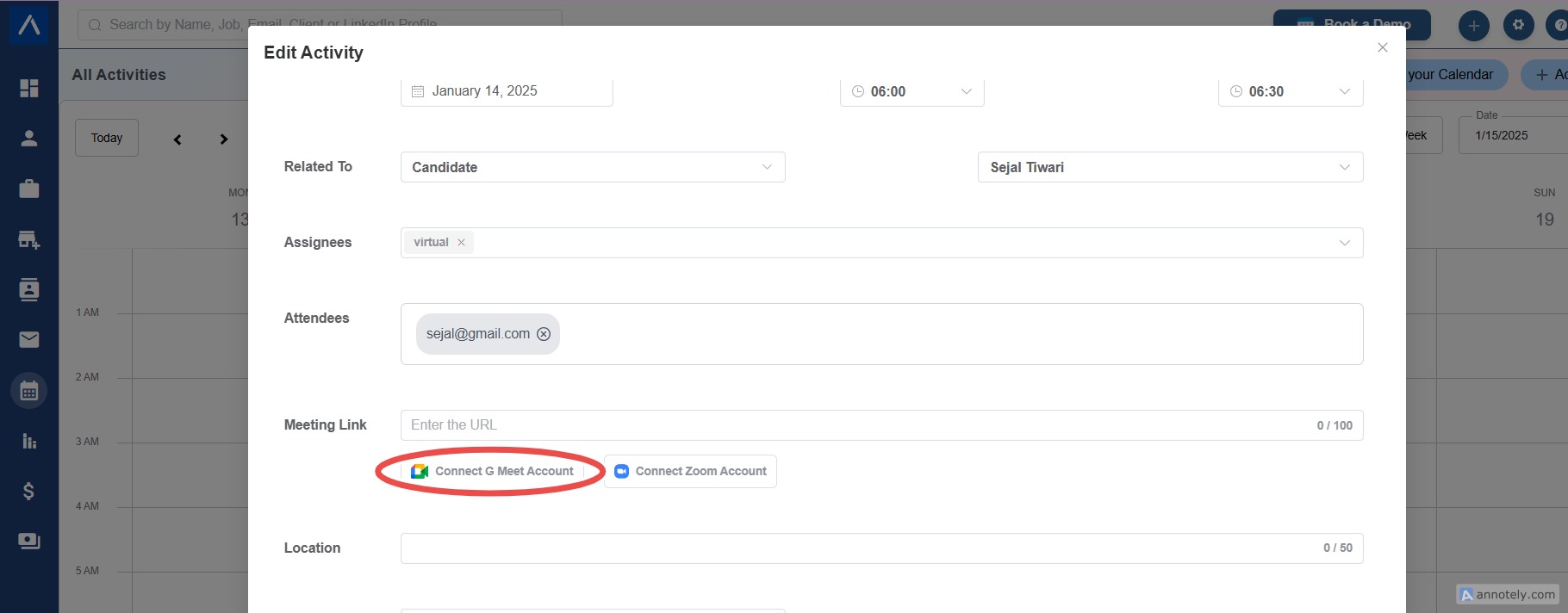
Step 3: Authenticate Google
If this is your first time using the feature, authenticate your Google account.
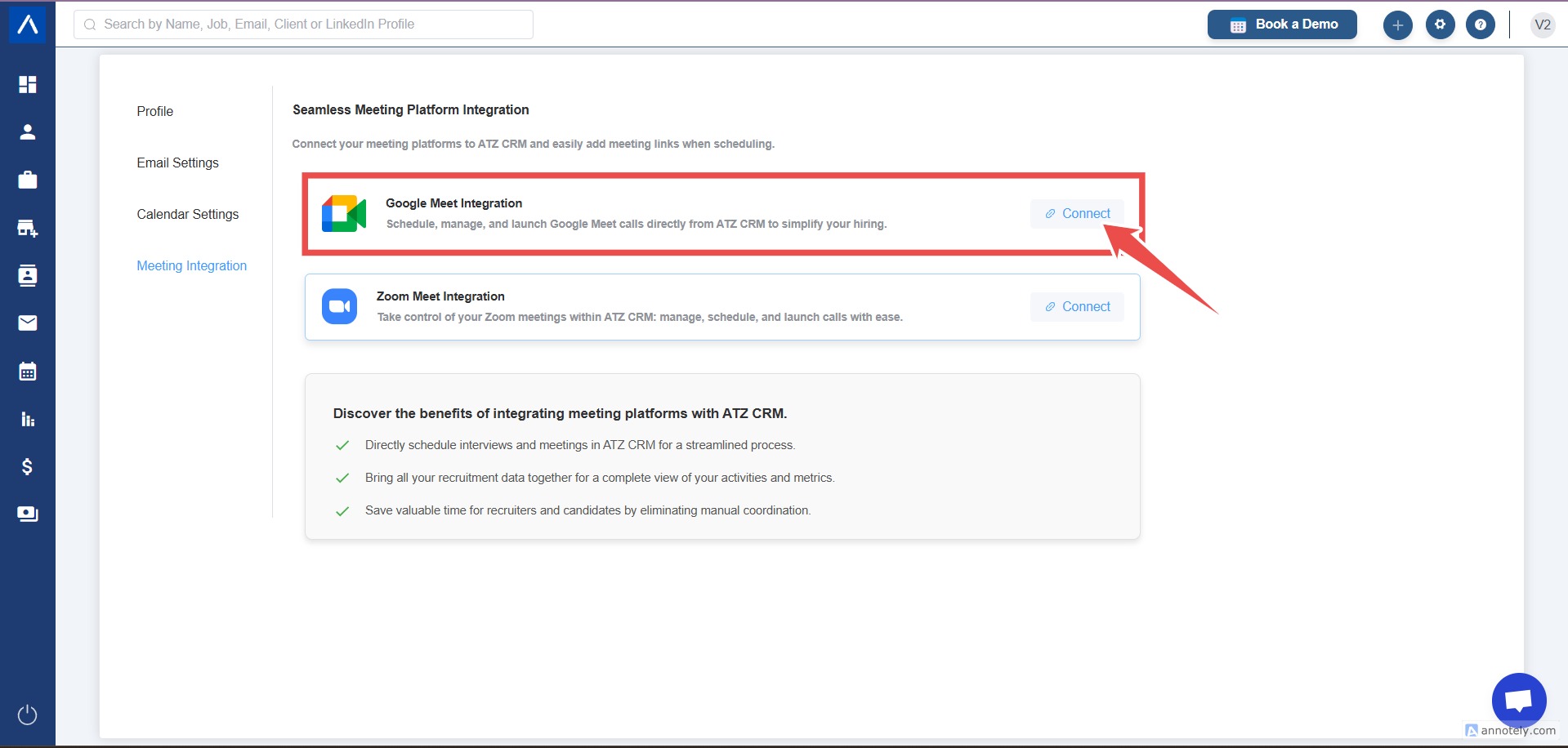
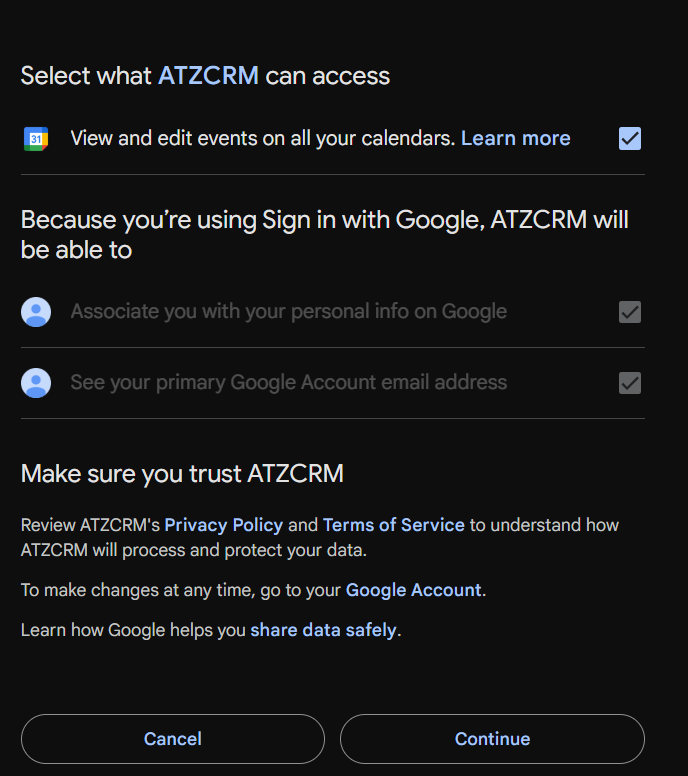
Step 4: Generate the Meet Link
After authentication, ATZ CRM generates a Google Meet link and attaches it to the activity.
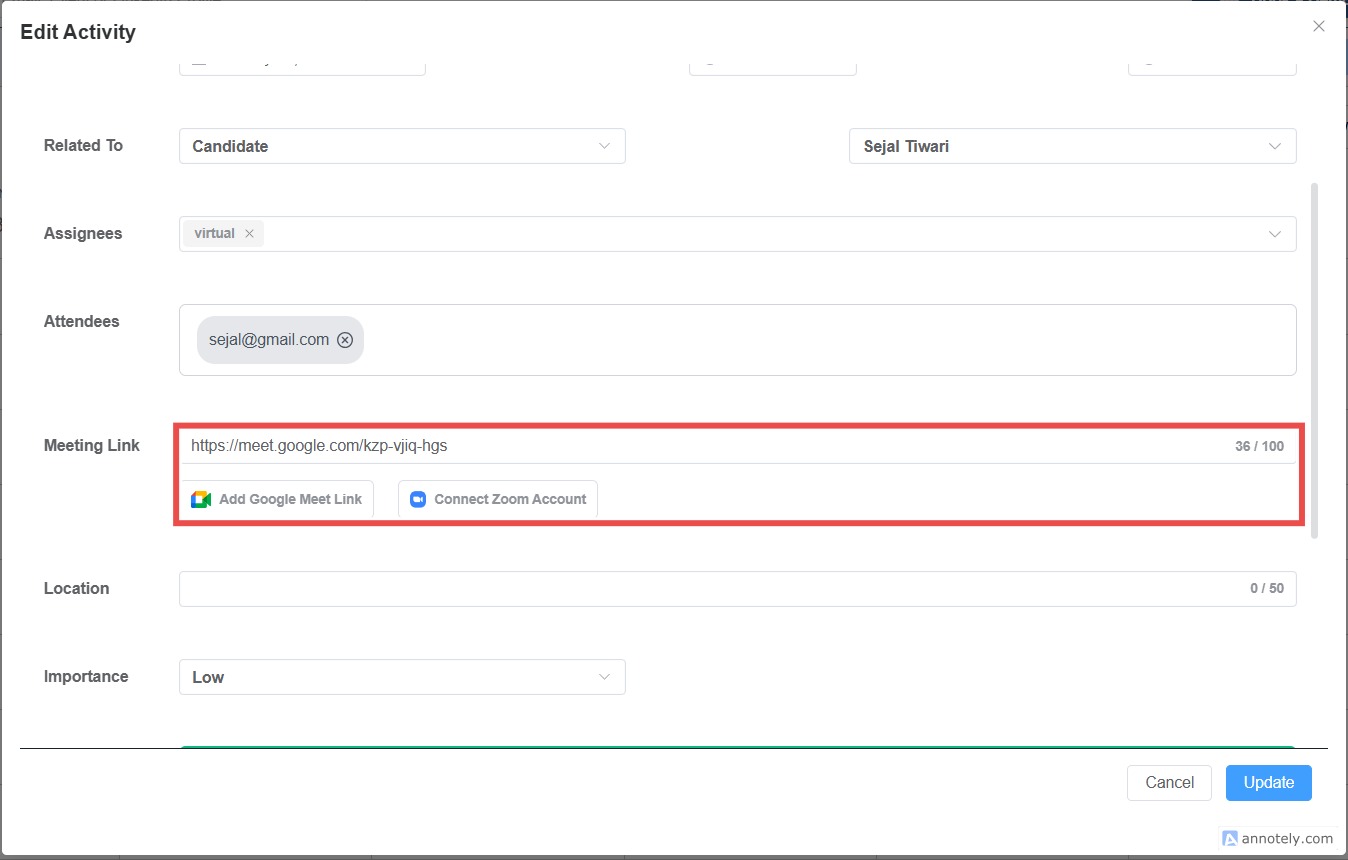
Step 5: Save or Update
Click Save or Update to keep the Meet link on the activity.
Use Cases
Candidate Interviews
Attach Meet links to interview activities.
Client Meetings
Schedule client calls and share meeting links through activities.
Internal Team Reviews
Create internal meeting activities with a generated Meet link.
Troubleshooting
Google Authentication Fails
Check Google account permissions, browser pop-ups, and whether your organization allows third-party integrations.
Meet Link Is Missing
Confirm you clicked Add Google Meet Link and saved the activity after authentication.
Participants Cannot See the Link
Check whether attendees were added correctly to the activity.
FAQs
Is Zoom supported here?
The source help article notes Zoom integration as under development; use Google Meet for this workflow.
Do I need calendar integration first?
Google authentication is required. Calendar integration can also help with scheduling workflows.
Can I add a Meet link to an existing activity?
Yes. Open the activity, add the link, and update it.