
Deals help recruitment teams track revenue opportunities from the first conversation through won, lost, or archived outcomes.
Quick Answer
Open Deals, click Add Deal, fill in the deal name, linked job, organization, candidate, amount, owner, close date, and stage, then save it. After the deal is created, use the deal profile to manage notes, activities, attachments, related records, pipeline movement, reports, and archiving.
What Is a Deal?
A deal in ATZ CRM is a potential revenue-generating opportunity. It can represent a candidate placement, client agreement, retained search, contract opportunity, or another commercial recruitment workflow.
Use deals when you need to connect revenue forecasting with jobs, organizations, candidates, contacts, notes, and activities.
Add a New Deal
- Open Deals from the left menu.
- Click Add Deal in the top bar.
- Enter the deal details.
- Click Save.
Deal Fields to Complete
| Field | How to Use It |
|---|---|
| Deal Name | Use a clear name that your team can identify later. |
| Job | Link the deal to the relevant job opening, when applicable. |
| Organization | Select the client or company connected to the opportunity. |
| Candidate | Choose the candidate linked to the deal, if relevant. |
| Amount | Enter the expected deal value or revenue. |
| Deal Owner | Assign the teammate responsible for the opportunity. |
| Close Date | Add the expected or actual closing date. |
| Stage | Select the current pipeline stage. |
| Custom Fields | Capture workflow-specific data your team tracks. |
Edit an Existing Deal
- Go to Deals.
- Open the deal you want to update.
- Click the Edit option.
- Update fields such as amount, close date, stage, owner, or related records.
- Click Save.
Keep deal values and stages current so your reporting and weighted pipeline stay accurate.
Add Notes to a Deal
- Open the deal profile.
- Go to the Notes tab.
- Click Add Note.
- Enter the update, context, or conversation summary.
- Save the note.
Notes are useful for negotiation updates, client feedback, internal context, and handoffs between recruiters.
Add Activities to a Deal
- Open the deal profile.
- Go to the Activities tab.
- Click Add Activity.
- Select the activity type, such as call, meeting, or task.
- Add the date, time, description, and owner.
- Save the activity.
Activities help your team manage follow-ups and keep every revenue opportunity moving.
View Deal Details
Open a deal to review related information in one place, including:
- Candidates
- Jobs
- Notes
- Activities
- Contacts
- Attachments
This deal profile gives your team a single operating view of the opportunity.
Manage Deals in the Pipeline
Use Board View from the Deals list page to manage deals visually.
Drag and drop a deal between stages, such as prospect, negotiation, won, or lost. Each stage can have a probability value, which affects weighted revenue reporting.
For setup details, see Deals Pipeline.
Deal Pipeline Metrics
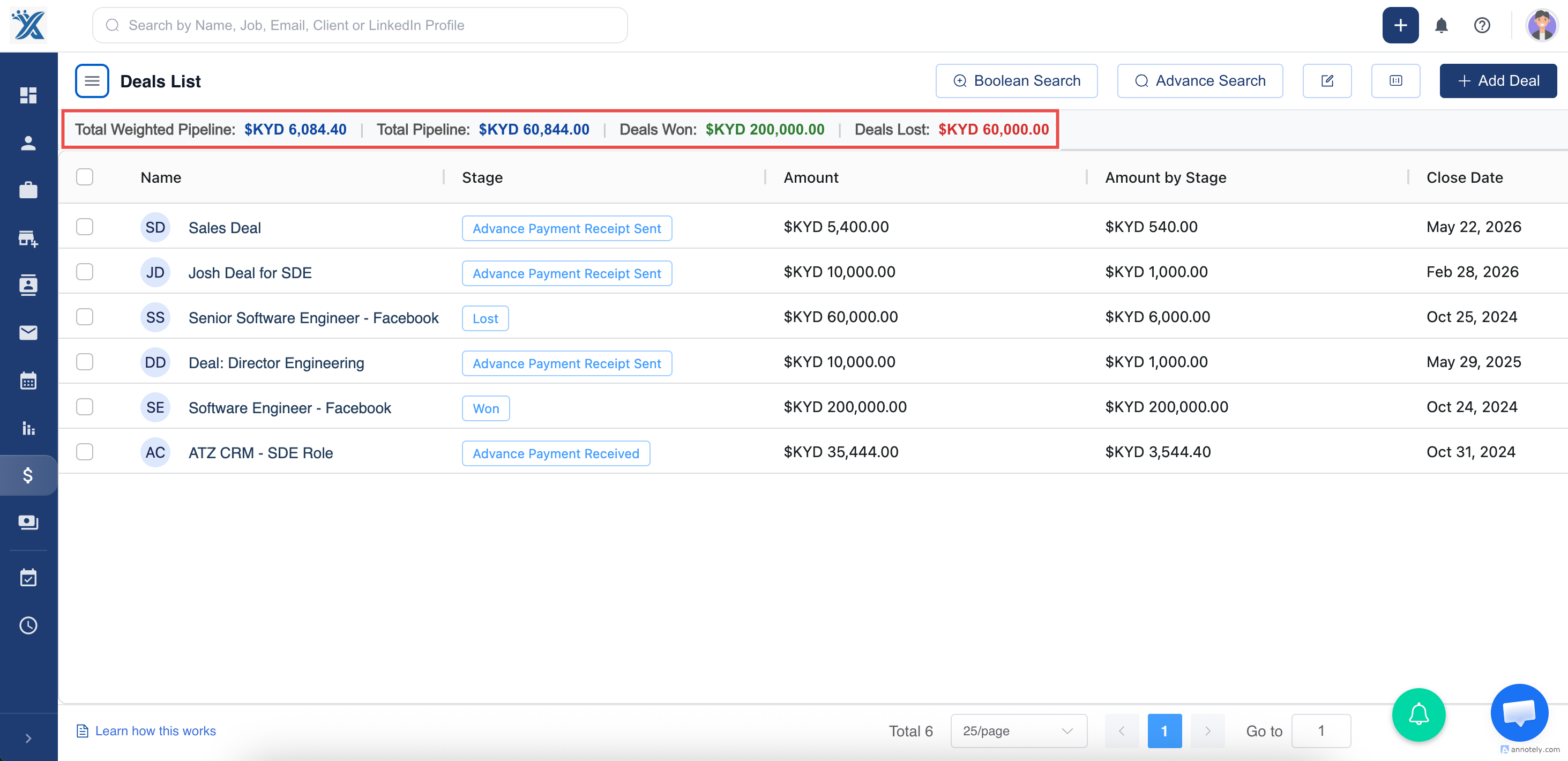
ATZ CRM includes four key metrics for tracking deal performance.
| Metric | Description |
|---|---|
| Total Weighted Pipeline | Revenue weighted by the probability assigned to each deal’s current stage. |
| Total Pipeline | The sum of all deal values, regardless of stage. |
| Deals Won | Revenue from deals currently in the Won stage. |
| Deals Lost | Revenue from deals currently in the Lost stage. |
Generate Deal Reports
- Open Reports from the sidebar.
- Go to the Account Snapshot report area.
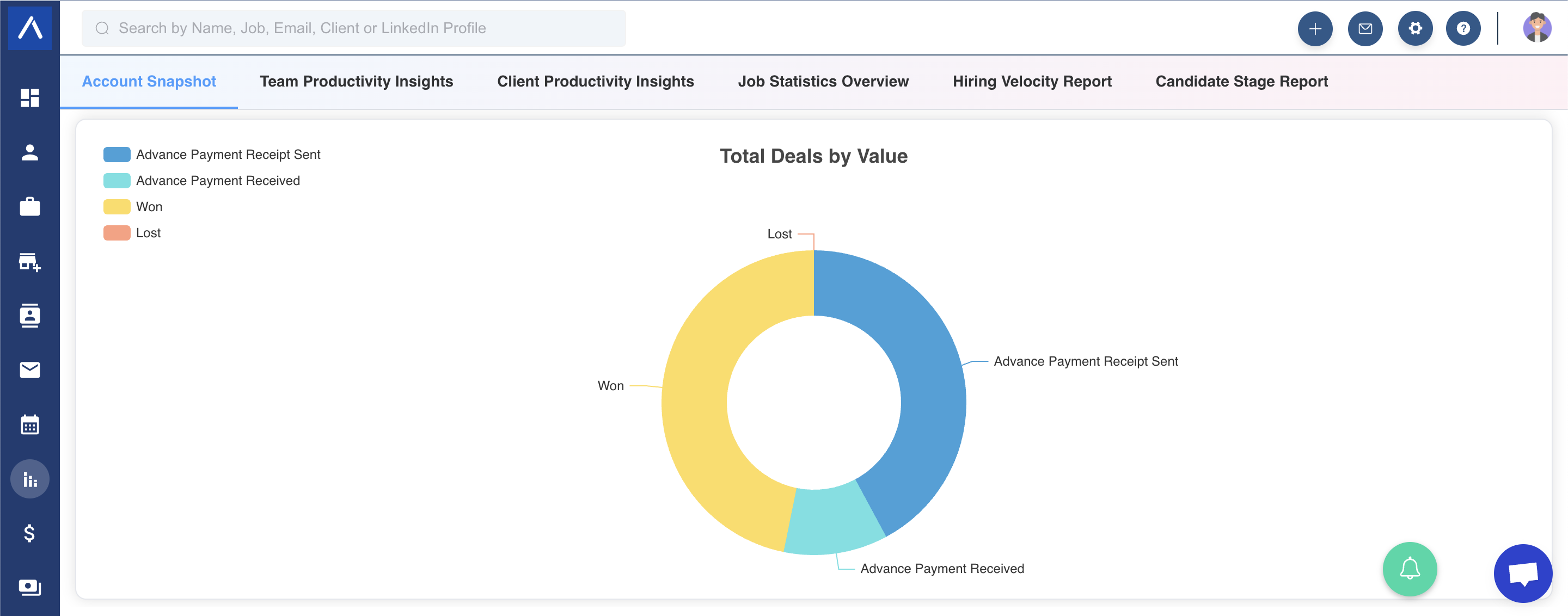
- Review Deals by Value for accumulated deal revenue.
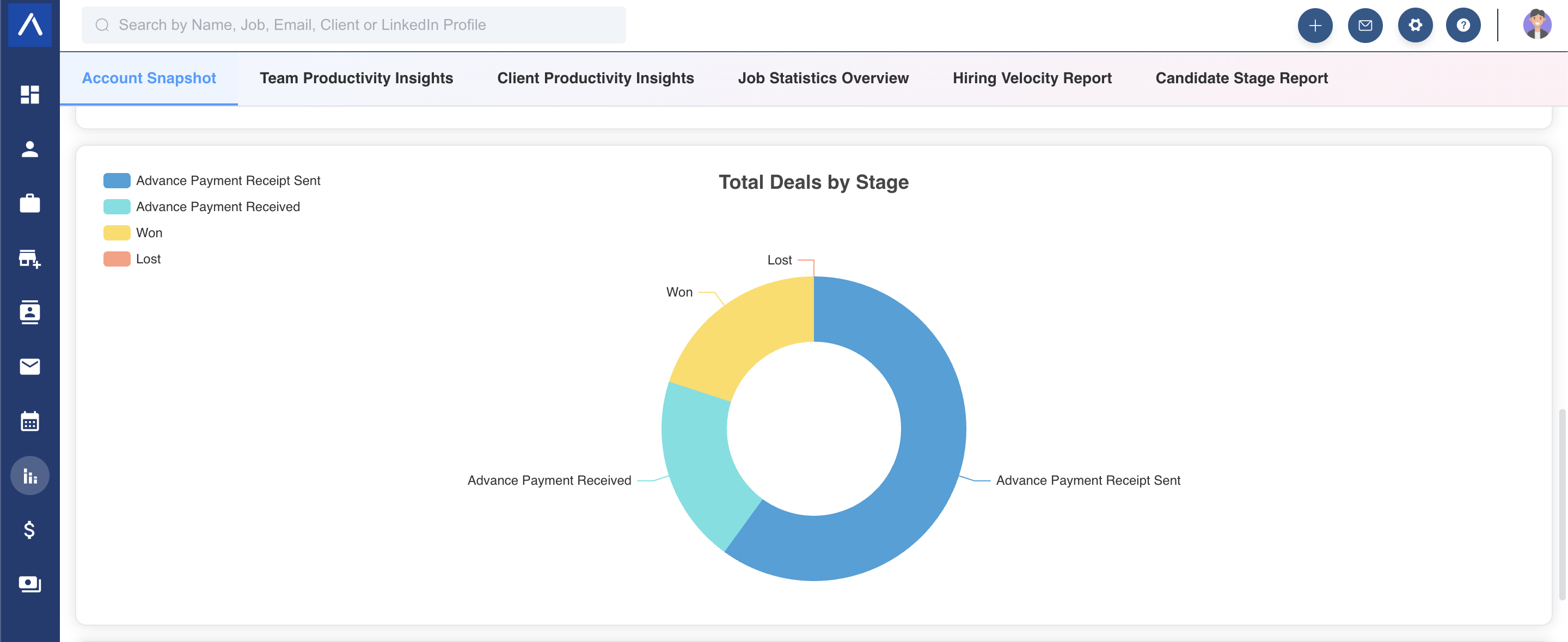
- Review Deals by Stages for deal distribution by stage.
For a broader reporting view, see Account Snapshot Report.
Change the Deal Currency
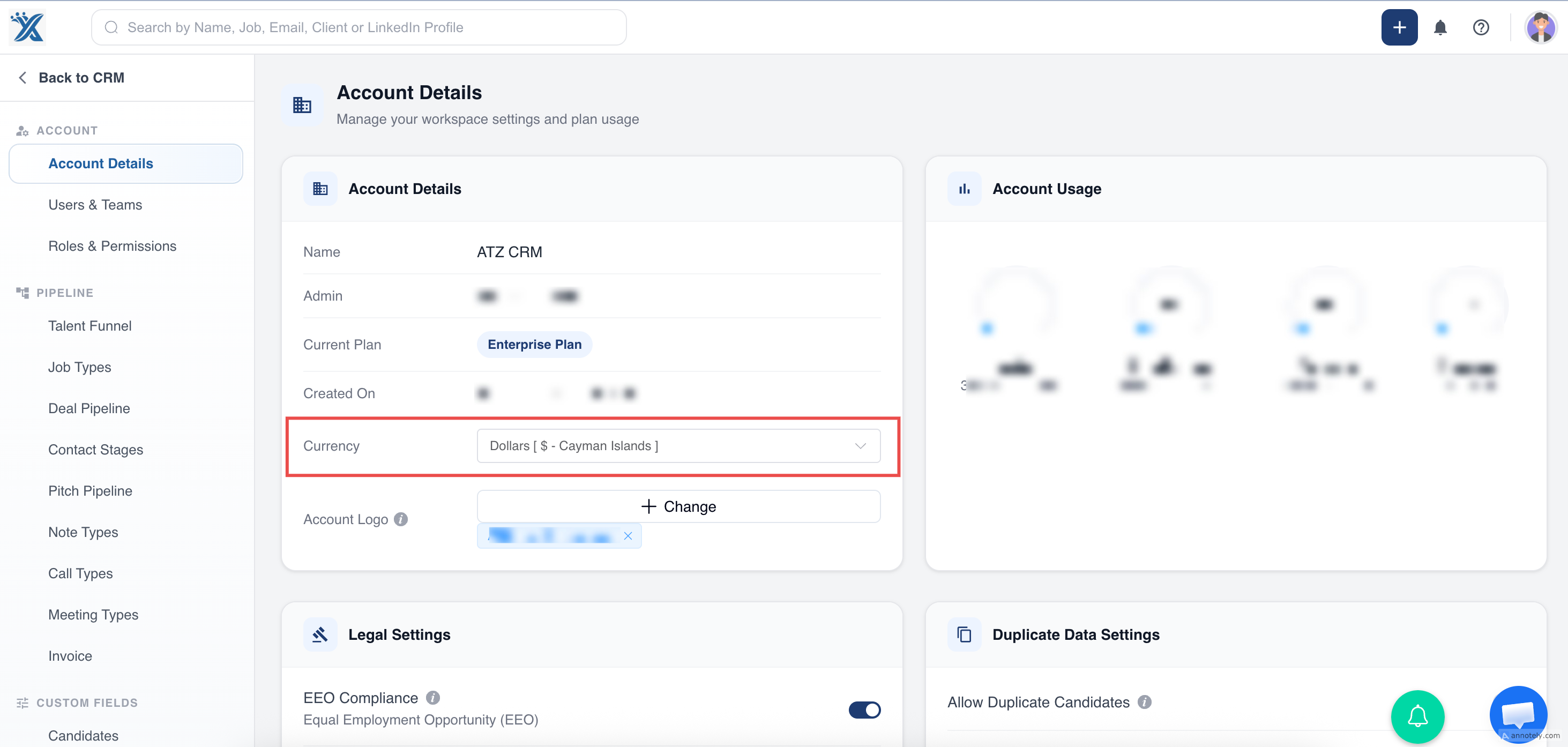
Deal currency follows the account currency.
Only an Account Admin can change the account currency:
- Open Admin Settings.
- Go to Account Details.
- Update the account currency.
Archive a Deal
You can archive a deal from either the Deals list page or the deal profile.
Archive from the Deals List
- Open the Deals list.
- Select the deal or deals you want to archive.
- Click Archive in the top header.
Archive from the Deal Profile
- Open the deal profile.
- Click the three-dot menu.
- Choose Archive Deal.
Use Cases
Placement Revenue Tracking
Track expected revenue from candidate placements and link the deal to the related job, candidate, and organization.
Client Agreement Management
Use deals for retained search agreements, contract opportunities, or commercial client conversations.
Forecast Reviews
Use deal stage, amount, close date, and weighted pipeline metrics to prepare leadership or finance updates.
Troubleshooting
Deal Reports Look Incorrect
Check whether deal amounts, stages, and close dates are updated. Weighted reporting depends on the current deal stage and stage probability.
A Deal Is Missing from the Pipeline
Confirm the deal is not archived and has a valid stage assigned.
Currency Is Not What You Expected
Ask an Account Admin to review the account currency in Admin Settings > Account Details.
FAQs
Can a deal be linked to a candidate and a job?
Yes. A deal can include linked candidate, job, organization, and contact context when those records apply.
Do deal notes affect reporting?
No. Notes preserve context, but reporting usually depends on deal value, stage, close date, and status.
Should I archive or delete old deals?
Archive deals when you want to remove them from active workflows while preserving historical context.