
The Candidate Pipeline in the Client Portal lets clients review candidates submitted for active jobs, update allowed stages, and add remarks for better recruiter collaboration.
Quick Answer
Log in to the Client Portal, open an active job from the Job List, and use the candidate pipeline in list or Kanban view. Stage changes are limited to stages allowed by the recruiter in ATZ CRM.
Before You Start
The Client Portal is an add-on feature of ATZ CRM, available separately from the standard subscription. For access or pricing details, contact support from in-app chat or email support@atzcrm.com.
Candidate pipelines are visible only for active jobs shared with the client.
Step 1: Open Active Jobs
Log in to the Client Portal and go to the Job List page. Make sure you are on the Active Jobs tab.
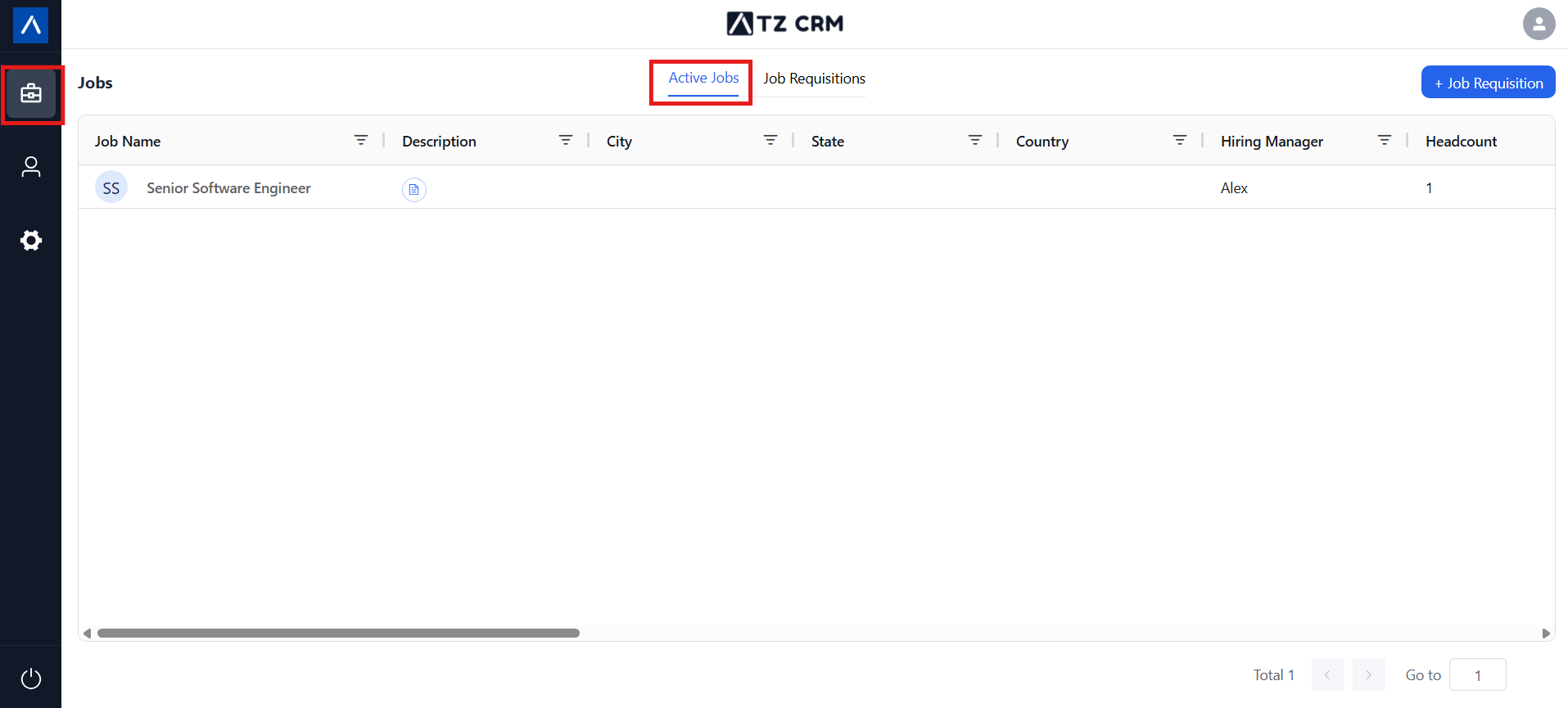
Step 2: Choose a Job
Click an active job to open its details and candidate pipeline.
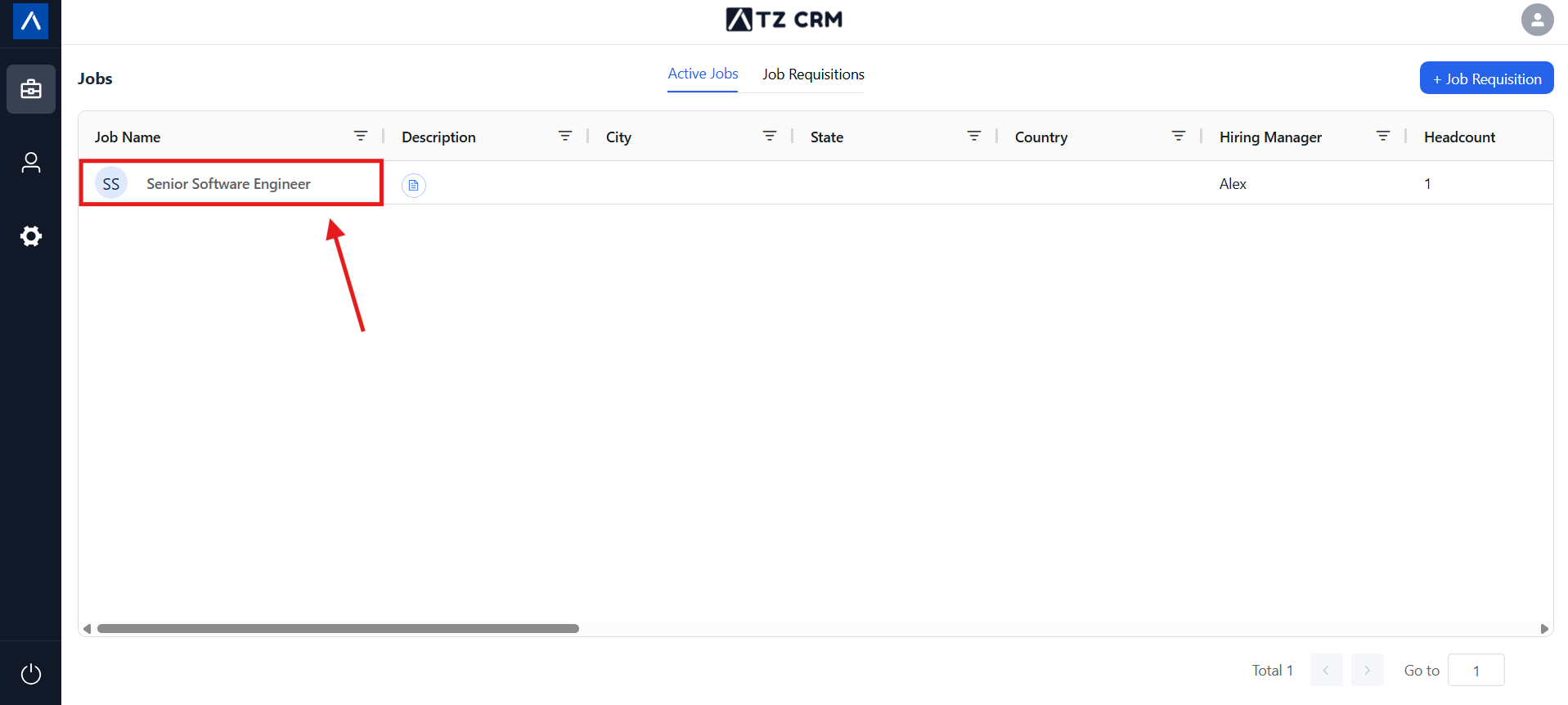
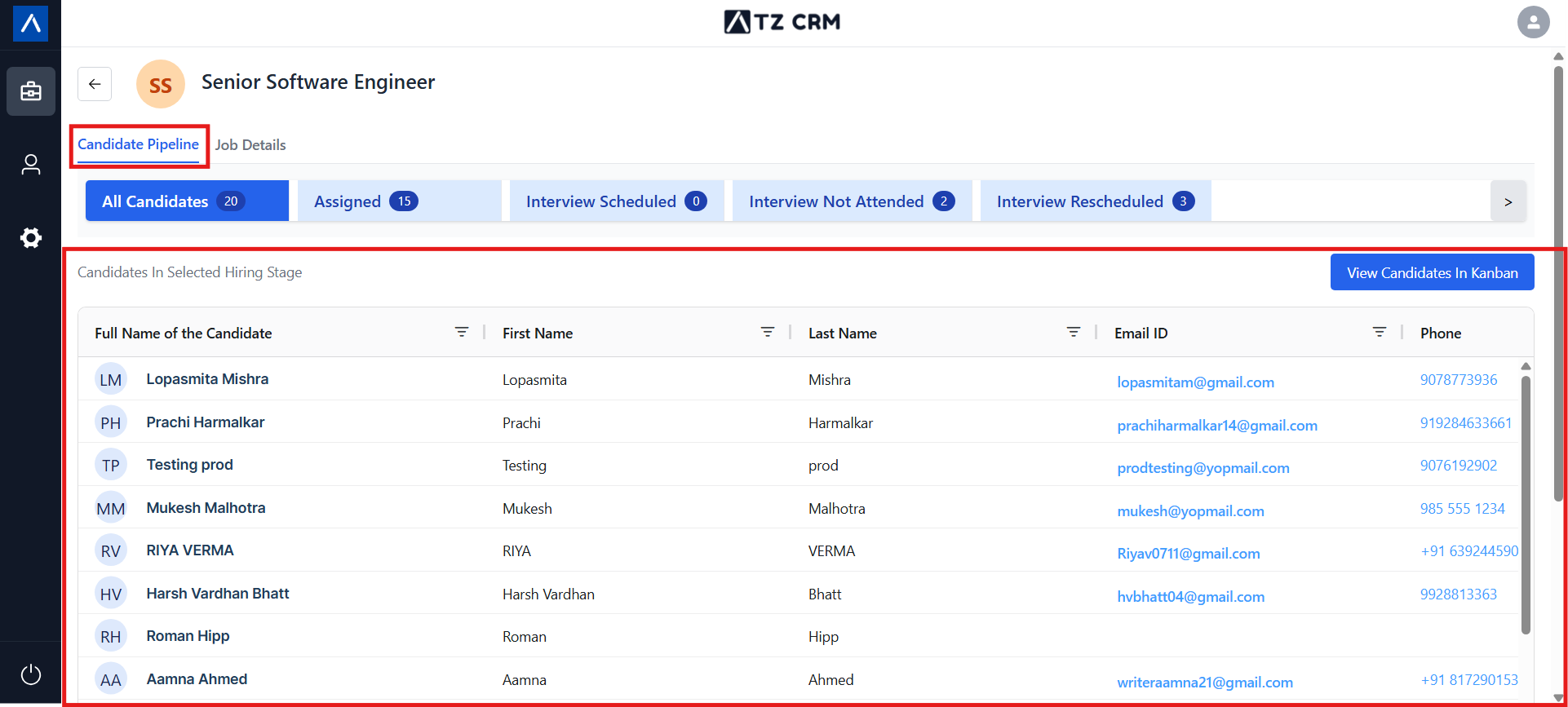
Candidate Pipeline Views
List View
List view displays submitted candidates in a table format with their details.
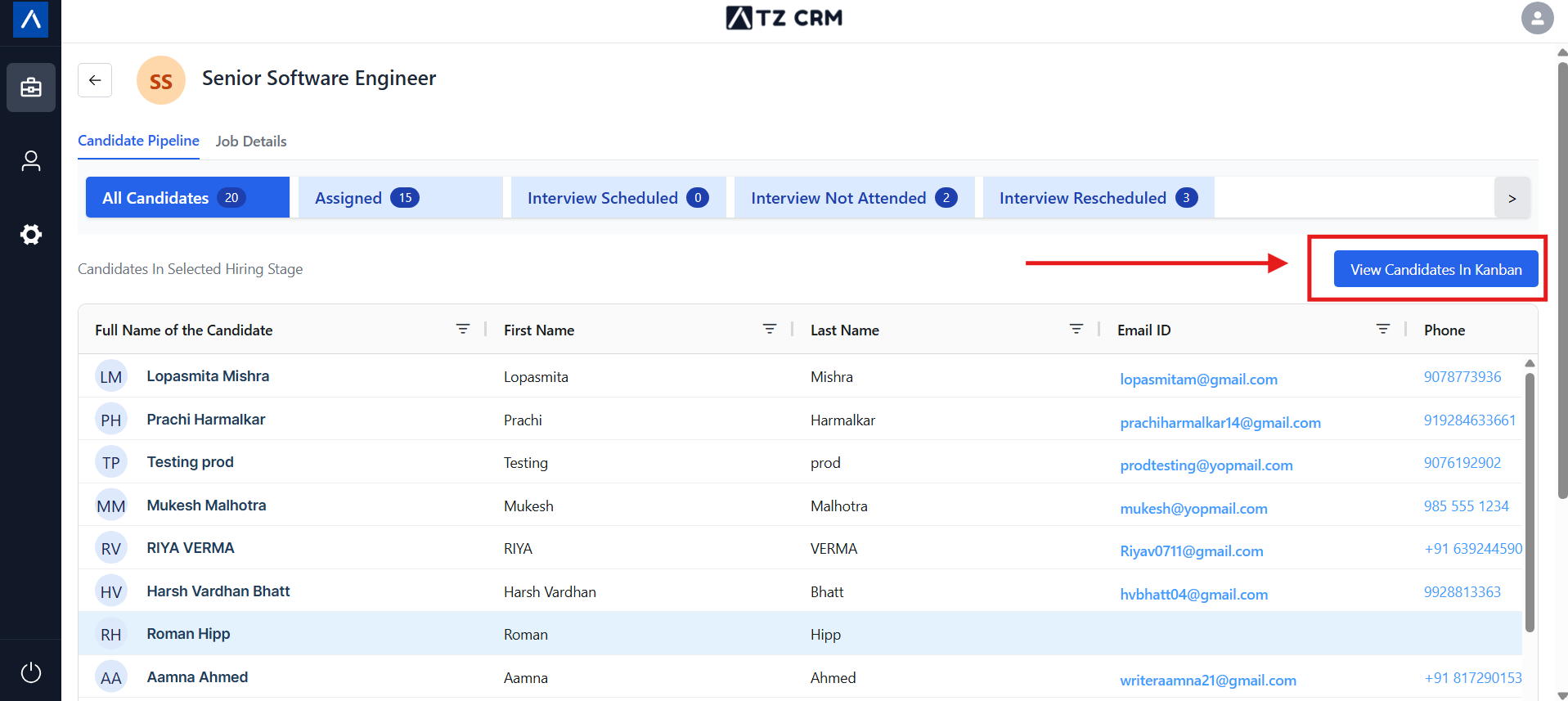
Kanban View
Kanban view visualizes candidates by stage. Clients can drag and drop candidates between stages allowed by the recruiter.
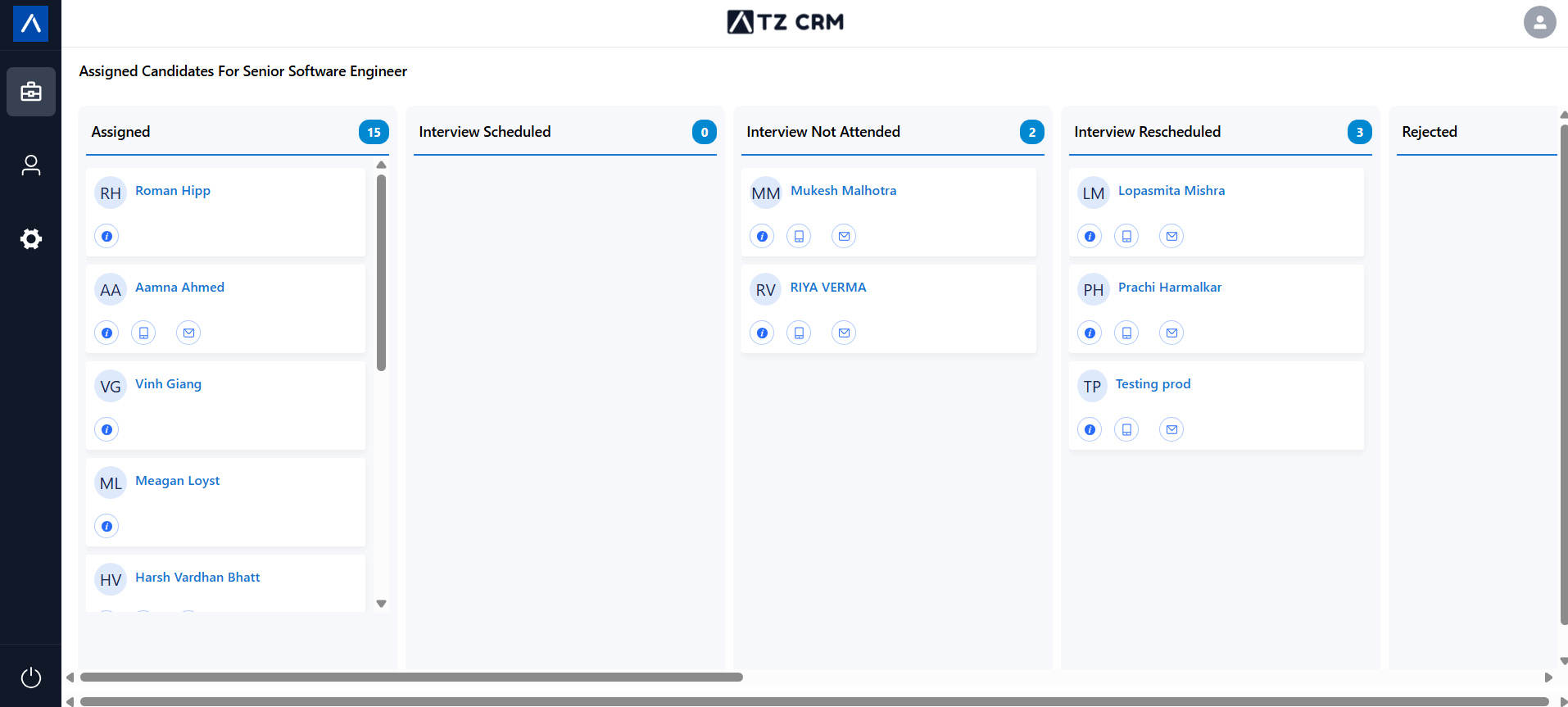
Manage Candidates
Add Remarks
Clients can leave remarks on individual candidates while changing stages. Remarks help recruiters understand the client’s feedback and next-step expectations.
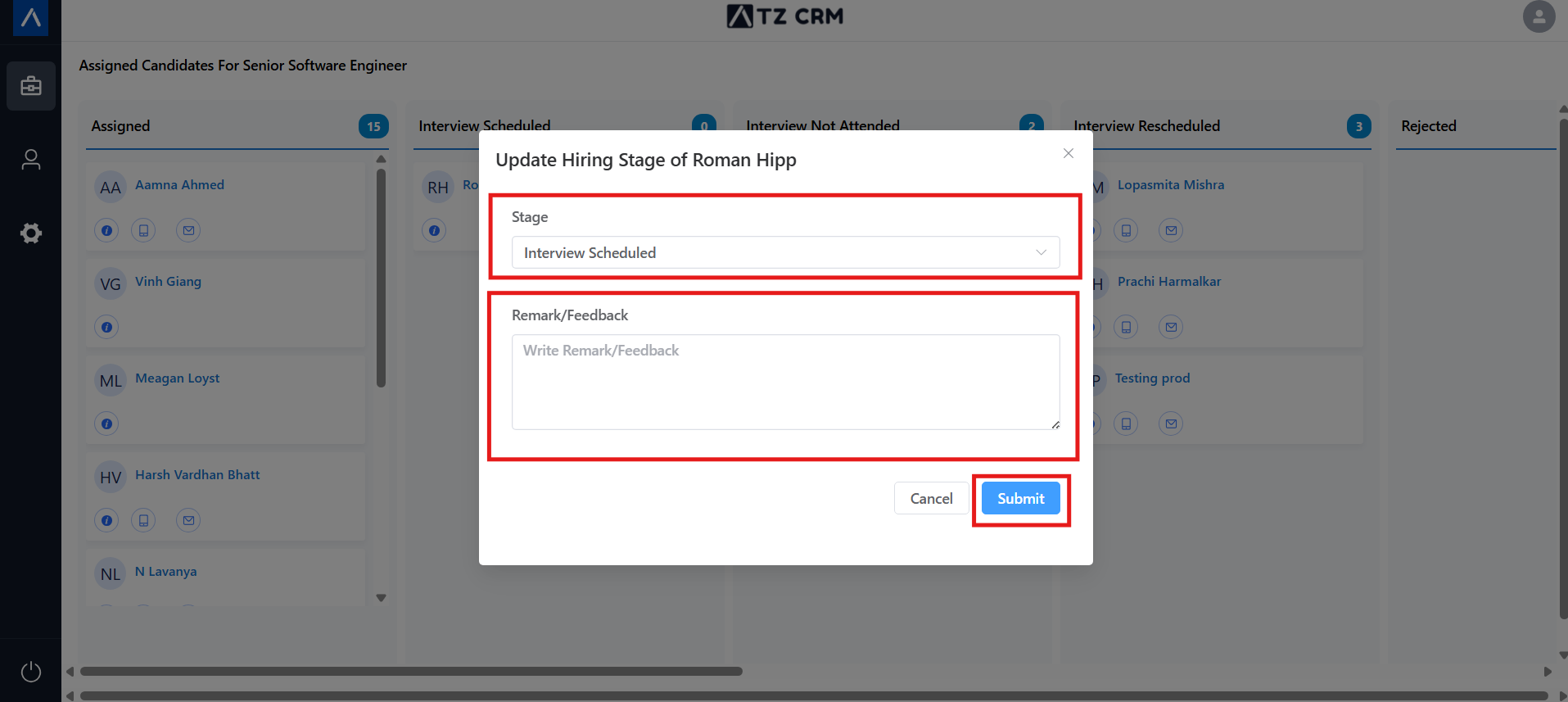
Change Candidate Stages
Move candidates through allowed stages, such as from interview scheduled to offer-related stages, depending on the stages enabled by the ATZ CRM recruiter.
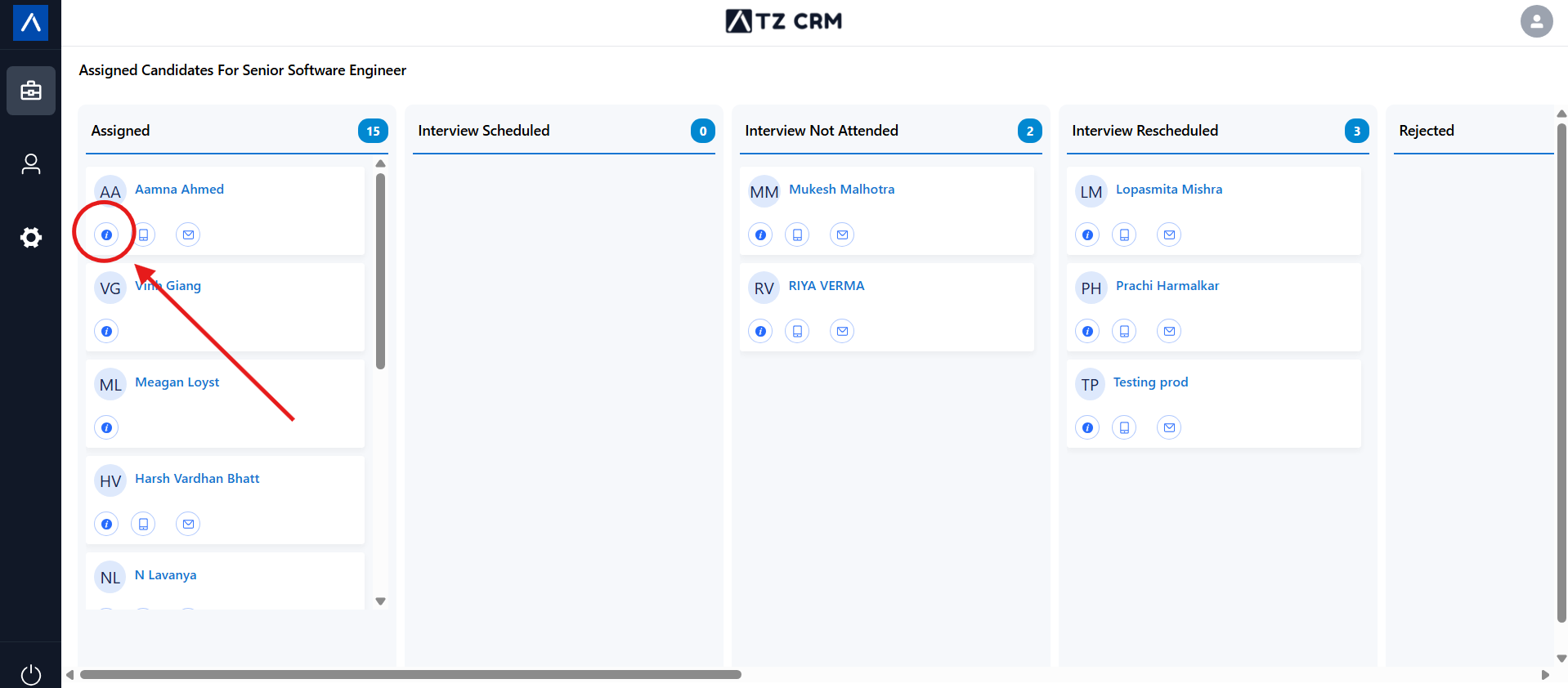
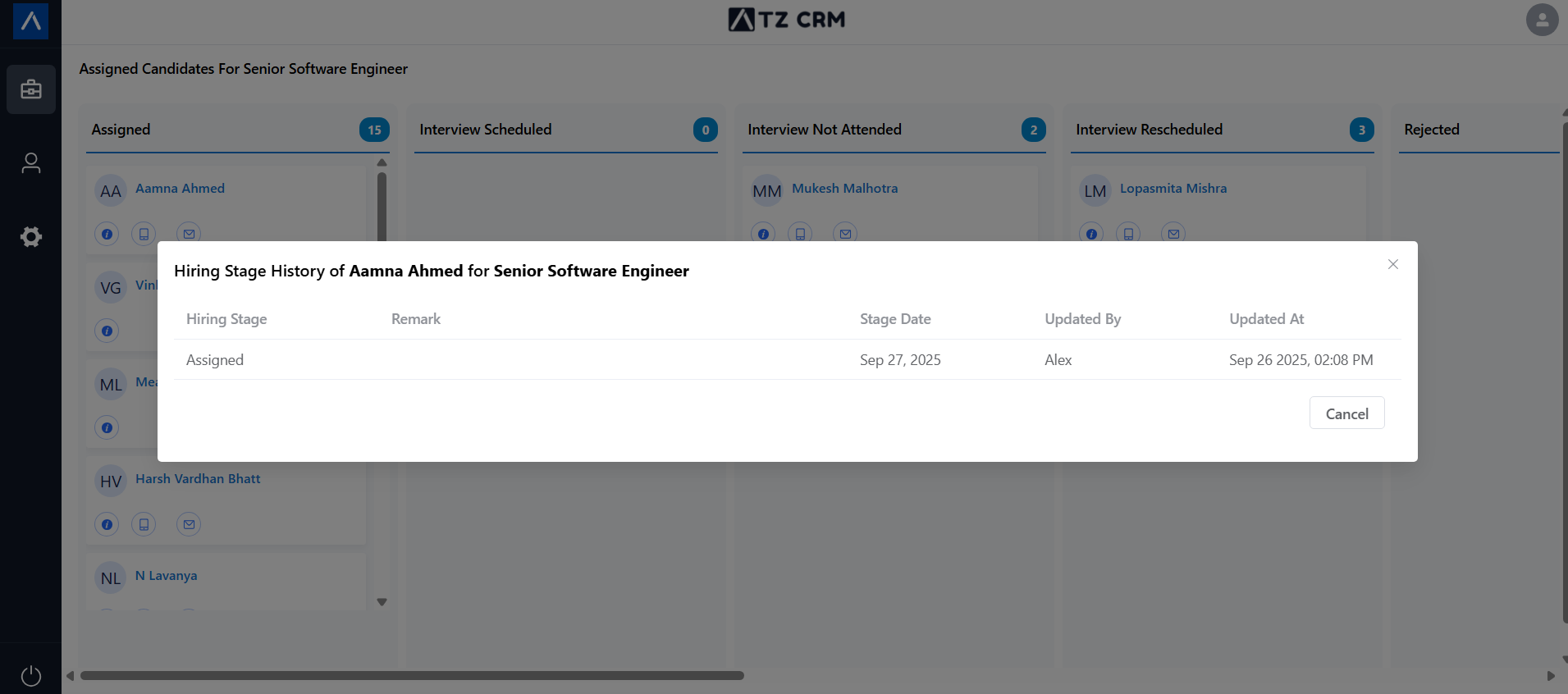
View All Remarks
Use remarks history to review client feedback and previous notes for the candidate.
Use Cases
Faster Candidate Feedback
Clients can update stages and add remarks without sending separate emails or spreadsheets.
Pipeline Visibility
Kanban view gives clients a clear picture of where candidates sit in the hiring process.
Recruiter-Client Alignment
Allowed stage controls keep client feedback structured and aligned with the recruiter’s workflow.
Troubleshooting
Candidate Pipeline Is Not Visible
Confirm the job is active and shared with the client through the Client Portal. Candidate pipelines are visible for active jobs.
I Cannot Move a Candidate to a Stage
Clients can move candidates only to stages allowed by the ATZ CRM recruiter. Ask the recruiter to review stage permissions if the expected stage is missing.
Remarks Are Not Showing for the Recruiter
Refresh the portal and confirm the remark was saved during the stage change. If the issue persists, ask the recruiter to check the candidate’s submitted feedback in ATZ CRM.
FAQs
Can clients use both list and Kanban view?
Yes. Both views are synced, so changes in one view appear in the other.
Can clients see inactive jobs in the candidate pipeline?
No. The candidate pipeline is intended for active jobs shared through the Client Portal.
Where can recruiters review client feedback?
Recruiters can review submitted candidate feedback and remarks inside ATZ CRM.