
The Deals Pipeline gives recruitment teams a structured way to manage revenue opportunities, forecast pipeline value, and keep commercial workflows visible.
Quick Answer
Open Admin Settings > Deal Pipeline Customization to add, reorder, and configure deal stages. Set a probability for each stage so ATZ CRM can calculate weighted pipeline value. After setup, use the Deals list or Kanban board to move deals through your workflow.
What Is a Deal Pipeline?
A deal pipeline is a visual workflow that shows how deals progress from early conversations to final outcomes.
In ATZ CRM, pipeline stages help teams:
- Track where each opportunity stands.
- Forecast revenue based on stage probability.
- Prioritize active commercial follow-ups.
- Keep recruiters, managers, and finance aligned.
Access Deal Pipeline Customization
- Log in to ATZ CRM.
- Open Admin Settings from the top-right menu.
- Select Deal Pipeline Customization.
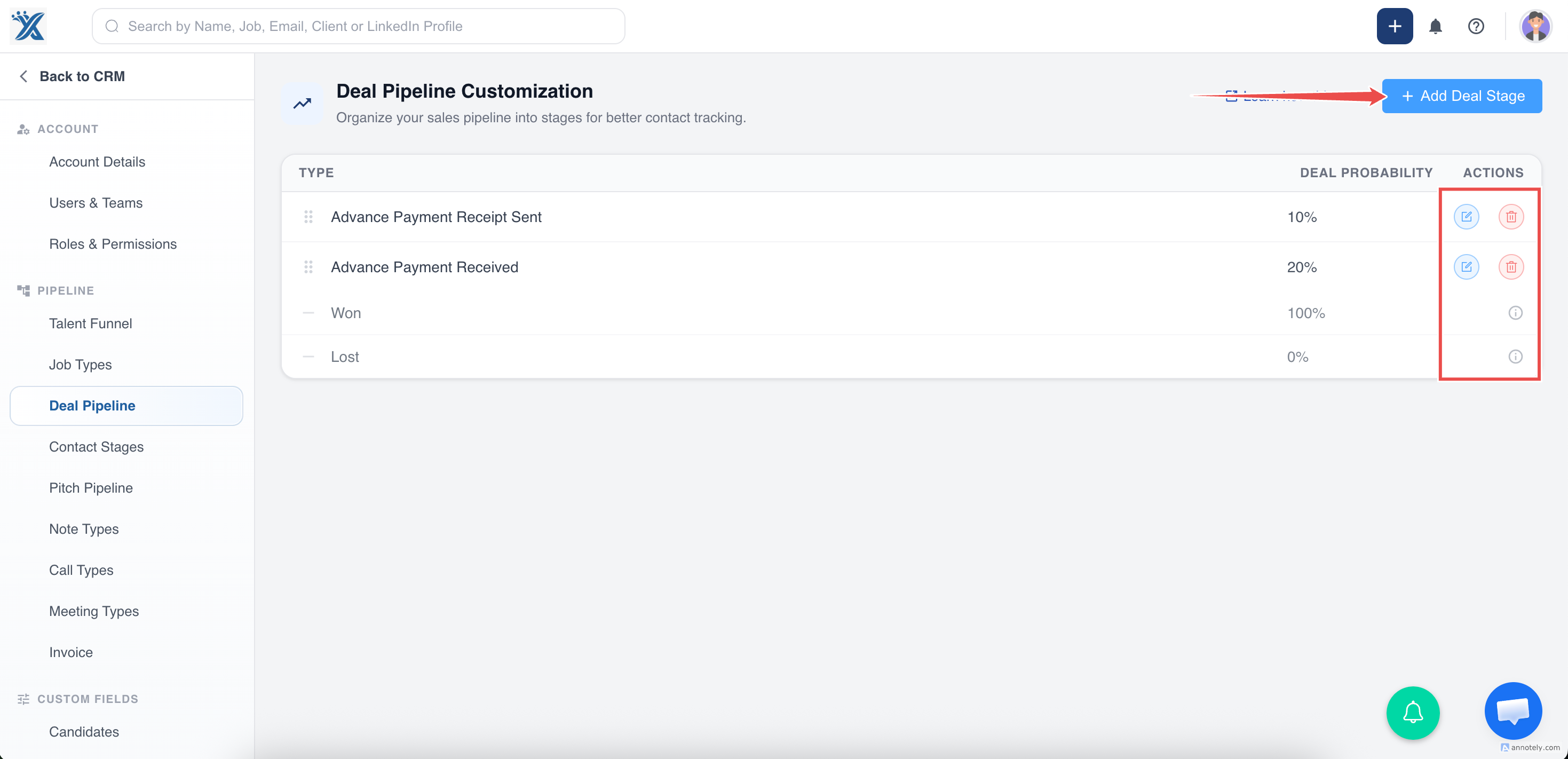
- Review, add, reorder, or update stages.
Create and Customize Deal Stages
Deal stages control how opportunities move through your revenue workflow.
ATZ CRM includes two default stages that cannot be removed:
- Won
- Lost
Add your own stages to match your process, such as prospecting, qualification, proposal, negotiation, verbal agreement, or onboarding.
Set Stage Probability
Each stage can include a probability of winning. ATZ CRM uses this probability to calculate Total Weighted Pipeline.
For example, a deal worth 10,000 in a 50% probability stage contributes 5,000 to the weighted pipeline.
Use realistic probabilities so forecast reports reflect your actual sales or placement process.
Reorder Pipeline Stages
Arrange stages in the same order your team works through deals.
A clear order makes the Kanban board easier to scan and helps users understand what should happen next.
Use Deal Pipeline in List and Kanban Views
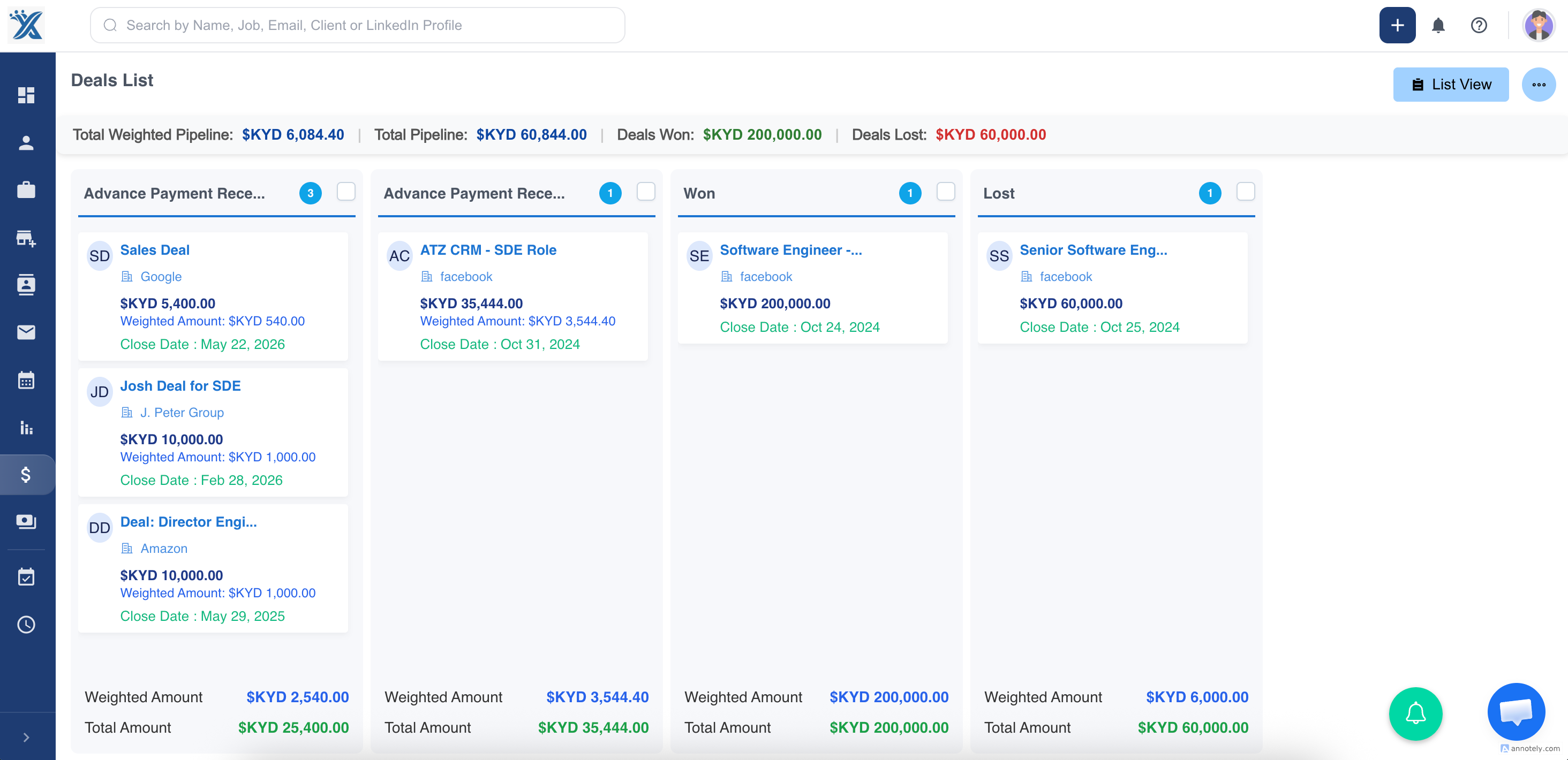
After pipeline customization is complete, your stages are available in both Deals list view and board view.
Change Stages in Kanban View
Drag and drop a deal to the desired stage. When the stage changes, ATZ CRM shows a pop-up where you can enter a remark or reason for the change.
Change Stages from the Deal Profile
Open the deal profile and update the stage directly when you are reviewing the full opportunity details.
For deal creation and profile management, see Deals in ATZ CRM.
Best Practices
- Keep stages simple enough for recruiters to use consistently.
- Add probability values that reflect real win likelihood.
- Keep Won and Lost as final outcome stages.
- Review stage names with managers before rollout.
- Use remarks during stage changes to preserve decision context.
Use Cases
Revenue Forecasting
Use weighted pipeline to estimate expected revenue from active opportunities.
Recruitment Business Development
Track client agreements, placement opportunities, and commercial conversations through a shared process.
Manager Reviews
Use pipeline stages to review stalled deals, expected close dates, and next actions.
Troubleshooting
Weighted Pipeline Looks Too High or Too Low
Review stage probabilities. If probabilities are unrealistic, weighted revenue will not match your actual forecast.
Users Move Deals to the Wrong Stage
Simplify stage names and document when each stage should be used.
A Stage Is Missing in Kanban View
Check Deal Pipeline Customization and confirm the stage exists and has been saved.
FAQs
Can recruiters change deal stages from the board?
Yes. In Kanban view, users can drag and drop deals into the required stage.
Does ATZ CRM ask for a reason when the stage changes?
Yes. When changing a deal stage, a pop-up can appear so the user can enter a remark or reason.
Do pipeline stages affect reports?
Yes. Stages and their probabilities affect weighted pipeline reporting and deal stage analysis.