
Your email signature keeps outbound communication consistent and professional across candidate, contact, and sequence emails.
Quick Answer
Open your profile, go to Email Settings, edit Email Signature, preview it, and click Save.
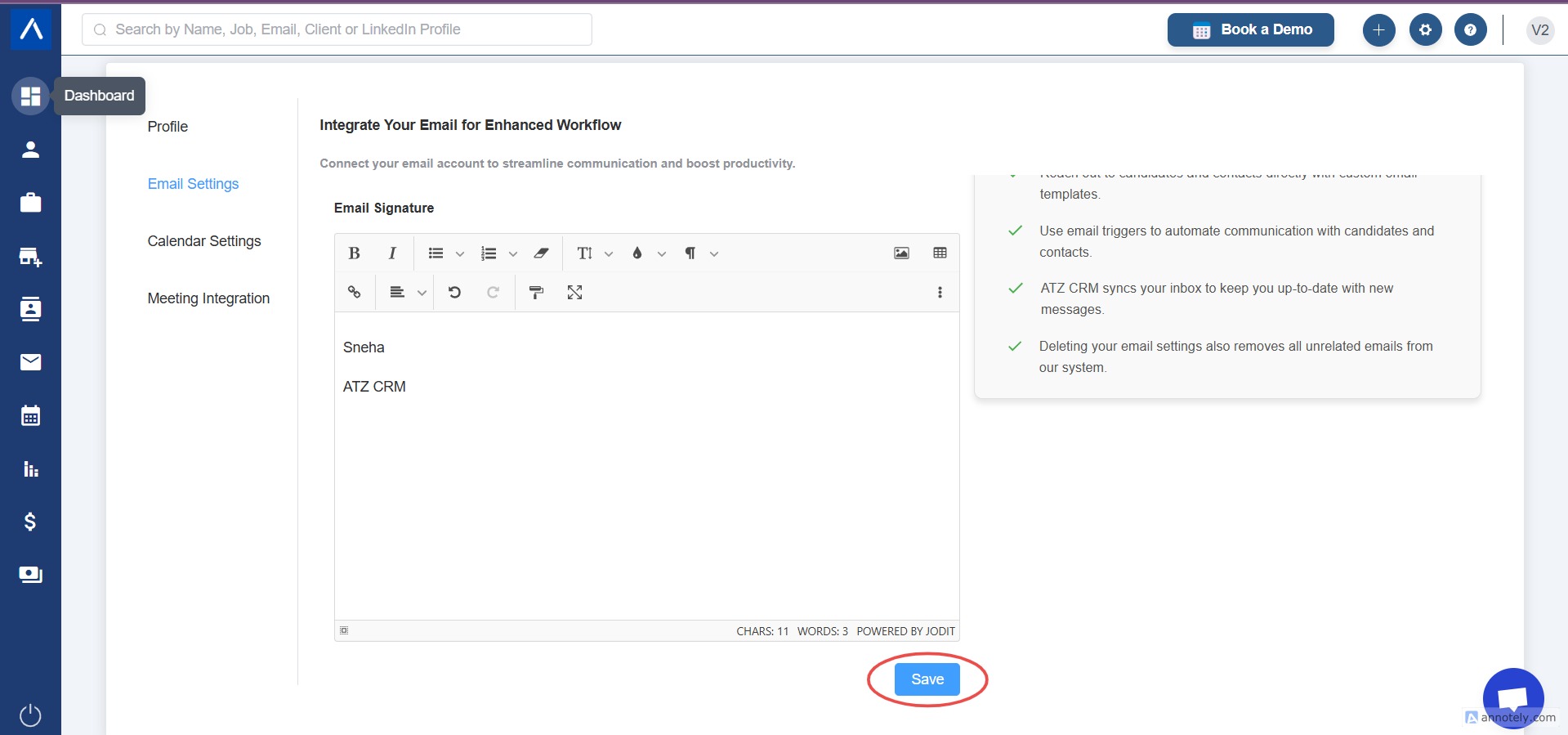
Step 1: Open Your Profile
Navigate to the profile section from your ATZ CRM account.
Step 2: Open Email Settings
Click Email Settings.
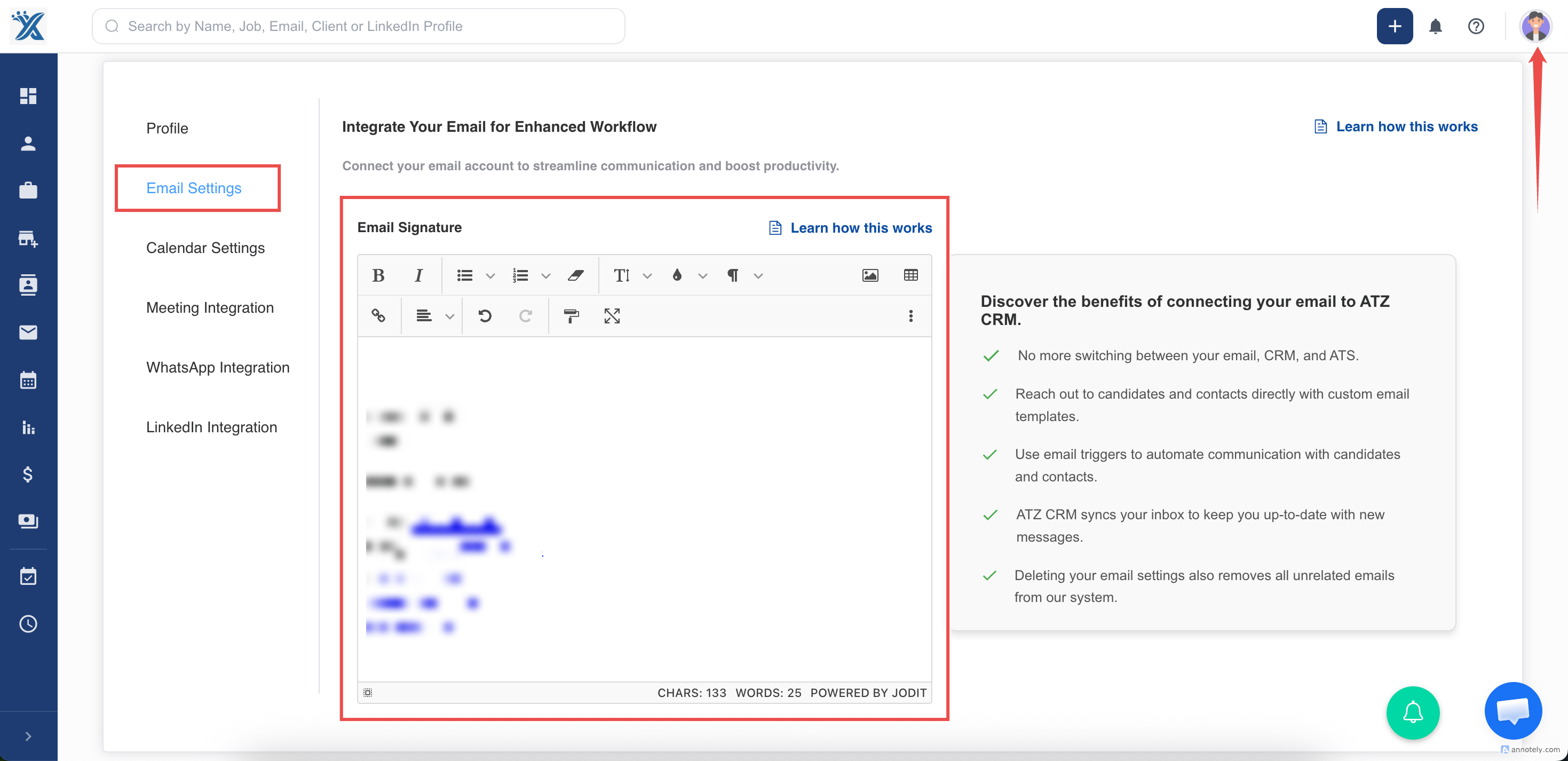
Step 3: Find Email Signature
In Email Settings, locate Email Signature.
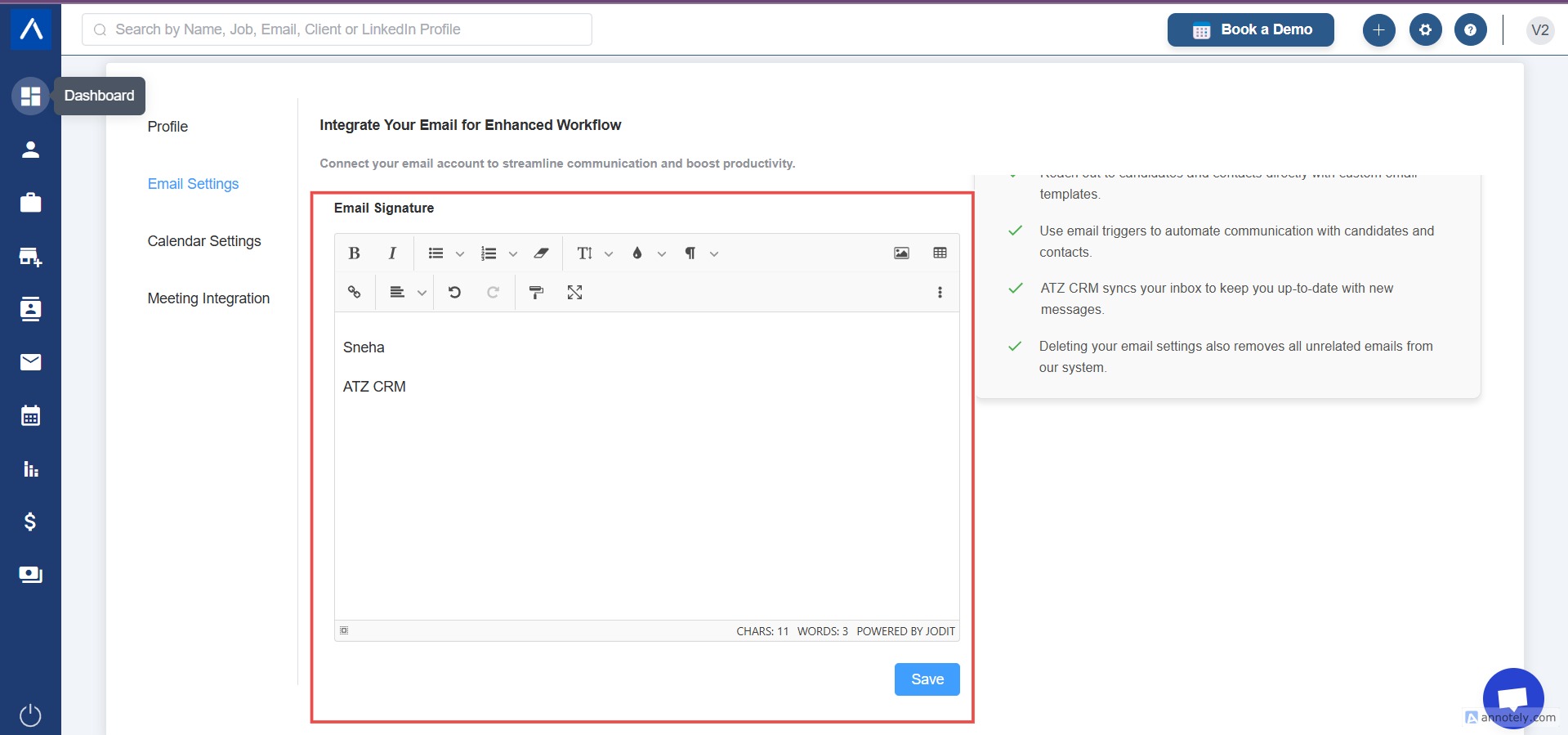
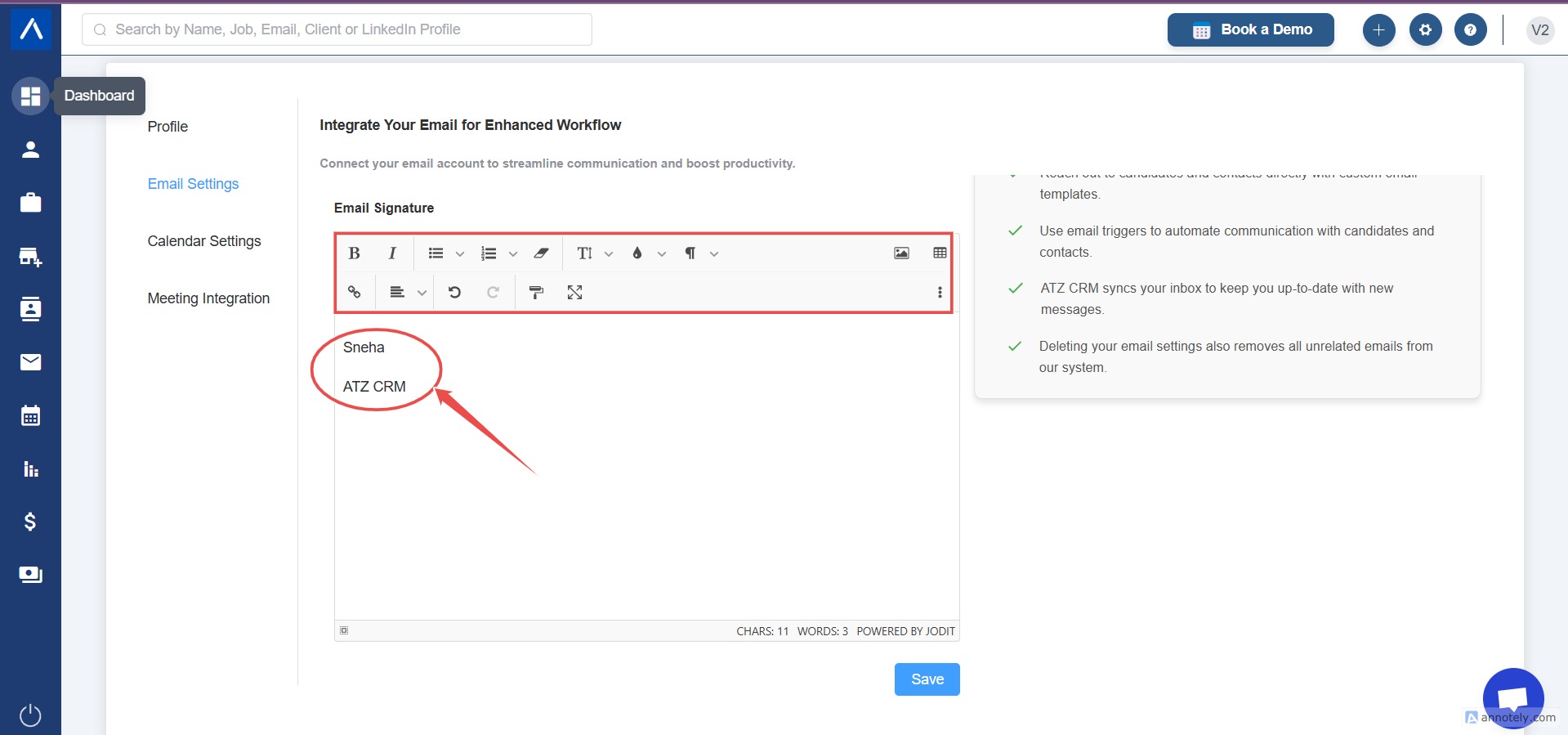
Step 4: Add Signature Details
Add details such as:
- Full name.
- Designation.
- Phone number.
- Email address.
- Website.
- Social links.
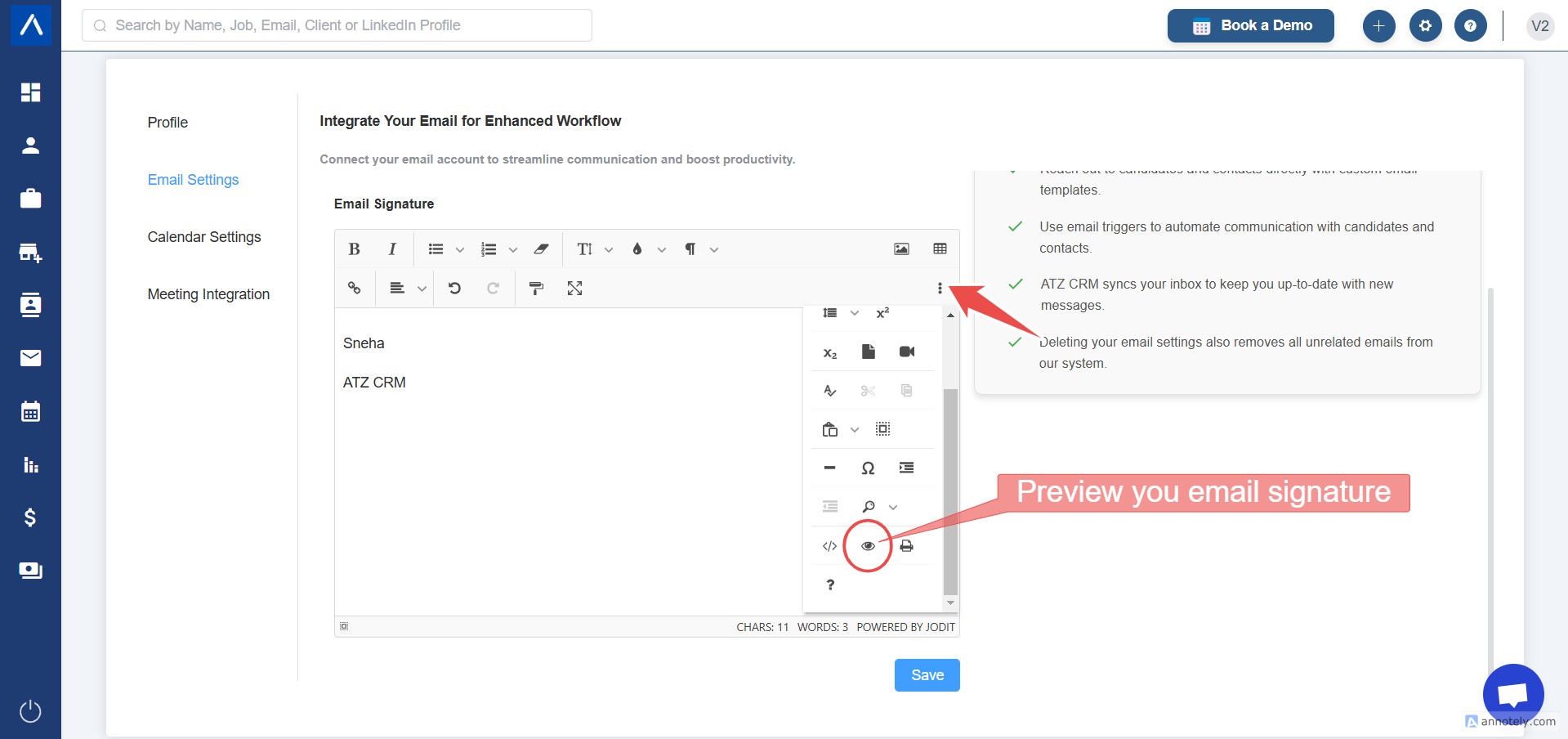
Step 5: Preview the Signature
Use Preview to see how the signature will appear in emails.
Step 6: Save the Signature
Click Save to apply the signature.
Use Cases
Recruiter Branding
Add role, phone number, and scheduling details to make follow-up easier.
Team Consistency
Use a consistent format across recruiters and account managers.
Sequence Outreach
Keep automated sequence emails aligned with regular email communication.
Troubleshooting
Signature Does Not Appear
Confirm the signature was saved and your email account is connected.
Signature Looks Incorrect
Use Preview to check formatting before saving.
Images Are Too Large
Resize inserted images by selecting the image and dragging the bottom-right corner.
FAQs
Does the signature apply to all emails?
It applies to emails sent through the configured ATZ CRM email settings, including sequence emails.
Can each user have their own signature?
Yes. Email signature is configured from the user profile settings.
Can I include links?
Yes. Include website or social links where appropriate.