
The leaderboard shows progress against the competition’s single KPI. Use it to recognize effort, while keeping the dates and scoring rules visible to participants.
Read the Leaderboard
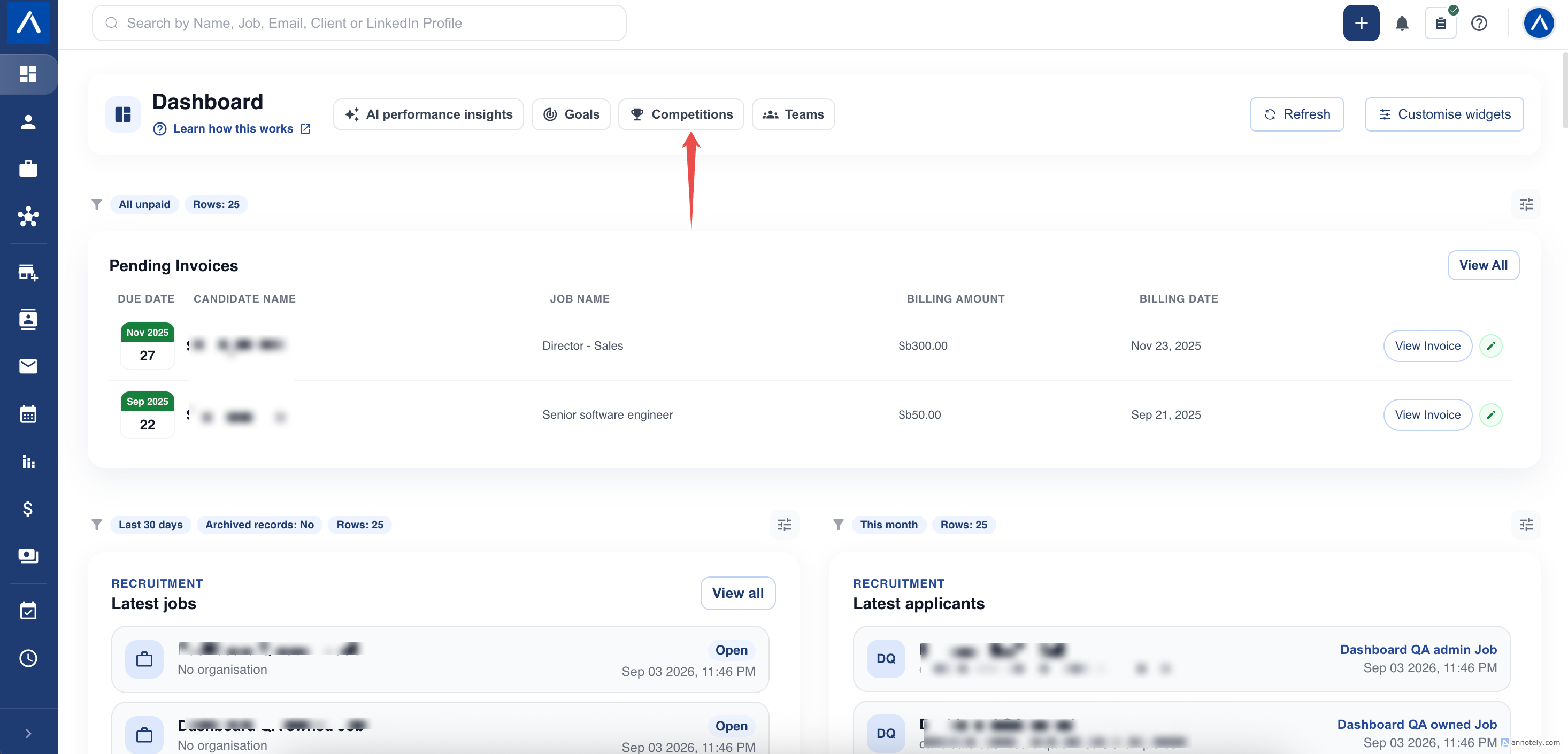
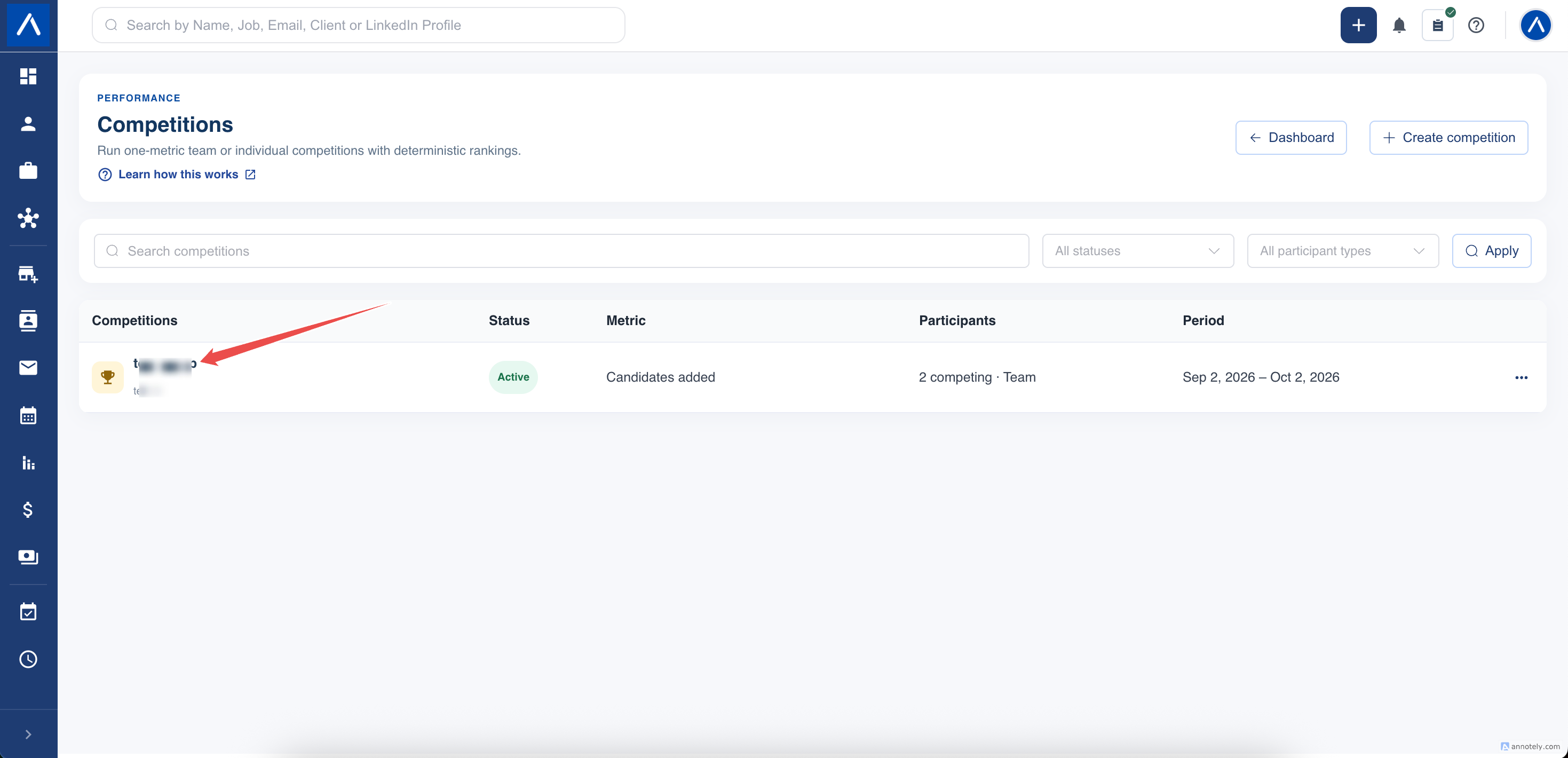
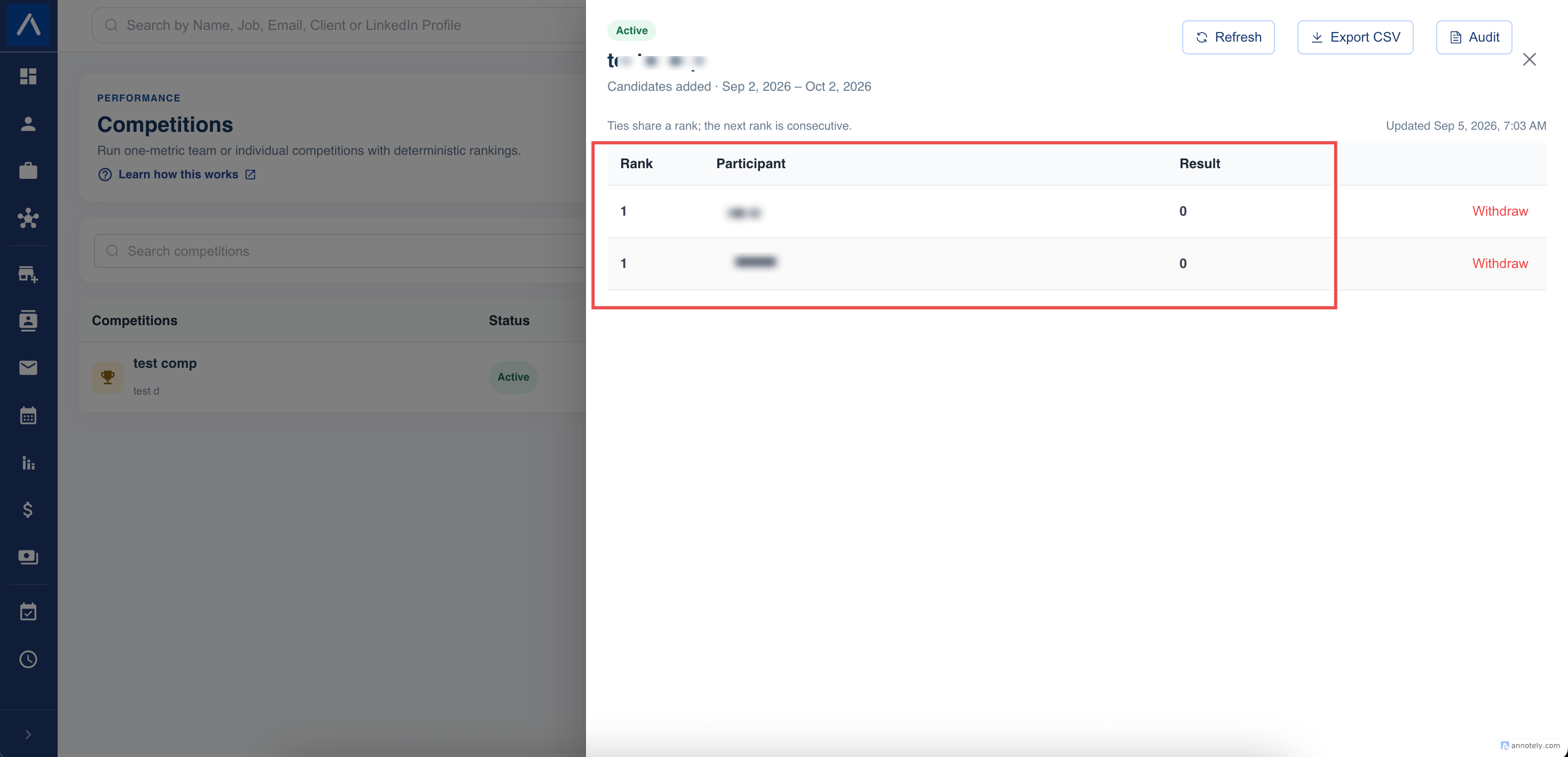
Open Competitions and select the competition. Review its metric, period, status, and participant scores.
Higher eligible totals rank ahead of lower totals. Equal scores share a rank. For example, scores of 10, 10, and 8 produce ranks 1, 1, and 2.
A score is a result under the selected rules, not a complete assessment of a recruiter’s performance. Work outside the metric or date range is not included.
Follow the Podium on Home
- Open Dashboard.
- Make sure Competition podium is enabled in Customise widgets.
- Open the widget’s settings.
- Choose a competition you can access.
- Save the settings.
The podium highlights the leading three ranks. Ties share their rank, and zero scores do not create podium winners.
Understand Team Scores
Team competitions use the roster fixed at activation. Adding a recruiter to the team later does not add them to that competition’s scoring roster.
This differs from ordinary live Team-only record access, which follows current membership. A person can lose access after leaving a team even though the competition retains its historical roster.
Withdraw or Cancel Carefully
Authorized users can withdraw a participant from an upcoming or active competition. Their existing result remains in history, their score stops progressing, and they are excluded from active rankings.
Cancellation stops the competition while retaining its latest results. It does not erase the underlying recruitment records.
Use these actions for genuine participation changes, not to adjust the scoreboard by deleting CRM data.
Review Completed Results
After the competition ends and completion is processed, review the final leaderboard. Eligible participants and the creator receive an in-app completion notification.
If a finalized result needs correction, an authorized manager can use the available recalculation action and provide a reason. The correction is recorded so the earlier result is not silently lost.
Export the Leaderboard and Review Changes
If your role permits exports, open the leaderboard and select Export CSV to download its results.
Use Audit to review recorded changes and corrected result versions. Authorized competition managers can also review the fixed team roster there for activated team competitions.
A downloaded leaderboard is not a public share link. Keep employee-performance results within the intended audience.
Troubleshooting
For an unexpected score, check the KPI definition, dates, time zone, archive setting, and participant roster. Newly recorded work may need a refresh before it appears.
For a missing participant, check whether they were selected, withdrawn, or excluded because of current access. If a notification opens an unavailable competition, ask your administrator to review current permissions; a notification does not override access controls.
FAQs
How are ties ranked?
Equal scores share a rank. For example, scores of 10, 10, and 8 receive ranks 1, 1, and 2.
Why is the podium empty when participants are listed?
Participants with zero activity can appear on the leaderboard, but a podium needs positive scores.
Does a withdrawn participant disappear from history?
No. Their previous result is retained and frozen, but they are no longer ranked as an active competitor.