
Sharing jobs to the Client Portal lets clients view jobs and candidate lists online without needing internal ATZ CRM access.
Quick Answer
Open the job, go to Submit Candidate, and select Online Candidate List. ATZ CRM shares the job with active Client Portal contacts in the organization.
Before You Start
The Client Portal is an add-on feature of ATZ CRM, available separately from the standard subscription. For access or pricing details, contact support from in-app chat or email support@atzcrm.com.
Before sharing a job, confirm:
- The job has a primary contact.
- The primary contact is linked to the correct organization.
- The organization is active on the Client Portal.
- The client contact has accepted or can access the Client Portal.
Step 1: Open the Jobs Page
Log in to ATZ CRM and go to Jobs from the main menu.
Step 2: Select the Job
Choose the active job you want to share with the client.
Step 3: Confirm the Client Portal Contact
Make sure the primary contact is added and belongs to an organization active on the Client Portal. You can check this from the job details page or edit job page.
If the contact is not ready, review: Invite contacts to the Client Portal.
Step 4: Choose Online Candidate List
Go to the job details page, click Submit Candidate, and select Online Candidate List.
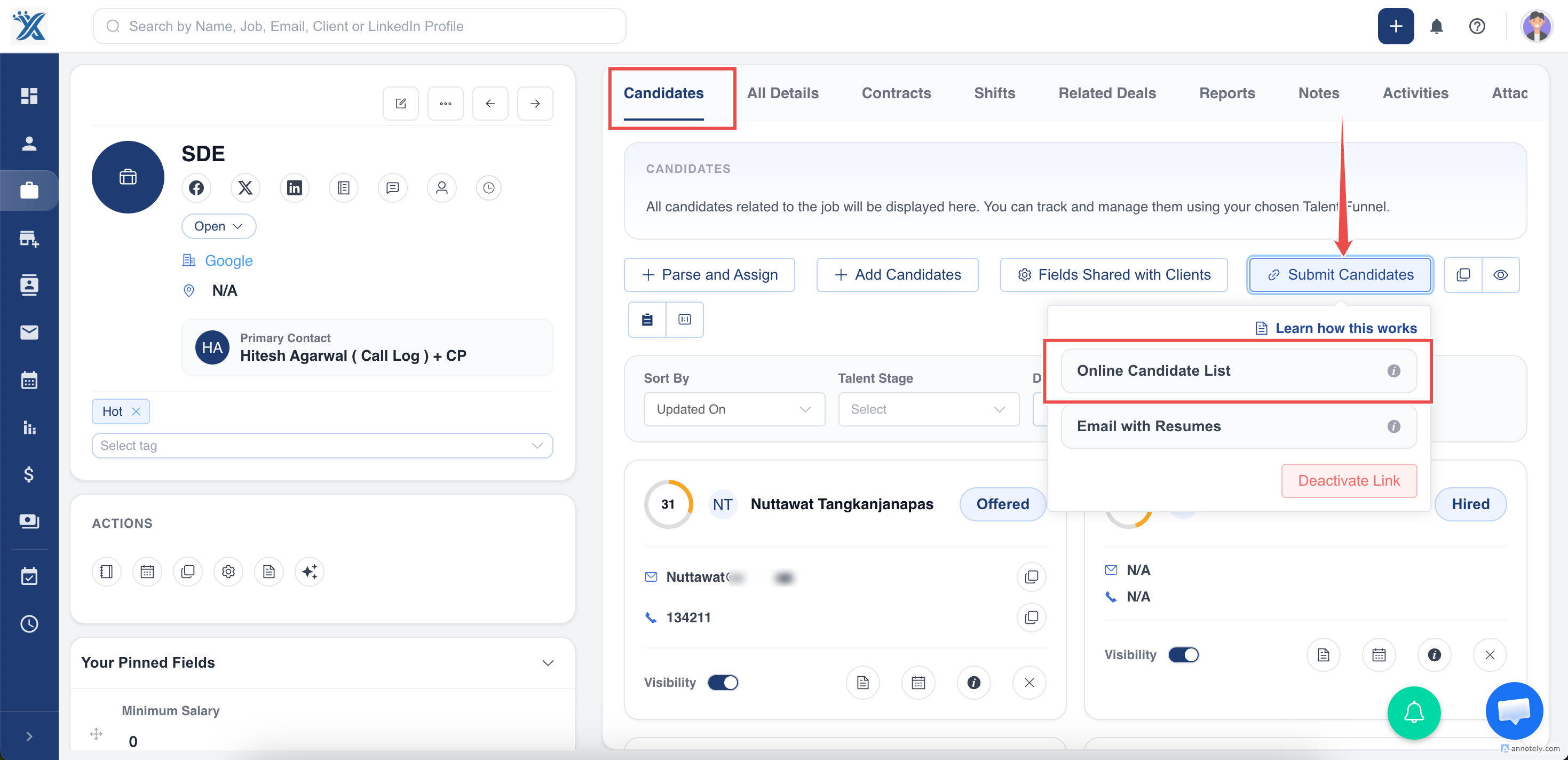
The job is shared with the organization contacts who are active on the Client Portal.
What Clients See
After the job is shared, client users can open the portal and view the job from their job list. They can then review submitted candidates through the candidate pipeline when candidates are available.
Use Cases
Client Candidate Review
Share the job when the client needs to review submitted candidates online.
Transparent Hiring Collaboration
Use the portal to reduce manual email updates and keep job collaboration in one place.
Multi-Contact Client Access
When several active contacts belong to the organization, the job can be visible to the relevant client-side stakeholders.
Troubleshooting
The Job Does Not Appear in the Client Portal
Ask the client to refresh the portal dashboard. Also confirm the job was shared using Online Candidate List and that the organization is active on the portal.
Online Candidate List Is Not Available
Check that the job has a primary contact and the contact is linked to an active Client Portal organization.
The Wrong Client Can See the Job
Review the job’s primary contact and organization assignment. Update the job details if the wrong client relationship was selected.
FAQs
Does sharing a job also share candidates?
The job becomes available in the portal. Submitted candidates can then be reviewed through the client-side candidate pipeline.
Can clients update candidate stages from the portal?
Yes, when the candidate pipeline is available for the shared active job and the allowed stages are configured by the recruiter.
Can inactive portal contacts see shared jobs?
No. The contact must be active on the Client Portal to access shared job information.