
After creating an email sequence, you can enroll eligible candidates or contacts, customize pending steps, track enrollment status, and unenroll records when needed.
Quick Answer
Open the sequence details page, click Enroll Contacts/Candidates, select records, review eligibility, choose sender email and starting step, customize pending steps if needed, and confirm enrollment.
Availability and Permission Requirements
Sequencing is available on the Business plan. Free and Pro users can create only 1 sequence.
Only account owners, admins, and users with the right custom role permissions can create and manage sequences.
The enrolling user must have an email account connected to ATZ CRM.
Enroll Candidates or Contacts
Open the sequence details page and click Enroll Contacts/Candidates. Select the records you want to enroll.
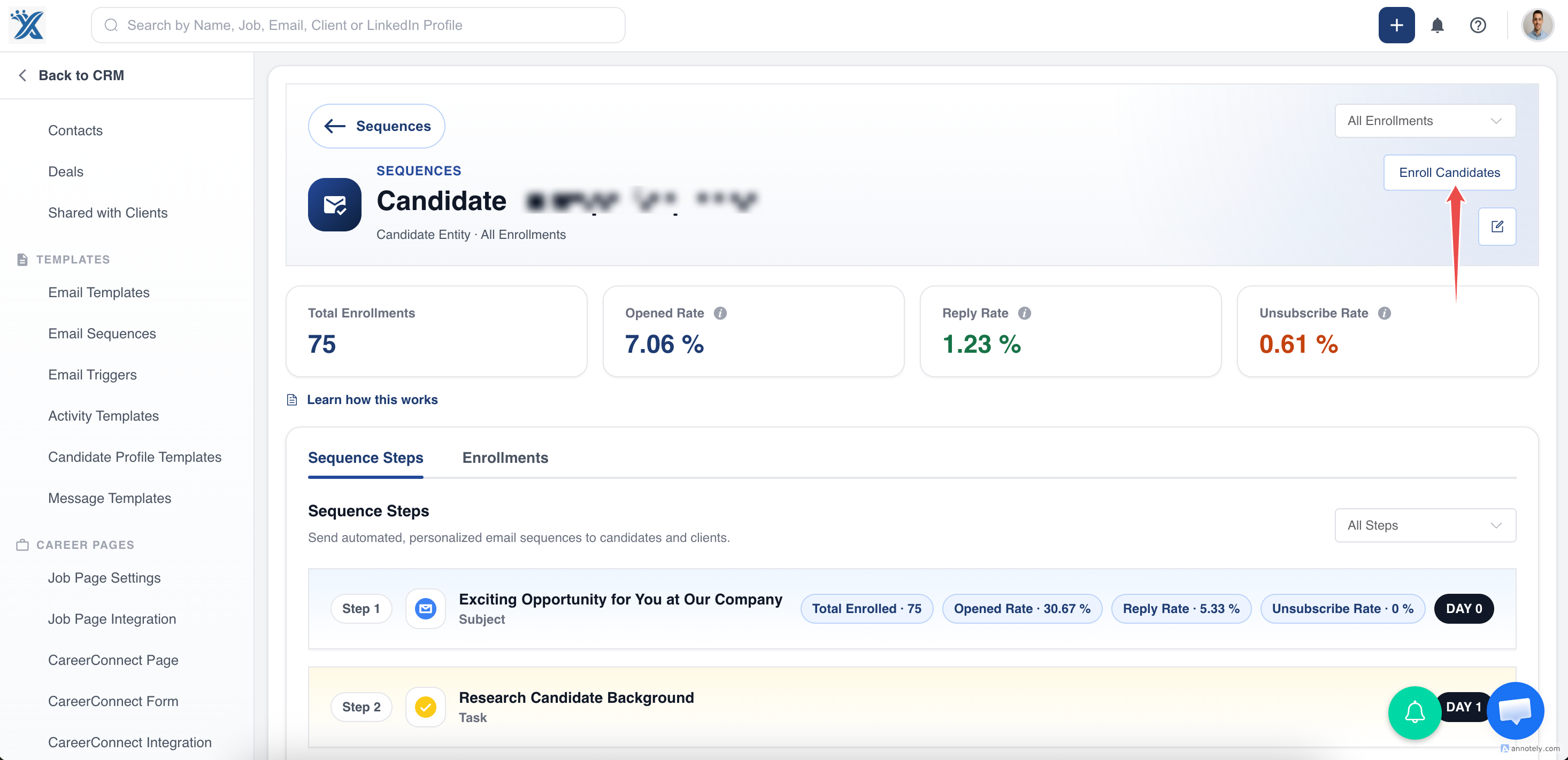
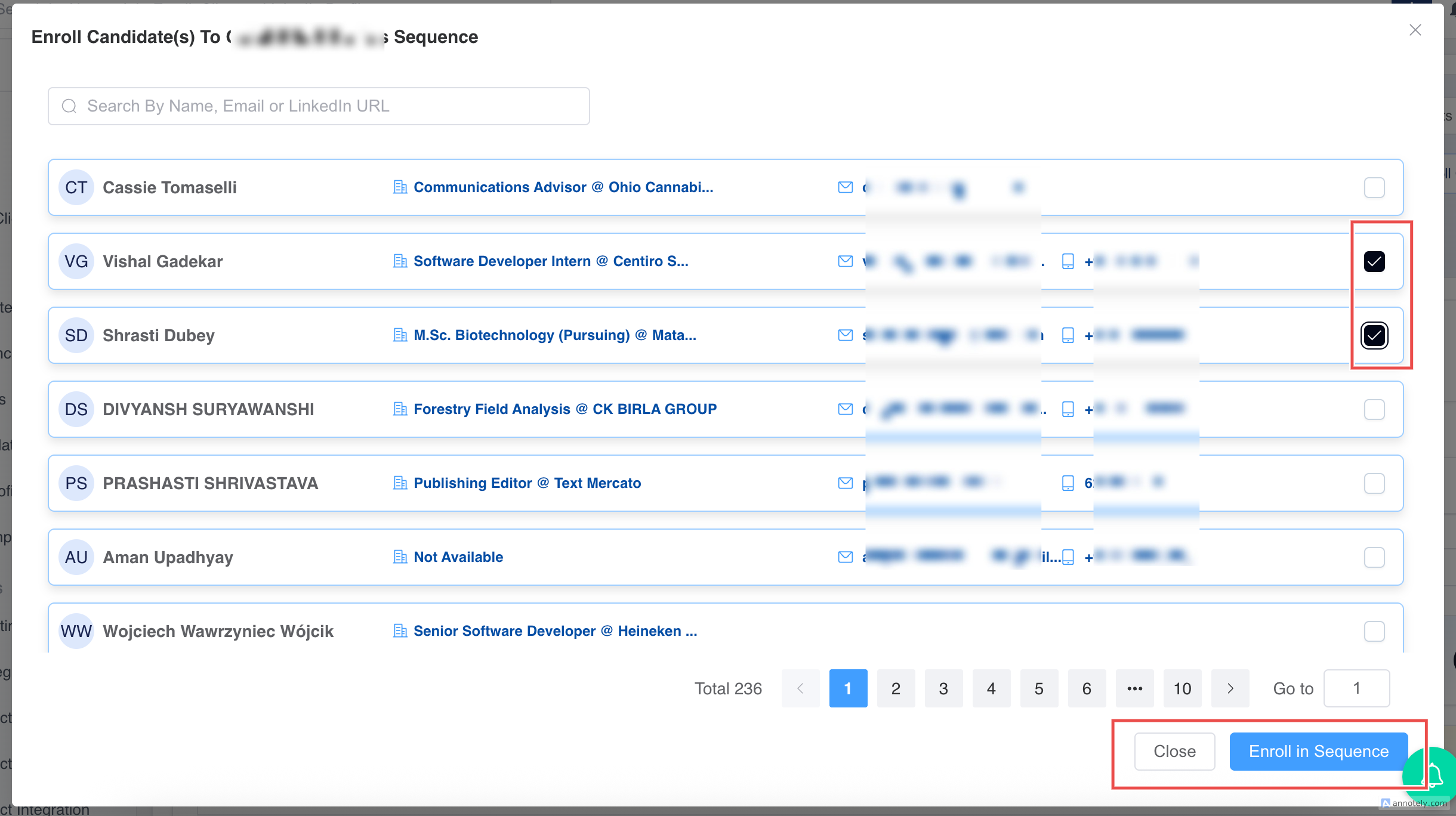
You can also enroll from the Jobs page, which includes the primary contacts associated with the job.
Review Eligibility
ATZ CRM shows selected records and excludes records that cannot be enrolled.
Excluded records include:
- Records that opted out of emails.
- Records already enrolled in another sequence.
- Records without an email address.
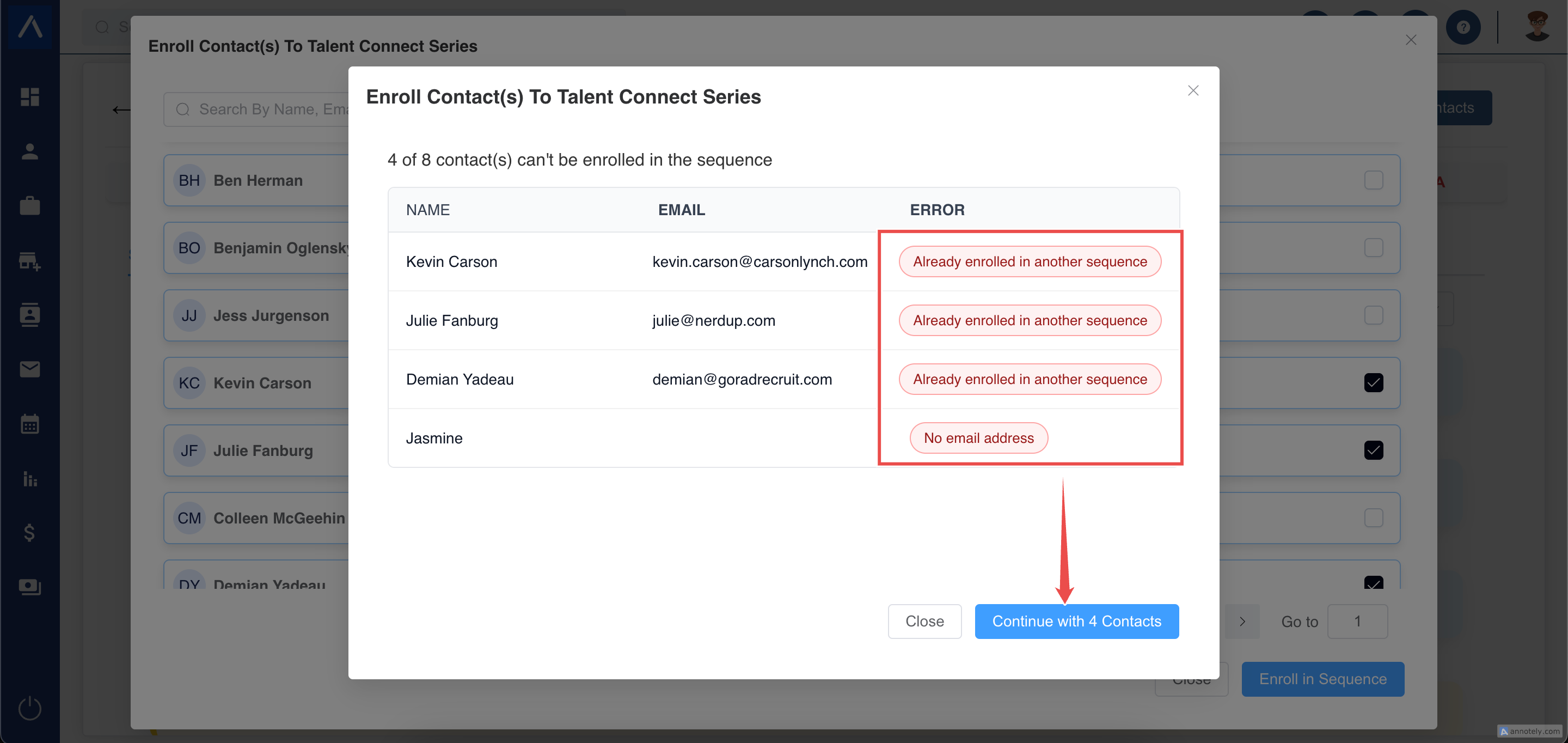
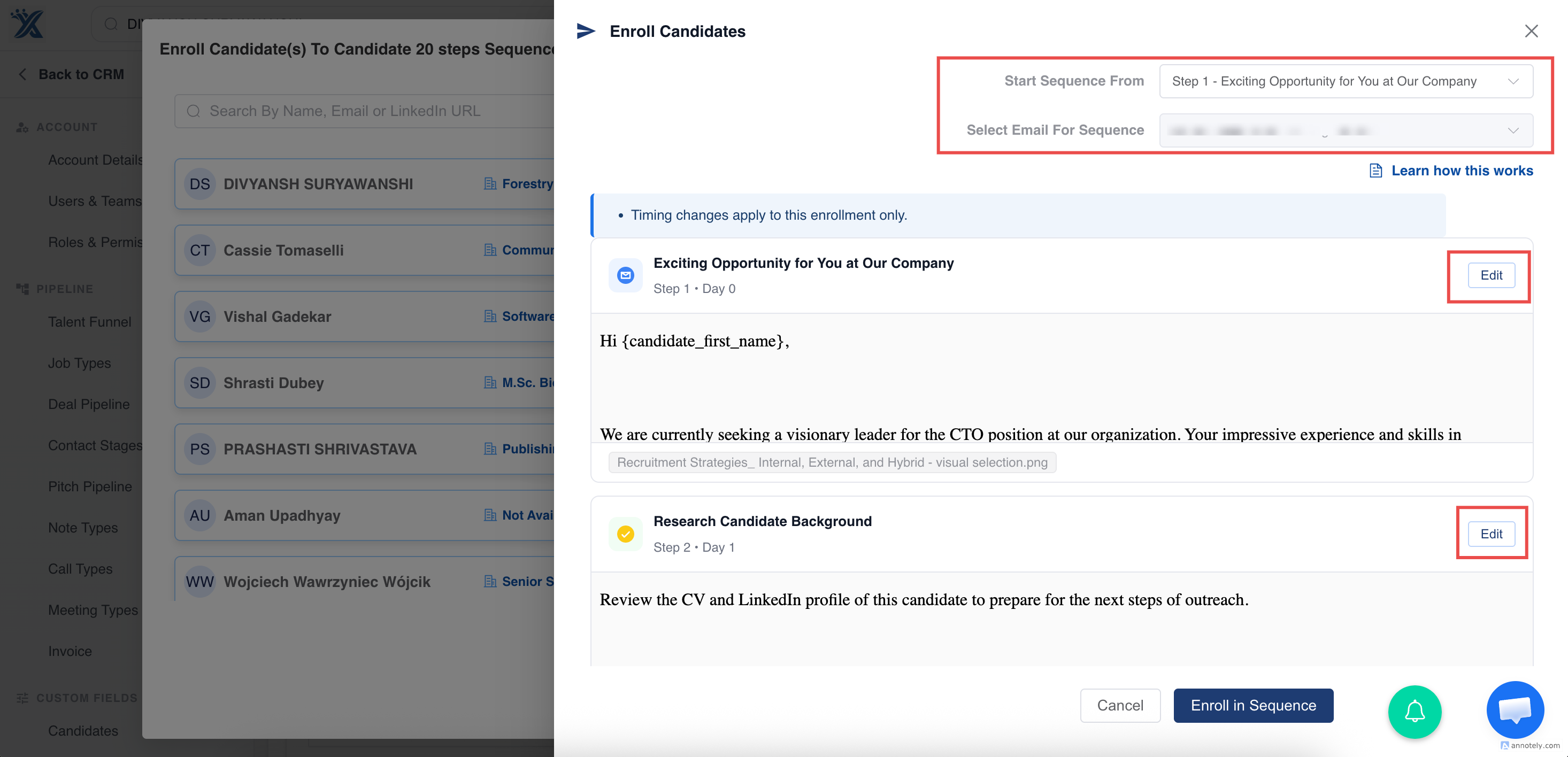
Edit Sequence Steps Before Enrollment
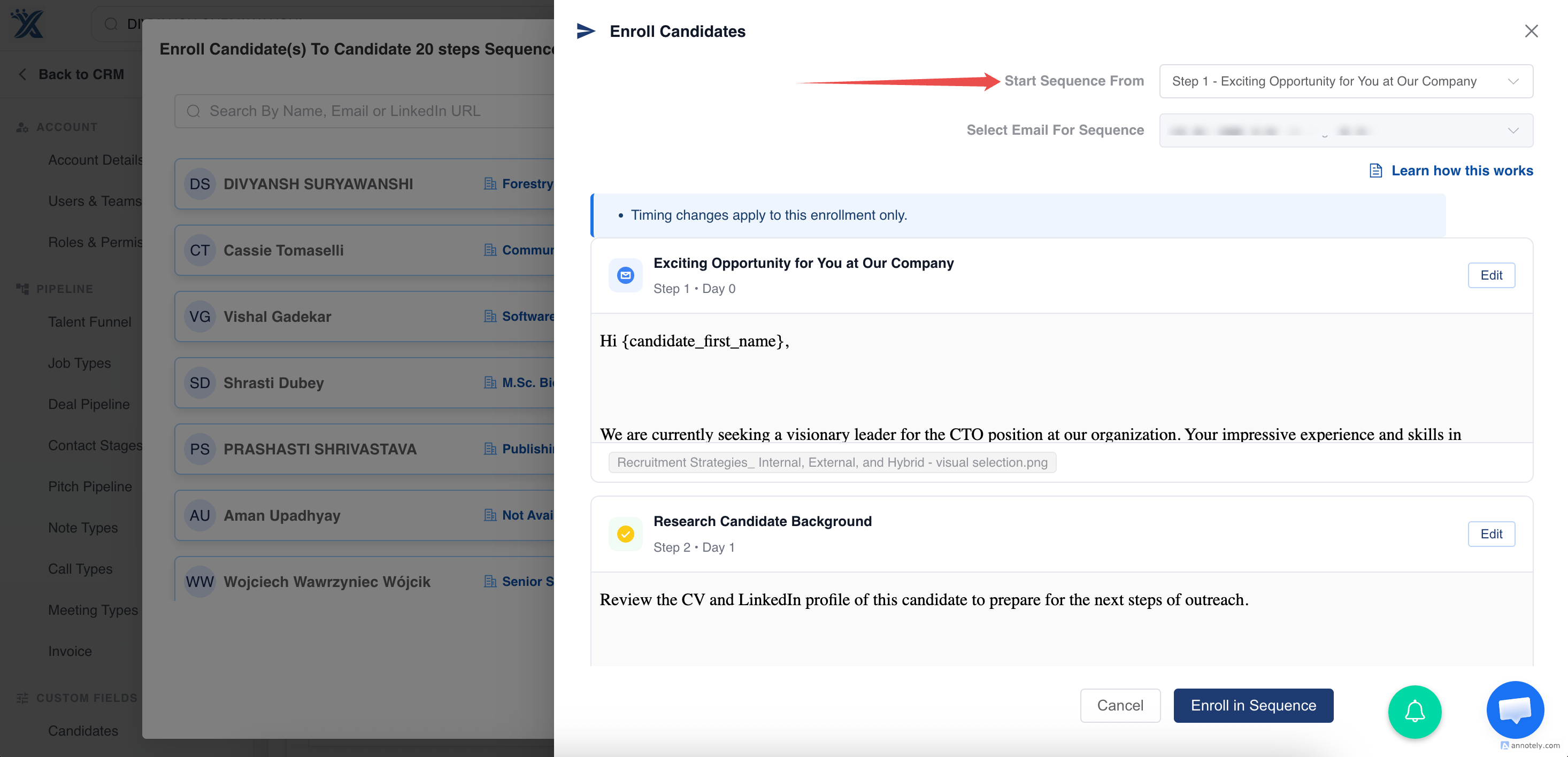
Click the down arrow next to a sequence step to edit timing, subject, body, or other step details.
Preview Placeholders
Preview dynamic placeholders, such as {{First Name}}, before enrolling records.
Placeholders may appear highlighted in red in the preview but not in the actual email. For bulk enrollments, the preview uses data from the first selected record.
Choose Sender Email and Starting Step
If you have multiple email accounts connected, choose which email address should send the sequence.
Use Start Sequence From to begin from a later step if earlier steps should be skipped.
Customize Each Enrollment
Before confirming enrollment, you can edit subject, body, attachments, and content for each contact or candidate.
Customization applies only to steps that have not yet been executed.
Track Enrollment Status
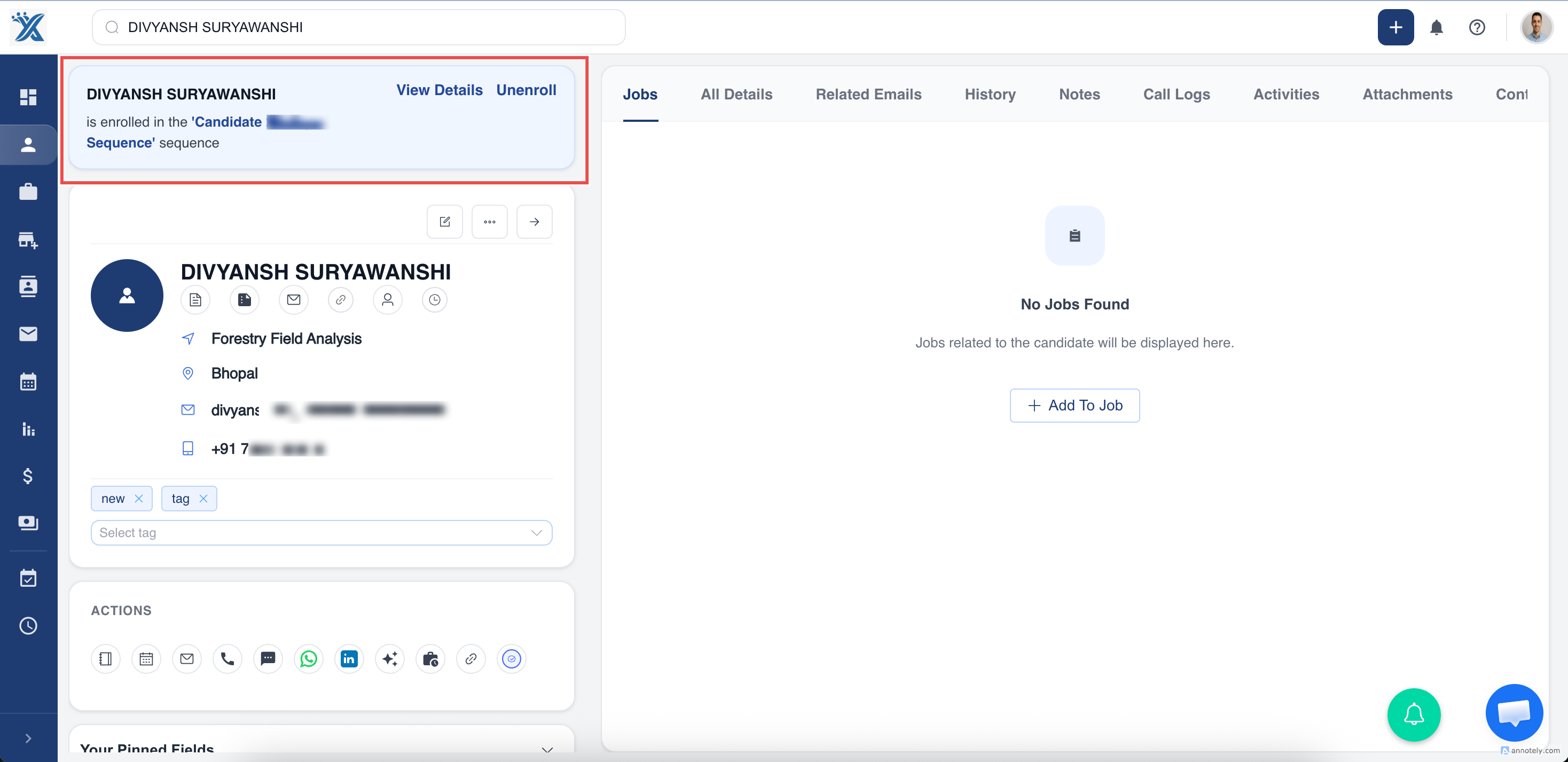
After enrollment, a banner appears on the candidate or contact profile showing the sequence name and current status.
Unenroll Contacts or Candidates
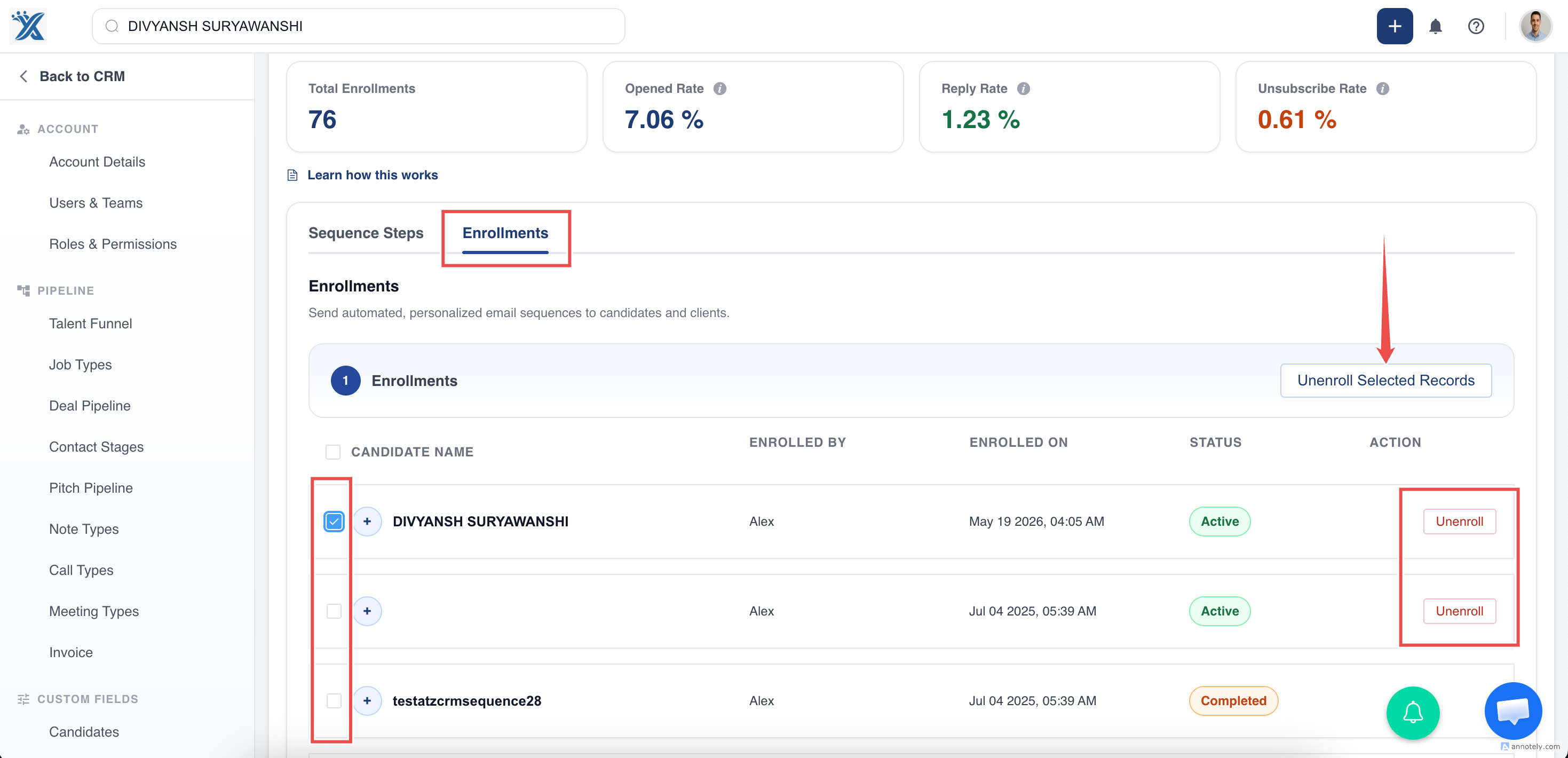
A record is automatically unenrolled when:
- The recipient replies to any email in the sequence.
- The recipient opts out with the unsubscribe link.
- A user manually unenrolls the record.
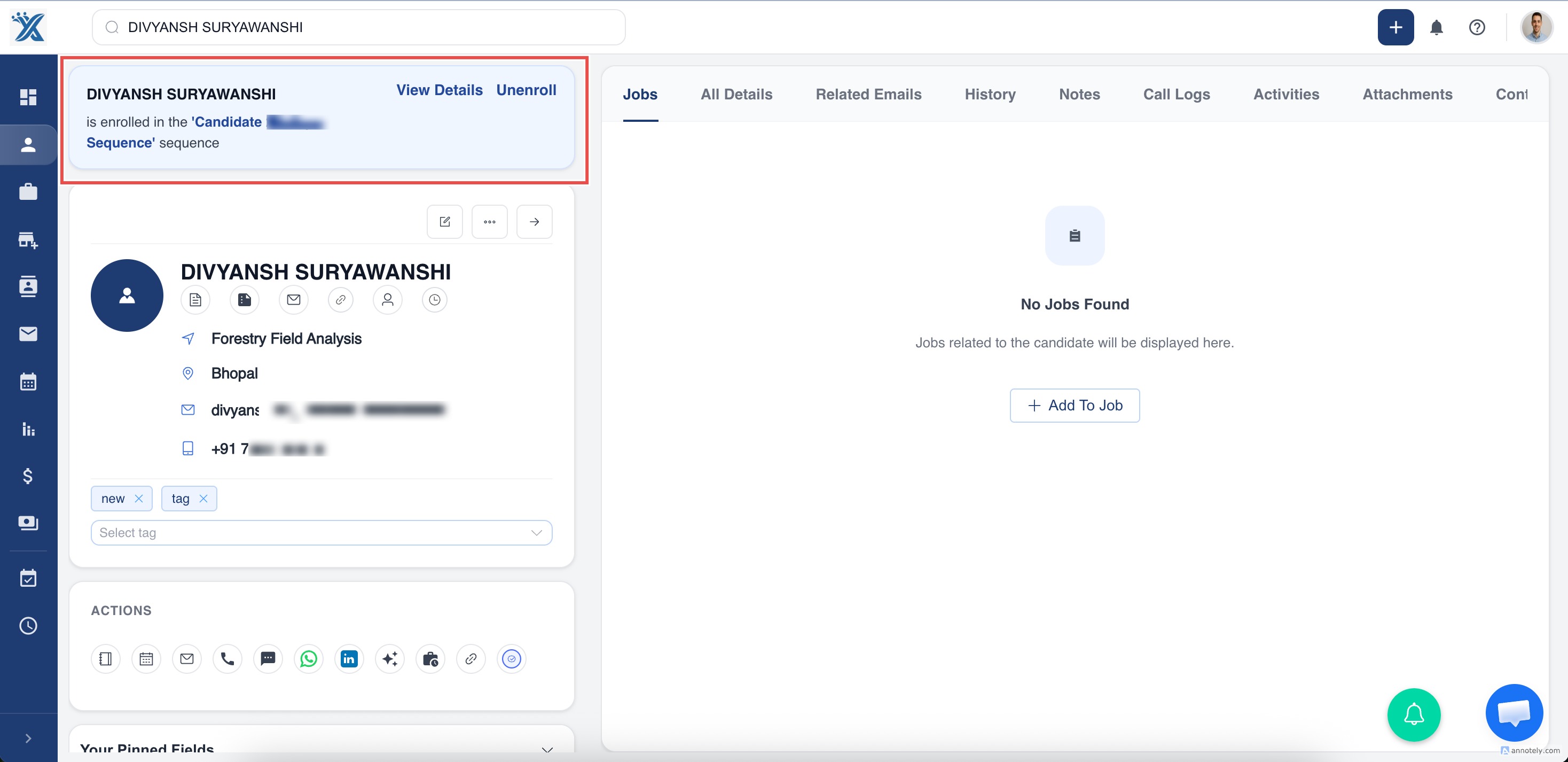
You can also unenroll from the candidate or contact detail page.
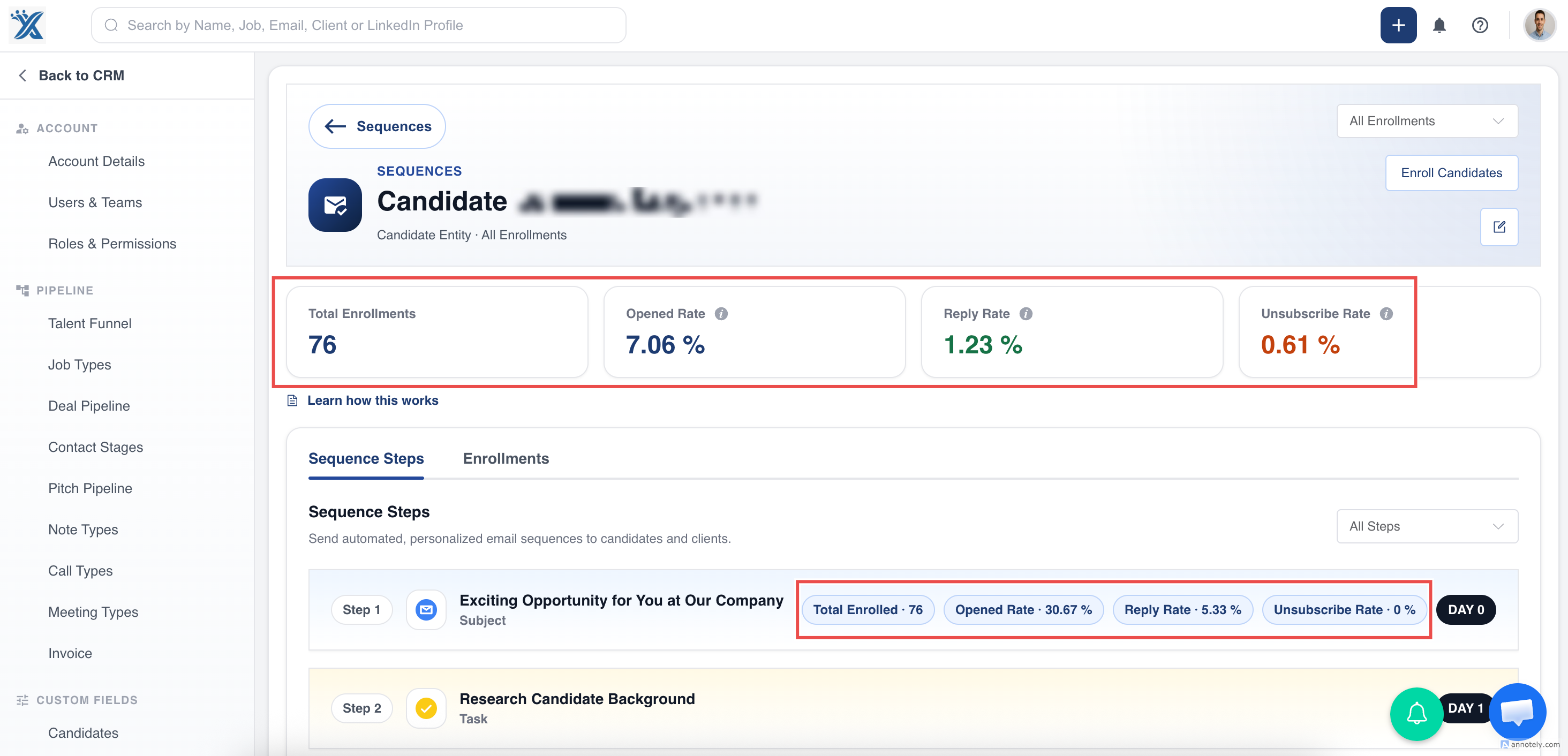
Manage Active Enrollments
The sequence detail page shows:
- Total currently enrolled records.
- Remaining quota for new enrollments.
- Sequence-level and step-level stats.
Troubleshooting
Sequence Cannot Be Triggered
Confirm the enrolling user has a connected email account. Sequence emails use that user’s email settings.
Records Are Missing from Enrollment
Check whether they opted out, lack email addresses, or are already enrolled in another sequence.
Edits Did Not Affect Existing Enrollments
Edits to a sequence apply only to new enrollments.
FAQs
Can I enroll candidates and contacts from jobs?
Yes. You can enroll from the Jobs page, which includes primary contacts associated with that job.
Can I customize a sequence for one recipient?
Yes. You can edit pending step content before confirming enrollment.
How do I monitor quota?
Use the Email Sequence Detail Page to view current enrollments and remaining quota.