
ATZ CRM lets you send emails directly from candidate and contact profiles so communication stays connected to the right record.
Quick Answer
Open the candidate or contact profile, click the email icon, connect your email if prompted, select a template if useful, customize the message, and click Send.
Step 1: Open the Candidate or Contact
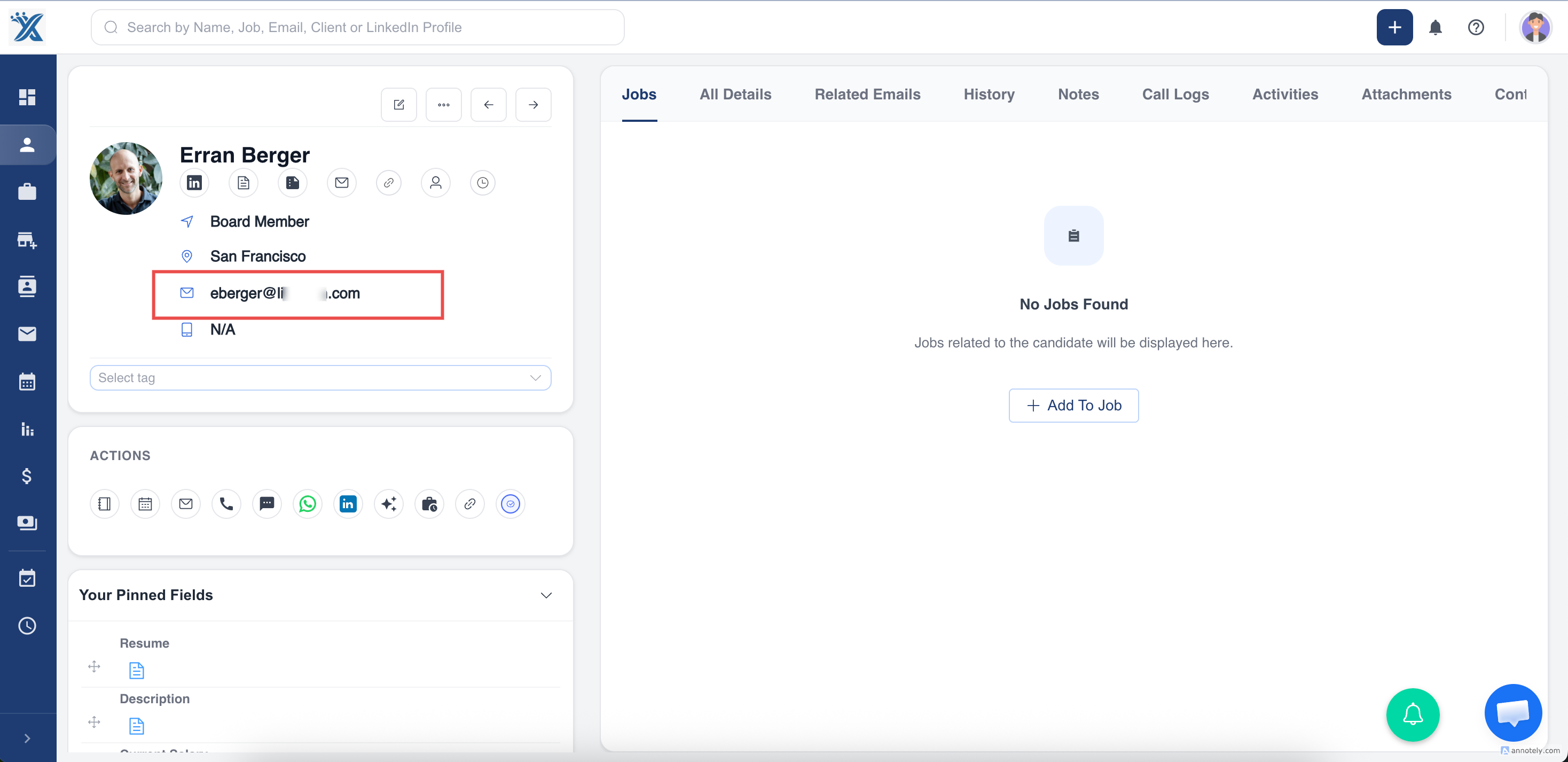
Navigate to the candidate or contact profile and confirm the record has a valid email address.
If no email address is present, you cannot send an email from the profile.
Step 2: Open the Email Composer
Click the email icon or email button on the profile.
Step 3: Connect Your Email if Needed
If your email account is not connected, ATZ CRM shows a connection prompt.
Follow: Email and calendar integration.
Step 4: Use an Email Template
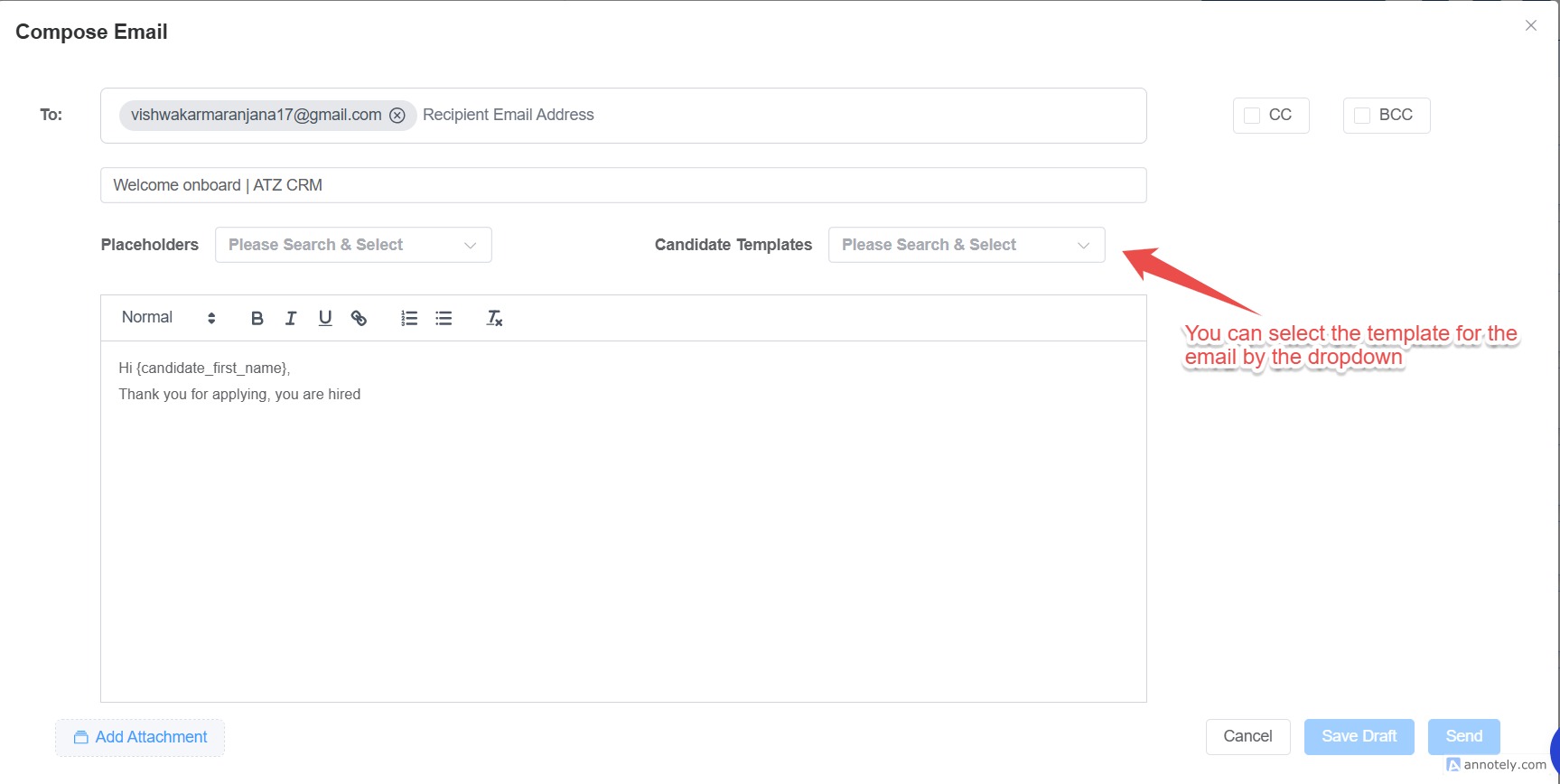
After the composer opens, select a predefined template if you want to reuse approved messaging.
Step 5: Send the Email
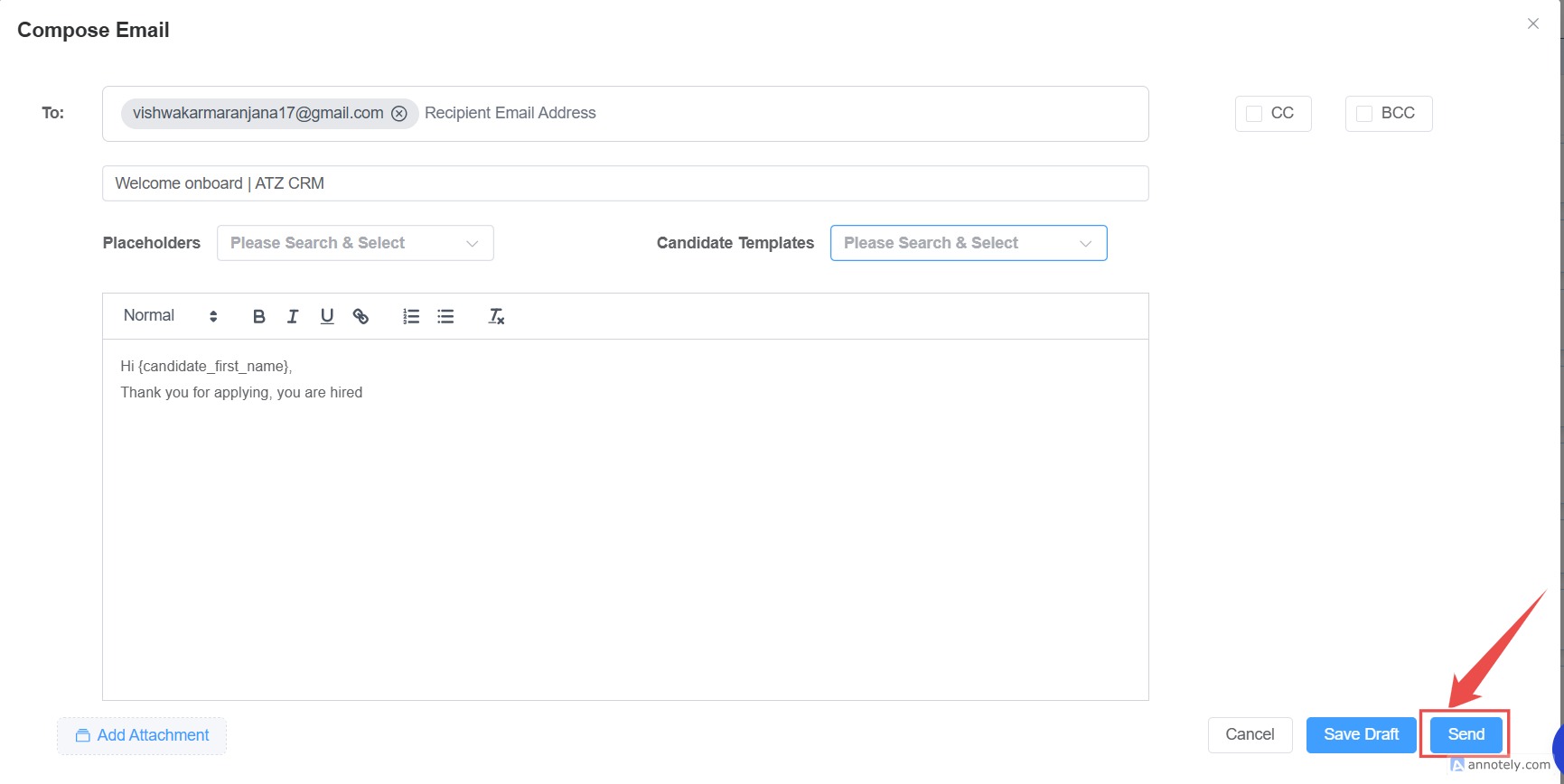
Customize the email as needed and click Send.
Use Cases
Candidate Follow-Up
Send interview details, status updates, document requests, or job information.
Client Communication
Email contacts about candidate pitches, requisitions, meetings, and next steps.
Template-Based Outreach
Use templates for consistent messages while still personalizing each email.
Troubleshooting
The Email Button Does Not Work
Check whether the record has a valid email address and whether your email account is connected.
Template Data Looks Blank
Verify the candidate or contact record contains the fields used by the template placeholders.
Email Was Sent but Not Visible
Check the sent folder and related emails on the profile. Sync may take time depending on provider.
FAQs
Can I email both candidates and contacts?
Yes. The profile email workflow works for both candidates and contacts with valid email addresses.
Can I track opens?
Yes, when open tracking is enabled and the recipient’s email client loads tracking images.
Can I send email without connecting my account?
No. A connected email account is required to send from ATZ CRM.