
What Candidate Job Assignment Means
Assigning a candidate to a job connects the candidate profile with a specific hiring pipeline. This allows recruiters to track the candidate’s stage, comments, submissions, interviews, and outcome for that role.
Use this workflow when a candidate should be considered for an open job, submitted to a client, moved through screening, or reviewed in the Matches module.
Assign a Candidate to a Job
Open the Candidate Profile
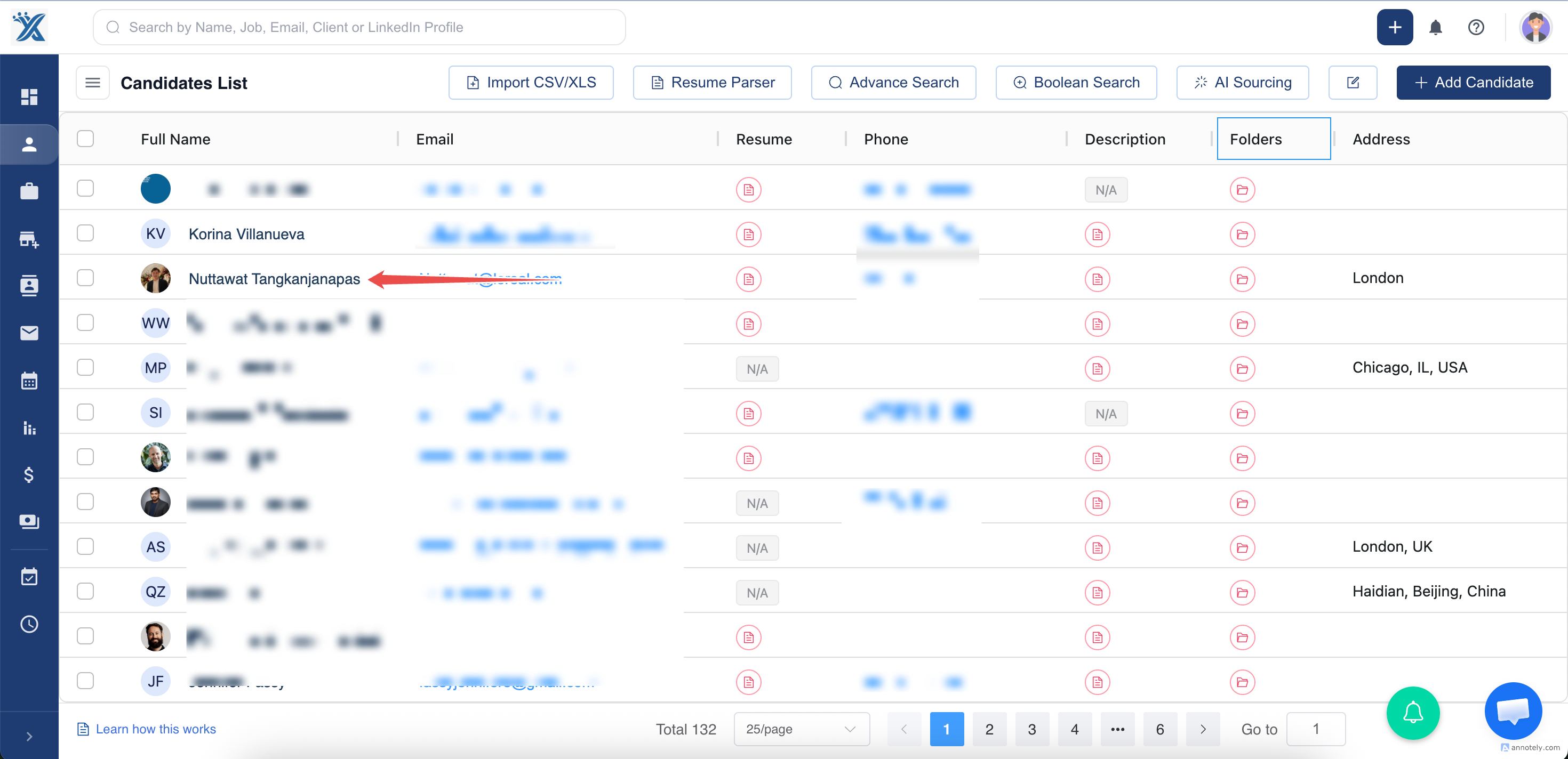
Go to Candidates, search for the candidate, and open the candidate detail page.
Select Add to Job
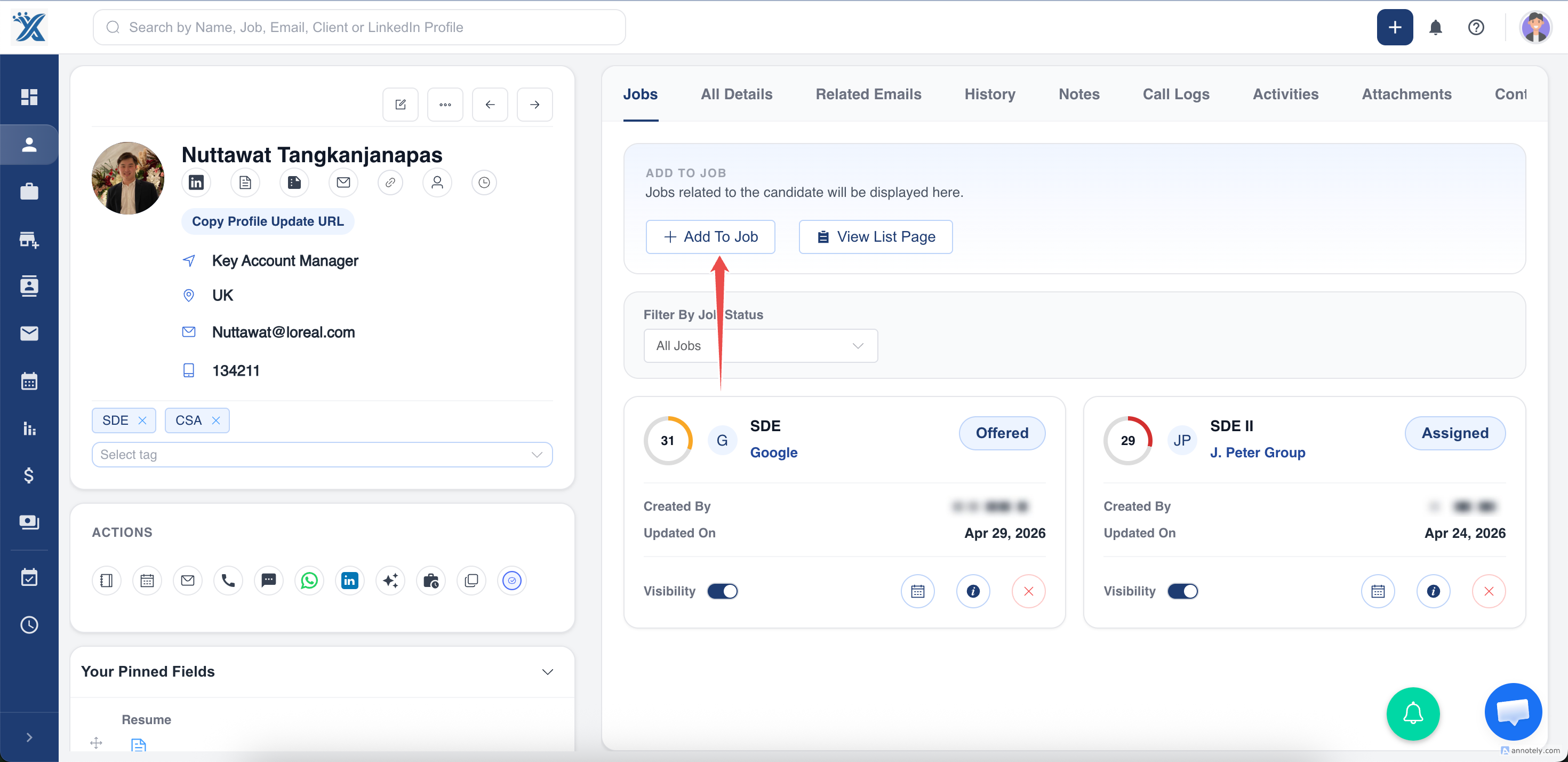
Open the Jobs tab on the candidate profile and select Add to Job.
Choose the Job
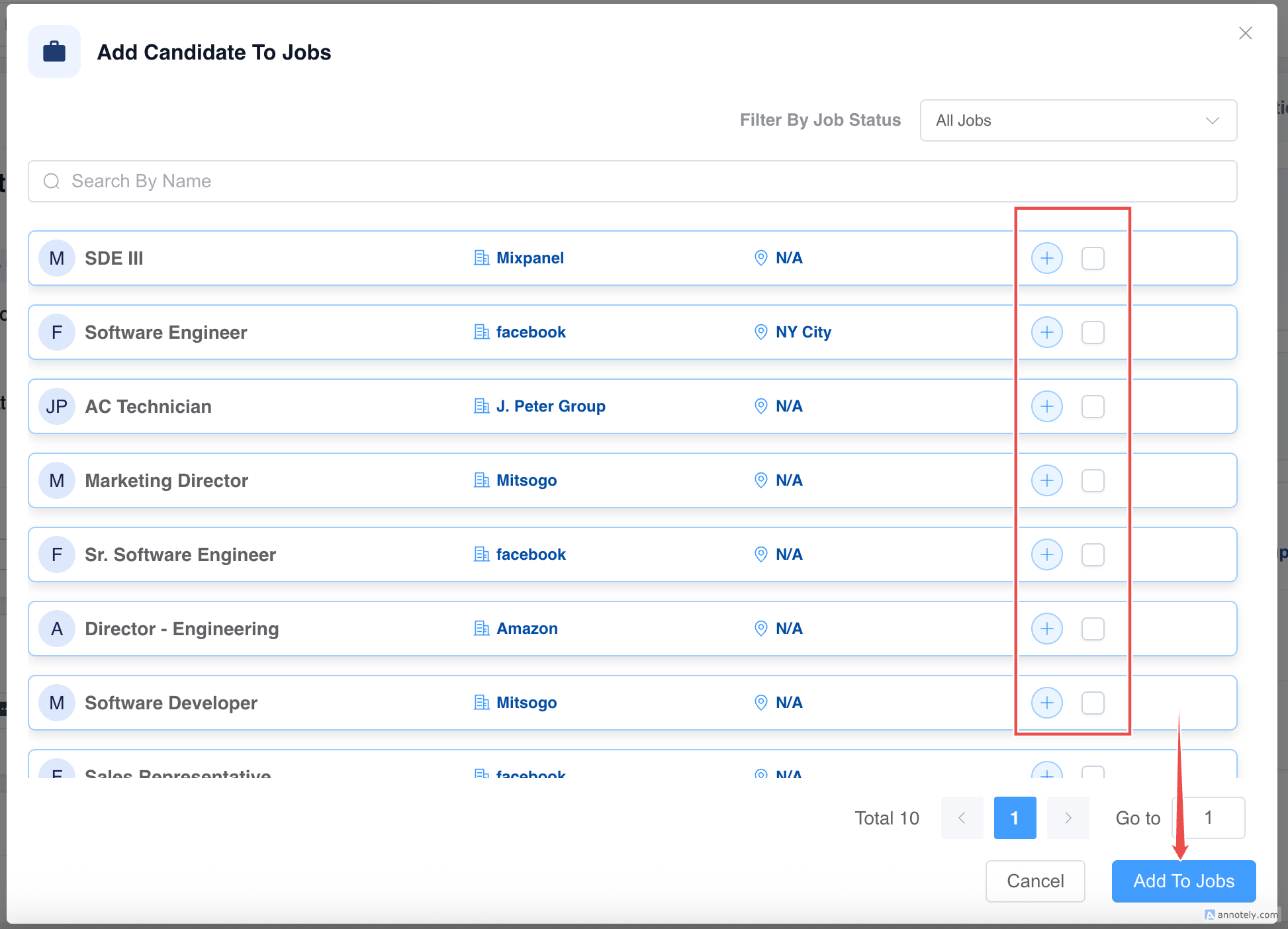
Search, filter, and select the jobs you want to assign the candidate to. Then select Add Jobs.
Unassign a Candidate from a Job
- Go to Jobs.
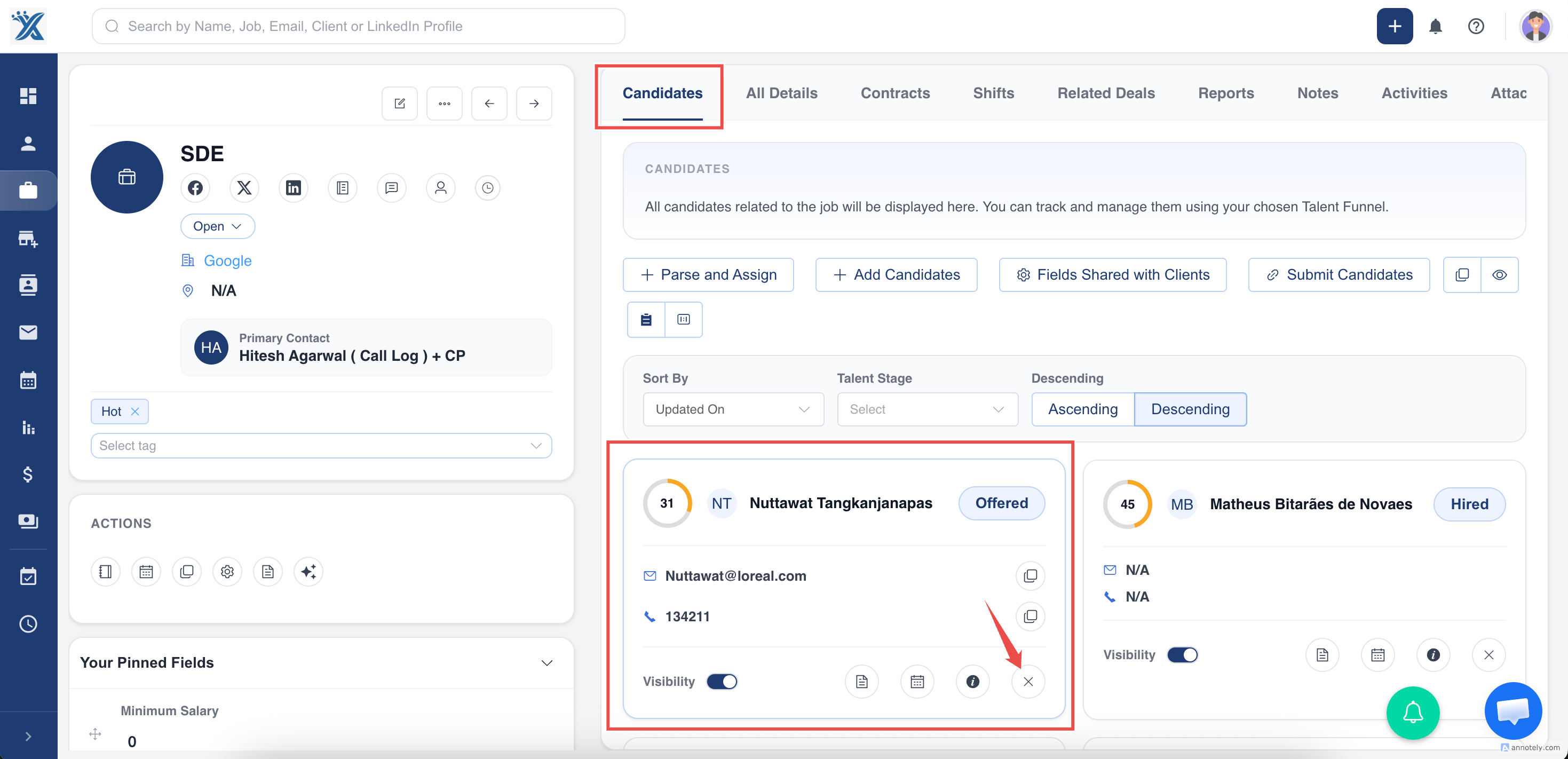
- Open the job where the candidate is currently assigned.
- Find the candidate in the job’s candidate list or board.
- Select the unassign or remove action.
- Confirm the action when prompted.
Use Cases
Shortlisting Candidates
Assign candidates to jobs when they meet basic requirements and should enter the job pipeline.
Multiple Role Fit
Assign one candidate to several suitable jobs while tracking each job match separately.
Pipeline Cleanup
Unassign candidates who are no longer relevant for a role so job boards and reports stay accurate.
Troubleshooting
I Cannot Find the Job
Check your job filters, job status, and access permissions. You may only see jobs your role can access.
The Candidate Appears in the Wrong Stage
After assigning, update the candidate’s talent stage from the job pipeline or candidate profile.
I Removed the Candidate by Mistake
Assign the candidate to the job again. If stage history or comments are important, check with your admin or support team before making repeated changes.
Frequently Asked Questions
Is assignment the same as submission?
No. Assignment connects the candidate to a job pipeline. Submission usually means the candidate has been shared with a client or hiring stakeholder.
Can I view all assignments in one place?
Yes. Use the Matches module to see candidate-job assignments across jobs.
Will unassigning affect the candidate profile?
No. The candidate profile remains in ATZ CRM unless you delete the candidate record separately.