
Teams help you organize recruiters by desk, region, practice area, or another shared responsibility. The same groups can support Team-only record access, reporting, goals, and competitions.
Teams are available on Free, Business, and Enterprise plans, subject to administrative permissions. They are not available on Pro.
Create a Team
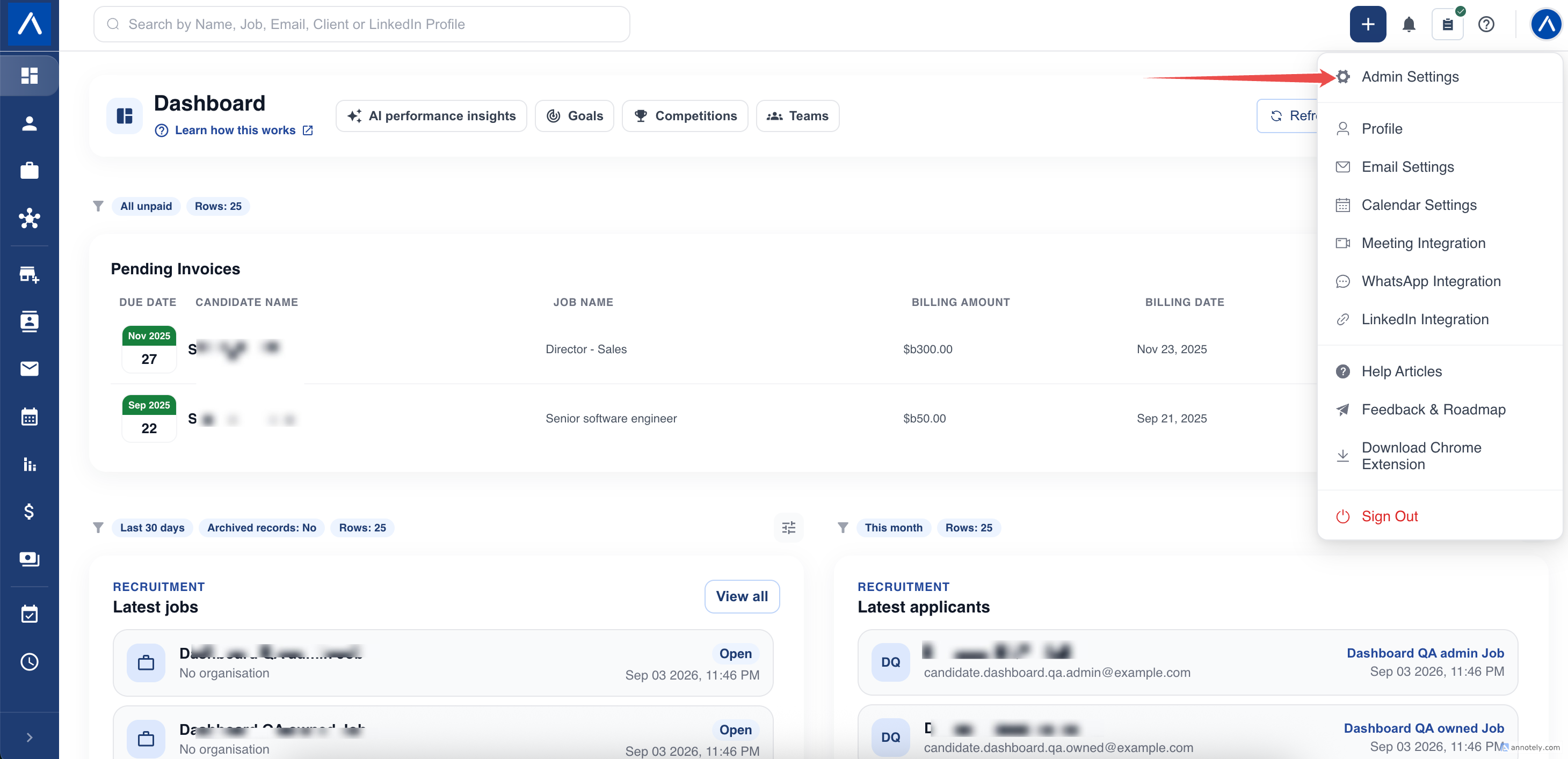
- Open Admin Settings.
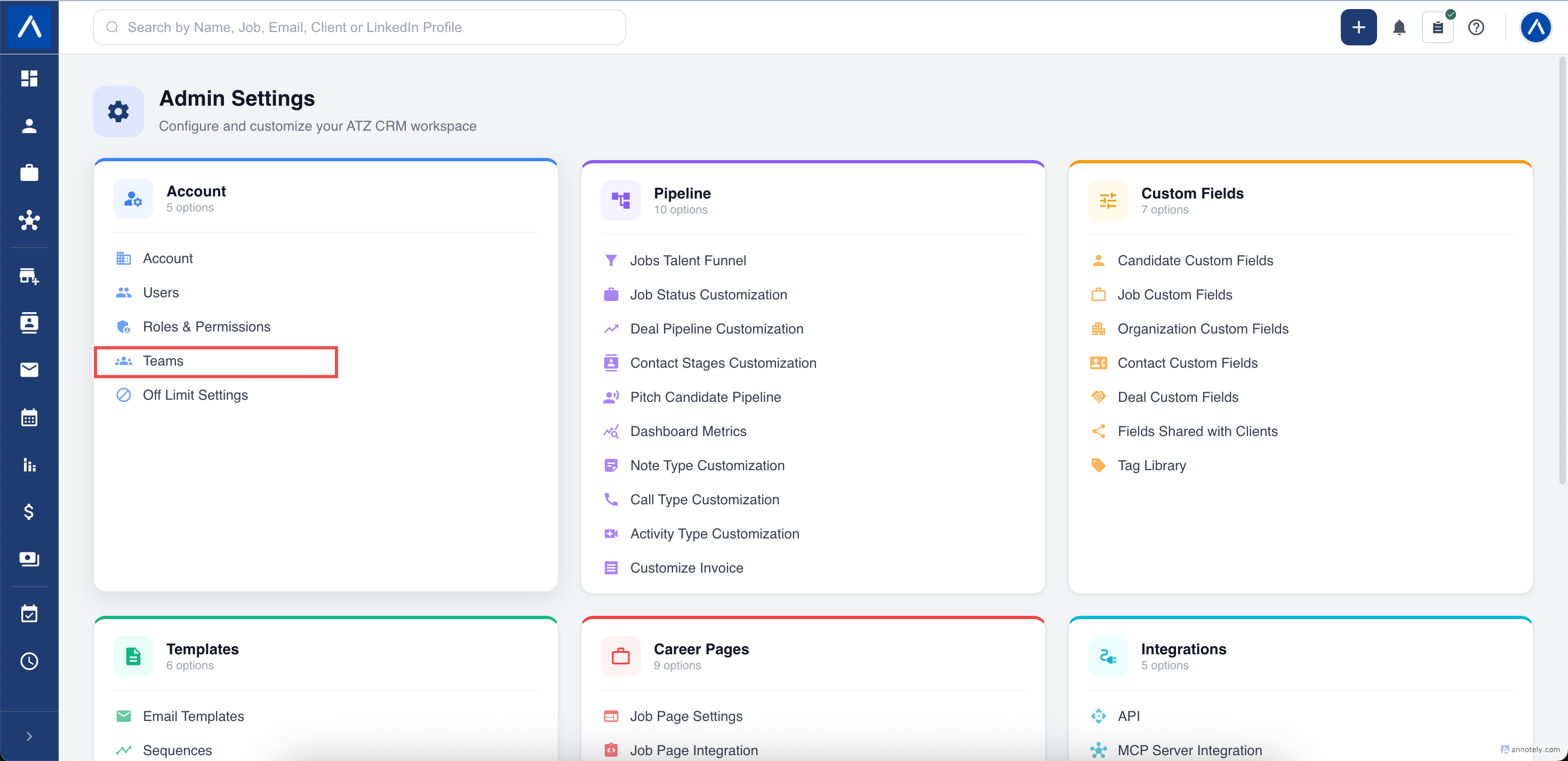
- Select Teams.
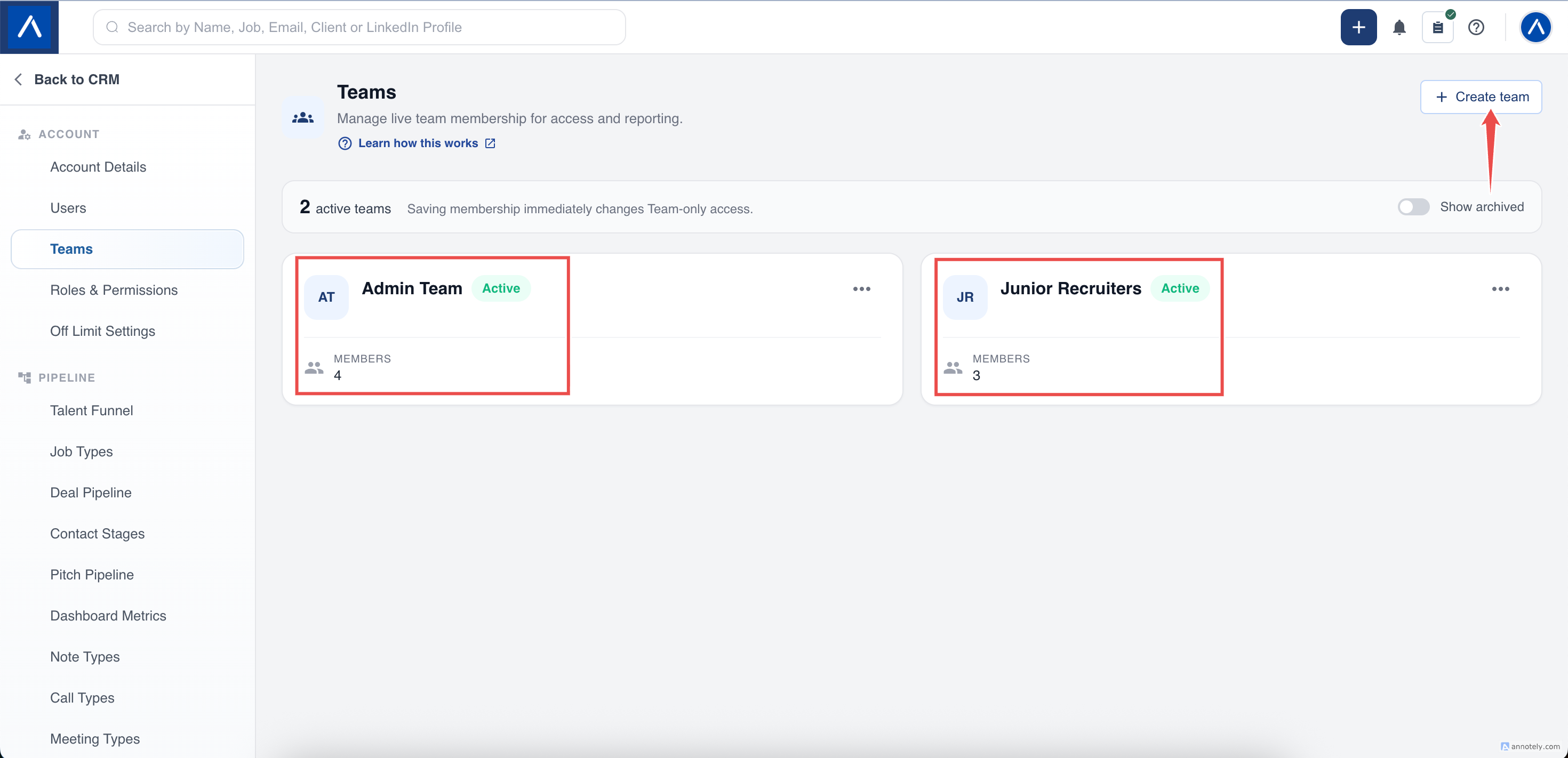
- Select Create team.
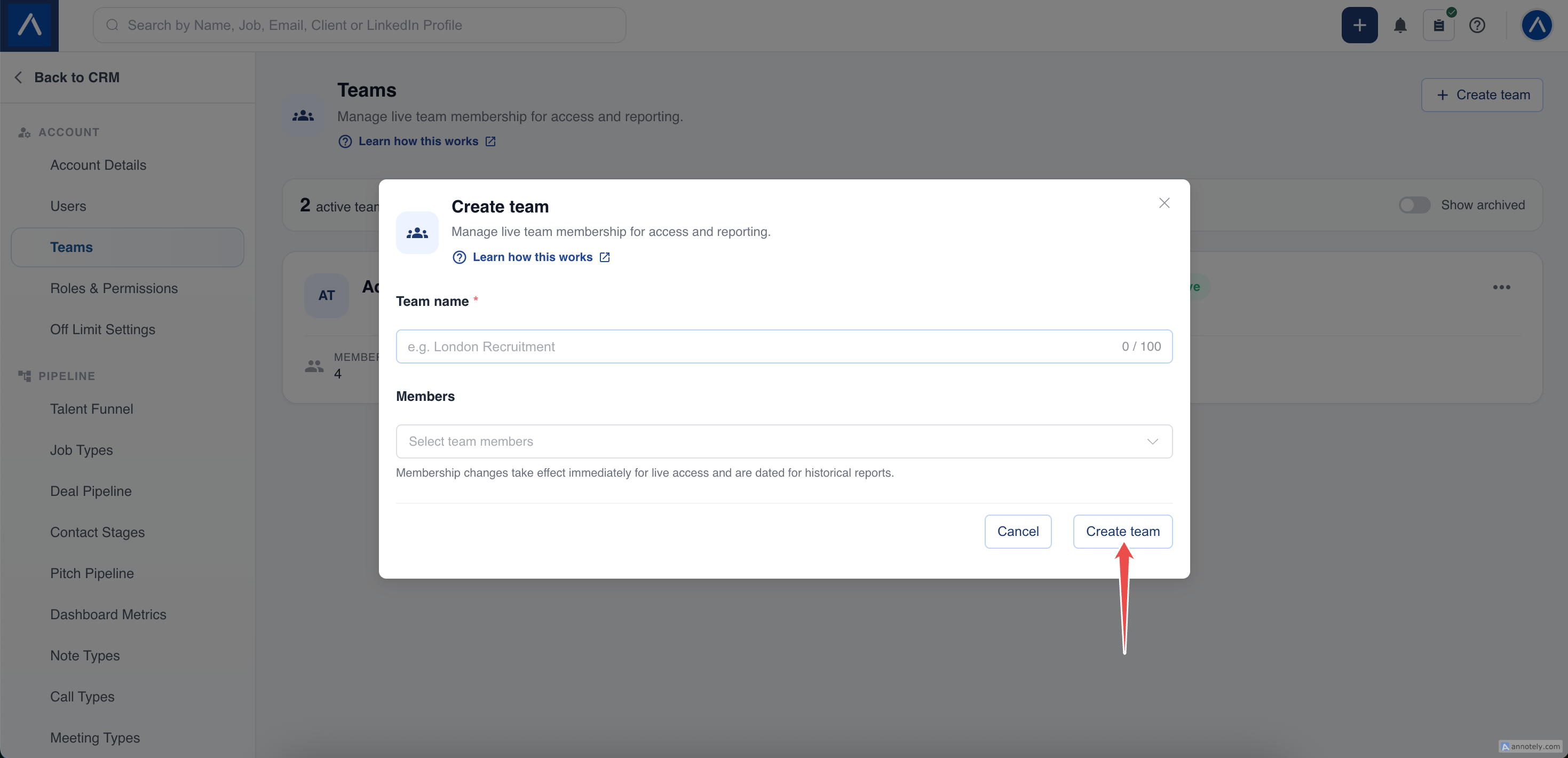
- Enter a clear team name.
- Choose the active users who belong to it.
- Save the team.
For example, use names such as Technology Recruitment or London Temporary Staffing so users can recognize the group in report filters.
A team has a name and members. There is no separate team-manager field, and creating a team does not assign a new role to its members.
Edit Membership
Open the team’s edit action, update its name or selected members, and save.
A user may belong to more than one team. Review all their memberships when deciding what shared records they should be able to access.
Membership changes affect live Team-only access immediately. Removing someone from a team can remove access to records they could previously open through that team.
Archive a Team
Archive a team when it should no longer be used as an active group. Use Show archived when you need to find archived teams in the list.
Archiving ends the team’s contribution to live Team-only access. It retains membership history rather than deleting recruitment records.
Review any goals, report filters, and competitions that use the team before making the change.
Connect Teams to Permissions
Team membership alone does not grant permission to view, edit, or delete records. Configure the appropriate role actions in Roles and Permissions.
For example, a recruiter can have Team-level viewing but Owned-level editing. They may read a colleague’s accessible candidate but still be unable to edit it.
See Understand Team-only Permissions for examples.
Understand Reporting History
Live record access uses current active membership. Historical team activity uses membership dates so a transfer today does not simply move all earlier activity to the new team.
Activated team competitions are different: they retain the roster fixed at activation. Editing the team later does not rewrite that competition’s scoring lineup.
Troubleshooting
If a user is unavailable in the member picker, check that they are active in this account. If you cannot create or edit teams, ask your administrator to check plan and management permissions.
If a team cannot participate in a competition, check that it has eligible active members and does not overlap with another competing team.
FAQs
Can someone belong to more than one team?
Yes. A user can be a member of multiple teams. Their role still controls what actions they may perform.
Do I need to choose a team manager?
No. A team consists of a name and selected members. Management actions are controlled by role permissions, not a team-manager field.
Are Teams available on Pro?
No. Teams and Roles and Permissions are not available on Pro accounts.