
Add a Contact
Use manual contact creation when you need to add a hiring manager, client stakeholder, vendor contact, or business development contact directly into ATZ CRM.
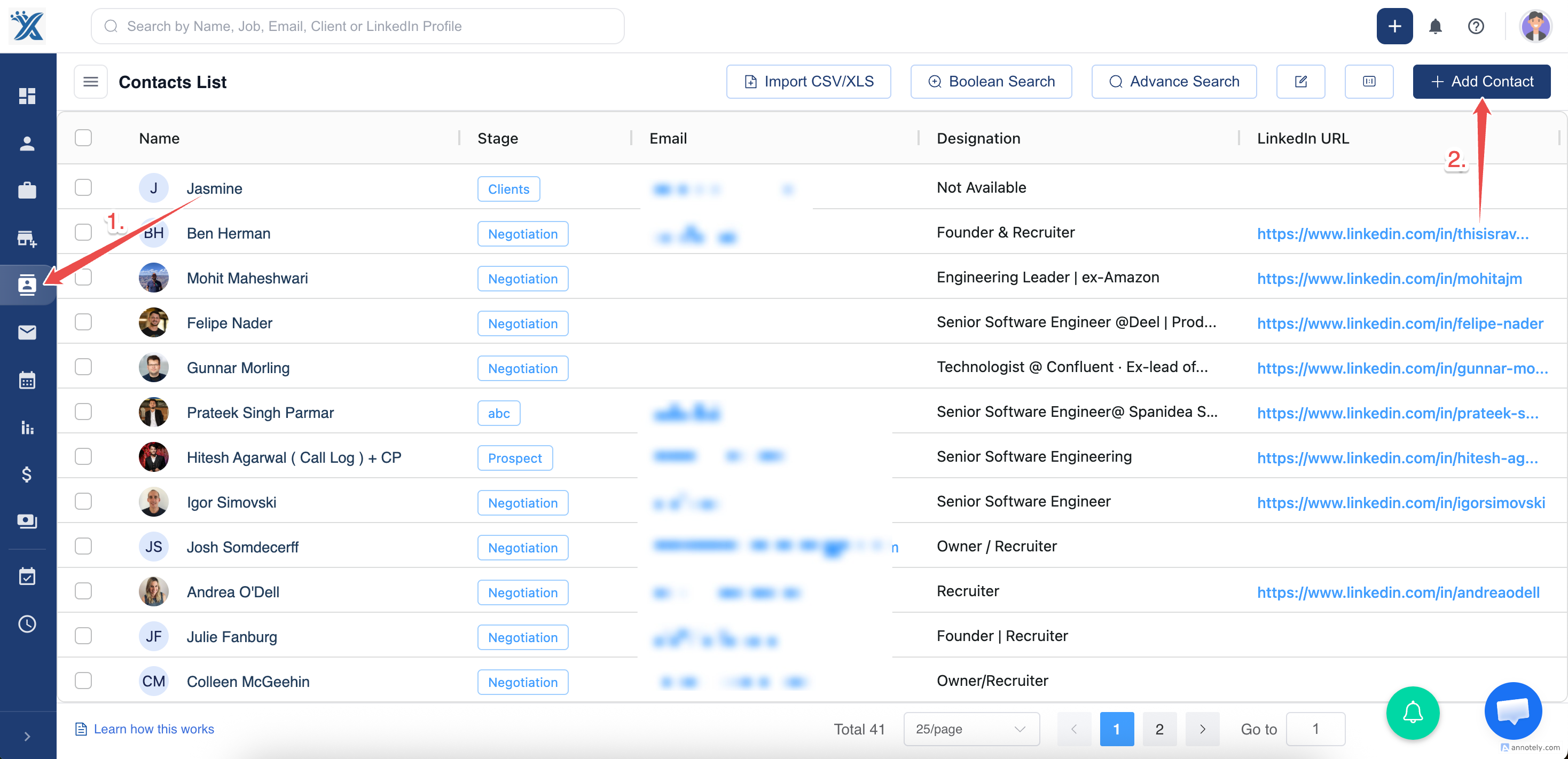
Step 1: Open Contacts
Log in to ATZ CRM and open the Contacts section.
Step 2: Select Add Contact
Click Add Contact to open the contact form.
Step 3: Enter Contact Details
Fill required fields such as name, email, phone, stage, owner, and any custom fields your team uses.
If the contact belongs to a company, search and select the organization in the organization field.
Step 4: Save the Contact
Review the details and select Create.
Use Cases
- Add a new hiring manager after a client call.
- Add a contact before inviting them to the Client Portal.
- Create a contact and then link it to an existing candidate profile if they are the same person.
Troubleshooting
Organization Is Missing
Create the organization first or import organizations before adding related contacts.
Duplicate Contact Warning Appears
Review existing contacts before creating a new one.
Contact Cannot Be Invited to Client Portal
Make sure the contact has a valid email and is linked to an organization.
Frequently Asked Questions
Can I add contacts in bulk?
Yes. Use CSV/XLS import for larger contact lists.
Can contacts have stages?
Yes. Contact stages can help track relationship progress.
Can contacts become candidates?
Yes. Use linked candidate/contact records when the same person exists in both contexts.