
Custom IMAP settings let you connect non-standard email providers to ATZ CRM through Nylas.
Quick Answer
Open Email Settings, choose Custom IMAP Settings, enter host, port, email credentials, and login. After verification, your mailbox syncs into ATZ CRM.
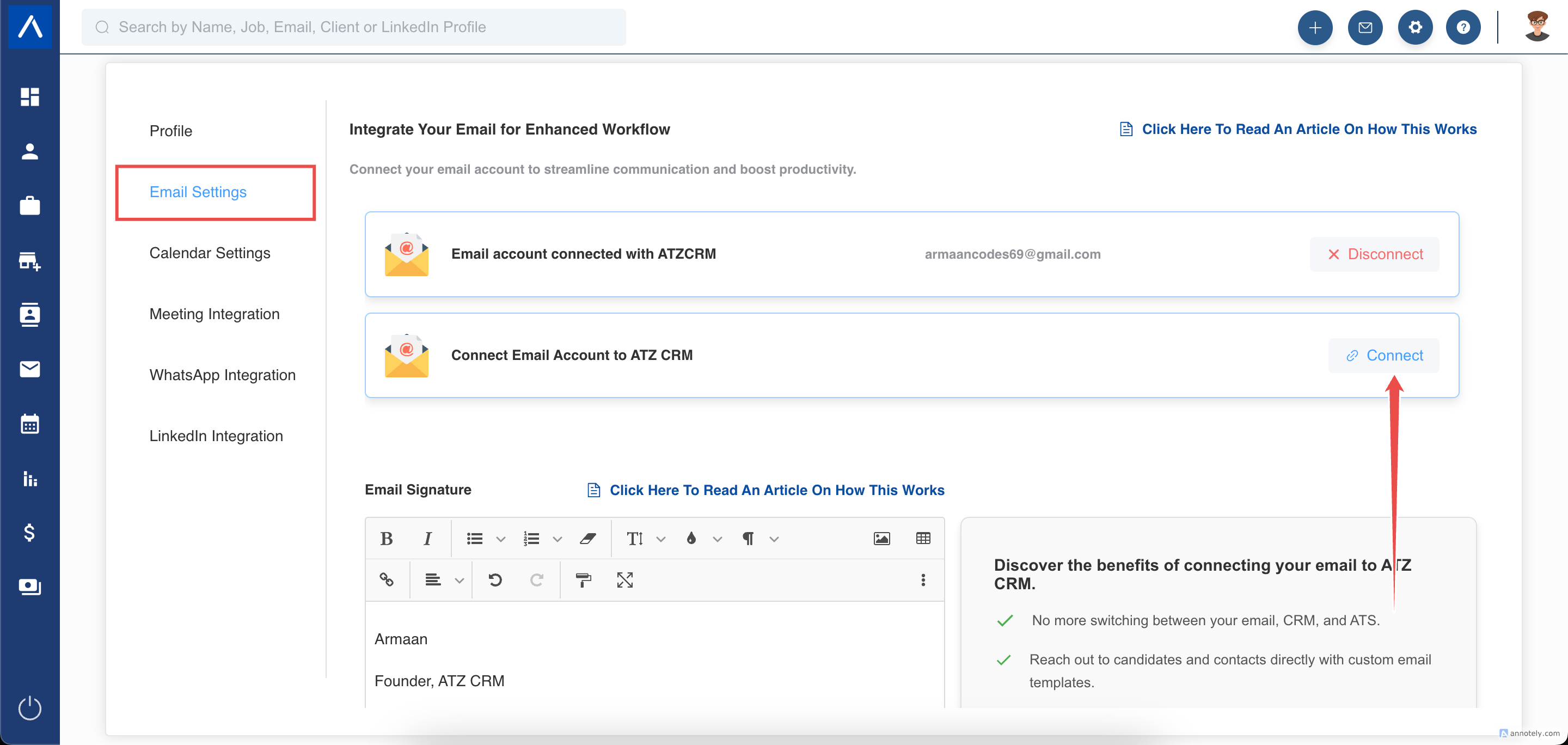
Step 1: Open Email Settings
Go to Email Settings and select the option to connect email accounts.
You can connect up to two email accounts as an add-on. If one email is connected, it becomes the default sender automatically.
Step 2: Select Provider or Custom IMAP
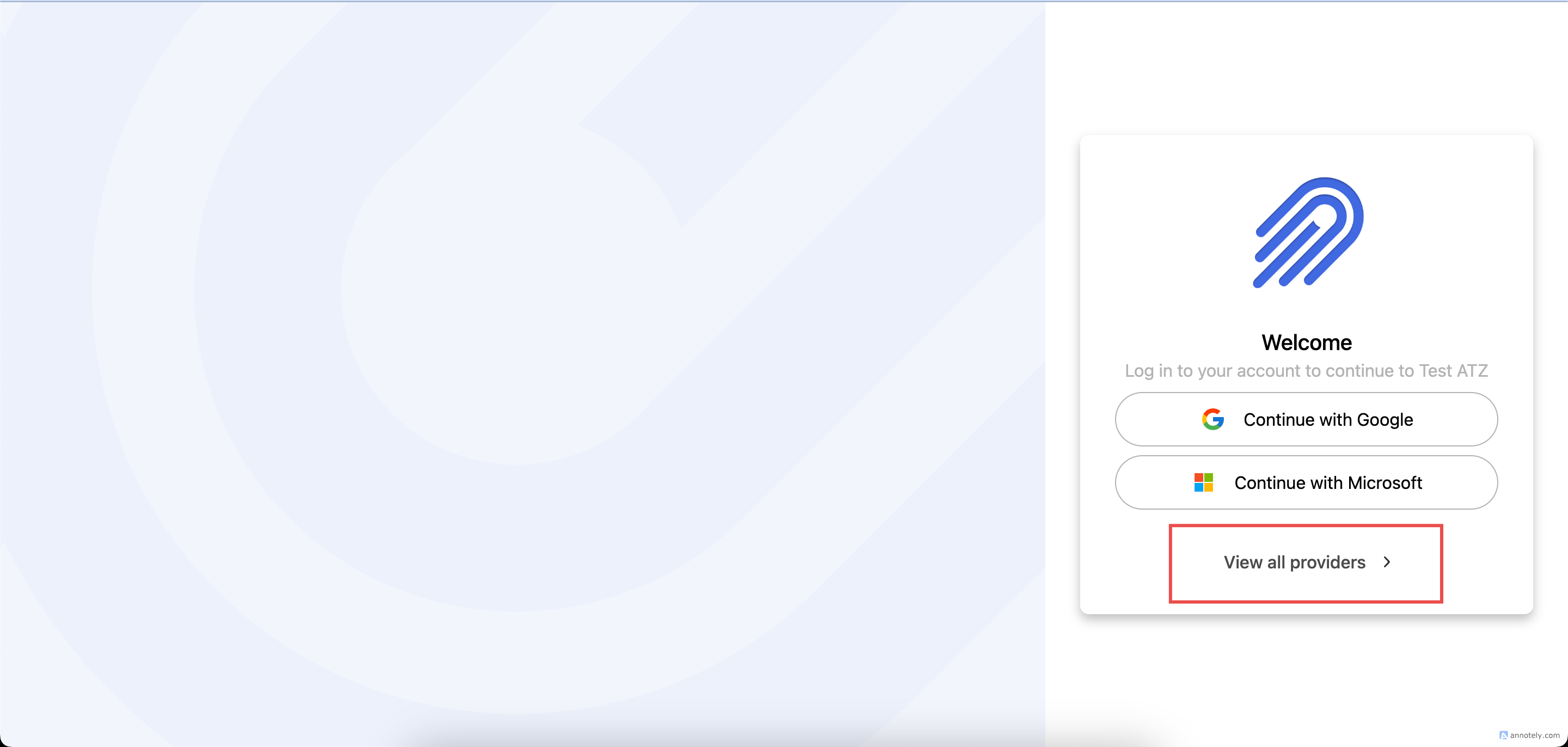
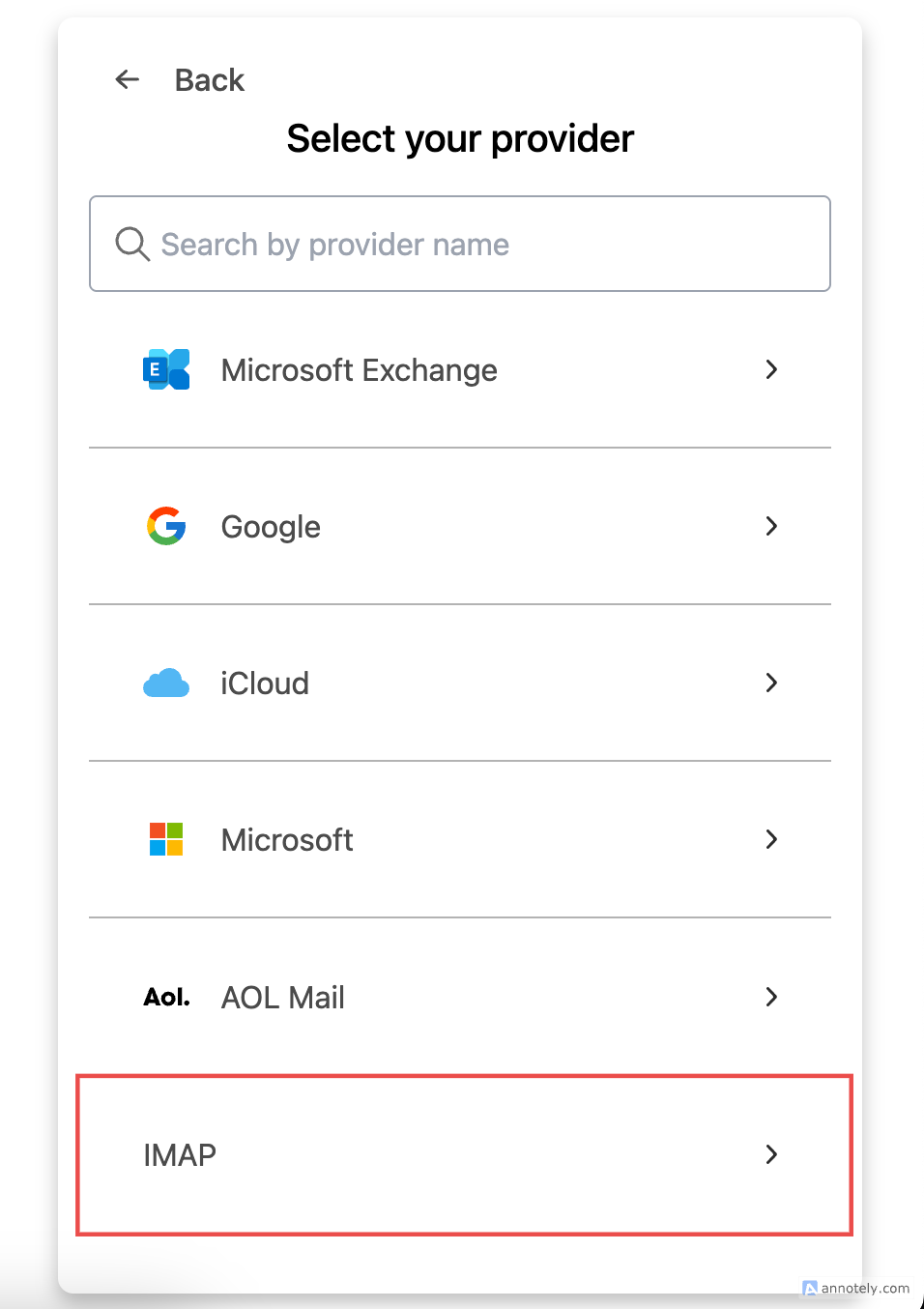
Choose your email provider from the list or click See all providers.
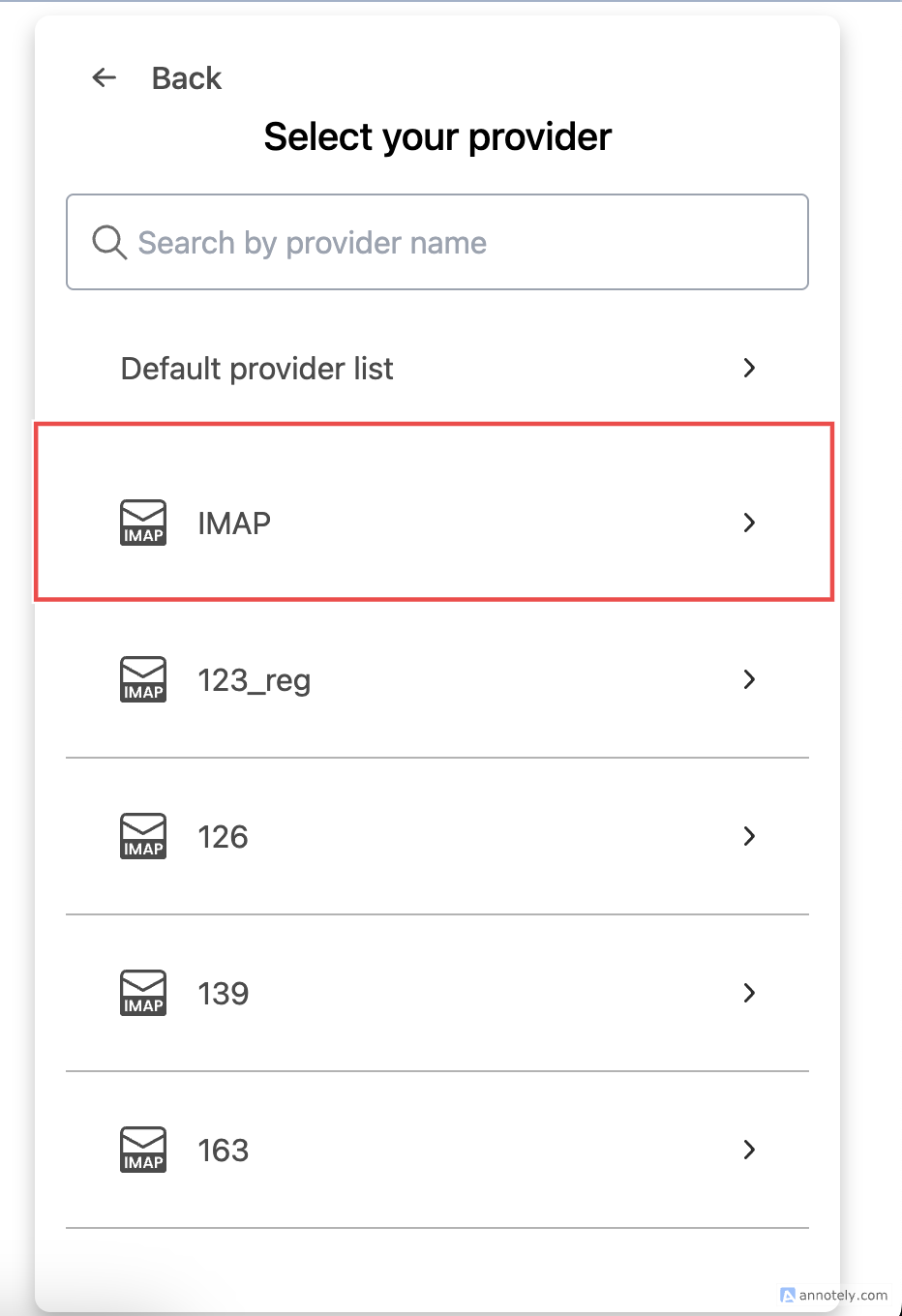
For non-standard providers or Office 365 Family, Personal, or Free accounts, choose Custom IMAP settings.
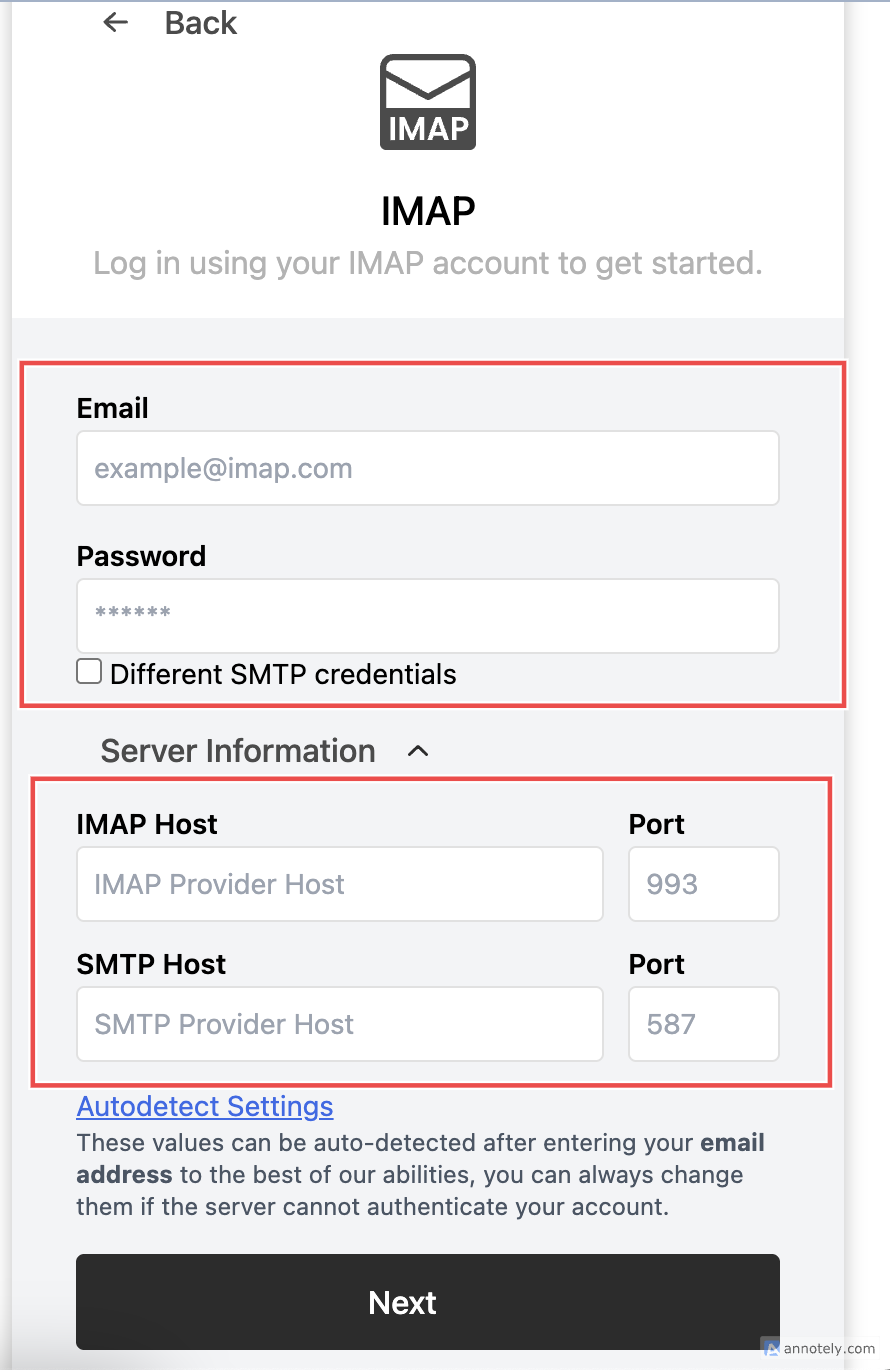
Step 3: Enter IMAP Server Settings
Enter server information such as IMAP host, port, and credentials.
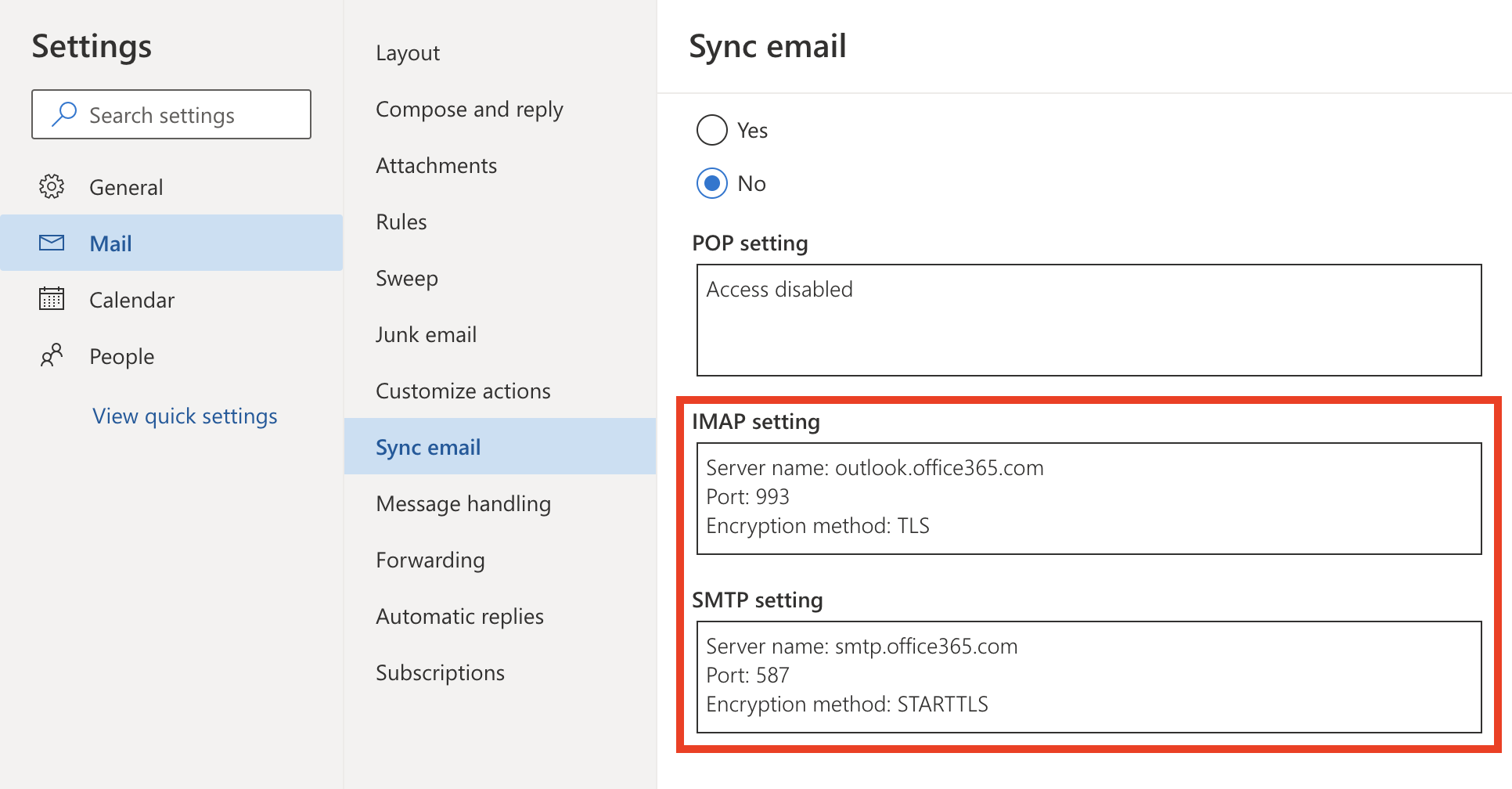
For Office 365, you can find server settings in Outlook on the web:
- Sign in to Outlook on the web.
- Open settings.
- Select View all Outlook settings.
- Go to Mail > Sync email.
- Review IMAP settings, such as
imap-mail.outlook.com, port993.
Step 4: Log In
Enter the correct details and click Log in.
Step 5: Access Your Mailbox
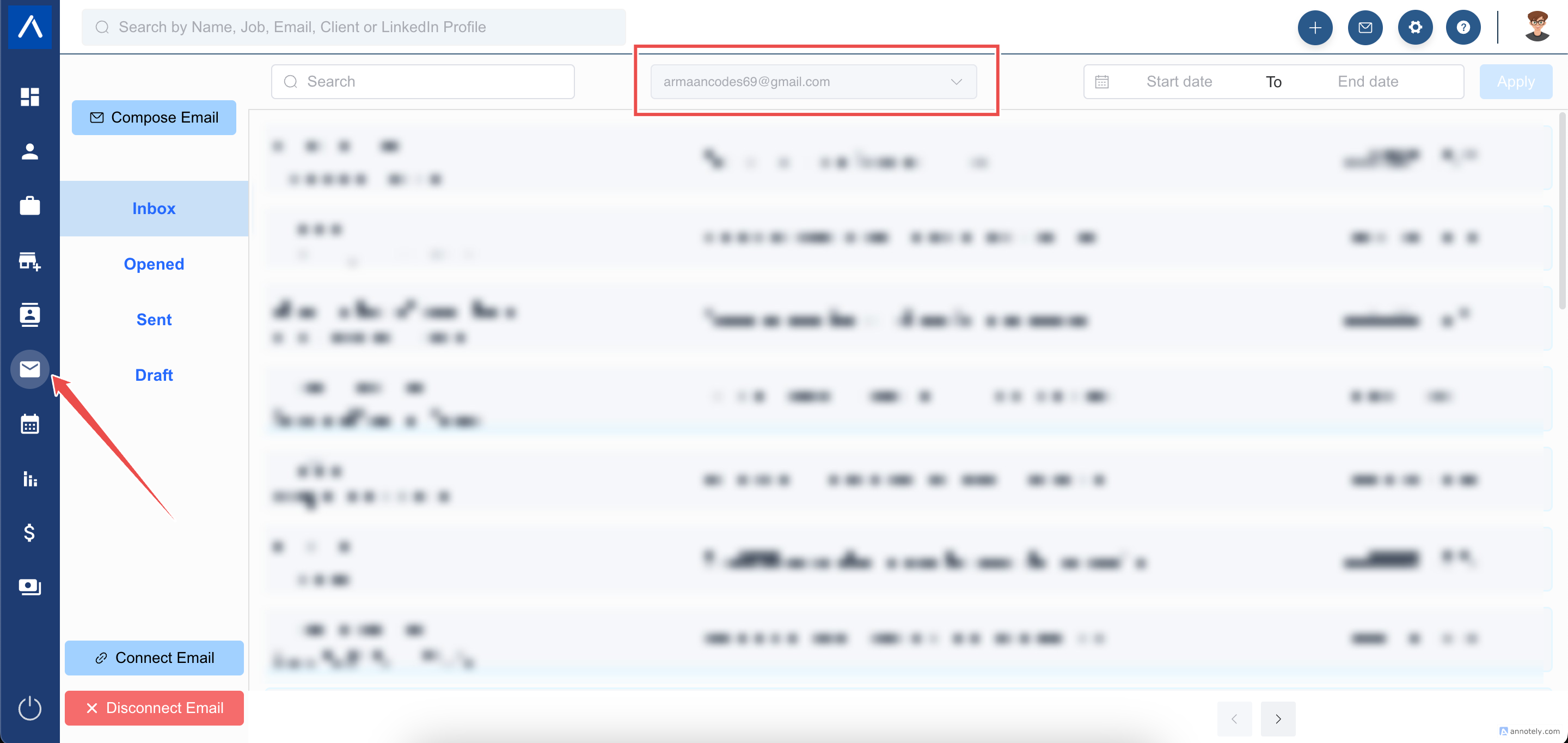
After verification, your mailbox appears in ATZ CRM and mirrors your provider mailbox.
Initial folder sync may take 2 to 3 hours, and older emails may take up to 24 hours.
Find Outlook Port Settings
For Outlook on the web, open Settings > View all Outlook settings > Mail > Sync email.
Typical settings include:
- IMAP server:
imap-mail.outlook.com - IMAP port:
993 - Security: SSL/TLS
- SMTP server:
smtp-mail.outlook.com - SMTP port:
587 - Security: STARTTLS
Troubleshooting
Login Fails
Check host, port, password, app password requirements, and whether IMAP access is enabled.
Zoho or Outlook Does Not Sync
Enable third-party sync first: Enable email sync for Outlook and Zoho.
Mailbox Is Missing Older Emails
Allow up to 24 hours for older mail to complete syncing.
FAQs
Can IMAP be used for Zoho?
Yes, if IMAP access is enabled in Zoho Mail settings.
Can I switch between IMAP and Gmail accounts?
Yes, if multiple mailboxes are connected to your ATZ CRM account.
Does IMAP still need email policy compliance?
Yes. Sender domain authentication and unsubscribe practices still matter.