Use the Email action to send submitted hours to the client contact responsible for the related job.
When the Email Action Is Available
The Email action appears only when a timesheet is Pending client approval. Draft, rejected, or already decided timesheets cannot be sent through this action.
Before sending, confirm that the job has a valid associated contact with an email address.
Open the Email Timesheets Drawer
- Open Timesheets.
- Find a candidate-submitted timesheet awaiting client approval.
- Select the email icon in the Actions column.
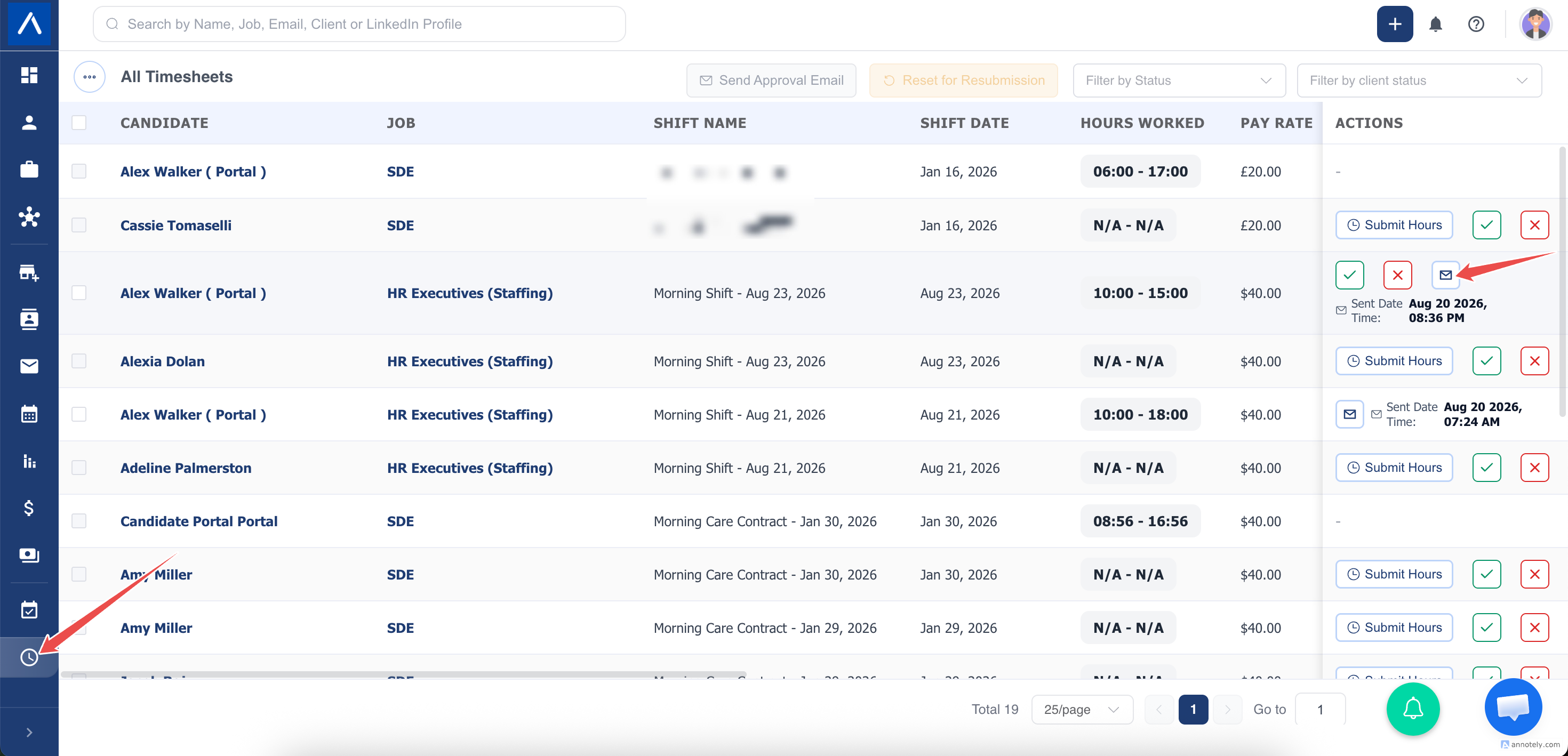
The drawer shows a three-step flow: choose timesheets, preview the email split, and send the approval emails.
Send the Current Timesheet
Choose Current Timesheet when the contact should review only the selected row.
- Select Current Timesheet.
- Select Preview Email.
- Review the preview.
- Select Send Approval Email.
Send Timesheets for a Timeframe
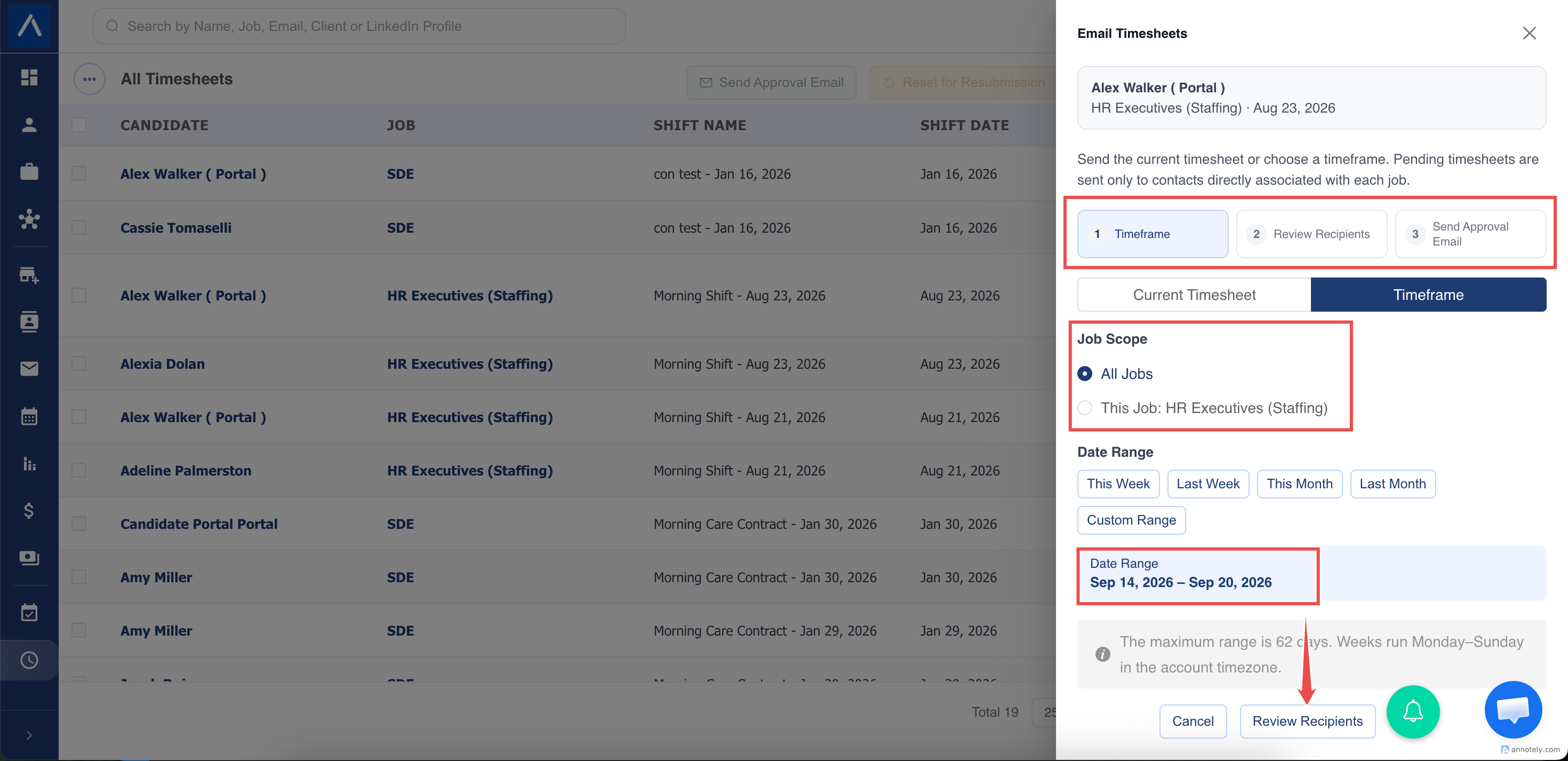
Choose Timeframe to include multiple pending submitted timesheets.
Choose the Job Scope
- All Jobs is selected by default. It includes eligible timesheets for every job connected to the appropriate contact during the timeframe.
- This Job limits the request to the job shown on the selected timesheet.
Each email is sent only to the contact directly associated with the included job. ATZ CRM splits the request when different contacts need separate emails.
Choose the Date Range
Available shortcuts include:
- This week.
- Last week.
- This month.
- Last month.
- Custom range.
The selected dates are shown in the drawer. Weeks run Monday through Sunday in the account timezone, and a custom range can include no more than 62 days.
Preview Before Sending
Select Preview Email after choosing the scope and timeframe. Sending remains unavailable until the preview succeeds.
The preview shows:
- Number of eligible timesheets.
- Number of jobs included.
- Number of emails that will be sent.
- Timesheets that will be skipped because no valid associated contact email is available.
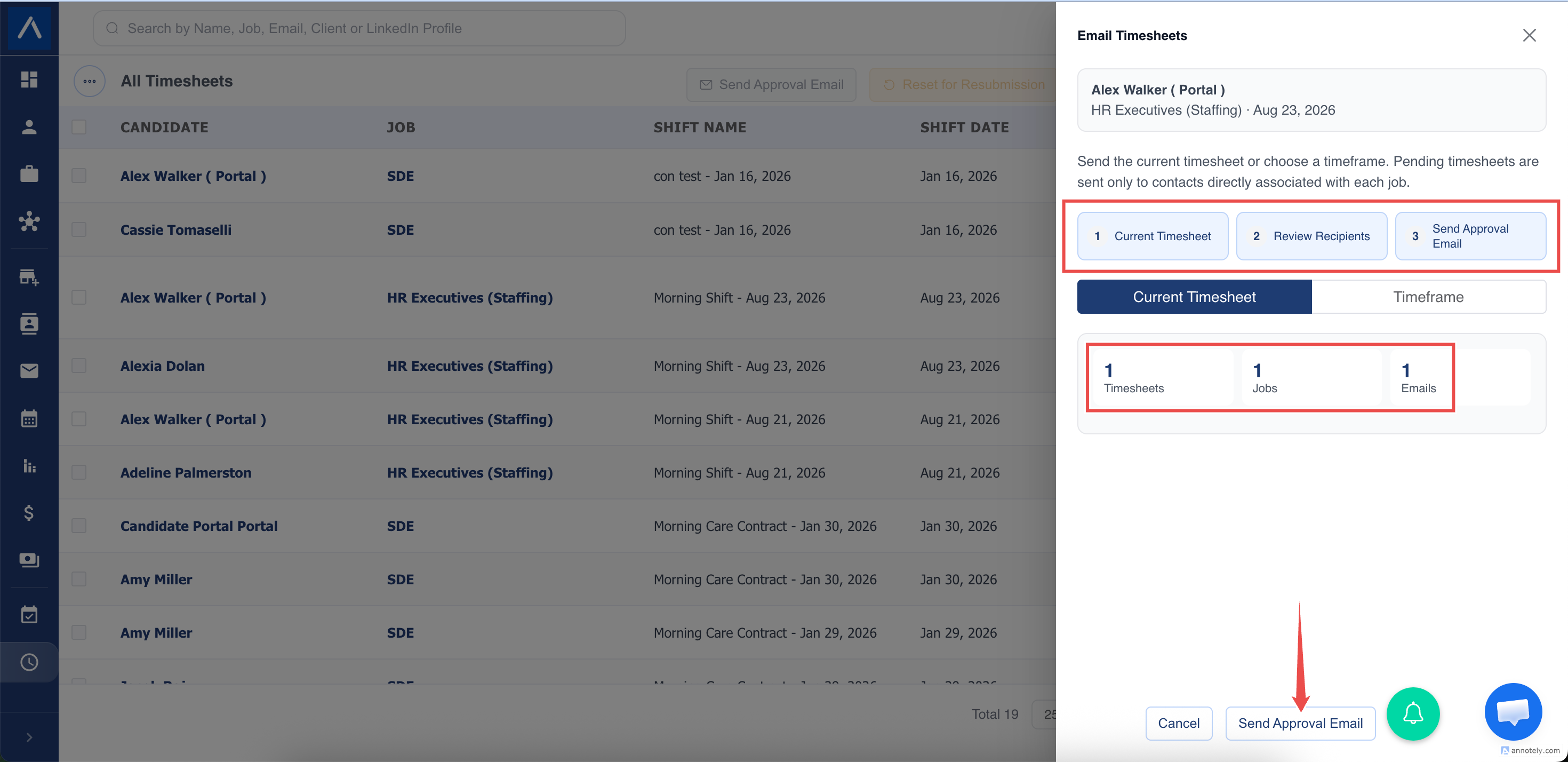
Changing the timeframe or job scope clears the old preview. Preview again before sending.
What the Client Receives
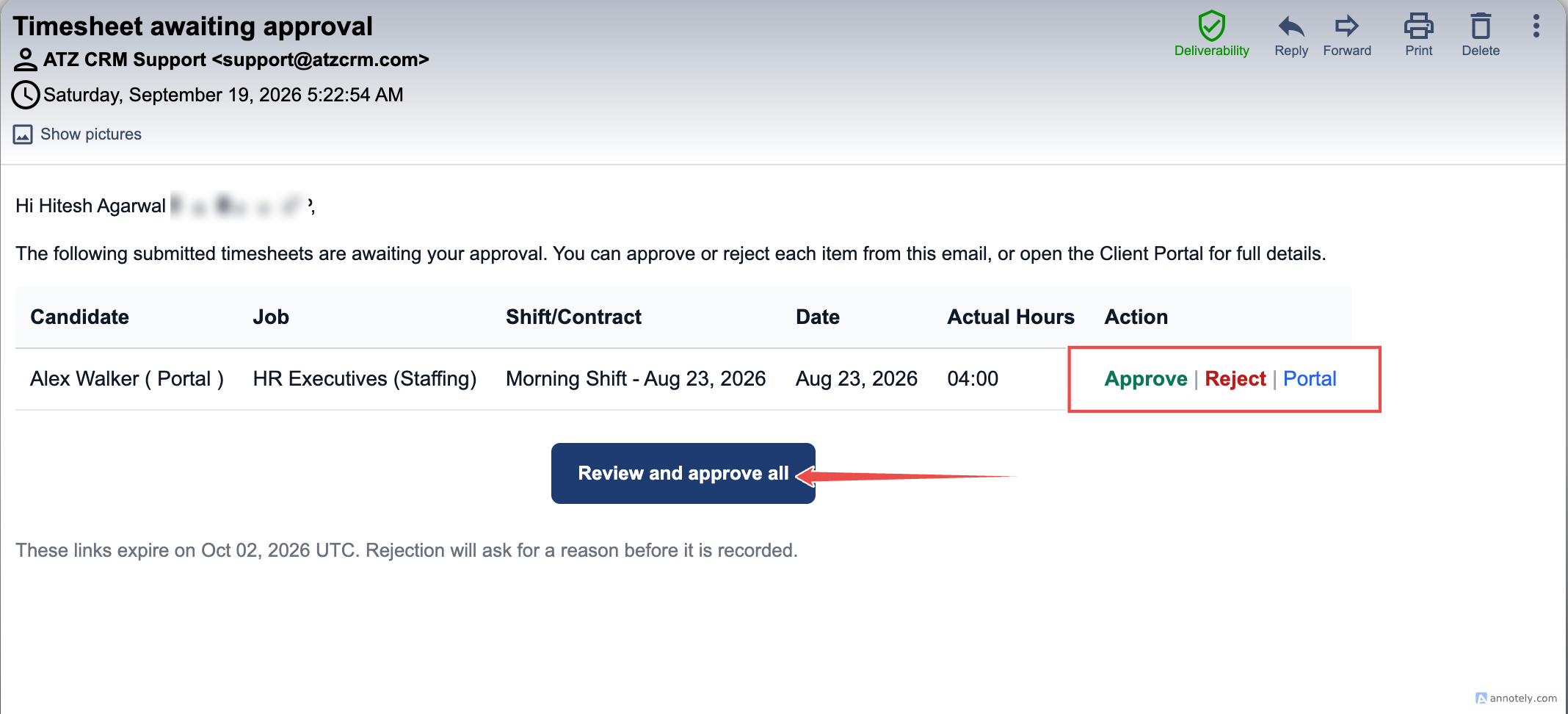
The email presents the submitted shifts in a table with information such as:
- Candidate.
- Job.
- Work date in a readable format, such as Sep 10, 2026.
- Actual hours submitted by the candidate or recruiter.
- Total hours when more than one timesheet is included.
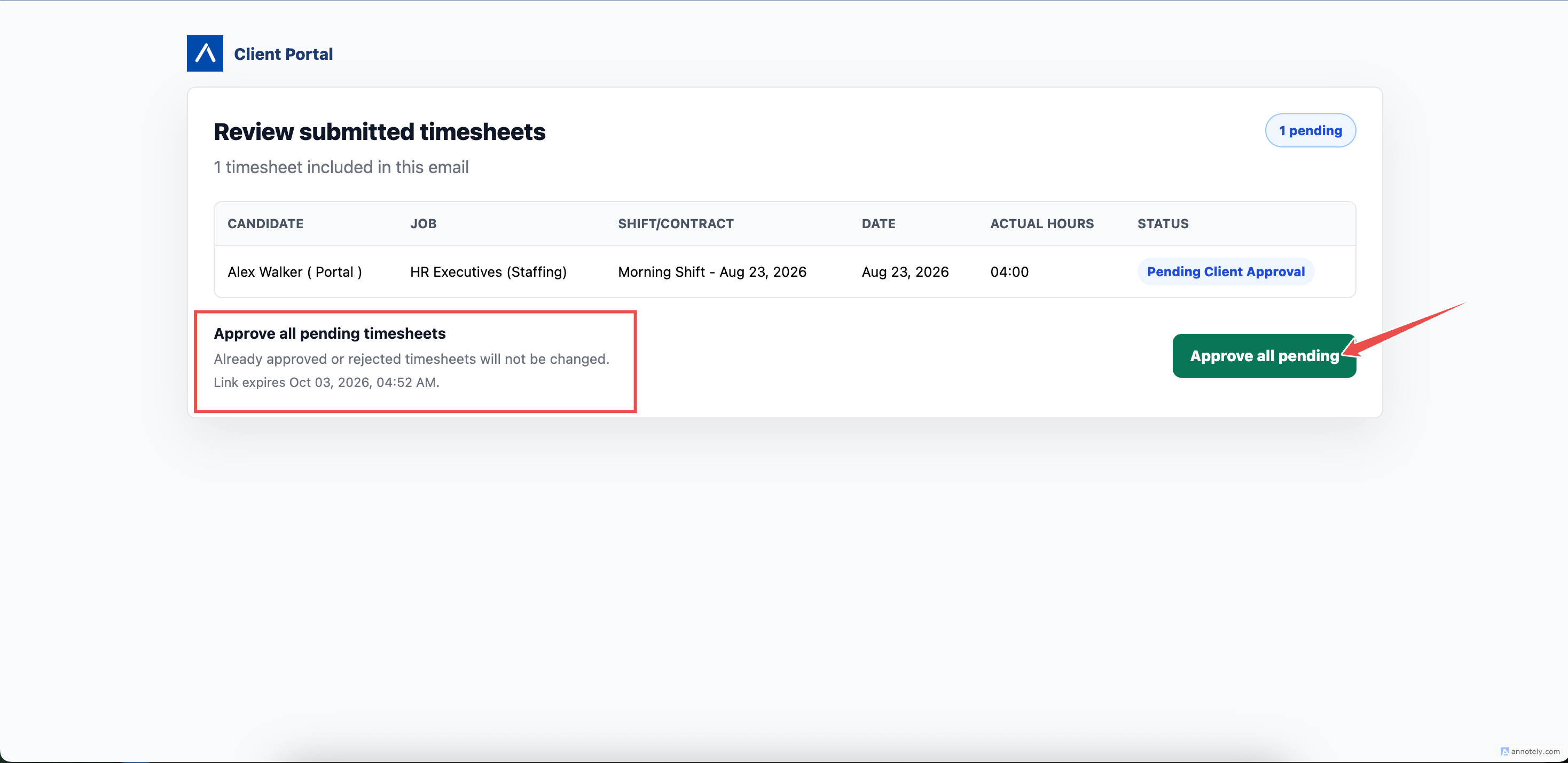
The client can use Review and approve all to open a secure batch review page.
Review and Approve All
On the review page, the client can review the eligible timesheets before approving them together.
ATZ CRM checks every timesheet again when the page opens and when approval is submitted. If one timesheet was already approved, rejected, expired, or is no longer associated with that contact, it is not changed by the batch action.
Troubleshooting
A Timesheet Is Missing from the Preview
Confirm that the candidate submitted it, its client approval status is Pending, and it falls inside the selected range and job scope.
A Timesheet Has No Valid Contact Email
Open the related job and confirm its associated contact has a valid email address. Then preview again.
Send Approval Email Is Unavailable
Select Preview Email first. If you change the timeframe or scope, a new preview is required.
The Preview Shows Multiple Emails
This is expected when the selected timesheets belong to jobs with different associated contacts.
FAQs
Can the recruiter send approved or rejected timesheets again?
No. This workflow is for candidate-submitted timesheets that are still awaiting client approval.
Can one client action overwrite a previous rejection?
No. Existing decisions are preserved and ineligible timesheets are skipped.
Does the client need to sign in?
The secure email link opens the review workflow directly. The link is limited to the timesheets that contact is allowed to review.