
ATZ CRM’s Twilio-powered calling integration lets teams call candidates and contacts directly from the platform, record calls with consent, and store call activity on the right record.
Quick Answer
Verify your phone number, add or request calling credits, and click a candidate or contact phone number to place a call. If recording or transcription is enabled, confirm consent and save call details after the call.
Plan and Regional Requirements
The calling and auto-dialer feature is available on the Pro plan and above.
Due to local regulations, Twilio no longer supports domestic outbound calls between +91 Indian numbers. International calls from Indian numbers are still supported.
Step 1: Add and Verify Your Calling Number
You can verify your calling number from your profile or while making your first call.
Verify from Profile
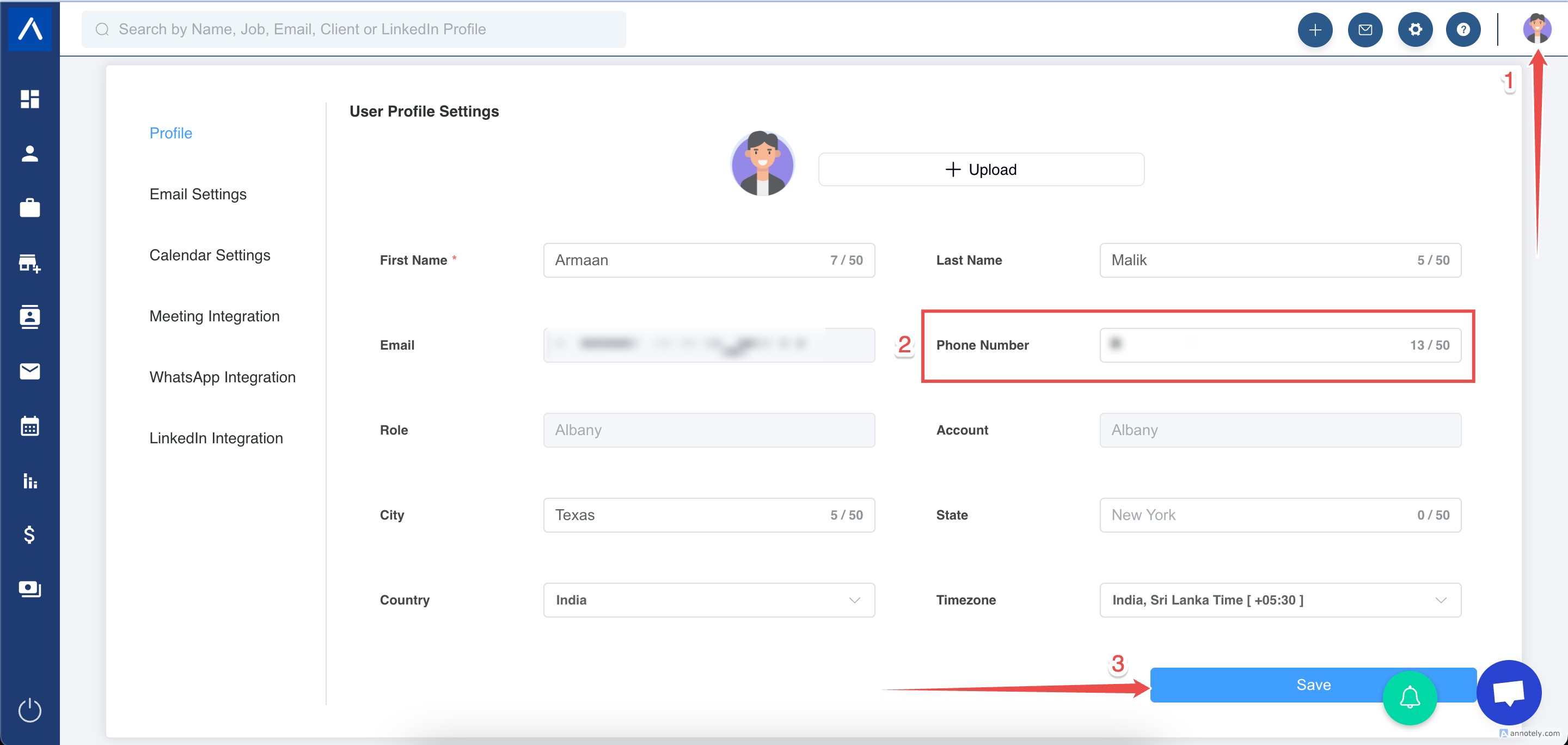
Open your Profile section in ATZ CRM, enter your phone number, and complete verification with the 6-digit code sent to your mobile.
Verify During Your First Call
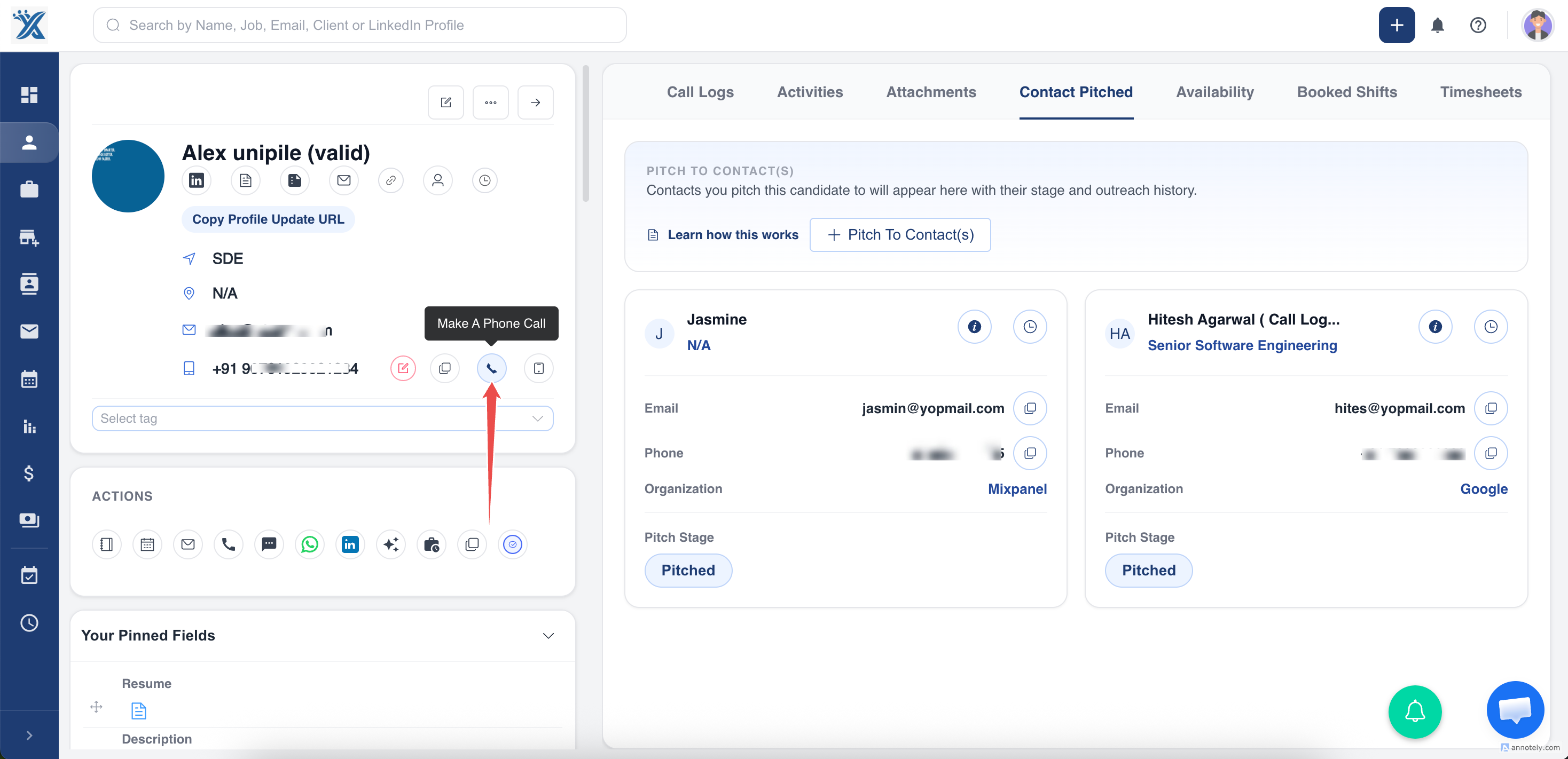
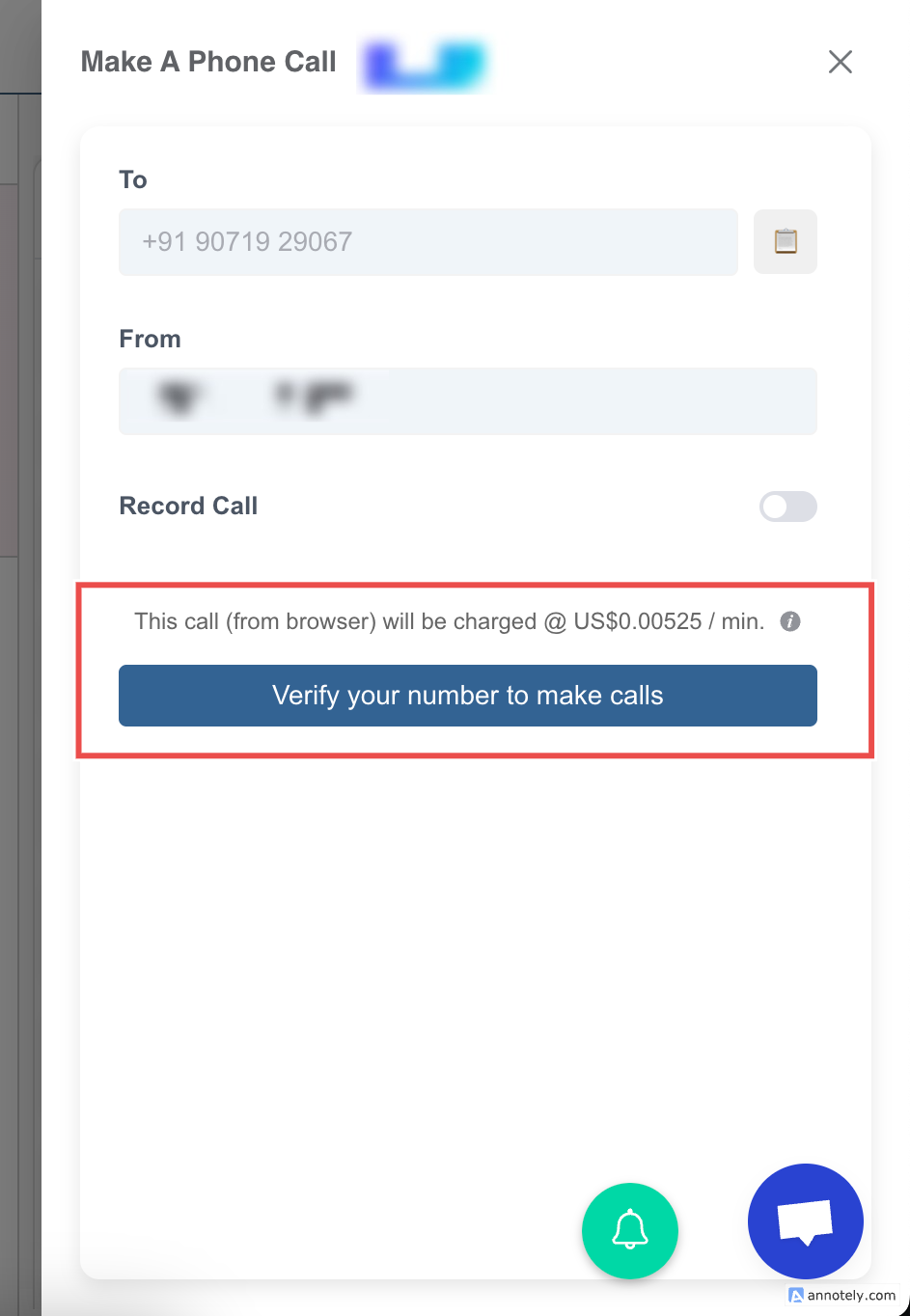
Click a candidate or contact phone number. ATZ CRM prompts you to add and verify your calling number with a 6-digit code.
Step 2: Use or Add Calling Credits
Free call credits may be available on the Enterprise plan for users who have not used calling before. Contact the customer success team through chat to check availability.
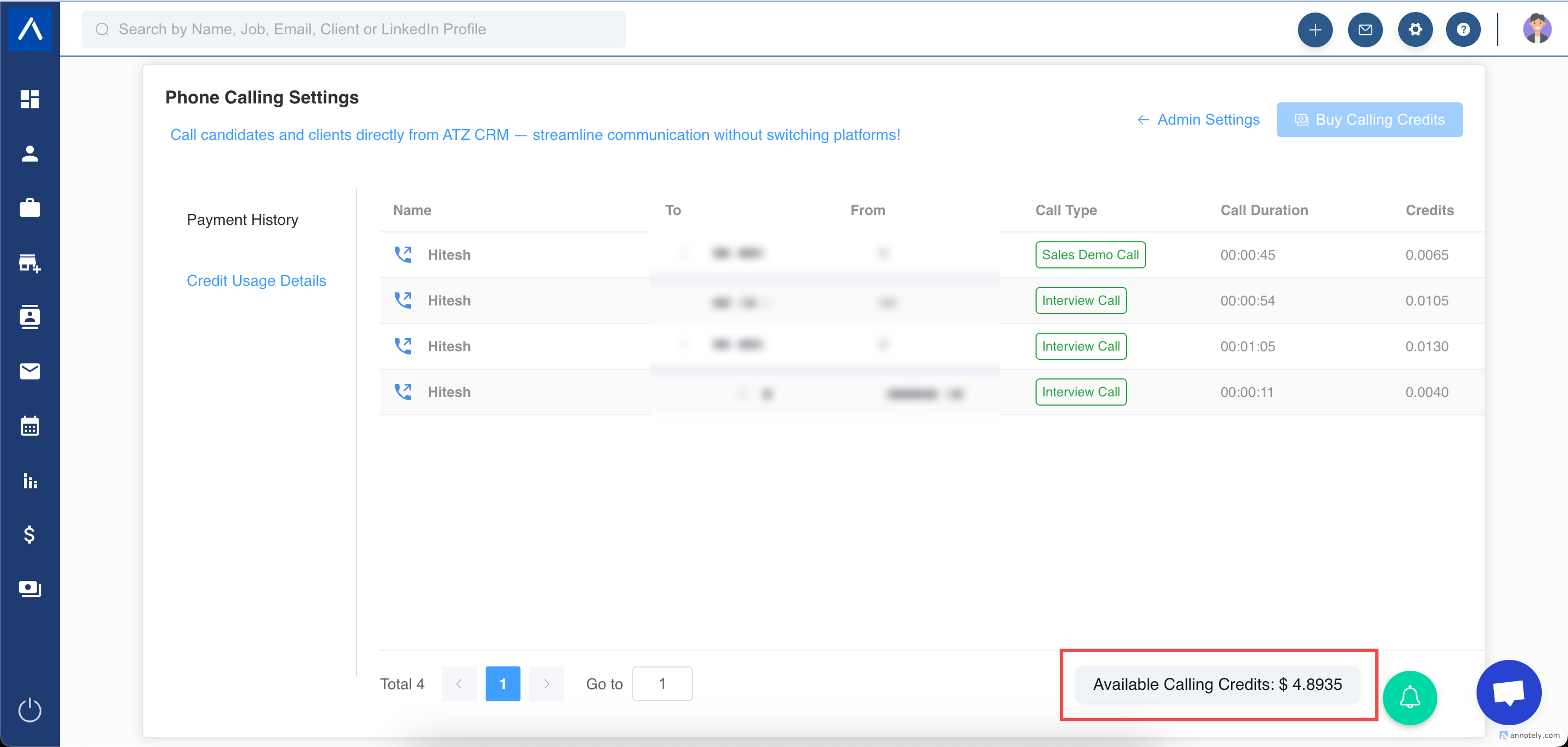
To review credits, go to Admin Settings > Phone Calling Settings and check the available calling credits message.
Free credits apply only to calling. You can continue using them until depleted, provided the balance covers at least one minute of calling.
Step 3: Purchase Calling Credits
To make calls beyond available free credits, contact the customer success team through chat to purchase calling credits.
Pricing may include local call pricing, browser or app call pricing, recording pricing, transcription pricing if used, and ATZ CRM call storage. Review Twilio Voice Pricing for base call pricing details.
Step 4: Make a Call
Confirm your number is verified and credits are available. Then click the candidate or contact phone number from their profile.
In the call pop-up, review:
- To and From numbers.
- Call recording option.
- Consent checkbox for recording.
- Transcript generation option, if needed.
Click the green Call button to start.
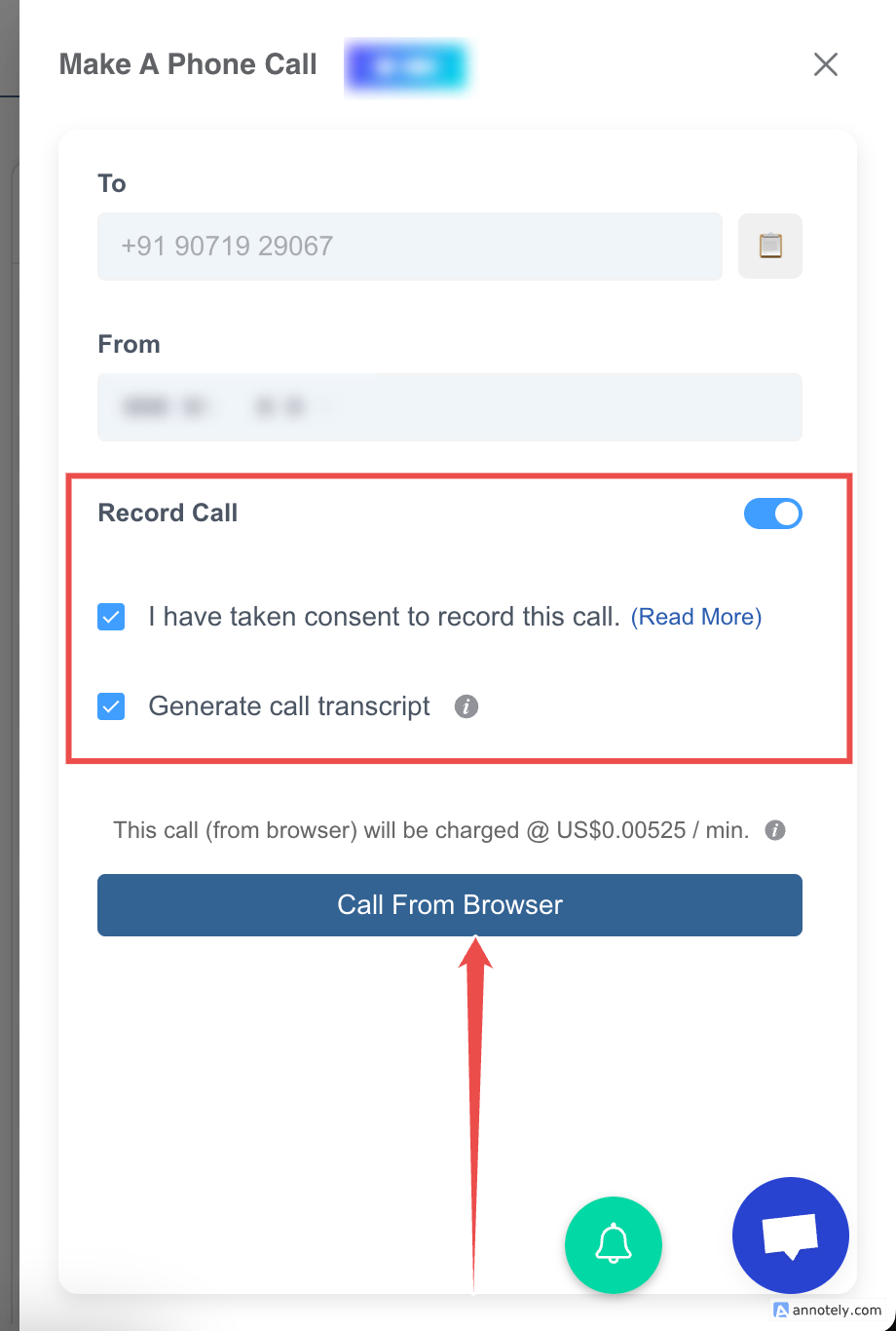
During the call, you can take notes on screen. After the call, add details such as call type from the post-call screen.
Call Recording Permissions
Only account owners, admins, and users with appropriate custom-role permissions can access Phone Call Settings.
When creating custom roles, configure access to phone calling settings for users who need to manage credits or settings.
Always review call recording laws and obtain required consent before recording calls.
Access Call Recordings
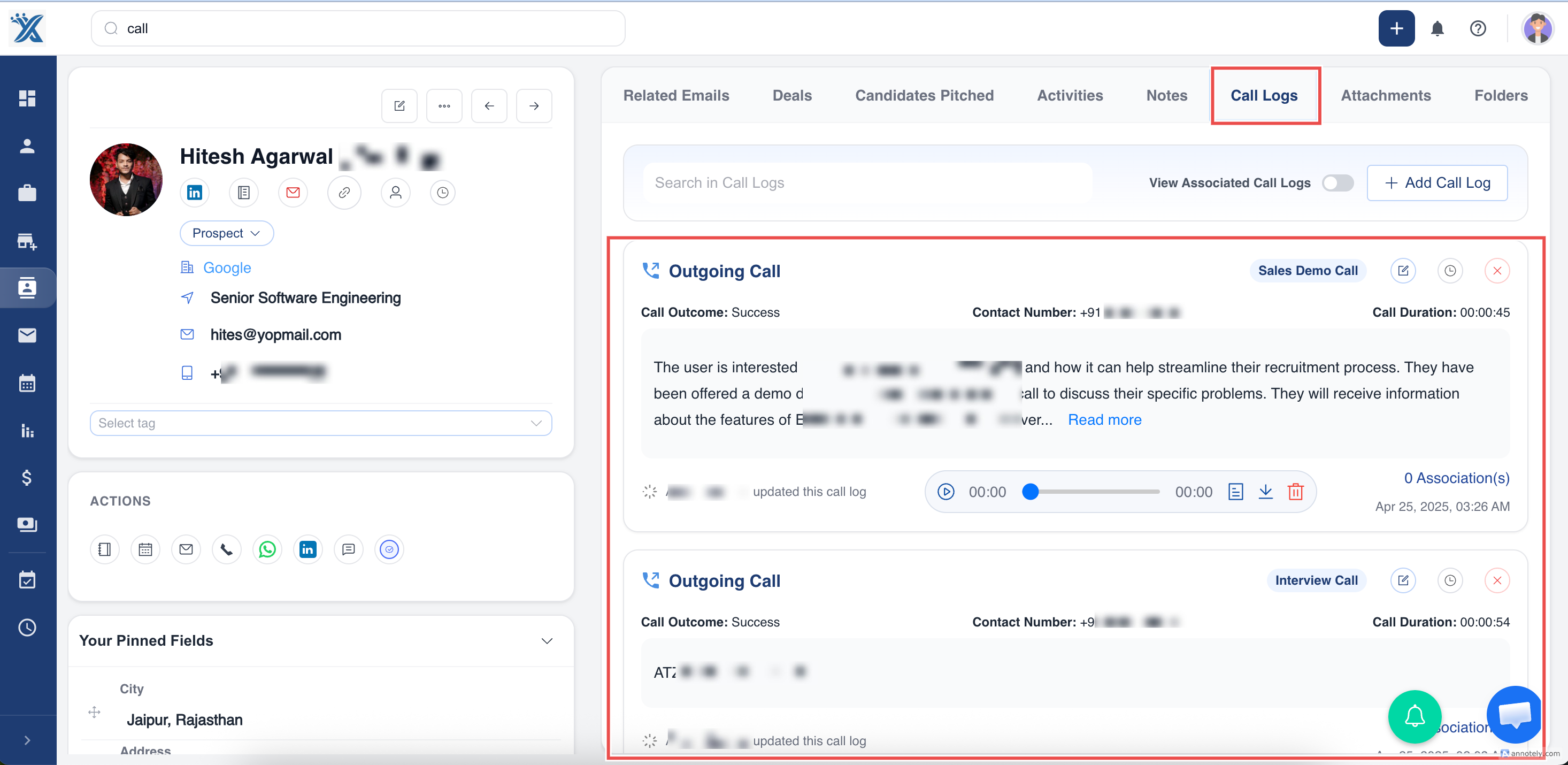
Open the candidate or contact profile and go to Call Logs to find call recordings.
Related Calling Options
AI Call Transcripts
Use call transcription when you need searchable transcripts, summaries, or key points: Use AI Call Transcript Generator.
Native Dialer
Use your device’s default calling app instead of Twilio: Use Native Dialer for Calls.
Troubleshooting
Calling Does Not Start
Confirm your number is verified, credits are available, and your plan supports Twilio-powered calling.
Call Recording Is Not Available
Check role permissions, call recording settings, available credits, and whether consent was selected before the call.
Domestic India Calls Are Failing
Twilio does not support domestic outbound calls between +91 Indian numbers. Use supported international calling flows or a native dialer where appropriate.
FAQs
Are call notes saved in ATZ CRM?
Yes. Notes taken during the call can be saved in the Call Logs section.
Do transcripts cost extra?
Recording and transcription may require additional calling credits depending on your account setup.
Can I customize call types?
Yes. Call types can be customized from activity or calling-related settings, depending on your account configuration.