Use Find External Candidates when the best match for a job may not already be in your ATZ CRM candidate database.
Before You Start
You need:
- Permission to view the job and its candidates.
- Permission to create or update candidates before adding a result.
- Available AI Sourcing credits.
If the account has no AI Sourcing credits, ATZ CRM asks you to contact Chat Support for trial credits and does not start the search.
Start from the Job Actions Panel
- Open the job detail page.
- Find the Actions panel.
- Select Find External Candidates.
You can also open the job’s Candidates tab and select Find External Candidates there.
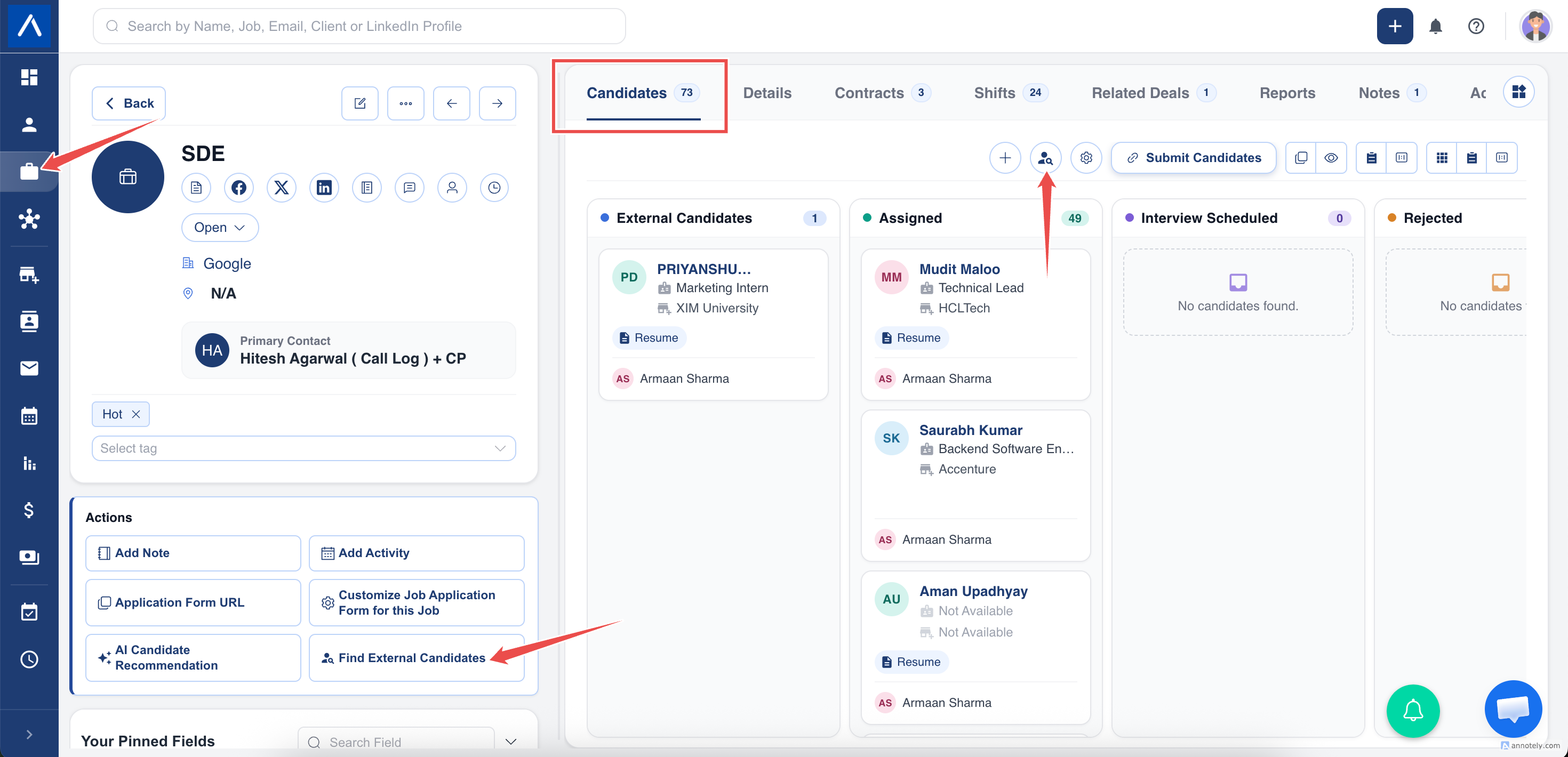
Both actions open the same job-focused search.
Review the Suggested Search
ATZ CRM reads relevant information from the job and suggests focused filters such as:
- Job titles.
- Candidate locations when location is relevant.
- Seniority when the job clearly indicates it.
The search does not use the hiring company as the candidate’s current employer. It also keeps Include similar titles turned off to avoid broad, unrelated results.
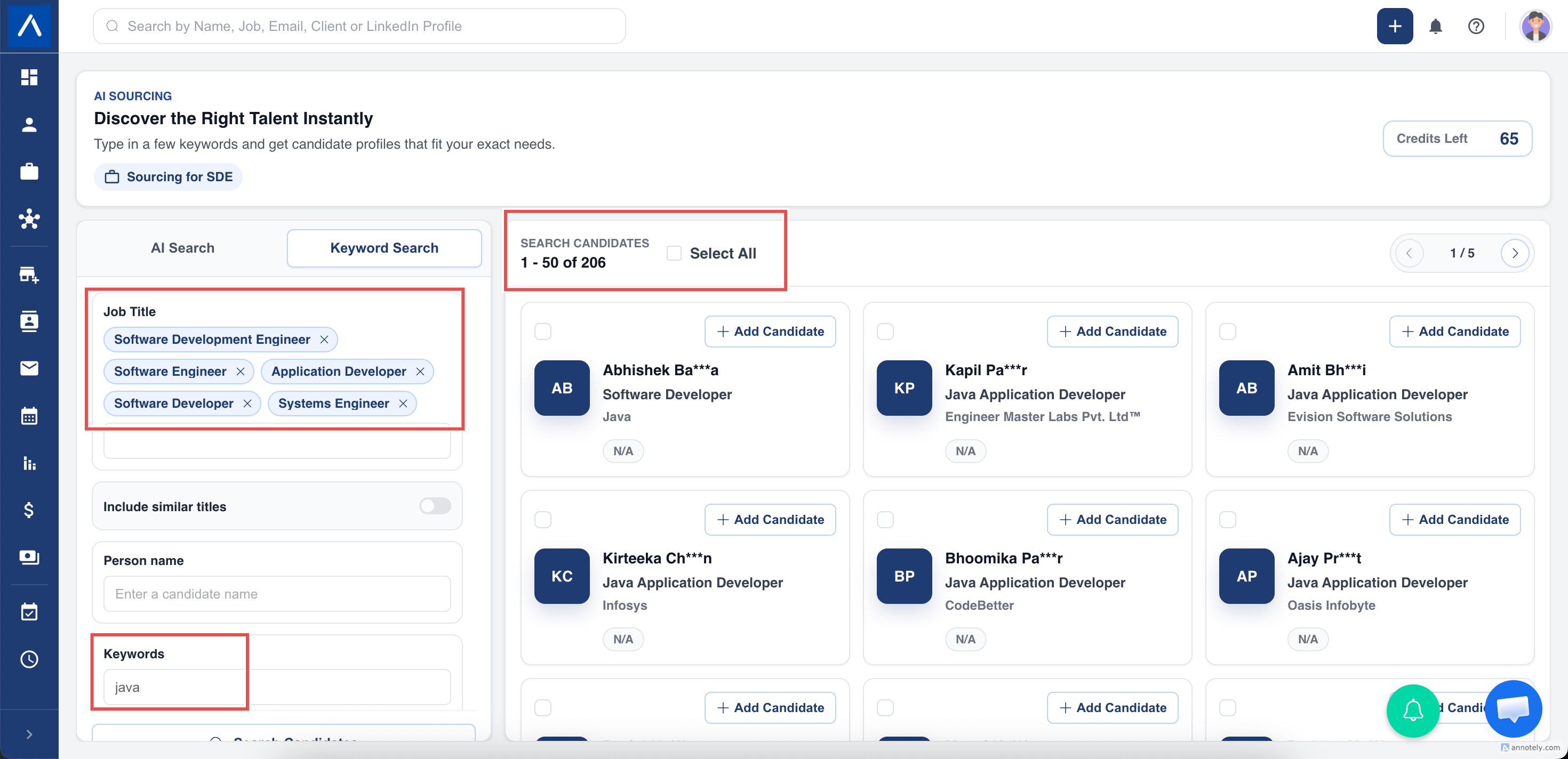
Review the filters before adding anyone. You can remove a suggestion or add another filter if the role needs a narrower search.
Refine the Results
Useful ways to narrow the search include:
- Adding an exact or closely related job title.
- Selecting a candidate location.
- Choosing a seniority level.
- Filtering by email availability.
- Adding a target Company, Company domain, or Company headquarters location.
- Selecting Company size, revenue, or technologies when they genuinely matter for the role.
Use Keywords for one focused skill, product, or industry phrase. A long list of unrelated words can make the search too restrictive and return no results.
For a complete explanation of every filter, see AI Sourcing in ATZ CRM.
Add a Candidate to the Job
- Review a result card.
- Select Add Candidate, or select several results and use the bulk add action.
- Wait for ATZ CRM to finish adding the selected people.
For each person added from a job search, ATZ CRM:
- Creates a candidate when no matching record exists.
- Updates missing information when the person already exists.
- Assigns the candidate to the job that started the search.
- Records AI Sourcing as the source.
- Uses available professional history to identify relevant skills for the candidate profile.
This means you do not need to open the candidate afterwards just to assign them to the job.
Avoid Duplicate Candidate Records
ATZ CRM checks identifying details such as an existing email address or LinkedIn profile before creating another candidate. When it finds a match, it updates eligible missing information and uses the existing candidate for the job assignment.
Troubleshooting
The Action Says Credits Are Required
The account has no available AI Sourcing credits. Use Chat Support to ask about trial or additional credits.
The Results Are Too Broad
Remove broad titles, confirm Include similar titles is off, and add a relevant location or seniority filter.
No Results Are Found
Remove unnecessary filters one at a time. If you entered Keywords, use one concise phrase instead of several separate skills.
I Cannot Add a Result
Ask an administrator to check your candidate create and edit permissions.
FAQs
Can I start the same search from the Candidates tab?
Yes. The Actions panel and Candidates tab both preserve the source job.
Can I edit the suggested filters?
Yes. Treat them as a starting point and adjust them before adding candidates.
What happens if the candidate already exists?
ATZ CRM uses the existing candidate where a match is found, updates eligible missing details, and assigns that candidate to the job.