
Email triggers automate communication when candidate hiring stages or contact stages change. They help teams send timely, consistent updates without manual emails.
Quick Answer
Go to Admin Settings > Email Trigger, click Add Email Trigger, select the event, stage, template, and sender email, then save. The trigger activates immediately.
Requirement: Connected Email
Email triggers require a connected sender email. If needed, connect email first: Email and calendar integration.
Candidate Email Triggers
Candidate triggers send automated emails when a candidate’s hiring stage changes.
Set Up a Candidate Trigger
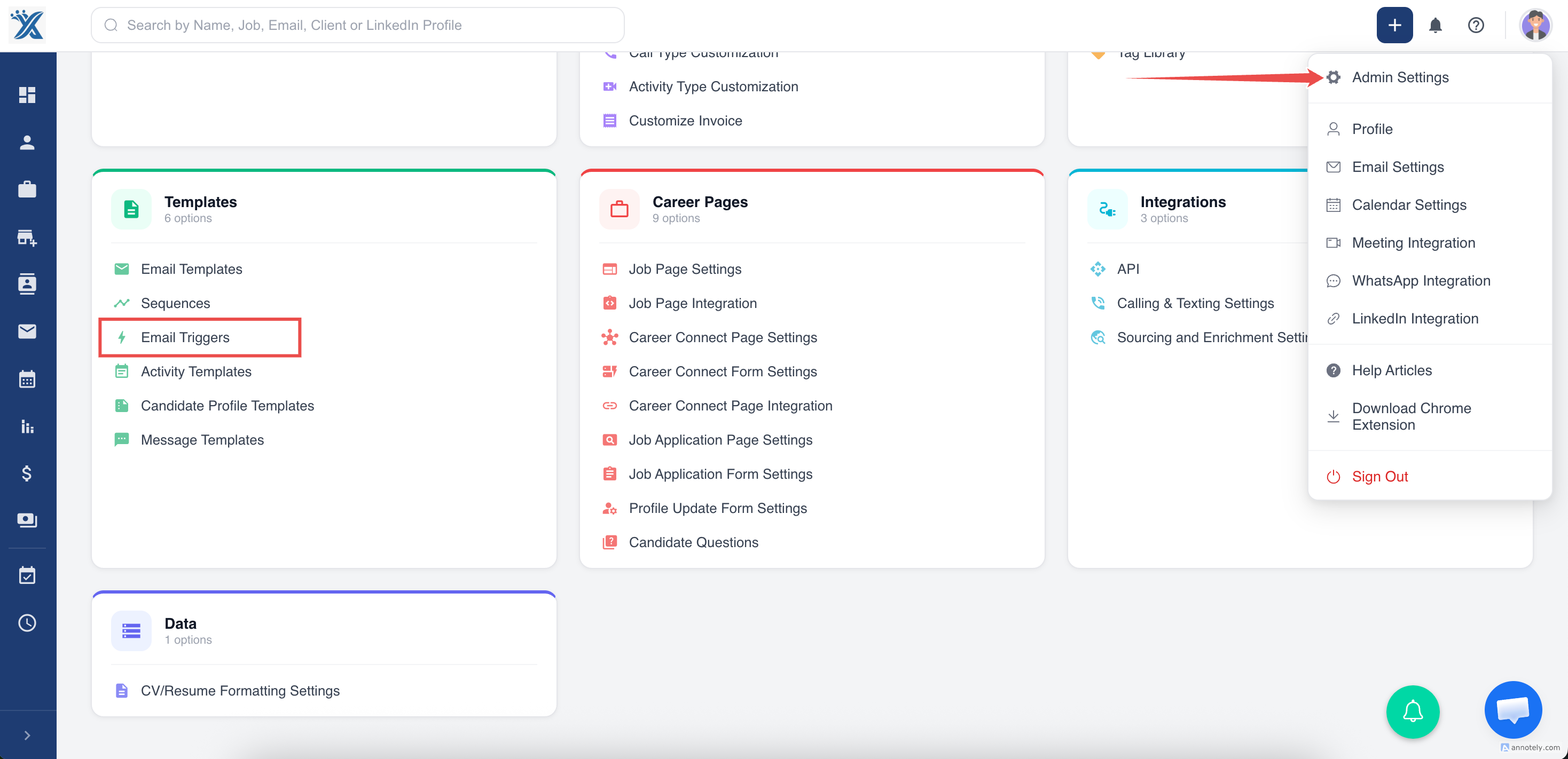
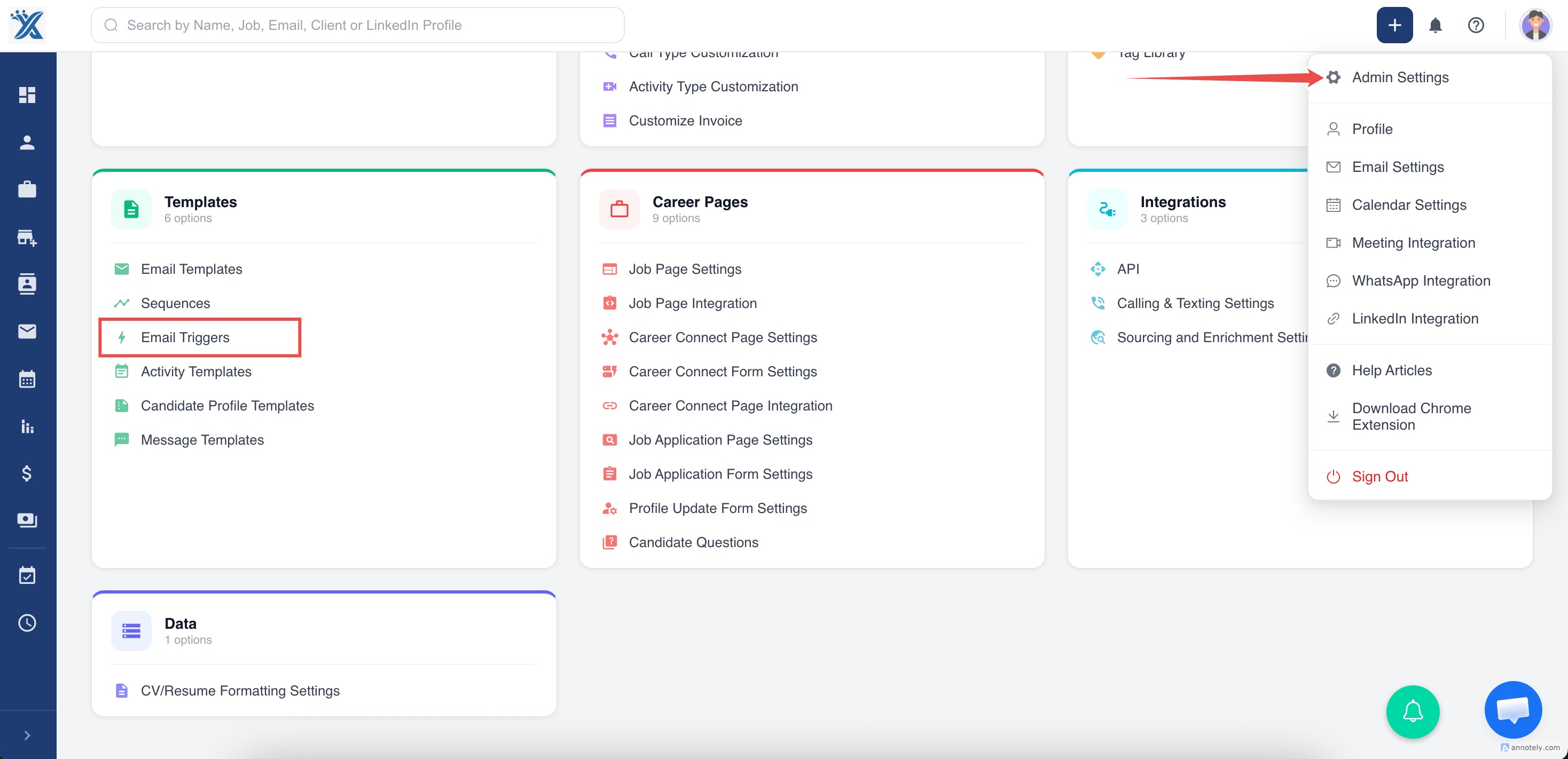
Open Admin Settings > Email Trigger.
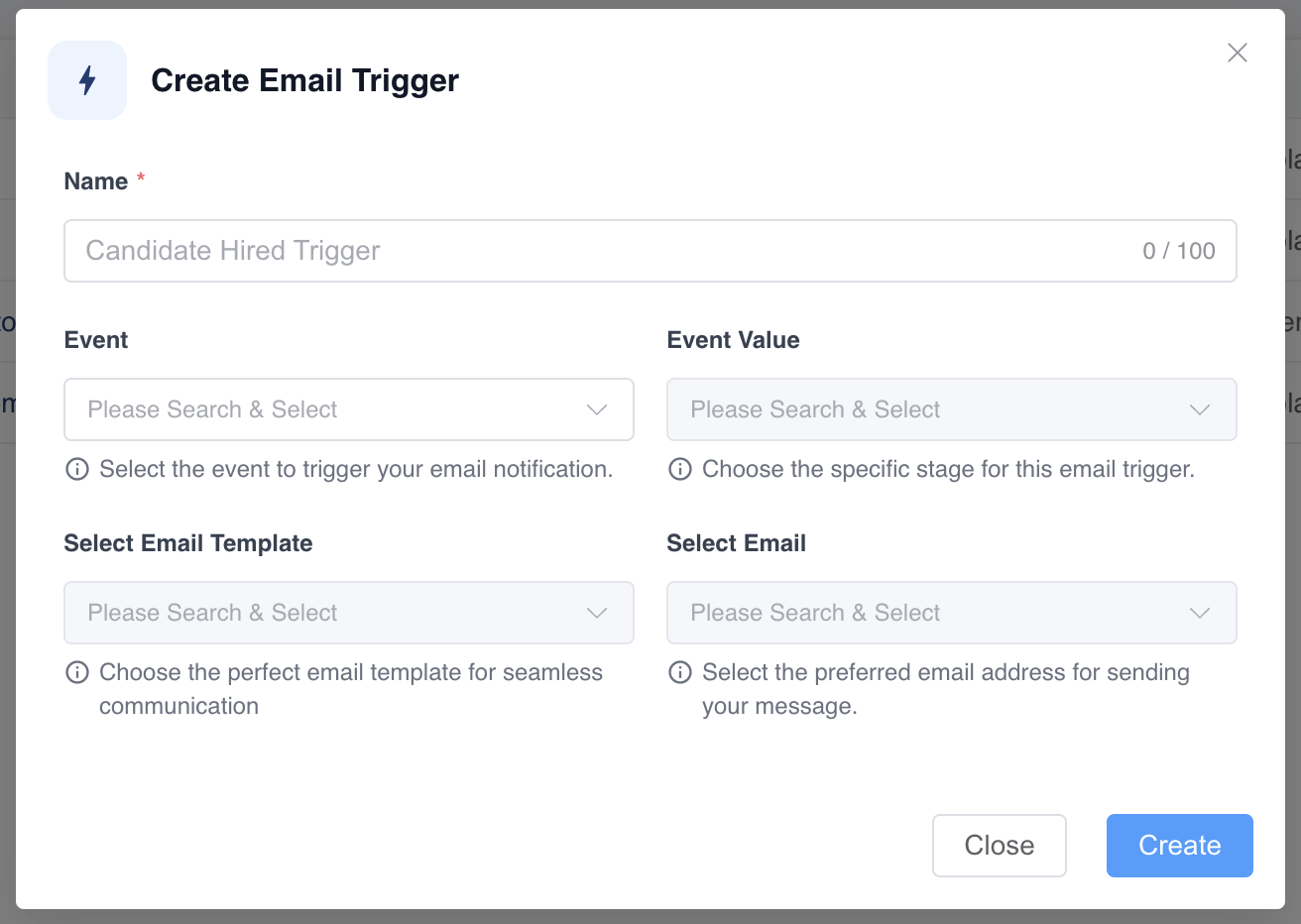
Click Add Email Trigger.
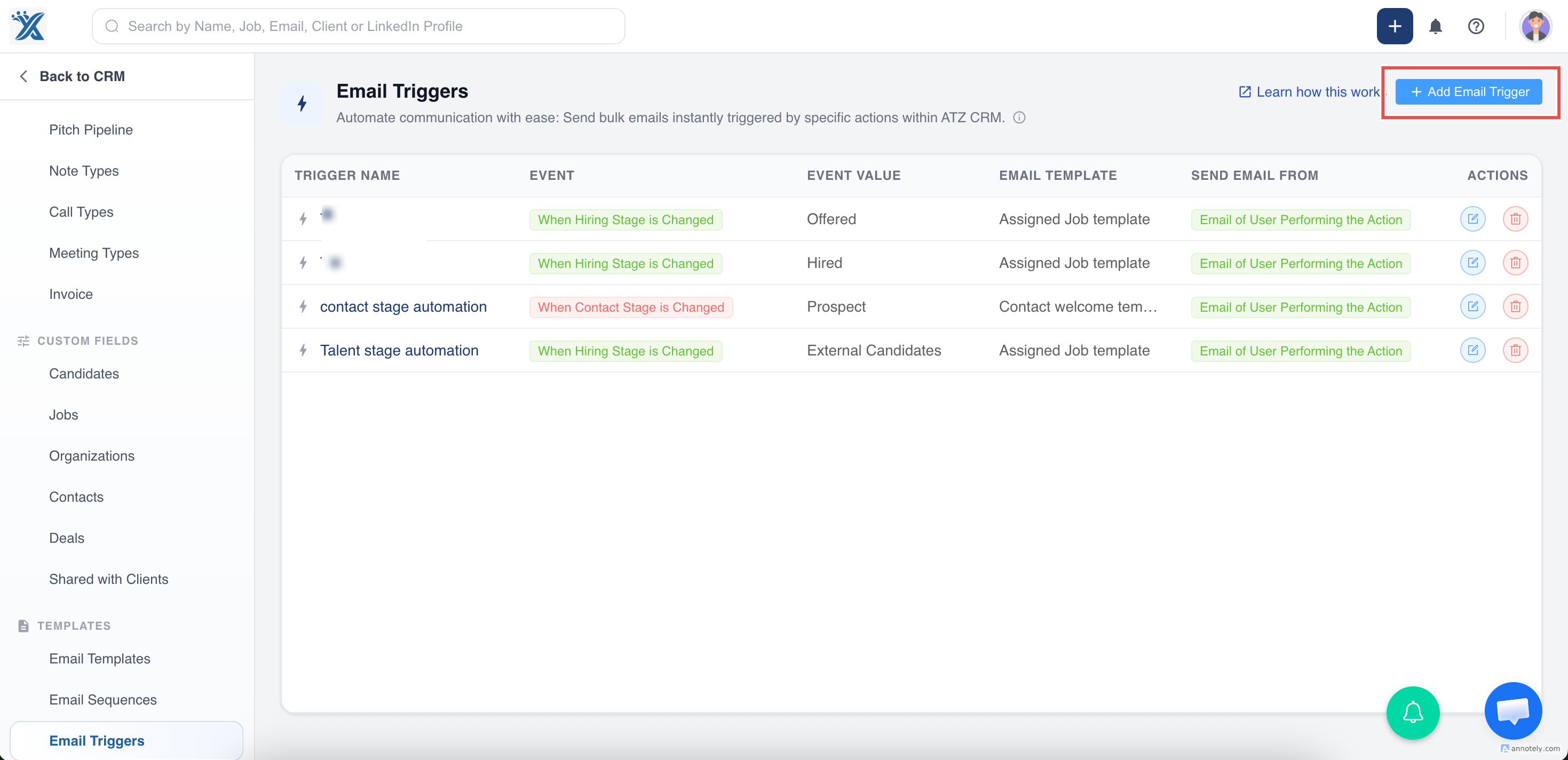
Fill in:
- Name.
- Event, such as Hiring Stage is Changed.
- Event value, such as the selected hiring stage.
- Automated candidate email template.
- Connected sender email.
Save the trigger. No manual activation is required.
How Candidate Triggers Work
When a candidate is moved to the selected stage and a trigger exists, ATZ CRM sends the selected template automatically.
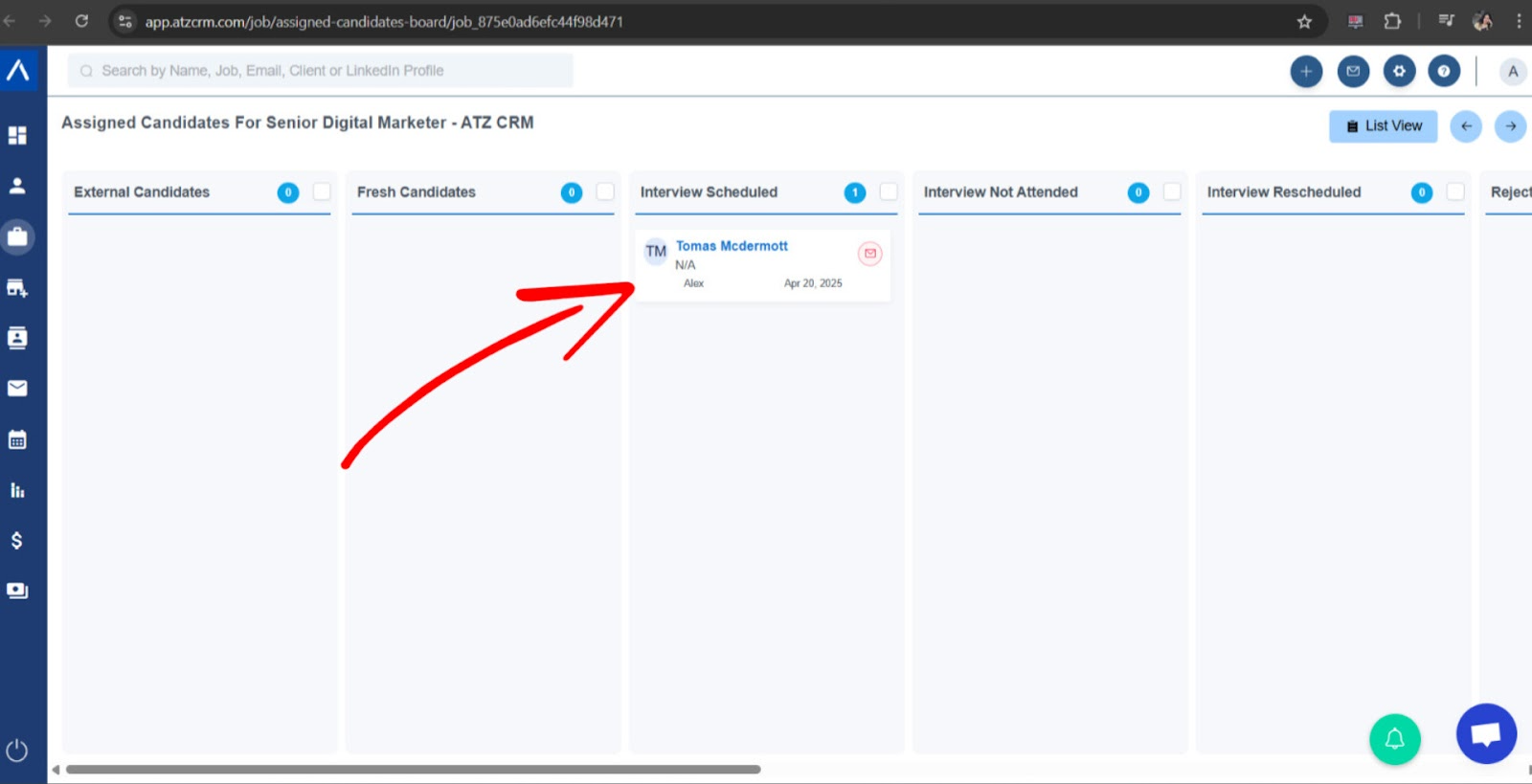
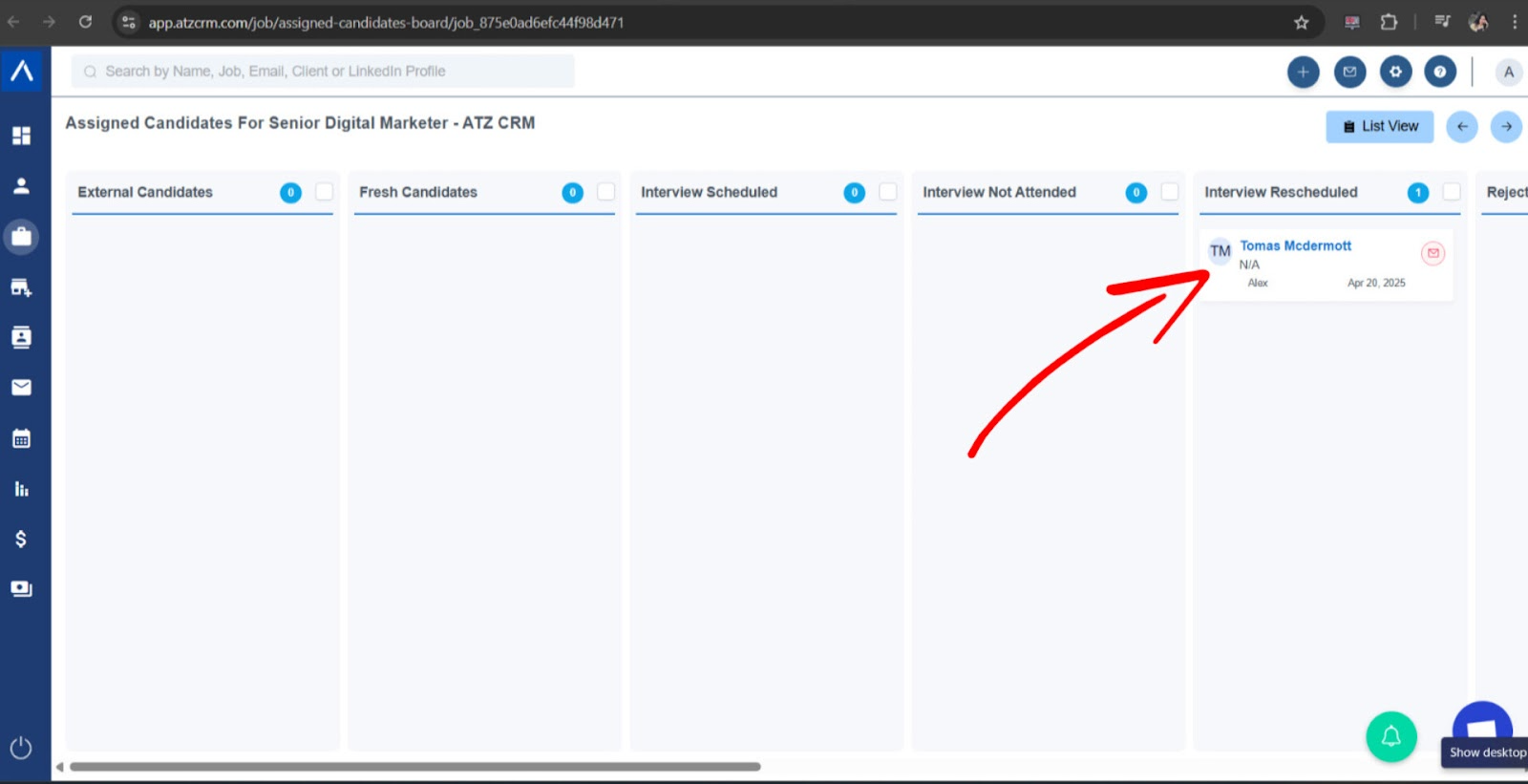
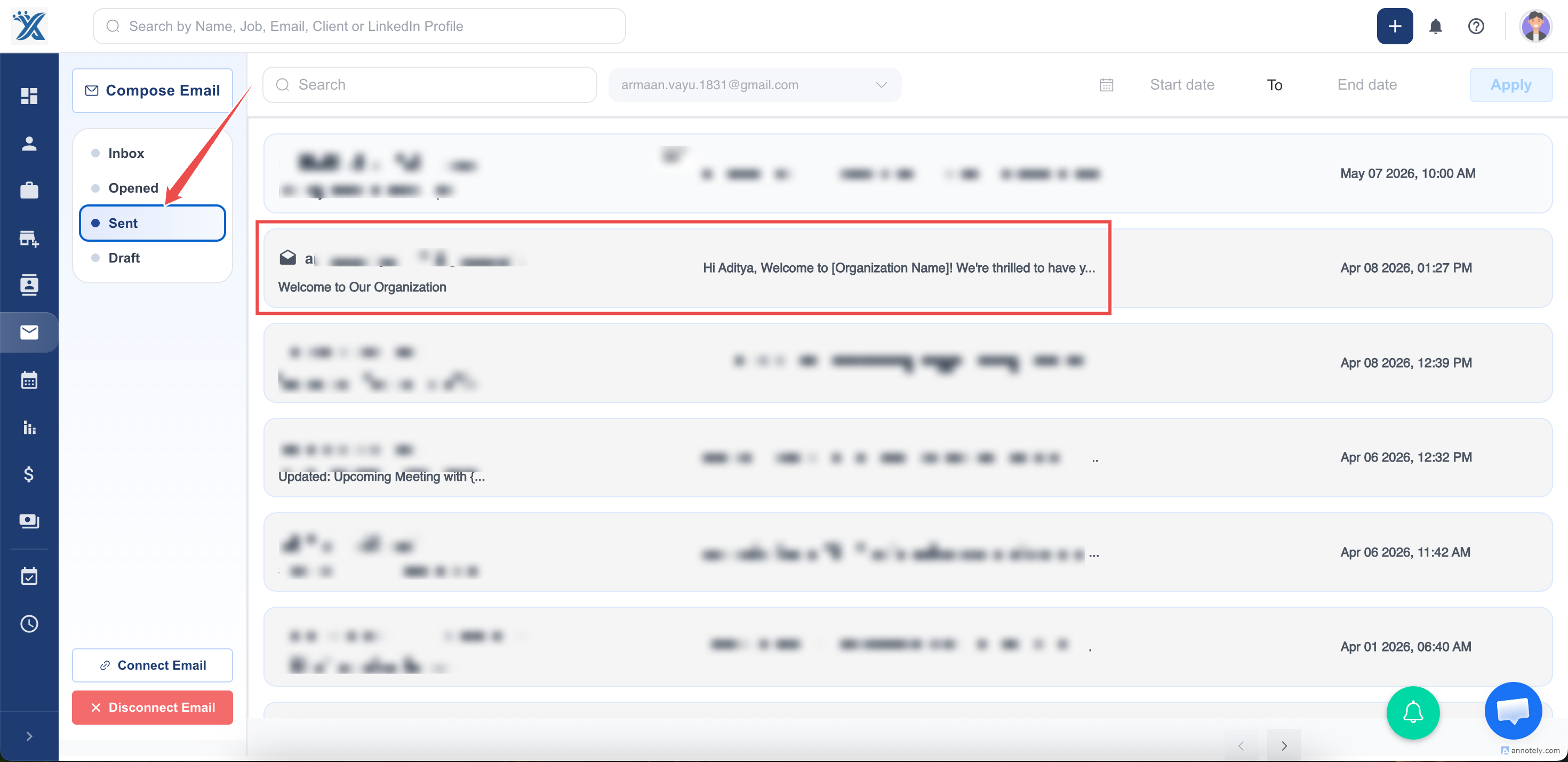
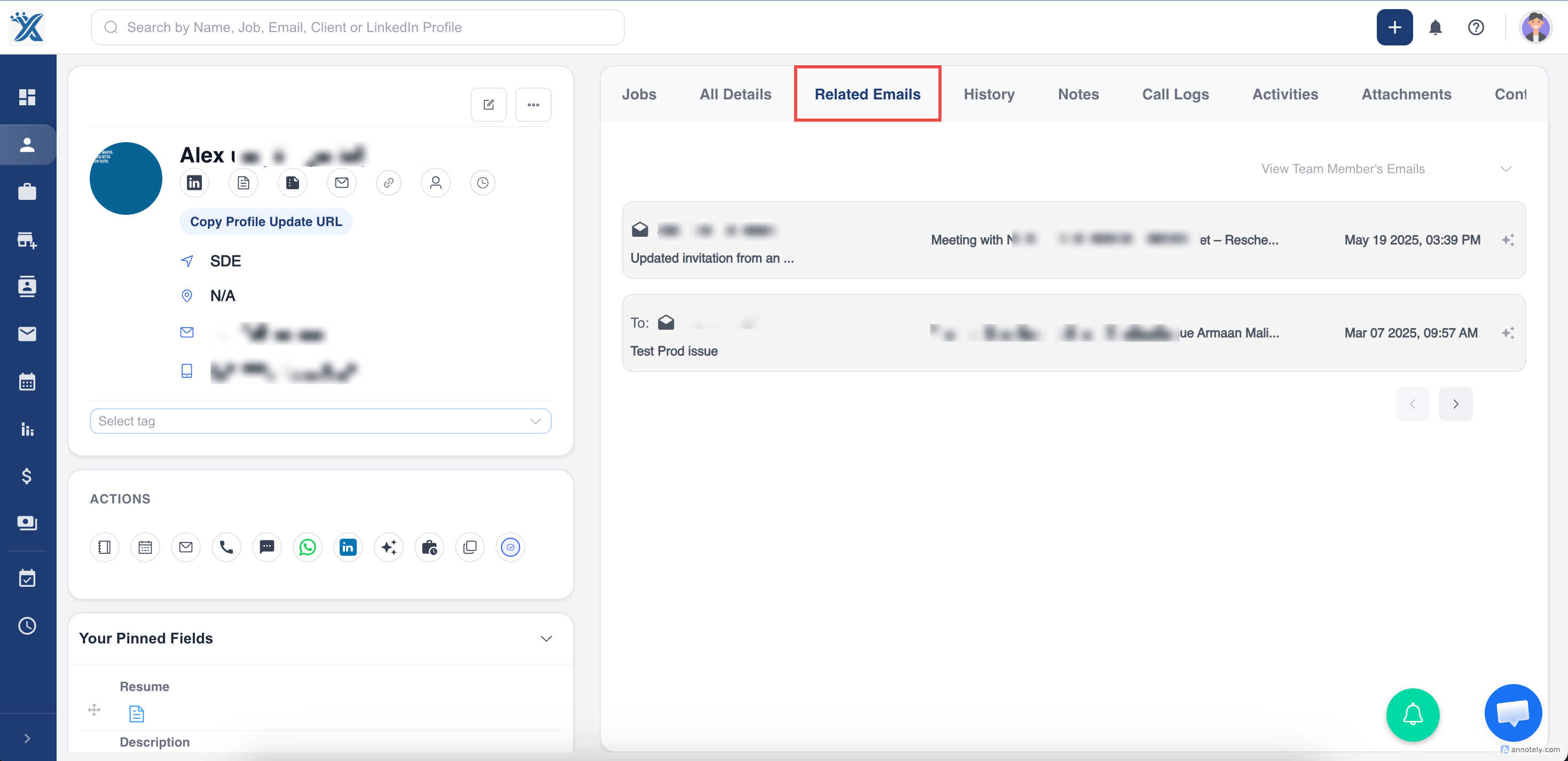
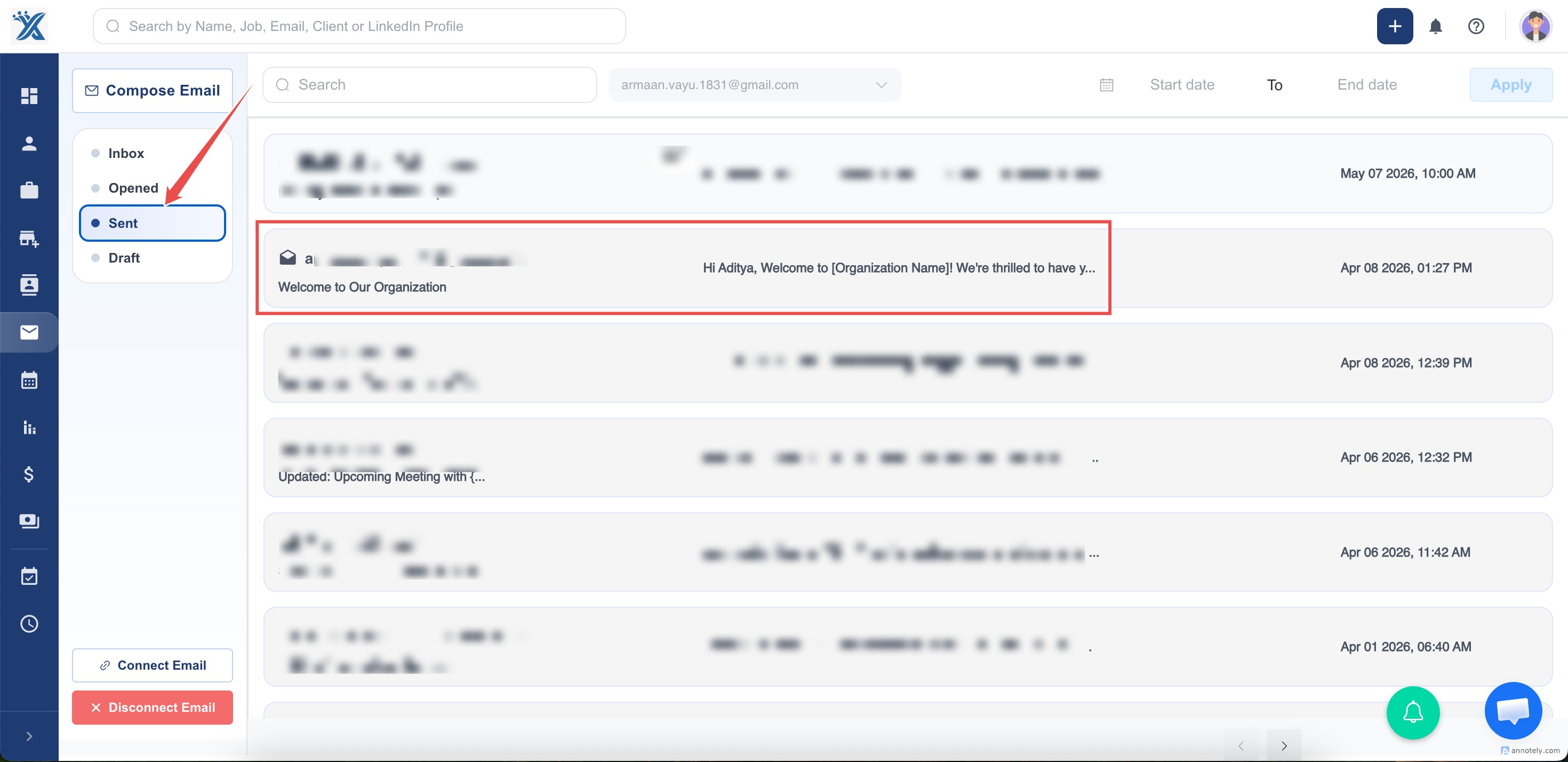
Sent emails appear in the Sent email section and on the candidate detail page.
Contact Email Triggers
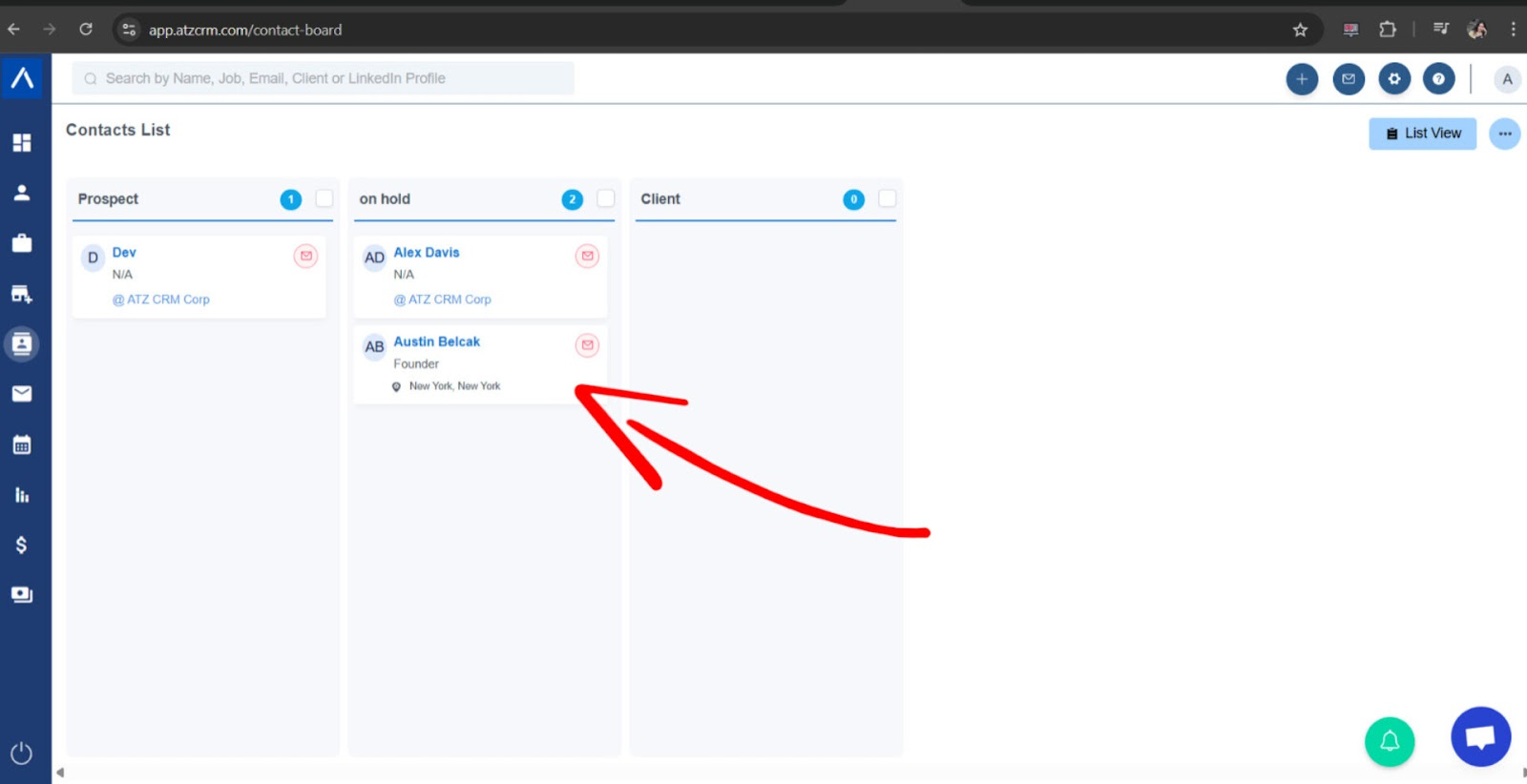
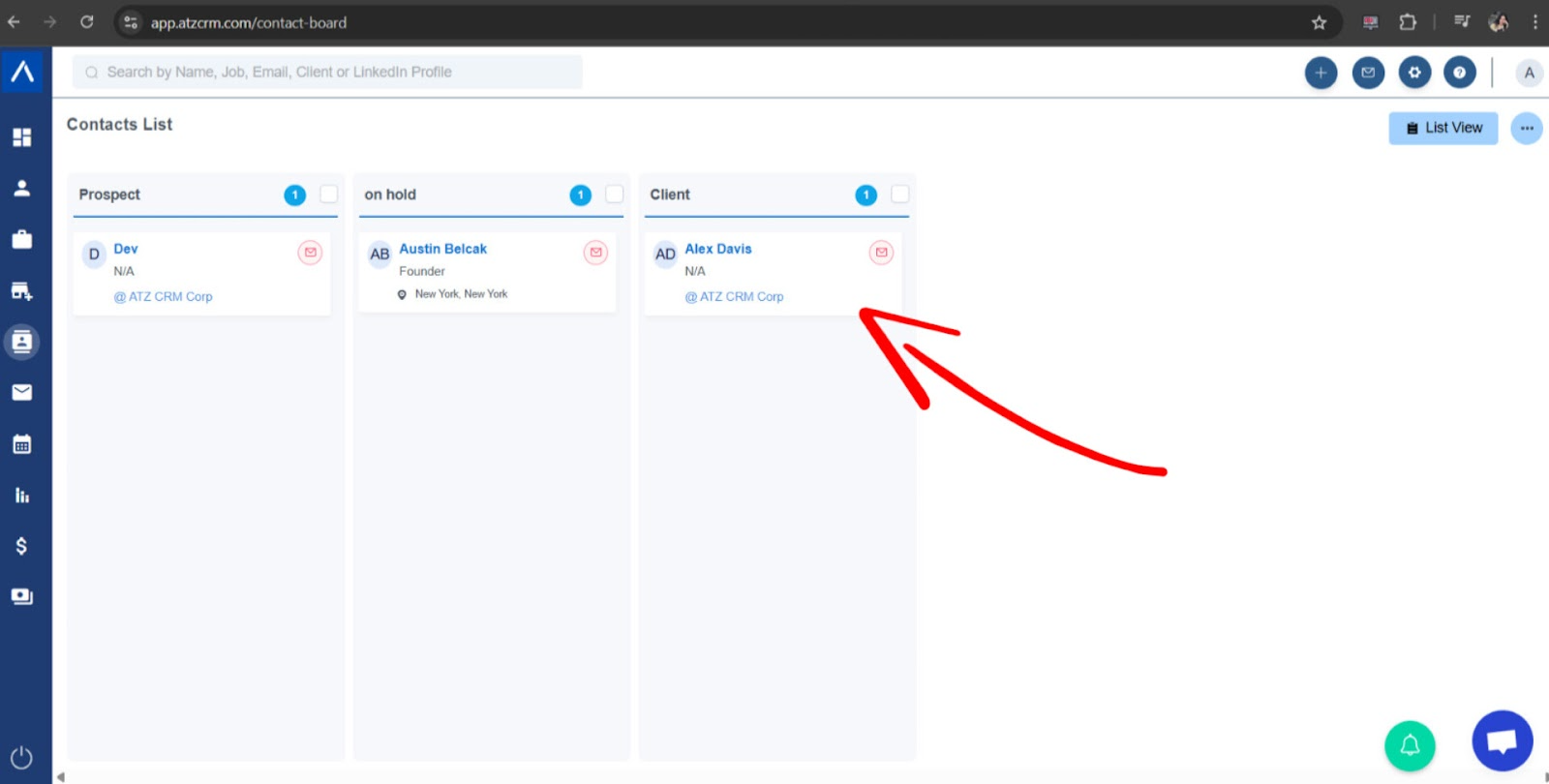
Contact triggers send emails automatically when a contact’s stage is updated.
Set Up a Contact Trigger
Open Admin Settings > Email Trigger.
Click Add Email Trigger.
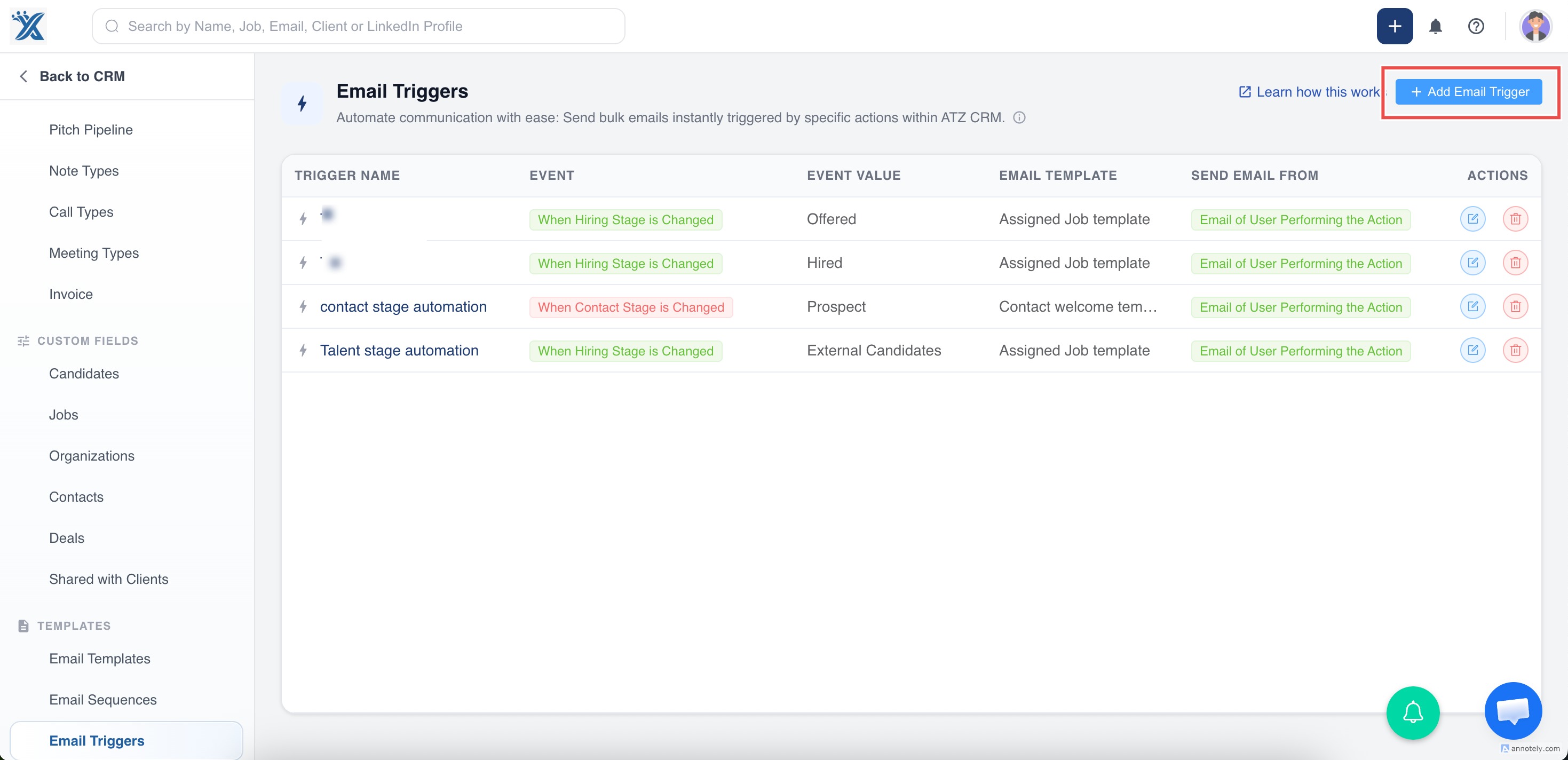
Choose:
- Trigger name.
- Event, such as Contact Stage is Changed.
- Event value.
- Automated contact template.
- Connected sender email.
Save the trigger.
How Contact Triggers Work
When a contact stage is updated and a trigger exists for that new stage, ATZ CRM sends the selected contact template automatically if the contact has an email address.
Triggered emails appear in the Sent email section and on the contact detail page.
Troubleshooting
Trigger Email Was Not Sent
Check whether the sender email is connected, the trigger is saved, the selected stage matches, and the record has an email address.
Template Is Missing
Only automated templates for the correct module appear. Confirm the template module is candidate or contact as needed.
Wrong Email Was Sent
Review the trigger’s event value and selected template.
FAQs
Are trigger emails sent instantly?
Yes. Emails are sent immediately when the matching stage change occurs.
Can triggers be used for both candidates and contacts?
Yes. Candidate and contact triggers are configured separately.
Can I view triggered emails later?
Yes. Review them from the Sent folder or the Emails section on the related record.